
So you just reformatted your computer, and now you’re staring at a list of available WiFi networks, none of which you remember the passwords for. Don’t worry—you’re not alone, and there are several ways to get those passwords back. Whether you formatted Windows, macOS, or Linux, this guide will help you restore your saved WiFi passwords using backups, your router, or another device.
By the end of this article, you’ll have all your WiFi networks reconnected without having to call your ISP or reset your router. We’ll cover methods for each operating system and even show you how to recover passwords from your router’s settings. Let’s dive in.
What You’ll Need
- A backup of your system (if you made one before formatting)
- Access to your router’s admin panel (username/password usually on the sticker)
- Another device that still has the WiFi passwords saved (e.g., smartphone, laptop, or tablet)
- A text editor or command line access on your fresh install
- Patience and a few minutes of your time
Step 1: Check for Existing Backups
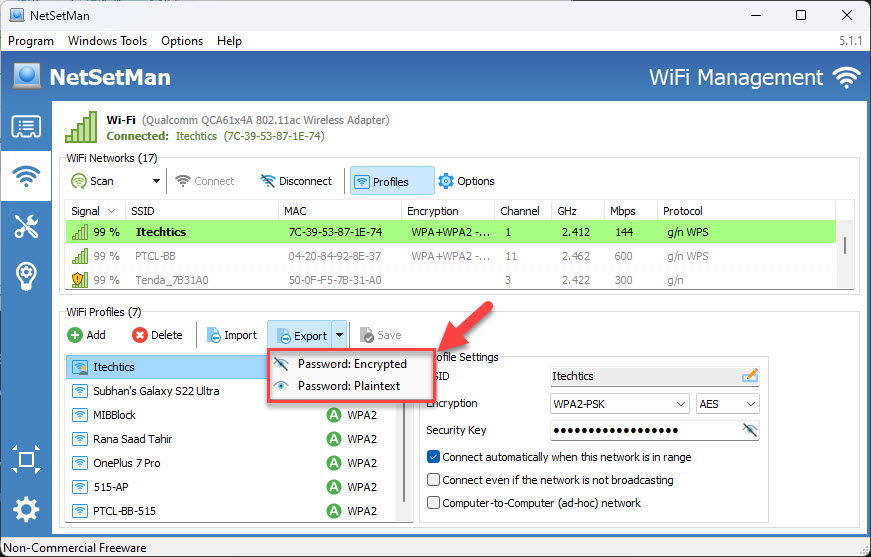
Before you start digging into other methods, check if you have a backup. If you used Windows File History, Time Machine on macOS, or simply copied your home folder on Linux, your wifi passwords might be saved in a backup file. On Windows, look for a backup of the folder C:ProgramDataMicrosoftWlansvcProfilesInterfaces. On macOS, Time Machine backs up the Keychain. On Linux, check for backups of /etc/wpa_supplicant/wpa_supplicant.conf. If you find these files, you can restore them directly. For more details on the Windows process, see our guide on restore wifi passwords on Windows.
Step 2: Retrieve Passwords from Your Router

If you have physical access to the router, you can log into its admin panel to view or reset the WiFi password. Open a browser and enter the router’s IP (usually 192.168.1.1 or 192.168.0.1). Log in with the admin credentials (often found on a sticker). Navigate to the wireless settings section—look for ‘Wireless Security’ or ‘WiFi Settings’. The password will be displayed, often masked but with a show/hide option. Write it down or take a photo. This is one of the easiest wifi password recovery methods without resetting router.
Step 3: Use Another Device That’s Still Connected

If you have a smartphone or another laptop that still connects to your WiFi automatically, you can extract the password from it. On iPhone, go to Settings > Wi-Fi, tap the info icon next to your network, and tap the password field to reveal it (requires Face ID or Touch ID). On Android, go to Settings > Network & Internet > Wi-Fi, tap the gear icon next to your network, and look for a QR code or ‘Share’ option; the password is often shown below the code. On a Windows PC that hasn’t been formatted, you can use the command line (netsh wlan show profile name=NETWORK key=clear). For a complete macOS run-through, check saved wifi password recovery mac.
Step 4: Recover from Command Line (If You Still Have the Old Drive)
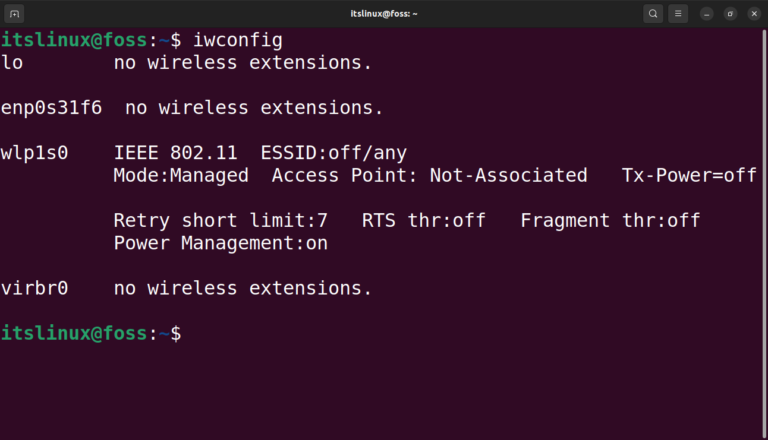
If you haven’t wiped your old drive completely (e.g., you installed a new OS but the old partition still exists), you can boot from a live USB or mount the old drive and extract wifi passwords directly. On Windows, mount the old drive and navigate to C:ProgramDataMicrosoftWlansvcProfilesInterfaces—the XML files contain the passwords in plain text (look for ‘keyMaterial’). On macOS, mount the old drive and open /Library/Keychains/System.keychain (use Keychain Access). On Linux, mount the old root partition and cat /etc/wpa_supplicant/wpa_supplicant.conf—the passwords are usually in plain text or hashed but can be cracked. For a terminal-based approach, our wifi password recovery via terminal guide covers all OSes.
Step 5: Use Cloud Sync (If You Had It Enabled)
If you use a Microsoft account on Windows, your wifi passwords may be synced via OneDrive. On a fresh install, sign in with the same Microsoft account, and some networks may automatically appear. On macOS, iCloud Keychain syncs your wifi passwords across devices—enable it under System Preferences > Apple ID > iCloud > Keychain. On Linux, there’s no built-in cloud sync, but if you use NetworkManager and a cloud service like Nextcloud, you might have a backup. This is essentially a wifi password recovery migration guide scenario.
Step 6: Manually Re-Enter Known Passwords
If all else fails, you can try to remember or guess the passwords. Check if you have them written down in a notebook, in a password manager, or stored in your email. Some routers have the default password printed on the sticker—if you never changed it, that’s your password. You can also ask someone else in your household who might still have the password on their device. If you’re a Linux user, consider setting up a proper backup for next time using our backup wifi passwords linux guide.
Common Pitfalls
- No Backup: You didn’t make a backup before formatting, so the only way left is router or other device access. Always backup your wifi profiles before a clean install—export them or take a screenshot.
- Router Admin Password Changed: If you can’t remember the router admin password, you may need to factory reset the router, which wipes all settings including the WiFi password. Try the default credentials first (usually admin/admin or admin/password).
- Permissions Issues: On macOS, Keychain access might be locked if you formatted without migrating user accounts. You may need to boot into Recovery Mode or use a Terminal to unlock it.
Where to Next
Now that you’ve restored your wifi passwords, take a moment to back them up for the future. On Windows, export your profiles using netsh; on macOS, export your Keychain; on Linux, save your wpa_supplicant.conf. That way, next time you format, you’ll have a painless recovery. Also check out our other guides on wifi password recovery for more tips and tricks.



