
Ever been stuck when a friend asks for your WiFi password and you have no clue what it is? Or maybe you just got a new laptop and want to bring all your saved networks along without typing every password again. This guide is for you. By the end, you’ll know exactly how to restore WiFi passwords on Windows using the built-in netsh tool—no third-party software needed. You’ll be able to view any saved password, back them up to a file, and import them on another PC.
We’ll walk through three simple tasks: viewing a password (handy when you just need to see it), exporting all your profiles (great for backup), and importing them on a different machine (perfect for migration). Plus, I’ll throw in a quick GUI method for the non-command-line folks. Ready? Let’s dive in.
What You’ll Need
- A Windows PC (10 or 11) with administrator access
- The network name (SSID) of the WiFi you want to recover
- Optional: a USB drive or cloud folder to store backups
- A few minutes—this is quick!
Step 1: View a Saved WiFi Password
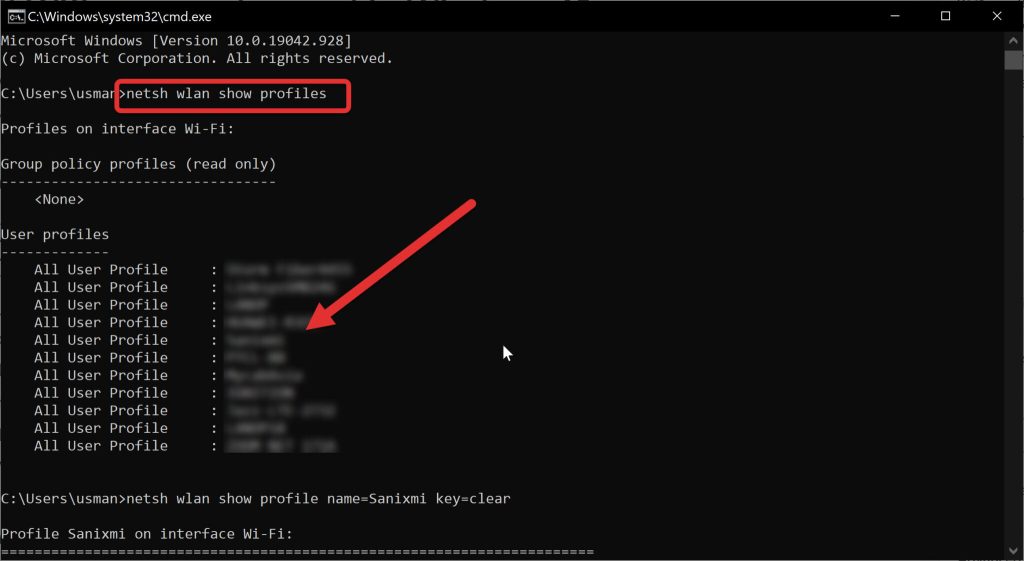
First, open Command Prompt as administrator. Hit the Start button, type “cmd”, right-click “Command Prompt”, and choose “Run as administrator”. This is crucial—netsh commands won’t work without admin rights. Now, type the following to list all saved networks:
netsh wlan show profile
Note the exact name of the network you need. Then run this, replacing “YourSSID” with that name:
netsh wlan show profile name=”YourSSID” key=clear
Look for the line that says “Key Content” under “Security settings”. That’s your WiFi password in plain text. Easy, right? For more ways to retrieve passwords, check out our guide on wifi password recovery with netsh.
Step 2: Export All WiFi Profiles (Backup)
Want to back up all your saved WiFi passwords at once? Use the export command. In the same admin Command Prompt, type:
netsh wlan export profile folder=”C:WiFiBackups” key=clear
This creates a folder (if it doesn’t exist) and saves each network as an XML file with the password inside. The “key=clear” part is essential—without it, the password won’t be stored in plain text. Now you can copy this folder to a USB drive or cloud storage. This method is a big part of any backup wifi passwords windows strategy.

Step 3: Import WiFi Profiles on Another PC
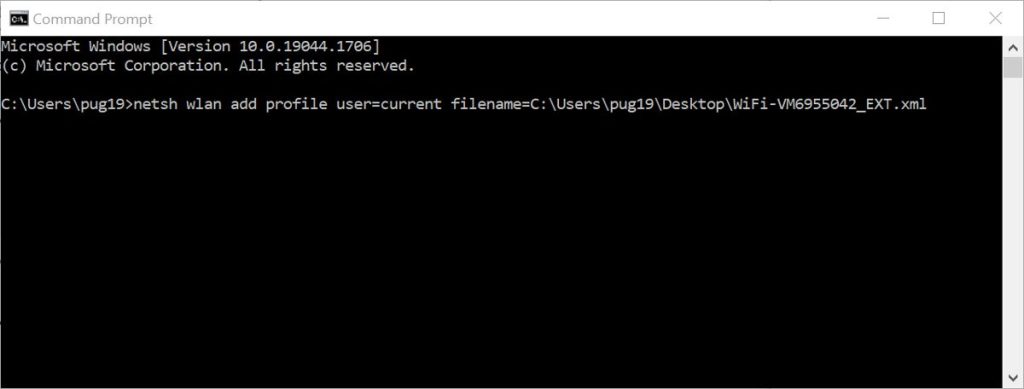
Moved to a new computer? Bring your WiFi profiles along. Copy the XML files from your backup to the new PC. Then open Command Prompt as administrator on that machine and run:
netsh wlan add profile filename=”C:pathtoprofile.xml”
Repeat for each XML file, or combine multiple imports in a batch script. After that, your new PC will automatically connect to all those networks. This saved wifi password recovery command line approach works like a charm.
Step 4: GUI Method (Quick Peek)
Prefer clicking instead of typing? If you’re currently connected to the network, you can see the password through Windows Settings. Go to Settings > Network & Internet > Status > Network and Sharing Center. Click the name of your WiFi next to “Connections”. In the new window, click “Wireless Properties”, then the “Security” tab. Check “Show characters” to reveal the password. This is perfect for a one-off look. For more GUI details, our show wifi password settings article has you covered.

Common Pitfalls
- Not running Command Prompt as administrator – netsh commands will give an error. Always right-click and select “Run as administrator”.
- Exporting without key=clear – if you forget the key=clear parameter, the XML files won’t contain the actual password. They’ll be useless for restoration.
- Sharing XML files carelessly – these files contain your WiFi passwords in plain text. Treat them like your email password. Delete backups once you’re done or store them securely.
Where to Next
Now you’re a pro at restoring WiFi passwords on Windows. But there’s more to explore! If you need to recover passwords on other devices, check our guides on recover wifi password on laptop or wifi password recovery for windows 11. And if you’re moving to a new device entirely, our wifi password recovery migration guide will help you transfer everything smoothly. Happy surfing!



