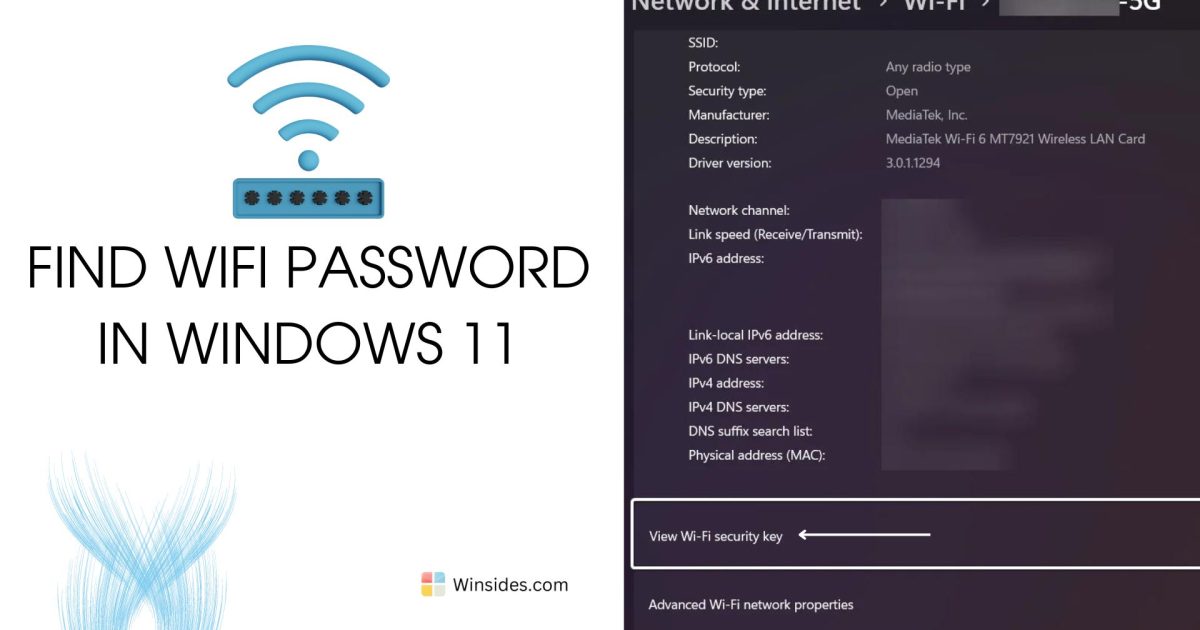
Ever been that person staring at your laptop, completely blanking on the WiFi password? It happens to the best of us. You need to connect a new device, a friend asks for the key, or you just set up a printer and—poof—the password is gone from your memory. If you’re running Windows 11 on your laptop, you’re in luck: the operating system makes it trivially easy to recover any WiFi password you’ve ever connected to, right from the settings menu. This guide is for anyone who has a Windows 11 laptop and needs to retrieve a forgotten network password without installing extra software or digging through ancient router stickers.
By the end of this tutorial, you’ll have the actual plain-text password for your WiFi network copied to your clipboard or written down. We’ll walk through the quick GUI method (no command line needed), and I’ll also mention a few power-user tricks for those who want to go deeper. Let’s get that password back!
What You’ll Need
- A Windows 11 laptop that has previously connected to the WiFi network (or is currently connected).
- Administrator access on the laptop (not strictly required for the GUI method, but handy if you want to use command-line alternatives).
- No third‑party software — everything is built into Windows 11.
Step 1: Open Windows Settings
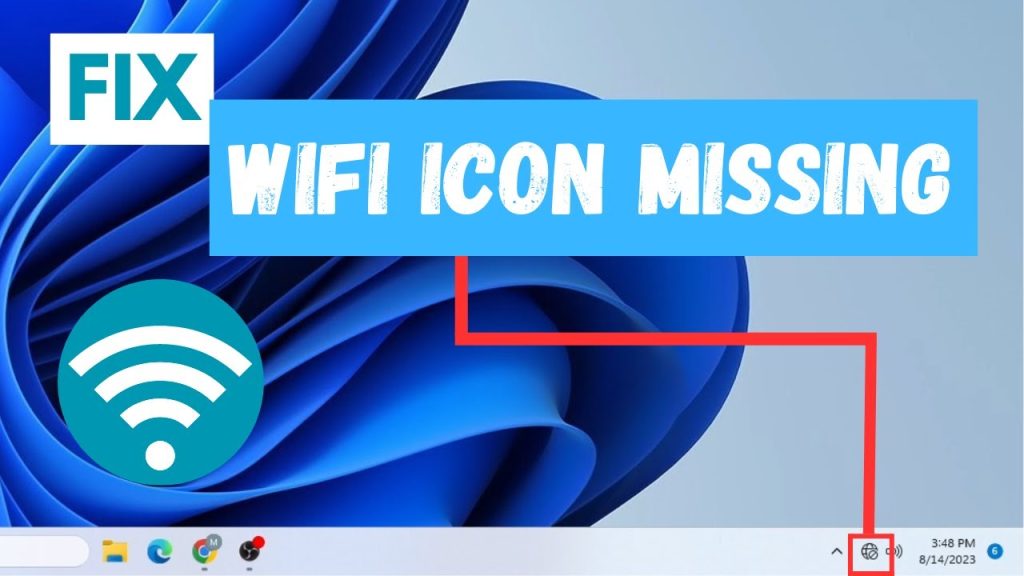
The easiest way to start is by pressing Win + I on your keyboard to open the Settings app. Alternatively, you can right‑click the network icon in the system tray (bottom‑right corner of the taskbar) and select Network & Internet settings. Both paths lead to the same place.
Step 2: Navigate to WiFi Settings
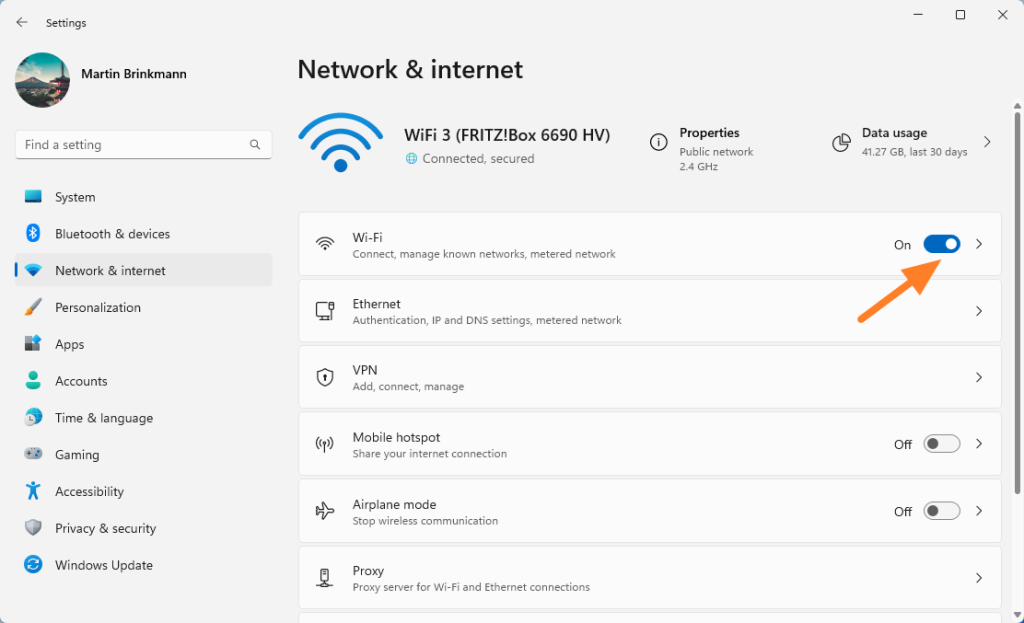
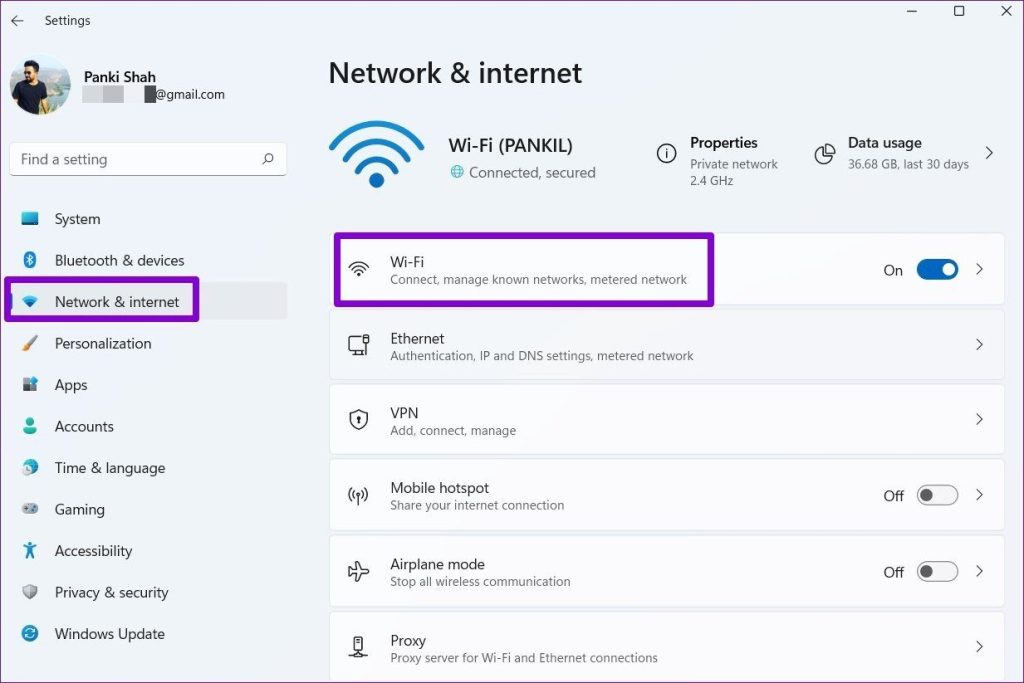
In the Settings window, click on Network & internet in the left sidebar. Then select Wi‑Fi from the main pane. Scroll down until you see Manage known networks and click it. This page lists every WiFi network your laptop has ever saved a profile for.
Step 3: Find Your Network and View the Password
Locate the network name (SSID) you need the password for. Click on it, then select Show password or View network security key (the exact wording may vary slightly depending on your Windows 11 version). A pop‑up will reveal the password in plain text. You can copy it with the Copy button or write it down manually.
Step 4: (Alternative) Use Command Prompt or PowerShell
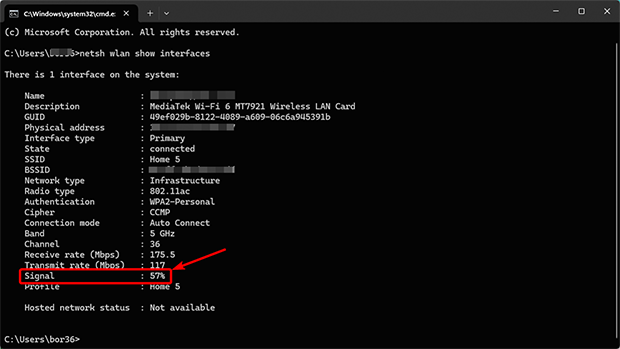
If you prefer the command line or need to recover passwords for networks you’re not currently connected to, you can use the netsh tool. Open Command Prompt or PowerShell as Administrator and run netsh wlan show profile name="YourNetworkName" key=clear. Look for the Key Content field. This method is especially handy for batch recovery or scripting, and you can find a full walkthrough in our dedicated guide on wifi password recovery with netsh. If you’d rather stick to the GUI, the steps above are all you need.
Common Pitfalls
- Network not listed. If you don’t see the network under Manage known networks, either you’ve never connected to it on that laptop (so no password is saved) or the profile has been deleted. In that case, you’ll need to look elsewhere: try the router label, ask your ISP, or use a recovery tool. Check our recover forgotten wifi password from saved profile guide for more tips.
- Administrator rights needed for command line. The netsh method requires an elevated (Admin) command prompt. If you don’t have admin access, stick to the GUI method. For more command-line insights, see our wifi password recovery command prompt tutorial.
- Mistaking the SSID for the password. The network name (like “HomeWiFi”) is not the password. The password is the string that appears under Key Content or Network security key. If you still can’t find it, you might be looking at the wrong network—double-check the name.
Where to Next
Now that you’ve recovered your password, consider taking a few minutes to back it up so you never have to do this again. You can export all your saved WiFi profiles with a simple PowerShell script or use a third‑party tool—check out our backup wifi passwords windows article for step‑by‑step instructions. If you’re curious about other recovery methods (like using a browser or your router’s admin panel), browse our wifi password recovery tips page or explore the best wifi password recovery program list for advanced options.



