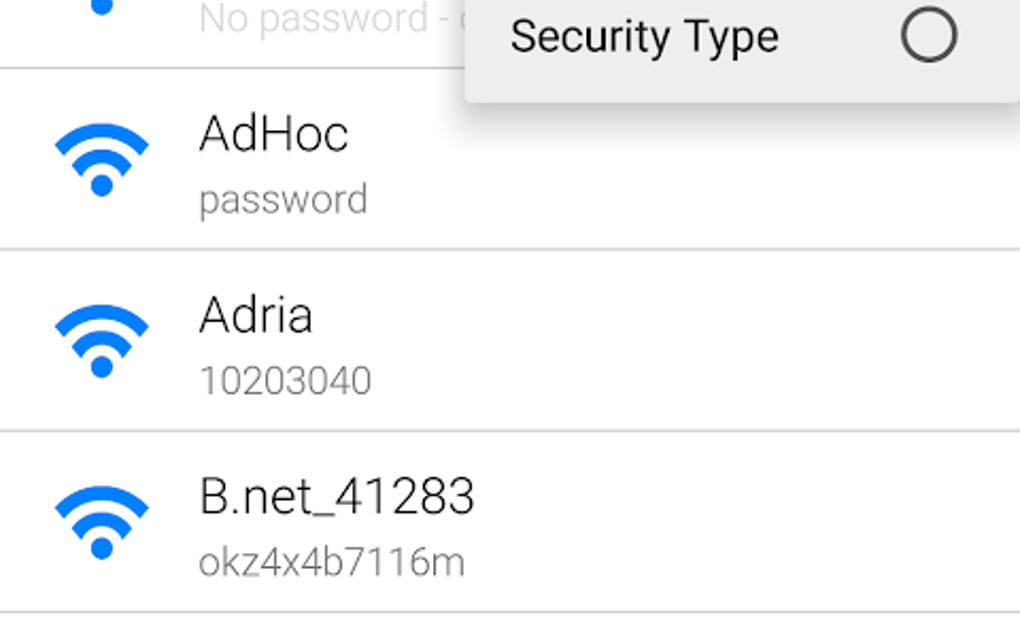
Forgot your WiFi password and your Android phone is still connected? No worries—you don’t need root access to retrieve it. This guide is for anyone who has a saved WiFi network on their Android device (smartphone or tablet) and wants to view the password without rooting the phone. By the end, you’ll know several methods to recover that password, from using built-in Android features to a simple ADB command or a third-party app. All methods are tested on Android 9 to 14.
We’ll cover four main approaches: the QR code share trick (Android 10+), the saved networks menu (older Android), ADB backup, and a reputable third-party app. No root, no complicated hacks—just straightforward steps. If you need to access the password for a network you’re currently connected to, you can use the first method in seconds. For networks you’ve connected to in the past, other methods come in handy.
What You’ll Need
- An Android phone or tablet (any brand: Samsung, Google Pixel, OnePlus, Xiaomi, etc.)
- Internet connection for downloading apps (if using third-party method)
- USB cable and a computer (for ADB method only)
- A few minutes of patience
Step 1: Use the Built-in WiFi Share Feature (Android 10 and up)
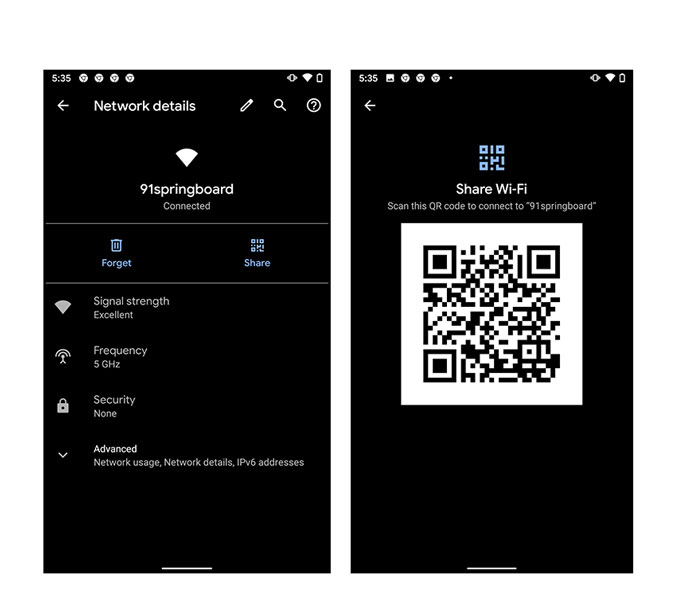
This is the easiest method if you are currently connected to the WiFi network. Android 10 introduced a native QR code sharing feature that displays the password in plain text as part of the QR code info. Here’s how:
- Open the Settings app on your Android device.
- Tap on “Network & internet” or “Connections” (depends on your phone model).
- Select “WiFi”.
- Tap the gear icon next to the network you are connected to (or tap the network name).
- Tap the “Share” button or the QR code icon (often at the bottom right).
- You may be prompted to verify your lock screen PIN, pattern, or password.
- After verification, a QR code appears on the screen. Below the QR code, you’ll see the WiFi password in plain text (e.g., “Password: MyWiFiPass123”).
- Write it down or take a screenshot.
That’s it! You’ve recovered the password without any extra tools. If you want a more detailed walkthrough for this method, check out our wifi password recovery tutorial android post.
Step 2: Check Saved Networks (Android 9 and below)
On older Android versions (9 and earlier), you can sometimes find the password directly in the saved network details. The exact steps vary by manufacturer, but here’s the general approach:
- Go to Settings > Network & Internet > WiFi.
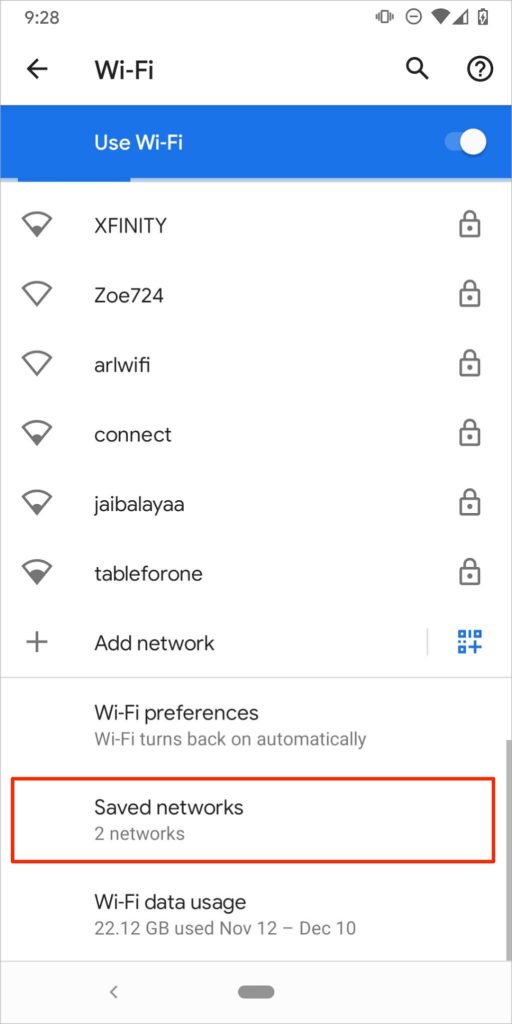
- Tap “Saved networks” or “Wi-Fi preferences”.
- Find the network you want the password for and tap it.
- Look for a “Show password” checkbox or a “Password” field that says “Show” or an eye icon.
- If you see it, tap it and the password will be revealed.
- If there’s no option, proceed to the next method.
Step 3: Retrieve via ADB Backup (Advanced, Works on Most Versions)
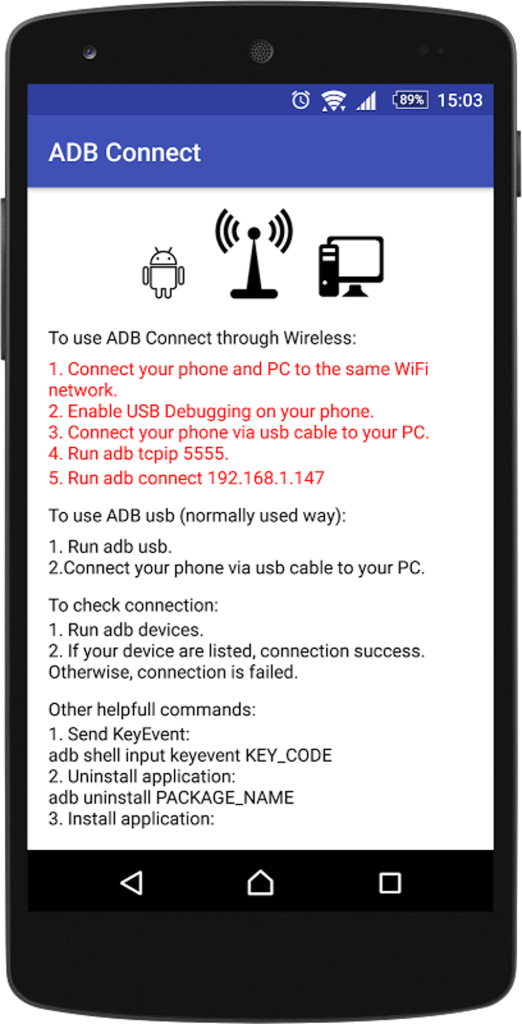
This method uses Android Debug Bridge (ADB) to extract the WiFi configuration file from your phone. You’ll need a computer and a USB cable. It works on any Android version, even if the share feature is missing. First, enable Developer Options on your phone:
- Go to Settings > About phone > Tap “Build number” 7 times until you see “You are now a developer”.
- Go back to Settings > System > Developer options.
- Enable “USB debugging”.
- Connect your phone to your computer via USB.
Now on your computer, open a terminal/command prompt. Ensure you have ADB installed (platform-tools from Android SDK). Then run these commands:
adb backup -f wifi_backup.ab -noapk com.android.providers.settings
# Then on your phone, confirm the backup (no password needed, tap “Back up my data”)
After the backup completes, you need to extract the data. Use a tool like Android Backup Extractor (abe.jar) to convert the .ab file to a .tar file, then extract it. Inside the extracted folder, navigate to “apps/com.android.providers.settings/db” and find the file “settings.db”. Open this SQLite database with a tool like DB Browser for SQLite (or sqlite3 command line). Run the query:
SELECT value FROM secure WHERE name=’wifi_config’;
The output will contain the WiFi network SSID and password. This method is a bit technical but works reliably. For a more visual guide, see our show wifi password android post.
Step 4: Use a Third-Party App (No Root, but Needs a One-Time Setup)
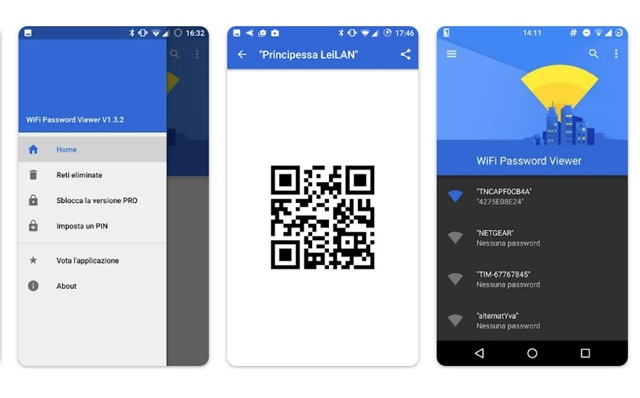
Several apps on the Google Play Store can display saved WiFi passwords without root. They work by reading the WiFi configuration file (wpa_supplicant.conf) which normally requires root, but on some Android versions, they can access it via a workaround. One popular option is “WiFi Password Viewer” (by Xefforo). Steps:
- Install “WiFi Password Viewer” from the Play Store.
- Open the app. It will show a list of saved networks.
- Tap on any network to see the password below it.
- If the app asks for permission, grant it.
- Note: On Android 11+, you may need to use the app’s companion PC tool to activate it. Follow the in-app instructions—it’s a one-time setup.
This method is the simplest if you’re okay with installing an additional app. Make sure to read reviews and choose a reputable app. For additional tips, check our wifi password recovery tips article.
Common Pitfalls
- The QR code share feature doesn’t show password: On some manufacturer skins (e.g., Samsung One UI before version 3.1), the share feature only shows the QR code without the plain text password. In that case, scan the QR code with another phone or use a QR code reader app to decode it. The decoded content will include a line like “WIFI:S:MySSID;T:WPA;P:MyPassword;;”.
- ADB backup fails or “secure backup” not supported: Older Android versions (before 4.1) do not support ADB backup. Also, some manufacturers disable full backup. If you get an error, try the third-party app method instead.
- Third-party app requires root on newer Android: Android 11 and above restrict access to WiFi configuration. Most apps now require a one-time PC setup to grant permission. Follow the instructions carefully—if the app claims to work without any setup on Android 12+ and without root, it’s likely a scam. Stick with well-known apps.
Where to Next
Now that you’ve recovered your WiFi password, consider backing it up so you never lose it again. Learn how to backup wifi passwords to cloud or use a password manager. Also, if you need to recover a password from a different device, check our guides for recover forgotten wifi password from saved profile or for Windows computers. And if you ever face similar issues, remember these tricks can save you from calling the ISP.



