Ever been locked out of your own WiFi? Or maybe a guest asked for the password and you drew a blank. Don’t worry — you don’t need to call your ISP or reset the router. There are plenty of free programs and built‑in tools that can dig up that lost network key in seconds. This guide covers the best WiFi password recovery programs for every major platform: Windows, macOS, Linux, Android, and iPhone.
By the end, you’ll know exactly how to recover any saved WiFi password using whatever device you have handy. We’ll walk through command‑line tricks, GUI utilities, and even your phone’s settings. No technical degree required — just follow along.
What You’ll Need
- A computer or phone that has previously connected to the WiFi network
- Administrator or root access (for some methods)
- About 10 minutes of your time
- Optional: a USB drive if you want to backup passwords for safekeeping (check out our guide on backup wifi passwords windows)
Step 1: Use Windows Command Prompt (Netsh)
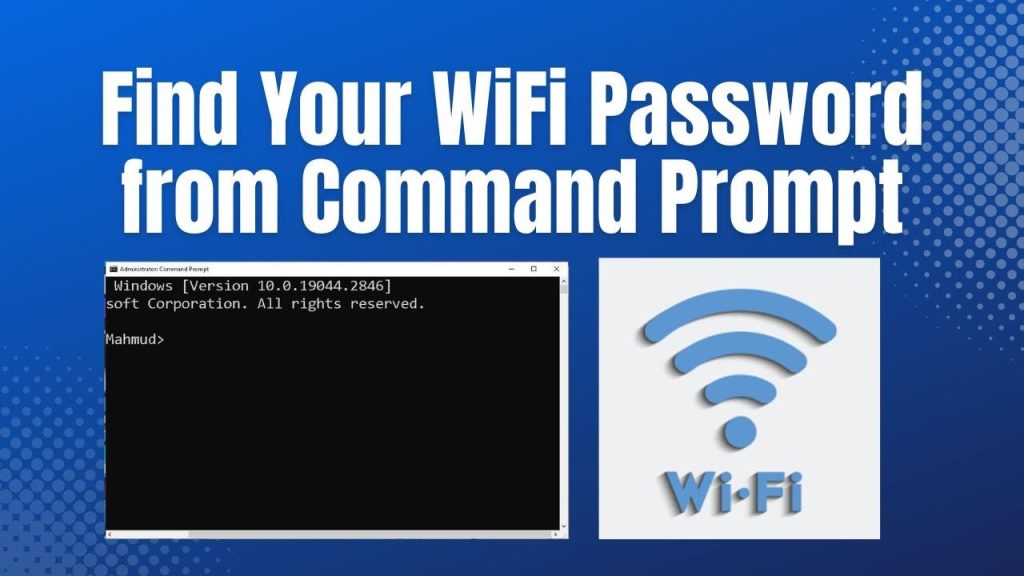
Windows has a built‑in tool called Netsh that can reveal any saved WiFi password. It’s the fastest method and doesn’t require any extra software. Just open Command Prompt as Administrator and run a couple of commands. For a full breakdown, see our dedicated post on wifi password recovery with netsh.
Step 2: Use macOS Keychain Access
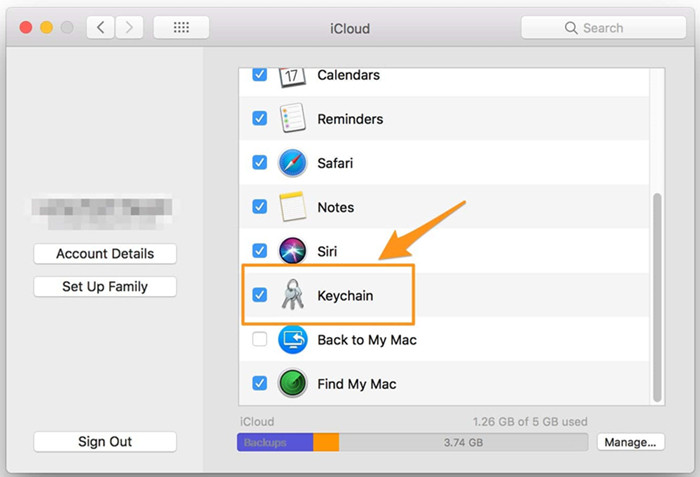
On a Mac, all your saved passwords live in the Keychain Access app. Open it from Applications > Utilities, search for your WiFi network, double‑click it, and check “Show password.” You’ll need your Mac’s admin password to reveal it.
Step 3: Use Android (QR Code or File)
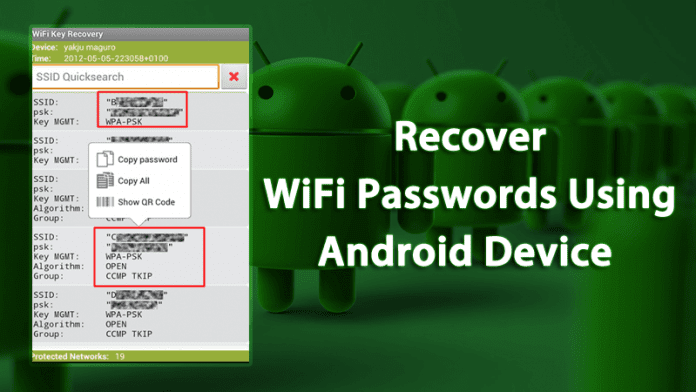
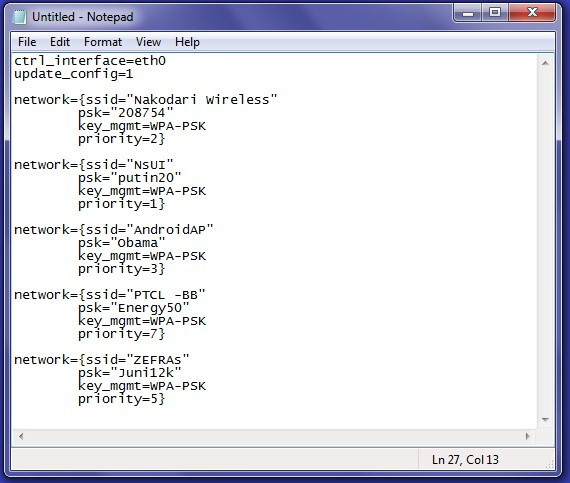
Android 10 and later let you view the WiFi password directly in Settings. Go to Network & Internet > WiFi, tap the gear icon next to your network, and select “Share.” A QR code appears — and below it, the password is displayed in plain text. For older Android versions, you might need a file explorer to read the wpa_supplicant.conf file. For more detail, check out our guide on wifi password recovery from mobile.
Step 4: Use iPhone (iCloud Keychain)
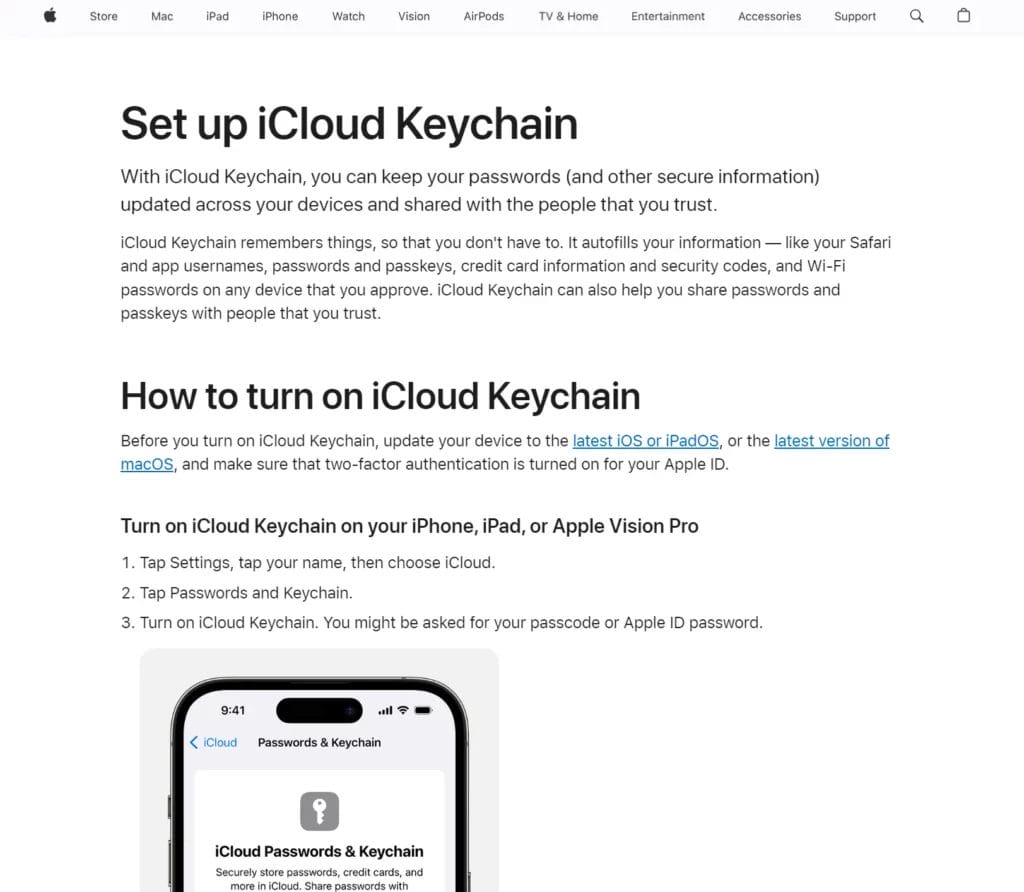
On an iPhone, saved WiFi passwords are synced via iCloud Keychain. To retrieve one, you’ll need a Mac that’s logged into the same iCloud account. On the Mac, open Keychain Access and search for the network (similar to Step 2). If you don’t have a Mac handy, you can also use a third‑party tool like iMazing, but that’s a paid option.
Step 5: Use Linux Terminal
Linux stores WiFi credentials in /etc/NetworkManager/system-connections/. Open a terminal and run sudo cat /etc/NetworkManager/system-connections/ and look for the psk= line. Alternatively, you can use the nmcli command: nmcli -s device wifi list. For a complete walkthrough, see our article on forgotten wifi password recovery linux.
Step 6: Try Third‑Party Programs
If the built‑in methods aren’t enough, there are free third‑party tools that can recover WiFi passwords. WirelessKeyView (Windows) scans and displays all saved network keys. WiFi Password Revealer (Mac) does the same with a simple GUI. For more advanced options, you can also use a browser to access your router’s admin page — we have a guide on wifi password recovery with browser that walks you through that.
Common Pitfalls
- Forgot to run as Administrator on Windows — netsh commands won’t work without elevated privileges.
- Network not saved on the device — you can only recover passwords that have been stored previously. If you never connected, try logging into your router instead. Our guide on recover wifi password from isp router can help.
- Third‑party tools flagged as malware — some freeware may trigger antivirus alerts. Stick to well‑known utilities like WirelessKeyView or use the built‑in methods when possible.
Where to Next
Now that you’ve recovered your WiFi password, consider creating a backup so you never get locked out again. We’ve got guides on backing up passwords to the cloud and exporting them before formatting your device. Also, if you’re managing a business network, check out our business WiFi password recovery tips.



