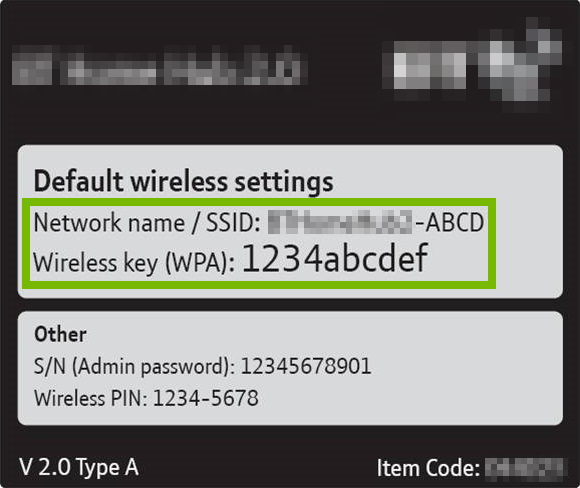
Did you just realize you can’t find the sticker on your ISP router with the WiFi password? Or maybe the sticker has worn off. Don’t worry—recovering that password is easier than you think. This guide is for anyone who has access to their ISP-provided router but can’t remember the Wi‑Fi key. By the end, you’ll have your network password in hand, no phone calls to tech support needed.
We’ll walk through logging into your router’s admin panel—the same way you might do a wifi password recovery with browser on any router. These steps work for the vast majority of ISP routers from Comcast, Spectrum, AT&T, Verizon, and others. You don’t need any special software, just a computer or phone that’s already connected to your network.
What You’ll Need
- A device (laptop, desktop, or phone) connected to your WiFi network (or via Ethernet cable).
- The router’s IP address (usually 192.168.1.1, 192.168.0.1, or 10.0.0.1).
- The router’s admin username and password (check the sticker on the router or the ISP’s documentation).
- A web browser (Chrome, Firefox, Safari, Edge, etc.).
Step 1: Find Your Router’s IP Address
The router’s admin page lives at a private IP address. To find it on Windows, open Command Prompt and type ipconfig. Look for the “Default Gateway” under your active network adapter. On macOS, go to System Settings > Network > Wi‑Fi > Details > Router. On Android, you can find it in Wi‑Fi settings under network details. That IP address is what you’ll type into your browser. If you’re doing a modem password recovery, the same IP usually works for combo modem-router units.
Step 2: Log Into the Router Admin Page
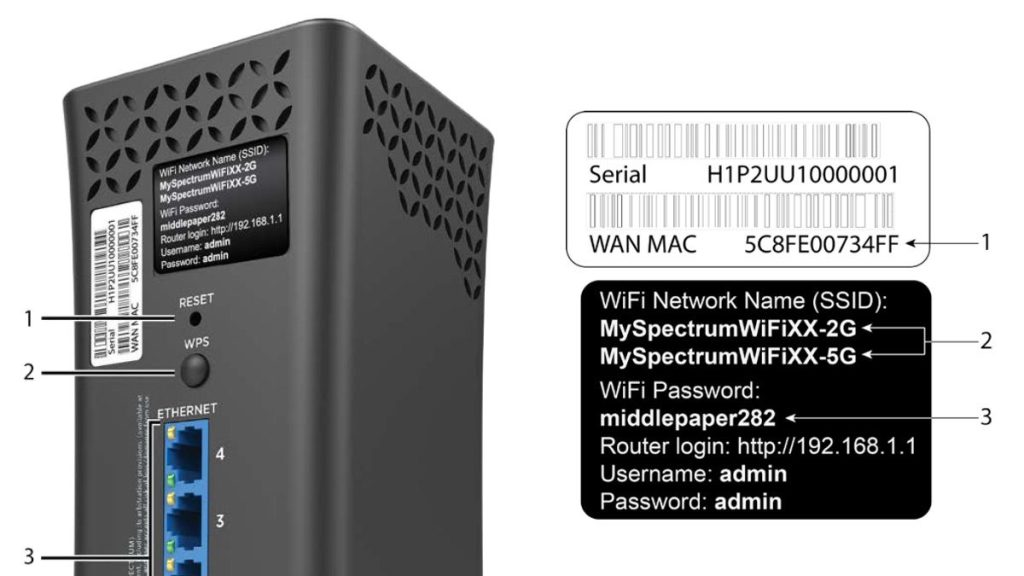
Open your browser and enter the router’s IP address in the address bar. Press Enter. You’ll see a login prompt. Enter the admin username and password. If you never changed them, they’re often on a sticker on the router itself. Common defaults: admin/admin, admin/password, or admin/1234. If you changed the admin password and forgot it, you may need to reset the router to factory defaults (more on that in pitfalls). Once logged in, you’re inside the control panel. For a deeper dive into the Command Prompt method to find your gateway, check that article.
Step 3: Navigate to WiFi / Wireless Settings
Every router’s interface looks different, but look for a tab or menu named “Wireless,” “Wi‑Fi,” “Network,” or “Setup.” Sometimes it’s under “Advanced.” Once you find it, look for a sub-section like “Wireless Security” or “Security.” This is where the WiFi password (also called the pre-shared key or network key) is stored. If you have multiple SSIDs (like a 2.4GHz and 5GHz), the password might be different for each—but often it’s the same. If you’ve previously done a saved WiFi profile recovery on a Windows PC, the process is conceptually similar.
Step 4: Find the WiFi Password
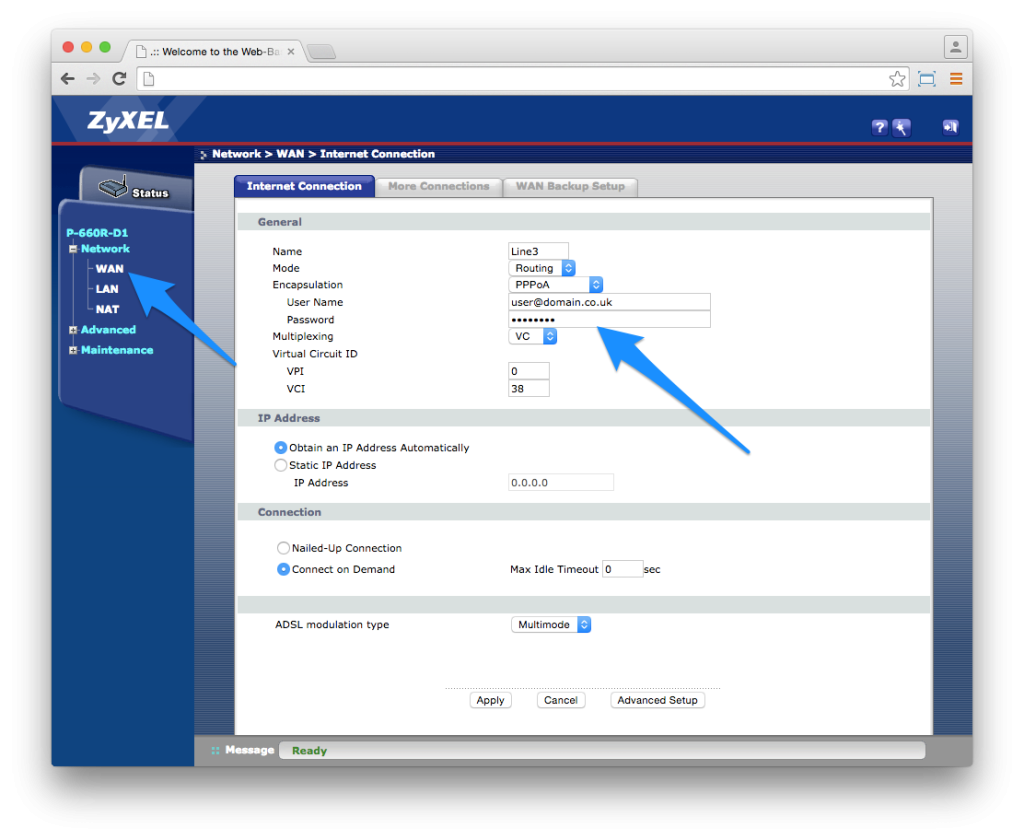
On the wireless security page, look for a field labeled “Passphrase,” “WPA Pre-Shared Key,” “Network Key,” or “Wireless Password.” It’s often masked with dots or asterisks. If there’s a “Show” or “Reveal” checkbox, click it to see the actual password. Write it down or take a photo. If you don’t see the password at all, it might be hidden. Some ISP routers (like Xfinity or AT&T gateways) display the password in a read-only field. In that case, copy it exactly. For a refresher on finding passwords from your computer, see the Android WiFi password recovery guide if you’re on a phone.
Step 5: If the Password Is Hidden, Change It (Optional)
Some routers let you change the password to something you’ll remember. If you can’t reveal the existing one (no show checkbox), you can set a new password. Just type a new passphrase in the same field, then click Save or Apply. Warning: Changing the password will disconnect all currently connected devices—you’ll need to reconnect them with the new key. After saving, the password is updated. To avoid losing it again later, consider using a password manager or backup your WiFi passwords to the cloud.
Common Pitfalls
- Forgot the admin password. If you never changed it, check the router sticker. If you did, you’ll need to factory reset the router (hold a paperclip in the reset hole for 10 seconds). After reset, set up the router again with the default sticker password. Remember to change the admin password to something you’ll remember!
- Can’t reach the admin page. Make sure you’re connected to the router’s network (either via WiFi or Ethernet). Try using an Ethernet cable if WiFi isn’t working. Double-check the IP address; it might be different from the usual ones (e.g., Spectrum uses 192.168.1.1 but some use 10.0.0.1).
- The password field shows asterisks and no reveal option. In this case, you can either change the password (if allowed) or view the page source (Ctrl+U) and search for “passphrase” or “pwd”—the value might be in plain text in the HTML. Be careful not to change anything you don’t understand.
Where to Next
Now that you have your WiFi password back, consider writing it down in a secure place or storing it in a password manager. If you want to learn more ways to recover passwords on different devices, check out the safest recovery method or explore free recovery utility options. And if you ever need to get into a router that doesn’t belong to you, remember to always ask for permission first!



