Ever had that moment when you need to reconnect a device to WiFi but can’t remember the password? Or maybe you’re about to reformat your PC and don’t want to lose all those saved network keys. This guide is for anyone running Windows who wants a simple, built-in way to backup all their WiFi passwords. By the end, you’ll have a neat text file or folder with every saved Wi-Fi profile and its password in plain sight. No extra software needed.
Whether you’re a casual user or a tech enthusiast, backing up your WiFi passwords is a smart move. It saves you from hunting down stickers on routers or calling your ISP. If you’ve ever had to recover WiFi password using Command Prompt for a single network, you’ll love how easy it is to export them all at once. Plus, if you ever need to recover WiFi passwords from backup, you’ll be glad you took five minutes to do this now.
What You’ll Need
- A Windows PC (Windows 7, 8, 10, or 11 all work)
- Administrator access to run Command Prompt
- A folder to save your backup (e.g., C:WiFiBackup)
- Optional: A USB drive or cloud storage for safekeeping
Step 1: Open Command Prompt as Administrator
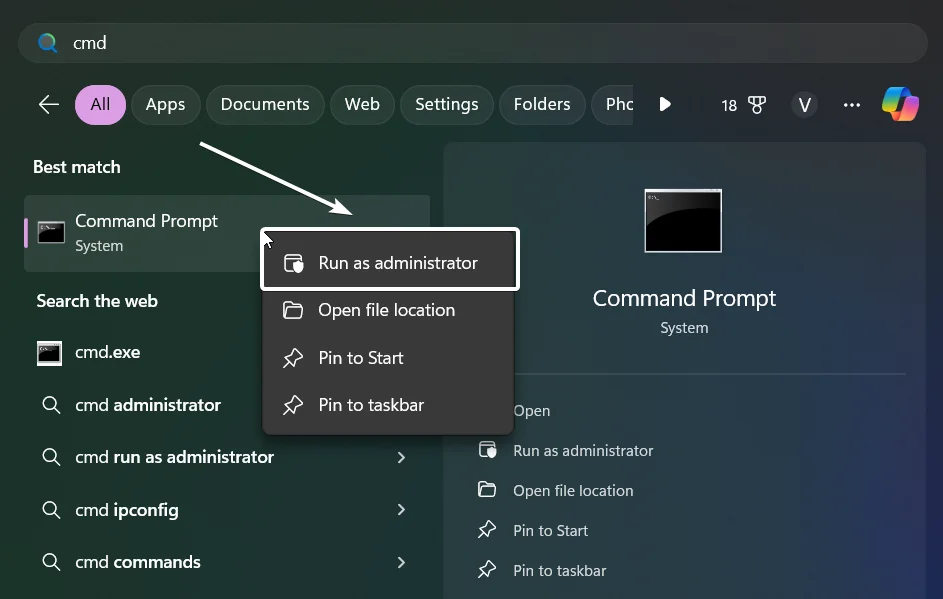
First, click the Start button, type cmd, right-click on Command Prompt in the results, and select Run as administrator. If prompted by User Account Control, click Yes. This step is crucial because regular user mode won’t let you export the passwords.
Step 2: Export All WiFi Profiles
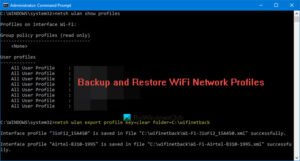
In the Command Prompt window, type or paste the following command and press Enter: netsh wlan export profile folder=C:WiFiBackup key=clear. Replace C:WiFiBackup with any folder you prefer. The key=clear part tells Windows to include the password as plain text in the export files. If you skip that, the password will be asterisked out. After a few seconds, you’ll see a message like “Profiles exported successfully.”
Step 3: Locate Your Exported Files
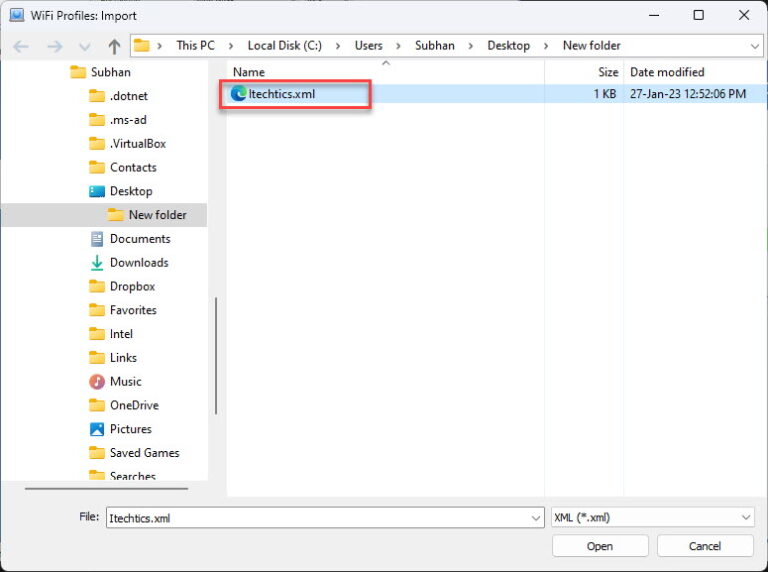
Open File Explorer and navigate to the folder you specified (e.g., C:WiFiBackup). You’ll see one XML file per saved WiFi network. Each file is named after the network’s SSID (e.g., MyHomeNetwork.xml). Right-click any file and open it with Notepad to see the password inside the tag.
Step 4: (Optional) Consolidate into One Text File
If you prefer a single file instead of multiple XMLs, you can use PowerShell or a simple script. But honestly, keeping the XMLs is fine—they’re small and easy to search. Just make sure to store them somewhere safe. Now is also a great time to backup your WiFi passwords to the cloud for extra security.
Step 5: Keep Your Backup Safe
Treat this backup like you would any sensitive data—because it is. Copy the folder to an encrypted USB drive, a password-protected cloud service, or your personal vault. If you’re planning to reformat your PC, this is the perfect chance to backup WiFi passwords before formatting. And if you ever need to restore them, simply use the same netsh command to re-import the profiles. You can also recover WiFi password from cloud backup if you stored it there.
Common Pitfalls
- Forgetting to run as administrator: If you get an error like “Access is denied,” you didn’t run Command Prompt as admin. Close and reopen with admin rights.
- Omitting key=clear: Without this flag, the exported XML file will show asterisks instead of the actual password. Always include
key=clear. - Path with spaces: If your backup folder path contains spaces (e.g.,
C:My BackupsWiFi), enclose the whole path in quotes:folder="C:My BackupsWiFi".
Once you have your backup, you can rest easy knowing you’ll never be locked out of your own networks. For more ways to manage your WiFi credentials, check out our other guides on recover WiFi password using Command Prompt for single networks or how to recover a forgotten WiFi password on iPhone. Stay connected!



