If you’re reading this, you’ve probably forgotten the WiFi password for your home network and you’re holding a Xiaomi phone. It happens to the best of us. The good news is that on Xiaomi devices running MIUI (the company’s custom Android skin), you can retrieve that password without any technical wizardry. By the end of this guide, you’ll be able to view the saved password directly from your phone or, if needed, pull it from your router. No rooting required for most methods.
We’ll cover three solid methods: using the built-in QR code share feature in MIUI (works on most recent models), using a root-required app if you’re comfortable with that, and accessing your router’s admin panel. Each method is tested and should work on Xiaomi phones like the Redmi Note series, Mi 11, and others. Let’s jump in.
What You’ll Need
- A Xiaomi phone running MIUI 12 or newer (most models from 2020 onward)
- The phone must be currently connected to the WiFi network you want the password for
- Optional: second phone or a QR code scanner app
- Optional: router admin credentials (usually printed on a sticker on the router)
Step 1: Use the QR Code Share in MIUI Settings
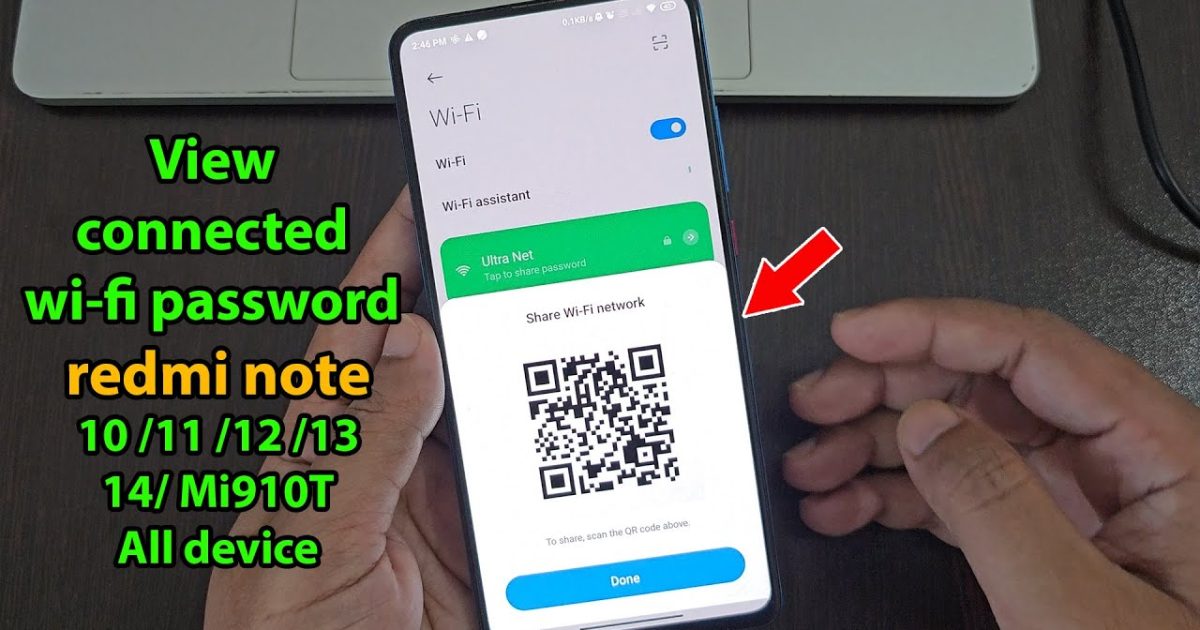
This is the quickest method and doesn’t require any extra apps. MIUI 12 and later have a built-in option to share your WiFi network via a QR code. When you scan that QR code with another phone, it reveals the password (or connects directly). Here’s how to get the password from it.
Open the Settings app on your Xiaomi. Scroll down and tap ‘Wi-Fi & network’ or just ‘Wi-Fi’ depending on your MIUI version. You’ll see the network you’re currently connected to; tap on the network name (or the gear icon next to it). On the next screen, look for a ‘Share’ button—it might be labeled ‘QR code’ or simply ‘Share’. Tap it. A QR code will appear on the screen. If you have a second phone, open its camera or a QR scanner and scan the code. You’ll see the password displayed in plain text after scanning (or the network will connect, but the password is usually shown). If you don’t have another device, take a screenshot of the QR code. Then open the Google Lens app (or your gallery’s Lens feature) and point it at the screenshot. Lens will show the password as ‘WiFi password: yourpasswordhere’.
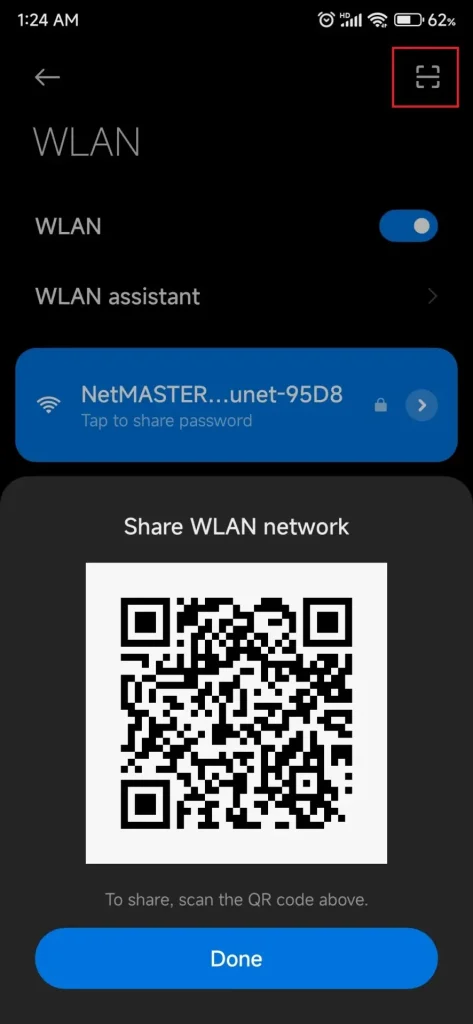
For an alternative approach, you can also access this via the quick settings panel. Swipe down from the top of your screen to open the notification shade, then long-press the WiFi icon. That takes you straight to the WiFi settings. Tap the connected network and then the share icon. The rest is the same.
Step 2: Use a Root App (If Your Phone is Rooted)
If your Xiaomi is rooted (which gives you superuser access), there are apps that can read the stored WiFi credentials directly from the system files. Be aware that rooting voids warranty and can be tricky, but it’s an option. One popular app is ‘WiFi Password Viewer’ or ‘WiFi Key Recovery’. These apps require root permission and then display all saved networks along with their passwords. Simply install one from a trusted source (like the Play Store or F-Droid), open it, grant root access, and you’ll see a list of networks. Tap on your network to reveal the password. Keep in mind that many Xiaomi phones sold globally don’t come with an unlockable bootloader, so rooting may not be possible on all models.
If you’re not comfortable with rooting, skip this step. The first method should work for the vast majority of users. For a deeper look at root-free methods on Android, check out our guide on WiFi password recovery without root.
Step 3: Retrieve the Password From Your Router
If the QR code method isn’t working (maybe you’re not connected to the network, or your MIUI version is older), you can always log into your router’s admin panel. Every router has a web interface where you can see the WiFi password. Here’s how: First, flip your router over and look for a sticker that shows the default IP address (usually 192.168.1.1 or 192.168.0.1) and an admin username and password. If those have been changed, you’ll need to know them. Next, open a web browser on any device connected to the router (your Xiaomi phone works fine). Type the IP address into the address bar and hit Enter. You’ll see a login page. Enter the admin credentials. Once logged in, look for a section called ‘Wireless’, ‘WiFi’, or ‘Wireless Settings’. Inside, you should see the network name (SSID) and the password (sometimes called ‘Pre-shared Key’ or ‘Passphrase’). Write it down or take a photo.
If you can’t find the sticker or forgot the admin password, you can reset the router to factory defaults by pressing a small button on the back with a paperclip. This will erase all custom settings, so only do this if you’re comfortable setting up the network again. Alternatively, check out our guide to recover WiFi password from modem for more tips.
Common Pitfalls
- QR code doesn’t show password: Some MIUI versions hide the password even after scanning the QR code. In that case, try taking a screenshot of the QR code and using Google Lens. If that fails, use the router method instead.
- No root access: The root method is only available if your phone is already rooted. Do not attempt to root your phone just to recover a WiFi password—the QR method or router method is safer and easier.
- Can’t log into router: If you’ve changed the router admin password and forgotten it, you’ll need to factory reset the router. That’s a last resort. Alternatively, use a password manager or check if your ISP provides a default password on their website.
Where to Next
Once you have your password, consider saving it in a password manager so you never lose it again. If you need to recover passwords on other devices, we’ve got guides for Windows, iPhone, and Linux. For more advanced methods, check out our list of best WiFi password recovery programs. And if you just want to show your password on a standard Android phone (non-Xiaomi), our article on show WiFi password on Android has you covered.