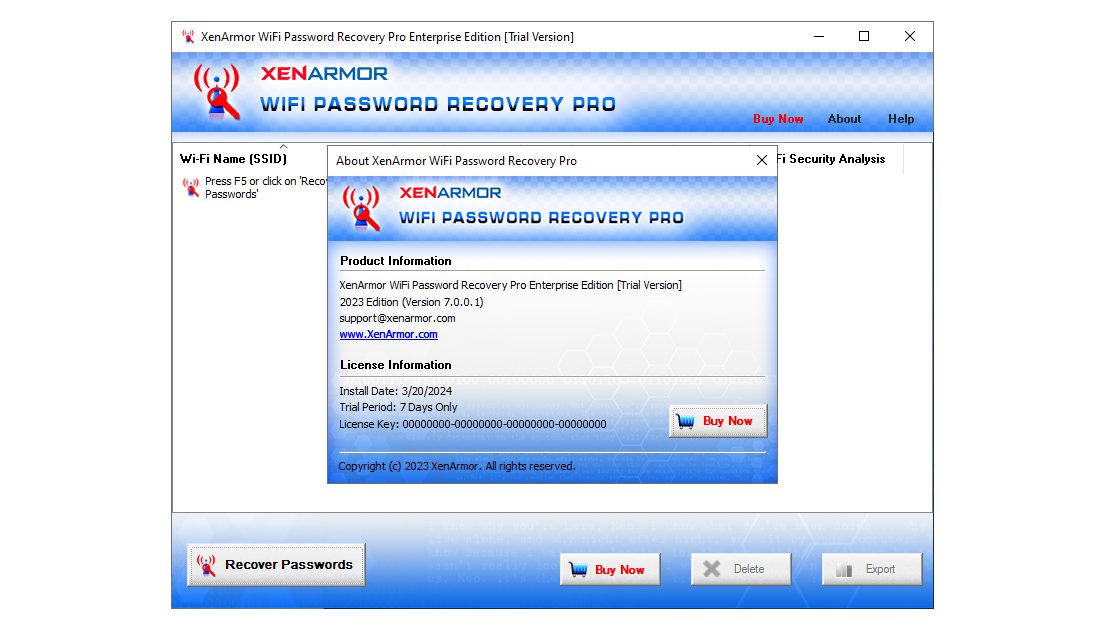
Ever been locked out of your own WiFi because you forgot the password? We’ve all been there. But here’s the thing: if you’ve ever connected to that network before, the password is still saved somewhere on your device. Professional WiFi password recovery tools can dig it out in seconds. This guide is for anyone who needs to recover a lost network key—whether you’re a sysadmin, a curious techie, or just someone trying to get your smart TV online. By the end, you’ll be able to pull passwords from Windows, macOS, and even Linux machines using both GUI tools and command-line utilities.
We’re not talking about hacking someone else’s WiFi—that’s illegal. These tools recover passwords you’ve already saved on your own devices or that are stored on your router. I’ll walk you through the most reliable professional tools: WirelessKeyView for Windows, Keychain Access for macOS, and Aircrack-ng for Linux. Plus, you’ll get the command-line equivalents (netsh, security, and nmcli) for when you need something quick. Ready? Let’s dive in.
What You’ll Need
- A computer running Windows, macOS, or Linux (with admin access)
- The WiFi network you’ve connected to before (password is saved somewhere)
- Optional: a USB Wi-Fi adapter that supports monitor mode (for Linux audit tools)
- Basic command-line comfort (don’t worry, I’ll give you exact commands)
- A few minutes of patience
Step 1: Understand the Types of Professional Tools
Not all tools are created equal. Some are simple password revealers that show you saved keys from your OS. Others are full auditing suites like Aircrack-ng that can capture handshakes and crack them. For most home users, a simple tool like WirelessKeyView (Windows) or Keychain Access (macOS) does the job. But if you need to recover passwords from a router’s admin panel or backup your passwords, you’ll want something more robust. Check out our guide on the best wifi password recovery program for a curated list.
Step 2: Download and Install WirelessKeyView (Windows)
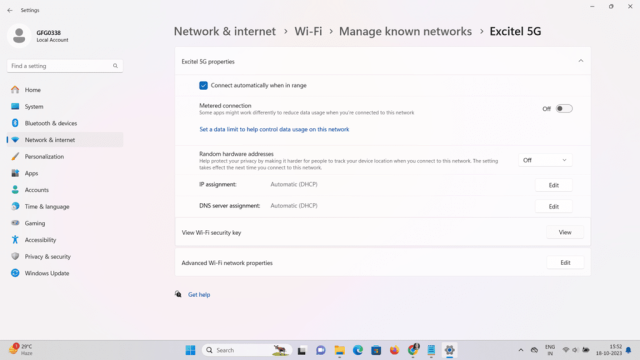
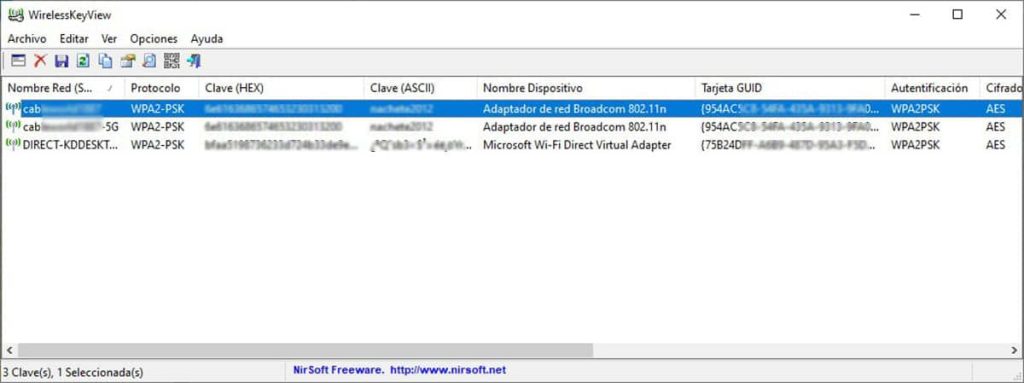
WirelessKeyView is a tiny portable utility from NirSoft that scans your Windows registry and reveals every saved WiFi key. It’s free, doesn’t need installation, and works on Windows 7 through 11. Just download it from the official site, unzip the folder, and run the executable as Administrator (right-click > Run as administrator). The moment it opens, you’ll see a table with network names (SSID) and their passwords in plaintext. That’s it—no extra steps. If you prefer command line, Windows has netsh built in. Our post on wifi password recovery with netsh gives you the exact commands.
Step 3: Recover WiFi Passwords on macOS Using Keychain Access
On a Mac, all saved passwords live in the Keychain app. Open it from Applications > Utilities > Keychain Access. In the search bar, type the name of your WiFi network (or just ‘AirPort’). Double-click the entry, then check the box ‘Show password’. You’ll need to enter your Mac admin username and password (Touch ID works too). Boom—the password appears. For the terminal crowd, use the `security find-generic-password` command. This is also the most common way to recover wifi password on laptop running macOS.

Step 4: Use Command-Line Tools for Convenience
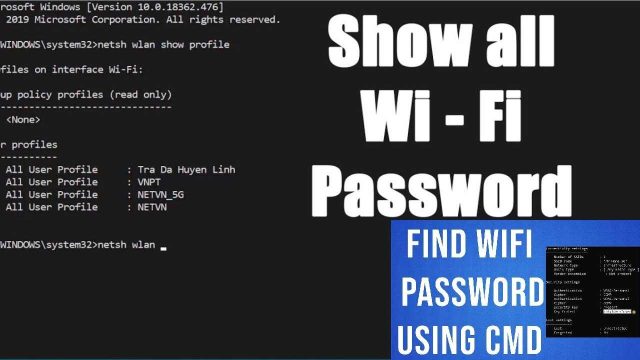
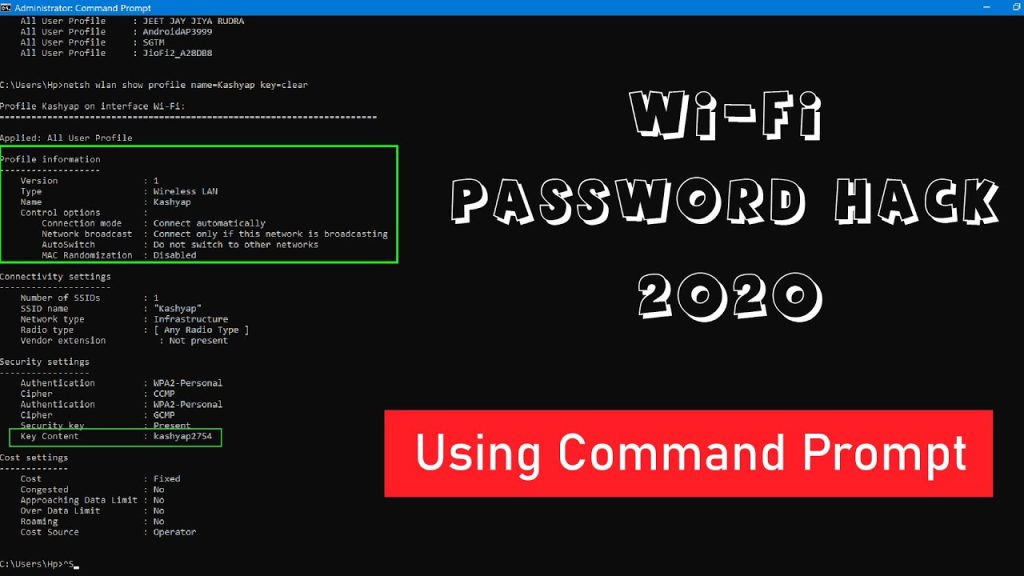
If you’re comfortable with a terminal, command-line methods are often faster and more scriptable. On Windows, `netsh wlan show profile name=”SSID” key=clear` dumps the password. On macOS, the `security` command works wonders. On Linux, you can read the wpa_supplicant config or use `nmcli`. These are perfect for IT pros who need to automate recoveries. We’ve covered all three in our wifi password recovery via terminal guide. And for a bulletproof portable option, consider wifi password recovery software safe like WirelessKeyView.
Step 5: Use Aircrack-ng for Advanced Recovery (Linux)
Aircrack-ng is the gold standard for WiFi auditing. It can capture WPA/WPA2 handshakes and crack them offline using wordlists. This is overkill for recovering a password you already saved, but it’s useful if you need to recover a password from a router you own (with physical access and legal permission). You’ll need a Wi-Fi adapter that supports monitor mode. Install aircrack-ng via your package manager, then capture a handshake using `airodump-ng` and crack with `aircrack-ng`. This tool is purely for professional network testing—don’t use it on networks you don’t own.

Common Pitfalls
- Forgetting to run as Administrator (Windows) or using sudo (macOS/Linux). Tools need elevated privileges to read the password store.
- Using the wrong tool for the OS. For example, WirelessKeyView won’t run on macOS—use Keychain Access instead.
- Accidentally opening the router’s admin page and changing settings instead of just reading the password. Stick to the tools I’ve listed.
Where to Next
Now that you’ve recovered your password, you might want to back it up so you never lose it again. Check out our guide on how to backup wifi passwords windows or the equivalent for other platforms. If you regularly manage multiple devices, set up a password manager to store all your network keys securely. Happy surfing!