So you’ve forgotten your WiFi password—happens to the best of us. Maybe you have friends over and they want to hop on your network, or you’re setting up a new device. The instinct might be to reset your router, but that’s a hassle: you’d lose all your custom settings and have to reconfigure everything. Good news: you don’t have to reset anything. If any device is already connected to your network, you can dig out the password in just a few minutes. This guide is for anyone who has a Windows PC, Mac, Android phone, or access to their router’s admin page. By the end, you’ll have your WiFi key in hand without touching the reset button.
We’ll cover four methods: using the command prompt on Windows, Keychain Access on macOS, a built-in QR code trick on Android, and finally the router’s web interface. Each method is safe, straightforward, and requires no additional software. If you prefer a visual walkthrough, our guide on how to show wifi password settings on any device covers more options. Let’s get started.
What You’ll Need
- A device already connected to the WiFi network (Windows PC, Mac, or Android phone).
- If using the router method: admin username and password (often found on a sticker on the router).
- Basic comfort with clicking through settings or typing a few commands (but we’ll walk you through).
Step 1: Find WiFi Password on Windows (Using Command Prompt)
Windows stores your WiFi profiles, and you can view the password for your current network with a simple command. This is the quickest method on PC. Here’s how:
- Press the Windows key, type “cmd”, right-click on Command Prompt, and select “Run as administrator”.
- Type the following command and press Enter:
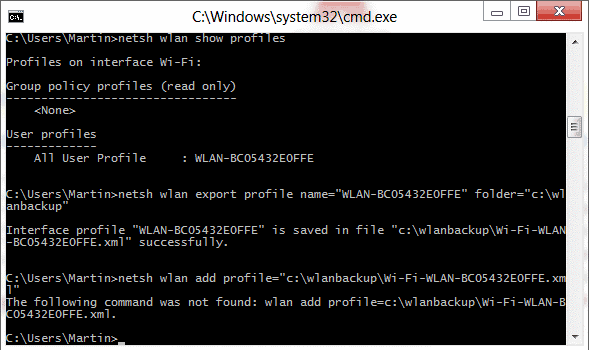
netsh wlan show profile. This lists all saved WiFi networks. - Find your network name (SSID) from the list. Then type:
netsh wlan show profile name="YourSSID" key=clear(replace “YourSSID” with your actual network name). - Look for the line that says “Key Content”. That’s your WiFi password.
That’s it! The key=clear flag displays the password in plain text. For more command-line methods, check out our detailed post on wifi password recovery with netsh. If you’re on an older version of Windows, the steps are the same.
Step 2: Find WiFi Password on macOS (Using Keychain Access)
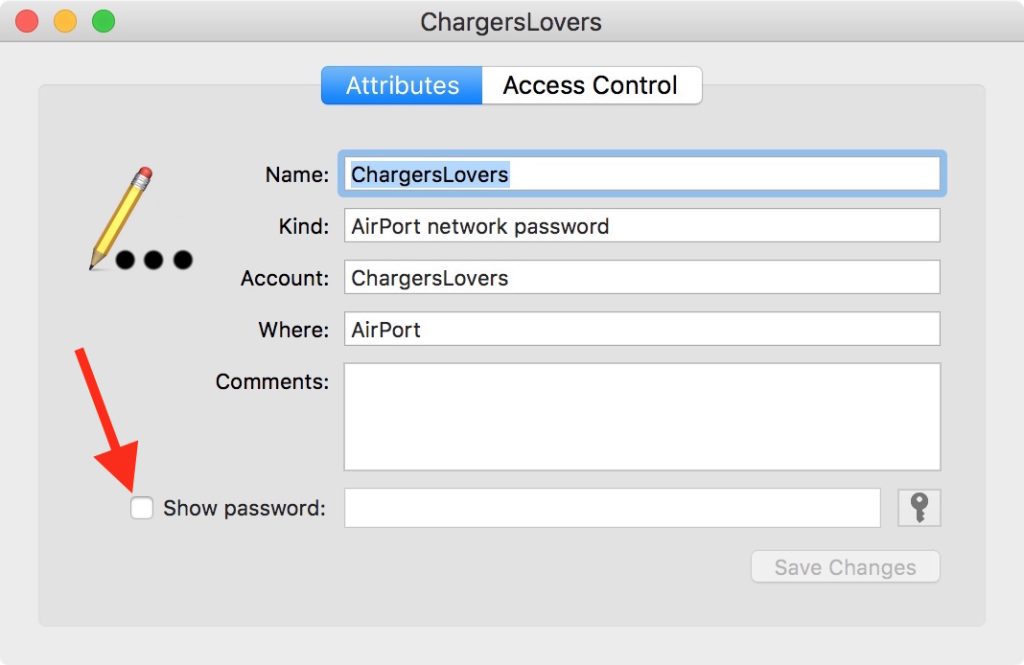
On a Mac, all your saved passwords live in the Keychain. You can access them without third-party apps. Just follow these steps:
- Open “Keychain Access” from Applications > Utilities or search for it using Spotlight (Cmd+Space).
- In the search bar, type the name of your WiFi network.
- Double-click the entry for your network (it should say “AirPort network password”).
- Check the box that says “Show password”. You’ll need to enter your Mac’s admin username and password to reveal it.
- The password will appear in the field next to “Show password”.
This method works on all recent versions of macOS. If you’re more comfortable with the terminal, you can also use wifi password recovery via terminal to grab it from the command line.
Step 3: Find WiFi Password on Android (No Root Needed)
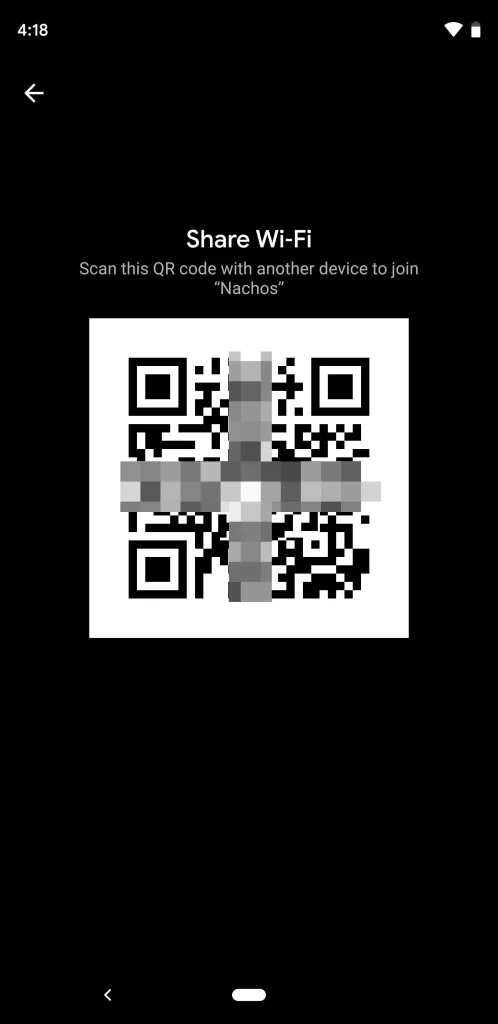
On Android (version 10 and later), you can view the password of your current network without rooting your phone. The trick uses the QR code share feature. Here’s how:
- Go to Settings > Network & Internet > WiFi (or “Connections” on Samsung).
- Tap on the network you’re currently connected to (the gear icon).
- Look for a “Share” button or a QR code icon. Tap it.
- You may be prompted to verify your identity (PIN, pattern, or fingerprint).
- A QR code will appear on screen. Underneath it, you’ll see the password in plain text.
Easy, right? If you’re on a rooted device or want alternative methods, we’ve got a dedicated guide for wifi password recovery without root android that covers more scenarios.
Step 4: Find WiFi Password via Router Settings
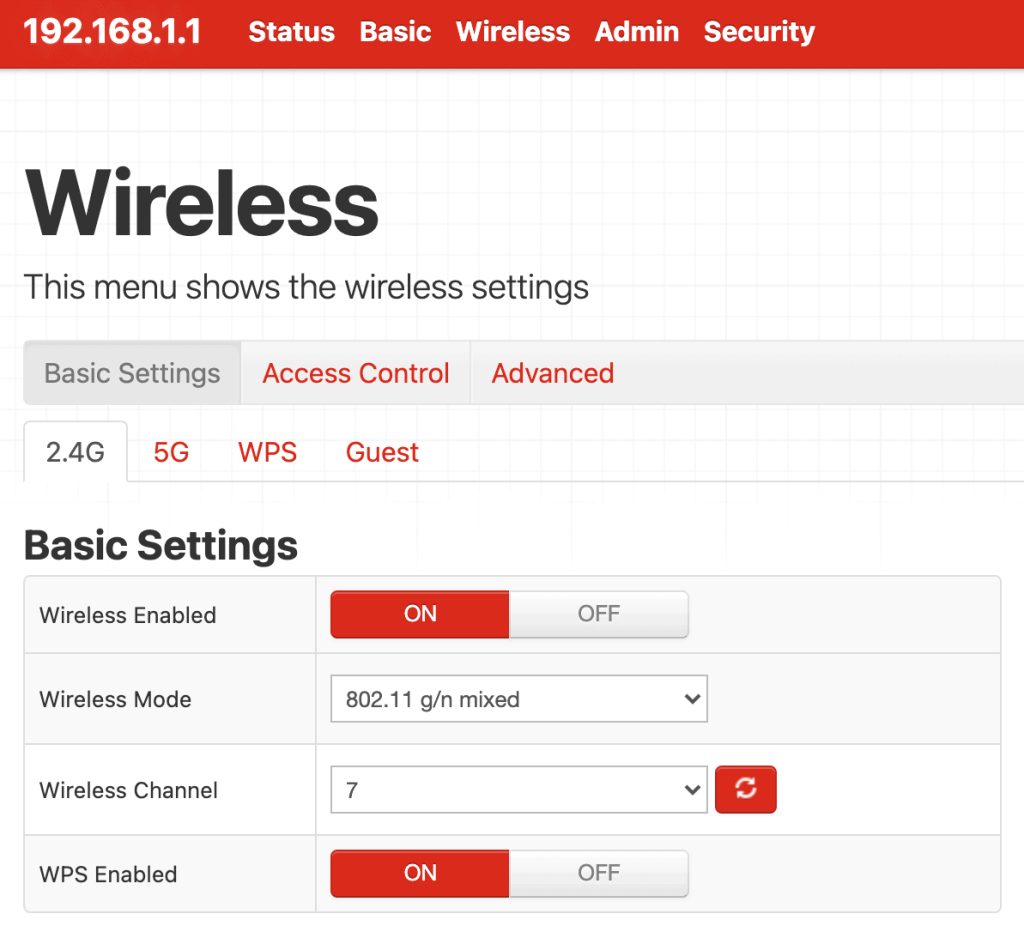
If you don’t have a device connected to the network yet—or you just want to see the password from the source—you can log into your router’s admin page. This works from any device with a browser, as long as you know the router’s login credentials. Don’t worry, you won’t be resetting anything.
- Find your router’s IP address: on Windows, open Command Prompt and type
ipconfig. Look for “Default Gateway”. On macOS, go to System Preferences > Network > Advanced > TCP/IP. Common IPs are 192.168.1.1 or 192.168.0.1. - Open a web browser and type that IP into the address bar. Press Enter.
- Enter the router’s username and password. If you haven’t changed them, check the sticker on the router itself. Common defaults are “admin”/”admin” or “admin”/”password”.
- Look for a section called “Wireless”, “WiFi”, or “Security” (exact wording varies).
- You’ll see a field labeled “Passphrase”, “Pre-Shared Key”, or “Wireless Password”. That’s your WiFi password.
This method is universal and works with any ISP-provided or third-party router. For a more detailed walkthrough, see our guide on recover wifi password on laptop via modem config.
Common Pitfalls
- Not being connected to the network: The Windows and macOS methods require you to be connected to that network. If you’re not, you’ll need to use the router method or ask someone else who is connected.
- Running Command Prompt without admin rights: On Windows, if you don’t run as administrator, you’ll get an error message. Right-click and select “Run as administrator” before typing the command.
- Forgetting to check both 2.4 GHz and 5 GHz bands: Some routers have separate passwords for each band. If you find a password that doesn’t work, check the other band on the router’s settings page.
Where to Next
You’ve got your password back! If you want to dive deeper, check out our guide on the best wifi password recovery program for situations where you need to recover passwords from a hard drive backup, or look into our wifi password recovery via terminal for advanced users. Now go ahead and share that WiFi with your guests—no reset needed.



