So you just reinstalled your operating system — maybe you did a clean install of Windows, a fresh macOS update, or switched to a new Linux distro. Everything feels crisp and fast, but there’s one annoying problem: all your saved WiFi passwords are gone. You’re staring at a list of networks and have no idea what the passwords are for your home, office, or friend’s place. Don’t worry — I’ve been there too. This guide will show you how to restore those passwords, whether you backed them up beforehand or need to extract them from an old drive.
By the end of this, you’ll have your WiFi passwords back in your system without manually typing every single one. If you haven’t reinstalled yet, we’ll also cover how to back them up for next time. Let’s dive in.
What You’ll Need
- Admin access to your computer (you’ll need to run some commands as administrator or root)
- If you already reinstalled: a backup of your old system drive (or access to it via an external enclosure)
- A USB drive (optional, for saving a backup file before reinstall)
- For macOS: your iCloud Keychain may sync passwords if you enabled it
- Patience and a few minutes
Step 1: Back Up Passwords Before Reinstalling (If You Can)
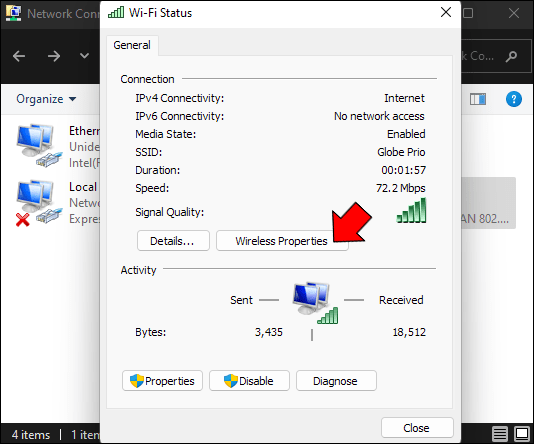
The best time to restore WiFi passwords is before you even reinstall. If you still have access to your current OS, take a minute to back them up. On Windows, you can use the command line to export your wireless profiles. Open Command Prompt as admin and run: netsh wlan export profile key=clear. This saves all your WiFi profiles as XML files in the current folder. Copy those to a USB drive. On macOS, open Keychain Access, find your WiFi entries, and export them as a .keychain file. On Linux, copy the /etc/NetworkManager/system-connections/ folder or /etc/wpa_supplicant/wpa_supplicant.conf to a safe place. For a more detailed walkthrough, check out our guide on restore wifi passwords windows or backup wifi passwords linux.
Step 2: Retrieve Passwords from an Old Drive (Windows)
If you already wiped the drive, don’t panic. If you have an old backup of the Windows drive (or the drive itself in an external enclosure), you can still get your passwords. Mount the old drive, navigate to ProgramDataMicrosoftWlansvcProfilesInterfaces (you may need to show hidden files), and look for XML files. Each one corresponds to a saved network. Open them with Notepad; look for a keyMaterial tag — that’s your password. For a visual guide, see our show wifi password settings article.
Step 3: Retrieve Passwords from a macOS Backup
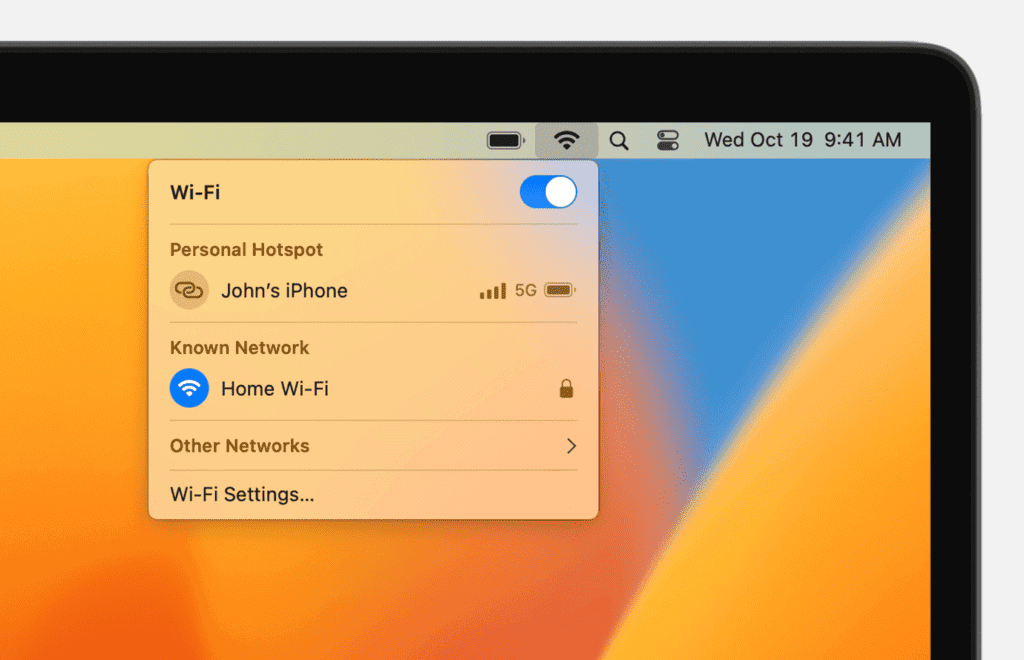
On macOS, your WiFi passwords are stored in the system Keychain. If you have a Time Machine backup or an old drive, you can locate the keychain file at /Library/Keychains/ (system keychain) or ~/Library/Keychains/ (user keychain). Copy the login.keychain-db to your new Mac, then open Keychain Access and import it. If you have iCloud Keychain enabled, your passwords may sync automatically after signing into iCloud. For step-by-step, see our saved wifi password recovery mac guide.
Step 4: Retrieve Passwords from Linux Backups
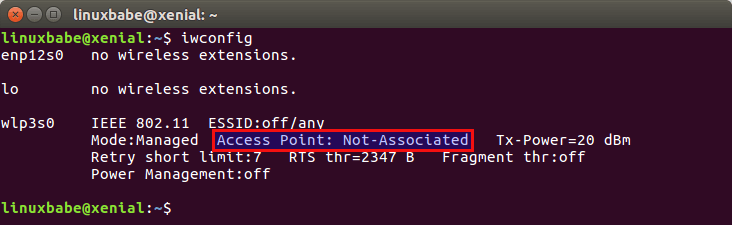
Linux stores WiFi passwords in plain text (or hashed) configuration files. If you backed up /etc/NetworkManager/system-connections/ or /etc/wpa_supplicant/wpa_supplicant.conf, simply copy those files to the same location on your new installation. Restart NetworkManager: sudo systemctl restart NetworkManager. Your saved networks should reappear. If you need to extract passwords from a live system, use sudo grep -r 'psk=' /etc/NetworkManager/system-connections/. For more, check wifi password recovery via terminal.
Step 5: Manually Re-enter or Import Passwords
If you couldn’t find a backup, you’ll have to re-enter passwords manually. But first, check if you have any other devices that still remember the network. On Android, you can view the password in WiFi settings (tap the network and look for a QR code or share option). On iOS, go to Settings > Wi-Fi, tap the network, and you’ll see the password — iPhone will show it after Face ID/Touch ID. You can also use a wifi password recovery migration guide to move passwords from your phone to your computer.
Common Pitfalls
- Forgetting to back up before reinstall: The most common mistake. Always export your profiles before wiping your drive — it takes two minutes.
- Not having admin rights: Some commands require administrator or root access. If you’re on a work computer, you might be locked out. Try using a live USB to access the old drive.
- Confusing keychain types: On macOS, the system keychain and login keychain are different. Make sure you’re exporting the correct one (usually the login keychain for user-added networks).
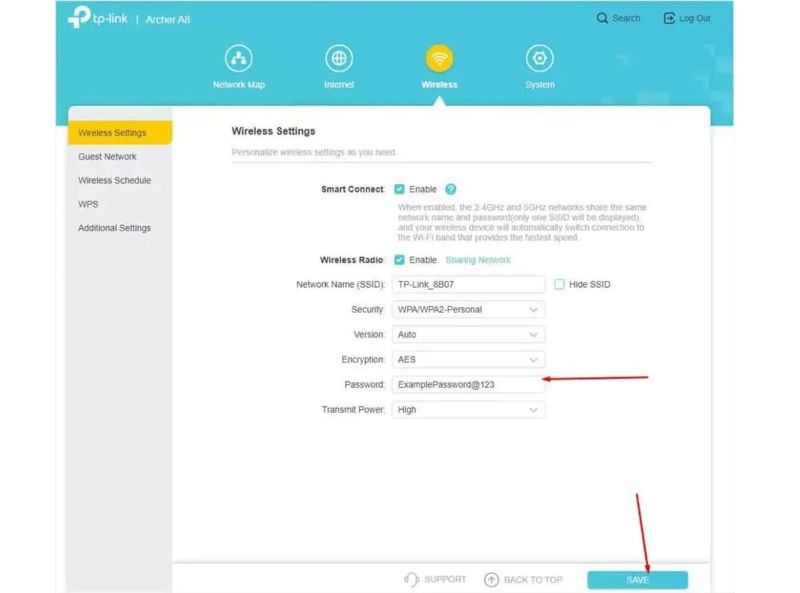
If you run into issues, don’t give up. Sometimes the passwords are stored in a different location (like the router itself). You can log into your router’s admin page and view the WiFi password there. Check out our wifi password recovery migration guide for more strategies.
Where to Next
Now that your WiFi passwords are restored, you might want to keep them safe for the next reinstall. Consider using a password manager that stores WiFi credentials, or set up iCloud Keychain sync. For more tips, browse our other articles on restore wifi passwords windows, saved wifi password recovery mac, and backup wifi passwords linux. Happy surfing!



