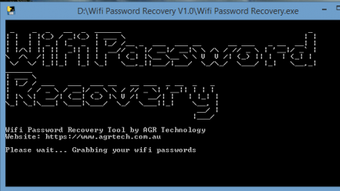
Did a recent software update wipe your saved WiFi networks? You’re not alone. System updates sometimes reset network preferences, leaving you without that crucial password. This guide is for anyone who’s been locked out after an update—whether you’re on Windows, macOS, or Linux. By the end, you’ll have your WiFi password back in hand, no router reset required. If you’re looking for alternative methods, check out our guide on wifi password recovery without resetting router.
We’ll walk through four reliable methods: checking your router’s label, digging into Windows network settings, using macOS Keychain, and a quick Linux terminal command. Even if you’re a beginner, these steps are easy to follow. For more general recovery, see how to recover wifi password on laptop across different systems.
What You’ll Need
- Access to your computer (Windows, macOS, or Linux)
- A WiFi network you’ve previously connected to
- Optional: physical access to your router
- No special software required
Step 1: Check Your Router’s Sticker
Most routers have a sticker on the bottom or back with the default SSID and password. If you never changed it, that’s your key. Look for a label that says ‘SSID’, ‘Network Name’, or ‘Password’. This works even if your computer’s settings are wiped.

Step 2: Use Windows Network Settings
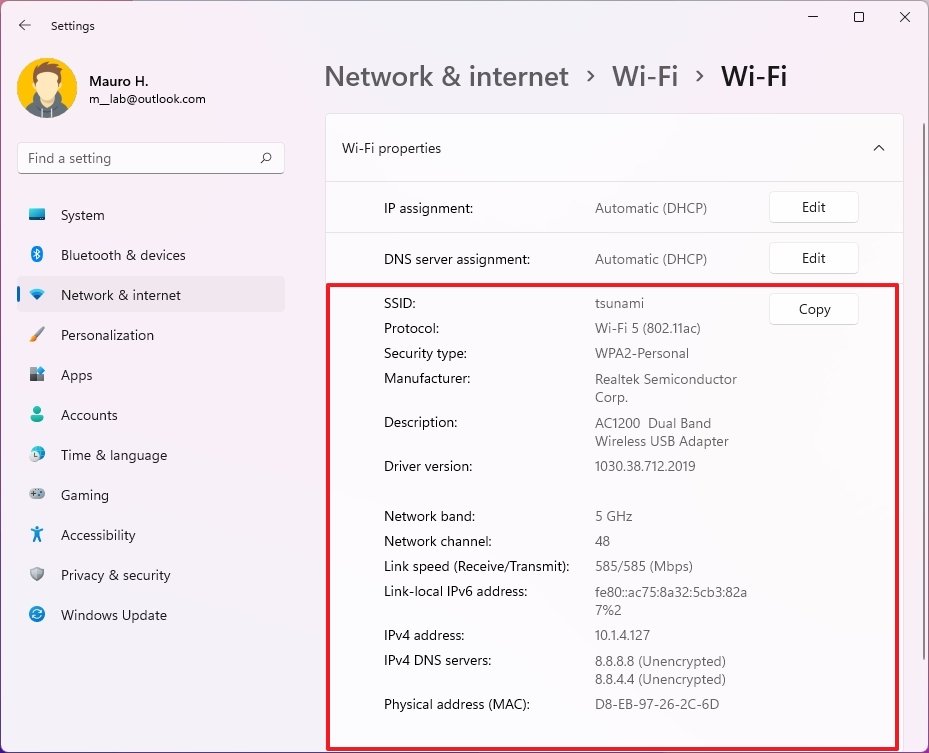
On Windows, go to Settings > Network & Internet > Wi-Fi > Manage known networks. Click on your network, then ‘Properties’. Under ‘View Wi-Fi security key’, you’ll see the password. You can also open the classic Network and Sharing Center. This method works on Windows 10 and 11. For more details, see our guide on restore wifi passwords windows. Another quick trick: use the command line to show wifi password settings via ‘netsh wlan show profile name=YOURNETWORK key=clear’.
Step 3: Use macOS Keychain Access
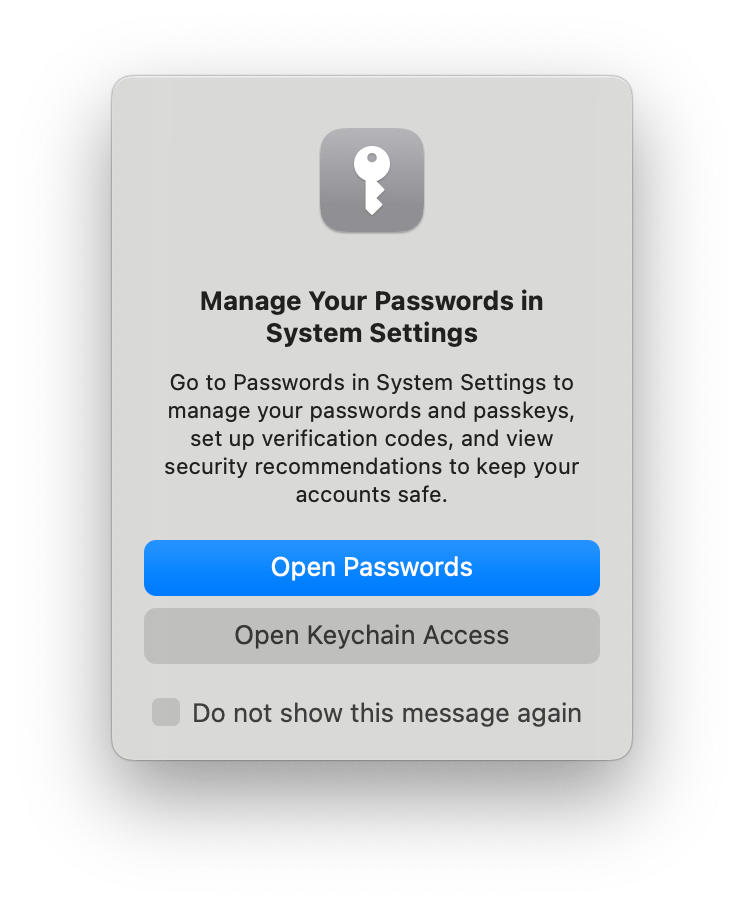
On a Mac, open Keychain Access (Applications > Utilities). Search for your WiFi network name. Double-click it and check ‘Show password’. You’ll need your Mac’s admin password. This retrieves the saved password even after an update. For a full walkthrough, check saved wifi password recovery mac.
Step 4: Use Linux Terminal
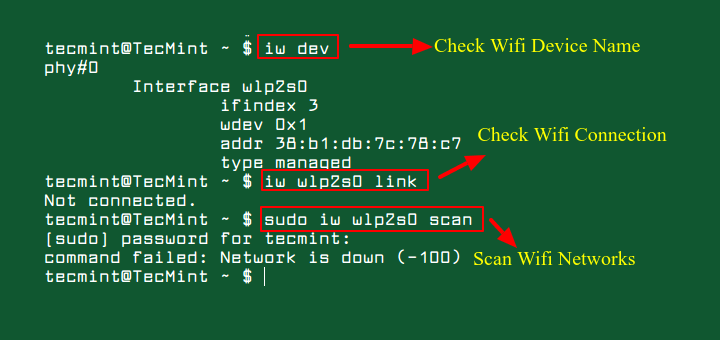
On Linux, saved WiFi passwords are stored in /etc/NetworkManager/system-connections/. Use the terminal: ‘sudo cat /etc/NetworkManager/system-connections/YOURNETWORK’ (replace YOURNETWORK). Look for ‘psk=’ followed by the password. Alternatively, use ‘nmcli’ to show saved connections. For other command-line methods, see wifi password recovery command line.
Common Pitfalls
- The password you see is the current one, but if the update changed your router’s password, you need to check the router admin page.
- On Windows, you must be logged in as an administrator to view network security keys.
- Keychain Access on macOS may not show if the network was removed from saved networks after the update.
Where to Next
Now that you’ve recovered your password, consider backing up your WiFi passwords for next time. Our wireless password recovery app can help, or you can manually export them. For more tips, browse our WiFi category.



