Ever been locked out of your own WiFi because you forgot the password? You’re not alone. This guide is for anyone who wants to automate the recovery of saved WiFi passwords on their computer. By the end, you’ll have a working script that extracts every stored network key from Windows, macOS, or Linux and displays it in a neat list. No third-party software required—just your command line and a few lines of code.
We’ll keep things casual and practical. If you’ve ever used a terminal or command prompt, you’re good to go. If not, don’t worry—I’ll walk you through each step. The script will work on your personal machine (you need admin/root access), and it’s a great way to understand how your system stores wireless credentials. Plus, you’ll impress your friends when you can pull up any WiFi password in seconds.
What You’ll Need
- A computer running Windows 10/11, macOS (10.12+), or a Linux distro with NetworkManager
- Administrator (Windows) or root (macOS/Linux) access
- A text editor (Notepad, VS Code, nano, whatever you like)
- Basic familiarity with opening a terminal / command prompt
- Optional: a USB drive to run the script from another PC
Step 1: Open a Command Prompt or Terminal with Admin Rights
The script needs elevated privileges to read the stored WiFi passwords. On Windows, right-click the Start button and select ‘Windows Terminal (Admin)’ or ‘Command Prompt (Admin)’. On macOS, open Terminal and type sudo -s (you’ll need your admin password). On Linux, open a terminal and run sudo su or use sudo before commands. Stay in this elevated session for the next steps.
Step 2: Extract a Single WiFi Password Manually (Test the Method)
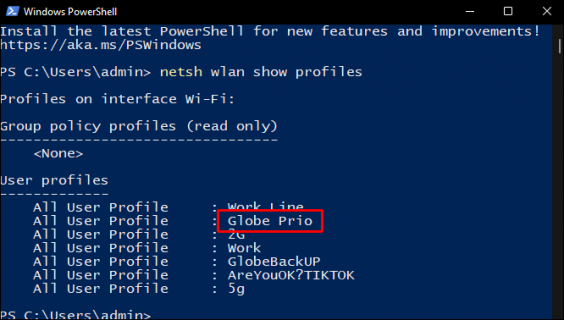
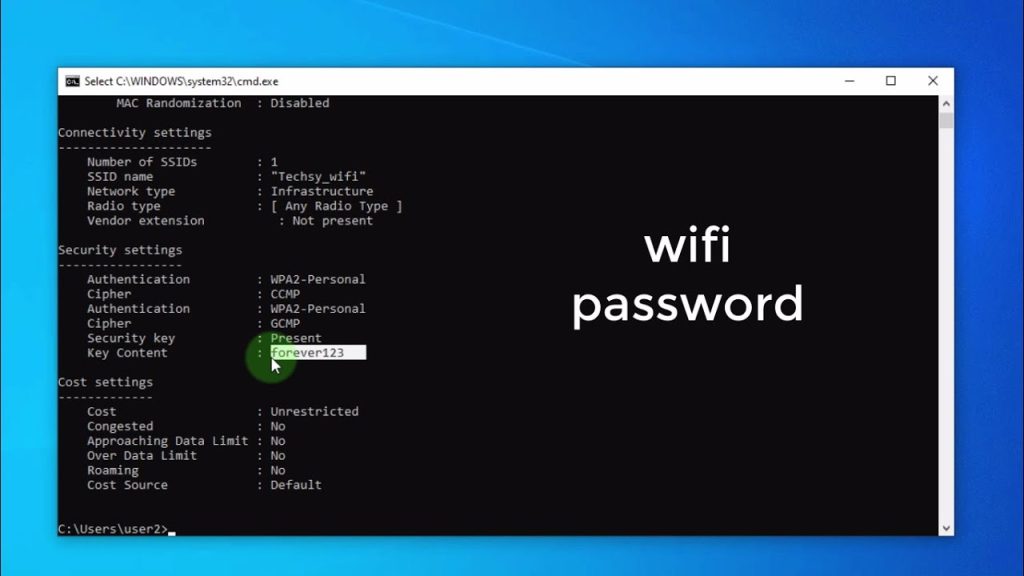
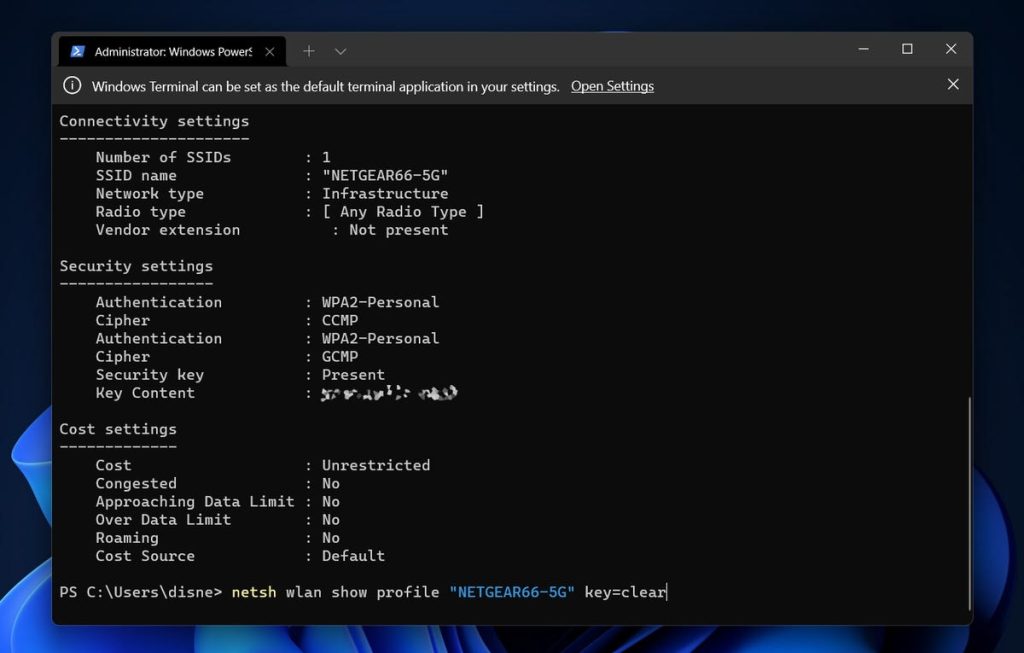
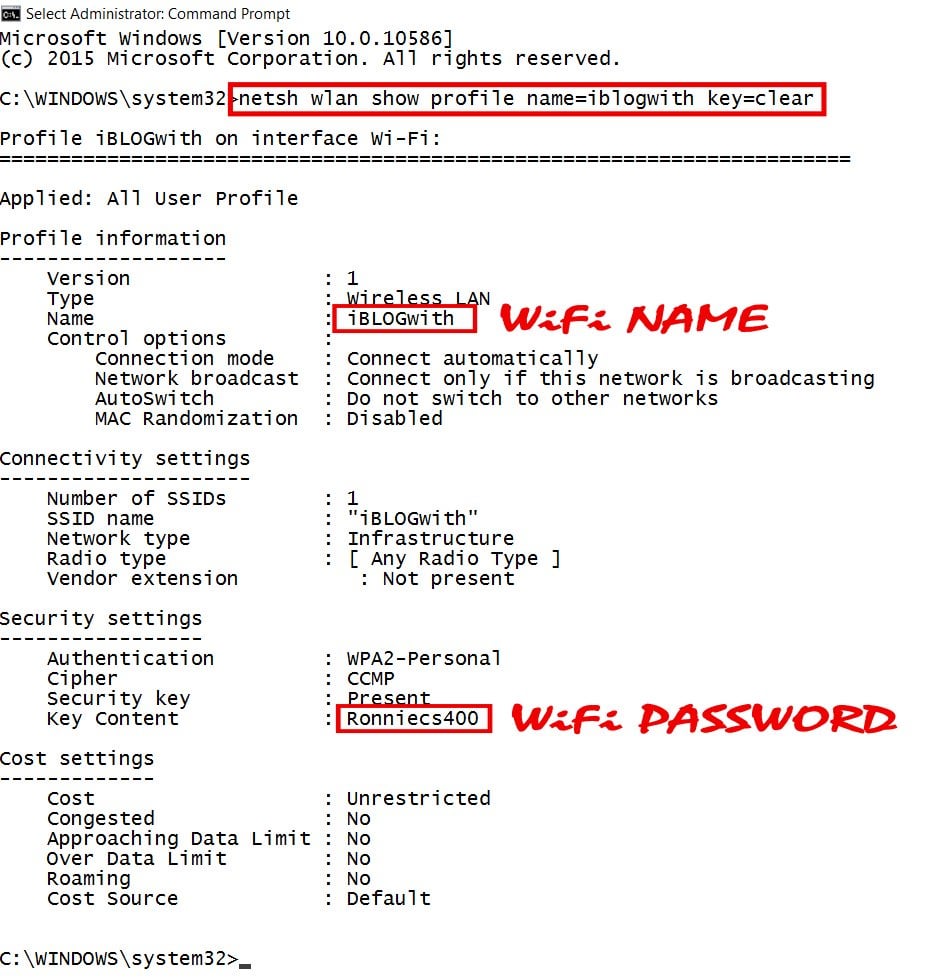
Before we script, let’s verify the commands work on your system. On Windows, run netsh wlan show profiles to list all saved networks. Then pick one and run netsh wlan show profile name="YourWiFiName" key=clear. Look for ‘Key Content’—that’s your password. On macOS, use security find-generic-password -wa "YourWiFiName". On Linux, check the NetworkManager config files or run sudo cat /etc/NetworkManager/system-connections/YourWiFiName and look for psk=. If you see the password, we’re golden.
Step 3: Write the Recovery Script
Now we’ll automate. Choose your OS below and create a new text file with the code. Save it as wifi-recover.bat (Windows), wifi-recover.sh (macOS/Linux). Make sure the file extension is correct.
Windows Batch Script (wifi-recover.bat): @echo off & setlocal enabledelayedexpansion & for /f “tokens=2 delims=:” %%a in (‘netsh wlan show profiles ^| findstr “Profile”‘) do ( set “ssid=%%a” & call :strip & netsh wlan show profile name=”!ssid!” key=clear | findstr “Key Content” ) & pause & goto :eof & :strip & set ssid=!ssid: =! & set ssid=!ssid:^ =! & goto :eof
Common batch script for WiFi password recovery
For macOS, the bash script loops through known networks: #!/bin/bash & networksetup -listallhardwareports | grep -A1 "Wi-Fi" | awk 'NR==2{print $2}' | xargs -I {} networksetup -listpreferredwirelessnetworks {} | tail -n +2 | while read ssid; do echo "$ssid: $(security find-generic-password -wa "$ssid" 2>/dev/null)"; done.
For Linux (using NetworkManager): #!/bin/bash & for file in /etc/NetworkManager/system-connections/*; do ssid=$(basename "$file"); psk=$(sudo grep psk= "$file" | cut -d= -f2); echo "$ssid: $psk"; done. Adjust if you use wpa_supplicant.
Step 4: Run Your Script and Save the Output
Make the script executable if needed. On Windows, just double-click the .bat file (run as admin). On macOS/Linux, open terminal, navigate to the file, run chmod +x wifi-recover.sh then sudo ./wifi-recover.sh. The script will list all saved networks and their passwords. To save to a file, append > passwords.txt to the command. Store that text file safely—it contains sensitive info.
Step 5: (Optional) Create a Portable USB Version
If you need to recover passwords on another computer, put the script on a USB drive. On Windows, you can run the .bat on any PC where you have admin access. For macOS/Linux, the script may need slight tweaks for different distros. Test it first. This is perfect for helping friends recover their own networks—just be ethical.
Common Pitfalls
- Forgetting to run as admin/root: Without elevated privileges, the script can’t read the keys. You’ll get errors like ‘Access denied’ or empty output. Always check your terminal title or use
whoamito confirm admin status. - Encoding issues with special characters: WiFi passwords or SSIDs with spaces, quotes, or non-ASCII characters can break the batch script. On Windows, use
key=clearand enclose SSID in quotes. On bash, use proper quoting (“$ssid”) to handle spaces. - Wrong OS command syntax: Copy-pasting a Windows script on a Mac will fail. Each OS uses different tools and arguments. Make sure you’re running the correct version. For a universal approach, consider a Python script that detects the OS—but that’s beyond this guide.
Where to Next?
Now that you have a working script, you can expand it. Try adding a feature to export passwords to a CSV file, or integrate with a password manager. For a deeper dive on manual methods, check out our guide on wifi password recovery command line techniques. If you’re on Windows and need a GUI alternative, see restore wifi passwords windows for a tool-based approach. And if you’re on a laptop, our recover wifi password on laptop guide covers all OSes. For a purely manual saved wifi password recovery command line method without scripting, we’ve got you covered too. Happy recovering!