We’ve all been there: you need to connect a new device to your WiFi, but the password is nowhere to be found. Maybe it’s printed on the bottom of the router, but that’s worn off. Maybe you changed it to something clever and now you’ve forgotten. Don’t sweat it. This tutorial is for anyone who’s ever lost or forgotten their WiFi password and wants a quick, no-hassle way to get it back. By the end, you’ll know exactly how to retrieve that password from your Windows PC, Mac, Android phone, or even directly from your router’s admin panel. No special tools required.
I’ll walk you through each method step by step, so even if you’re not super techy, you’ll be able to follow along. Most of these tricks take less than two minutes. Ready? Let’s dive in.
What You’ll Need
- A computer or phone that’s already connected to the WiFi network (or has been in the past)
- Optional: Admin access to your router (usually a sticker on the router gives the default login)
- Patience — but honestly, this is super easy
Step 1: Recover WiFi Password on Windows
Windows stores every WiFi network you’ve ever connected to. Here’s how to dig out the password:
- Click the WiFi icon in the system tray (bottom-right corner).
- Click “Network & Internet settings” (or right-click the WiFi icon and select “Open Network & Internet settings”).
- Click “Network and Sharing Center” (under “Related settings”).
- Click the name of your WiFi network next to “Connections”.
- In the pop-up, click “Wireless Properties”.
- Go to the “Security” tab and check “Show characters”. Bingo — your password is in the “Network security key” field.
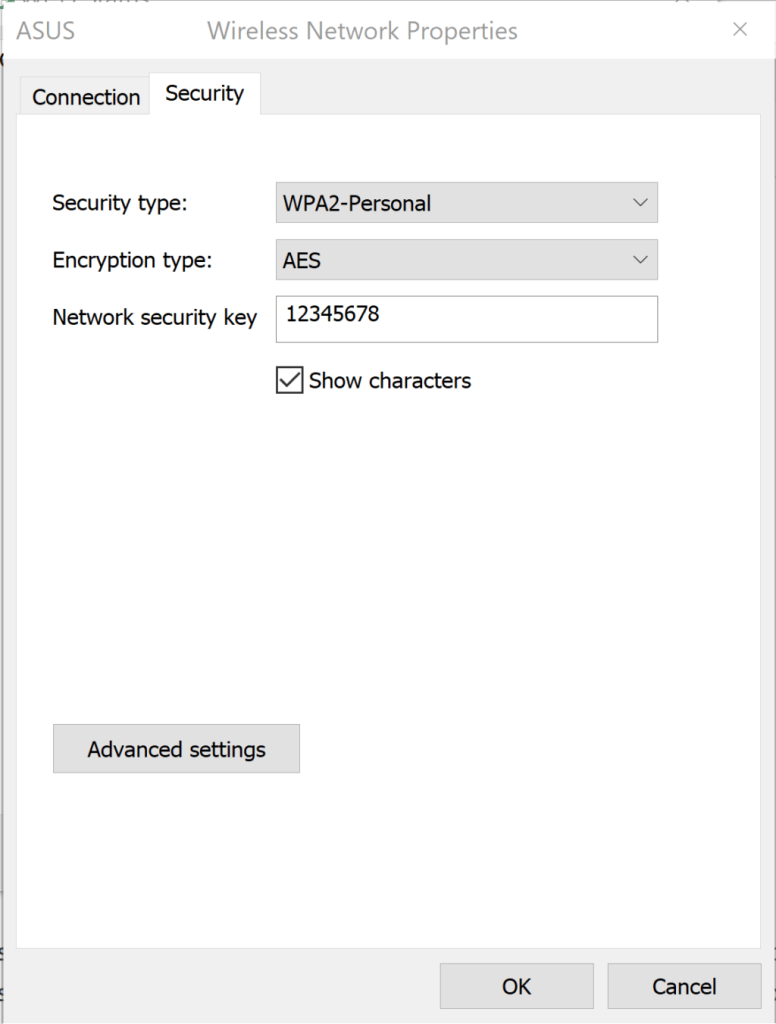
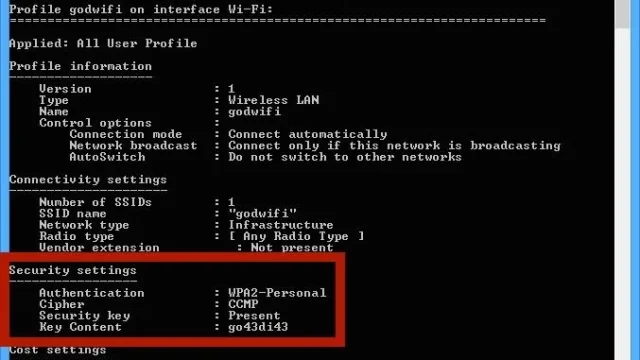
If you’re on an older Windows version, the steps are almost identical. This is the built-in method for wifi password recovery without reinstalling windows — and it works every time.
Step 2: Recover WiFi Password on macOS
Macs keep all your saved WiFi passwords in the Keychain app. Here’s how to get them:
- Open Applications > Utilities > Keychain Access.
- In the search bar, type the name of your WiFi network.
- Double-click the network name from the list.
- Check the box “Show password”.
- Enter your Mac’s admin username and password when prompted.
- The WiFi password will appear in the “Show password” field.
If you need more details, see our dedicated guide on how to recover wifi password from keychain on Mac.
Step 3: Recover WiFi Password on Android (Non-Rooted)
On Android 10 and later, you can share or view saved WiFi passwords without root. Here’s how:
- Go to Settings > Network & internet > WiFi.
- Tap the gear icon next to your connected network.
- Tap “Share” (or a QR code icon). You may need to enter your phone’s PIN or pattern.
- A QR code will appear. Below it, you’ll see the WiFi password in plain text (on some phones, you need to tap “Show password”).
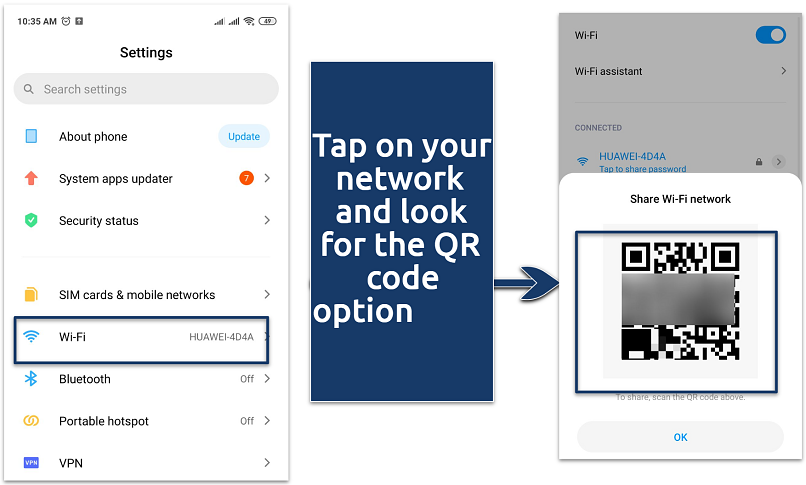
For older Android versions, you might need to use a third-party app or have root access. Check out our guide on backup wifi passwords android for more options.
Step 4: Recover WiFi Password from Your Router
If you can’t find the password on any device, you can always log into your router’s admin panel. This is the most reliable method for wifi password recovery from router.
- Find your router’s IP address. Common ones are 192.168.1.1, 192.168.0.1, or 10.0.0.1. Check the sticker on the router.
- Open a web browser and type that IP into the address bar.
- Enter the router’s admin username and password (again, check the sticker or the manual).
- Look for a section called “Wireless”, “WiFi”, or “Security”.
- You’ll see the WiFi password (often labeled “Passphrase” or “Network Key”) displayed. Write it down.
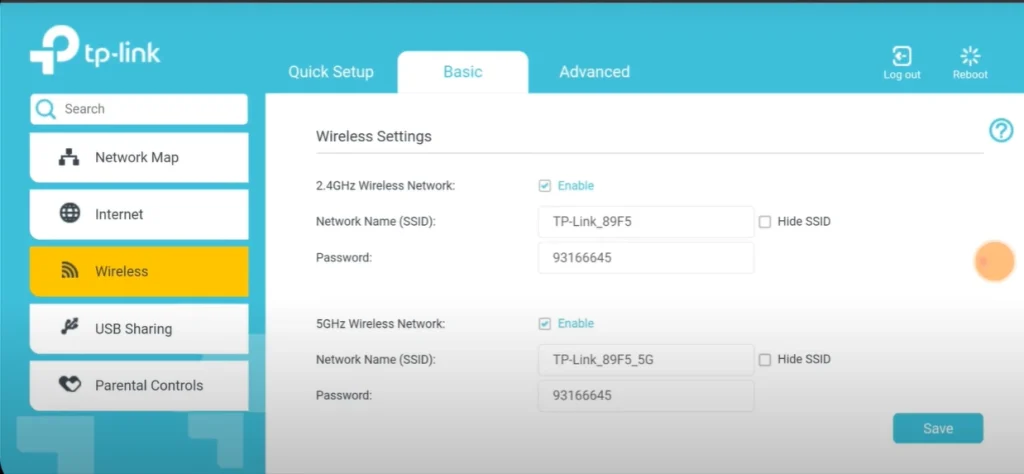
If the default login doesn’t work, you can reset the router to factory settings using a paperclip. But that’s a last resort. Our guide on modem wifi password recovery covers this in more detail.
Step 5: Recover WiFi Password on iOS (iPhone/iPad)
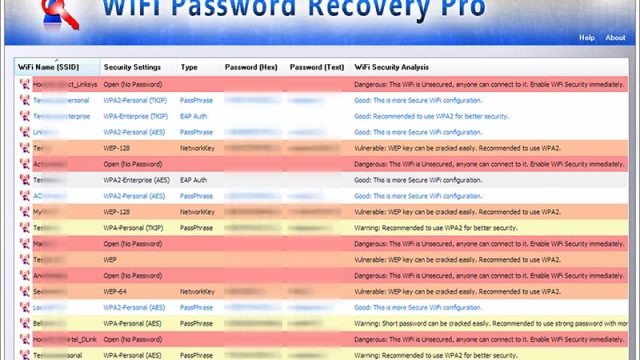
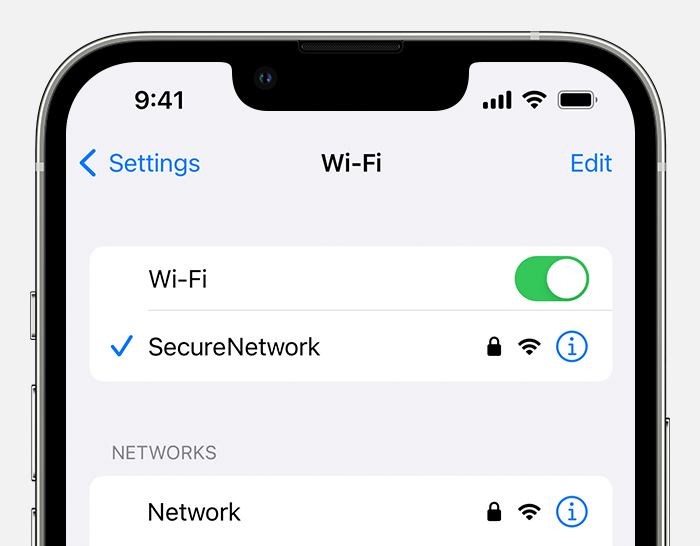
On iOS, you can’t directly view saved WiFi passwords without a Mac or workaround. But there’s a trick: if you have a Mac logged into the same iCloud account, the password syncs to your Mac’s Keychain. Alternatively, you can use the router method above. For a more advanced approach, consider using a lightweight wifi password recovery software tool that works across platforms.
Common Pitfalls
- You can’t see the password because you’re not connected: If you’re not currently connected to the network, Windows and Mac may still show the password if you’ve connected before. On Android, you need to be connected to share. If you’ve never connected on that device, you’ll need the router method.
- The router admin password is changed: If you or someone else changed the router’s admin password and you don’t know it, you’ll have to reset the router (press and hold the reset button for 10 seconds). This wipes all settings, so use it only as a last resort.
- You’re on a work or school network: Managed networks often hide passwords from users. In that case, contact your IT department.
Where to Next
Now that you’ve got your WiFi password back, consider backing it up. Write it down, save it in a password manager, or use a tool to export all your saved passwords. If you ever need to recover after a device change, check out our guides on wifi password recovery after motherboard replacement or restore wifi passwords after format. And if you want a more automated solution, explore lightweight wifi password recovery software to manage all your network credentials in one place.