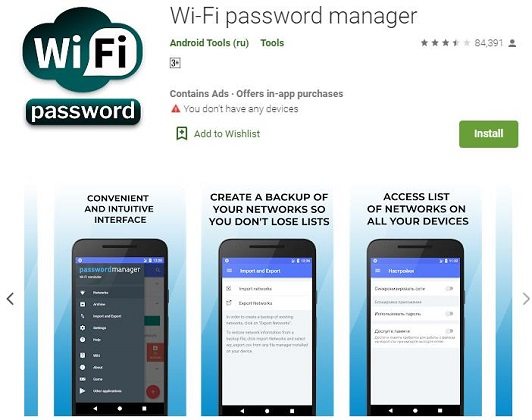
Ever reset your phone and realized you’ve forgotten all your saved WiFi passwords? Yeah, it’s a pain. This guide is for anyone who wants to avoid that headache. Whether you’re switching phones, factory resetting, or just want a backup, you’ll learn multiple ways to backup your Android WiFi passwords. By the end, you’ll have a copy of all your saved network keys that you can restore anytime.
We’ll cover methods that work on stock Android without root, plus a couple of options for rooted devices. The best part? You don’t need to be a tech wizard — just follow along step by step. Let’s get started.
What You’ll Need
- An Android phone (Android 6.0+)
- USB cable (for ADB method)
- A computer (optional, for ADB)
- Google account (for backup method)
- A file manager app (like Solid Explorer)
- Optional: third-party WiFi backup app
Step 1: Use Google’s Built-In Backup
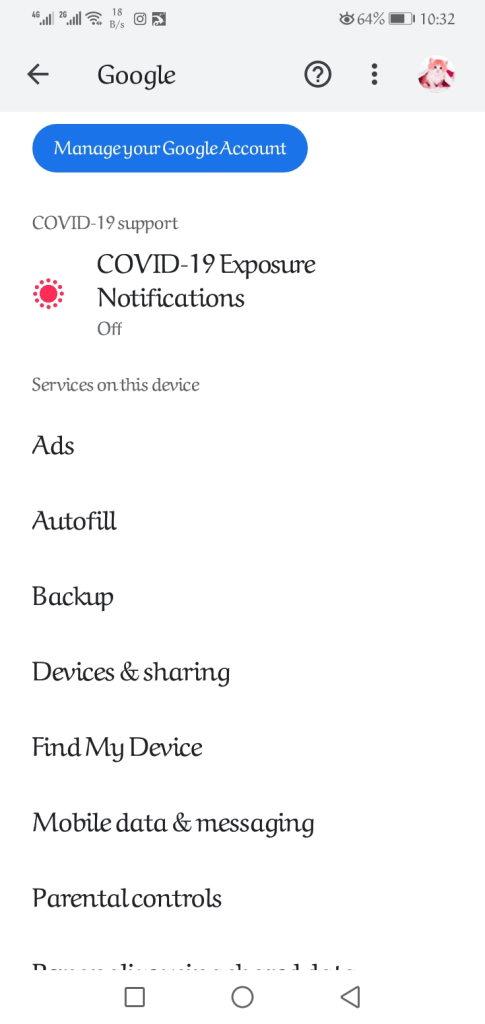
The easiest way is to let Google handle it. Android has a built-in backup feature that saves your WiFi passwords and other settings to your Google Drive. Here’s how to check if it’s enabled:
- Open Settings on your phone.
- Tap Google > Backup.
- Make sure ‘Back up to Google Drive’ is turned on.
- Under ‘Google Account data’, check that ‘Device data’ includes WiFi passwords.
If it’s enabled, your WiFi passwords are already backed up. When you set up a new phone with the same Google account, they’ll automatically restore. But you can also manually trigger a backup: tap ‘Back up now’ and wait for it to complete.
Step 2: Export WiFi Passwords Manually via ADB (No Root)
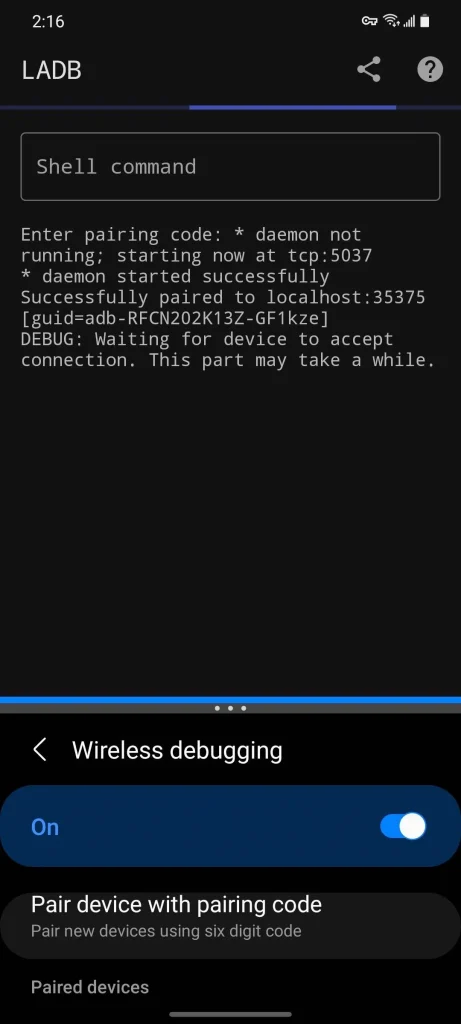
If you want a local copy you can store on your computer, ADB (Android Debug Bridge) lets you export the WiFi configuration file. You’ll need to enable Developer Options and USB debugging. Don’t worry, it’s safe.
- Enable Developer Options: Go to Settings > About phone > Tap ‘Build number’ 7 times.
- Go back to Settings > System > Developer options > Enable ‘USB debugging’.
- Connect your phone to your computer with a USB cable.
- On your computer, open a terminal or command prompt and type: `adb pull /data/misc/wifi/wpa_supplicant.conf` (for older Android) or `adb root` then `adb pull /data/misc/apexdata/com.android.wifi/WifiConfigStore.xml` (for Android 10+).
- If you get permission denied, you may need a rooted device or use a backup command: `adb backup -f wifi_backup.ab -noapk com.android.settings` and then extract with an Android backup extractor.
The extracted file contains your saved networks and passwords. Save it securely. For a simpler method, consider using a dedicated WiFi password recovery app, but for advanced users, ADB gives you full control.
Step 3: Use a Third-Party App (No Root, Easy)
If ADB sounds too techie, grab a trusted app from the Play Store. Apps like ‘WiFi Key Recovery’ or ‘WiFi Password Viewer’ (free, no root) can show your saved passwords and export them. Note: On Android 10+, app access to WiFi config is restricted, so some apps require a workaround via QR codes or backup files. Look for apps that explicitly support Android 11+.

For rooted devices, an app like ‘WiFi Password Recovery‘ can directly read the configuration file. If you’re looking to recover passwords from a friend’s network later, a WiFi password recovery app is your best bet.
Step 4: Restore Your Backup
When you need to restore, you have a few options:
- Google Backup: Just log into your Google account on the new phone and it restores automatically.
- ADB restore: Use `adb restore wifi_backup.ab` to push the file back.
- App restore: Open the third-party app and tap Restore, pointing to your exported file.
- Manual: For advanced users, push the config file back to the correct location using ADB (requires root).
If you’re moving to a new phone, a WiFi password recovery migration guide can help transfer networks seamlessly.
Common Pitfalls
- Google Backup not enabled: Many users think it’s on by default, but it’s often disabled. Double-check your backup settings.
- ADB permission denied: On non-rooted Android 10+, direct pull of config files fails. You need to use the backup command or root.
- Third-party app limitations: Some apps only work on older Android versions. Always read app descriptions and reviews before installing.
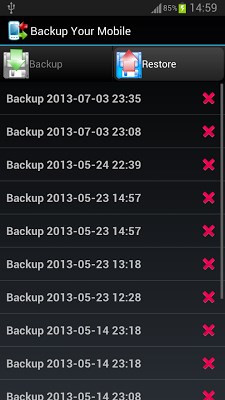
Always test your backup by restoring it to a secondary device before you need it in an emergency.
WiFi recovery expert
Where to Next
Now that you’ve backed up your WiFi passwords, why not learn more? Check out our guides on how to show WiFi password settings on any device, or how to restore WiFi passwords after format. For Windows users, there’s a great tutorial on WiFi password recovery without reinstalling Windows. And if you prefer command-line methods, our WiFi password recovery via terminal guide covers PC and Mac. Stay connected!



