Ever needed to get your WiFi password off your Mac but couldn’t remember it? Maybe a friend wants to connect, or you need it for a new device. The good news: your Mac stores every WiFi password you’ve ever connected to in its Keychain—a built-in password manager. This guide is for anyone using macOS who wants to recover a WiFi password without installing third-party software. By the end, you’ll have your network key in plain text, ready to share or save.
We’ll walk through using the Keychain Access app, which is already on your Mac. You won’t need any downloads or technical skills—just a few clicks and your Mac’s login password. If you’re also looking for ways to find saved passwords on other devices, check out our guide on finding saved WiFi passwords on Mac for more options.
What You’ll Need
- A Mac running macOS (any recent version works).
- Your Mac’s admin username and password (the one you log in with).
- The name of the WiFi network whose password you want to recover.
- Optional: a text editor or notes app to copy the password.
That’s it. Everything else is built into macOS.
Step 1: Open Keychain Access
Keychain Access is a utility app that stores all your passwords, certificates, and keys. To open it, click the Spotlight icon (the magnifying glass in the top-right menu bar) or press Command+Space. Type “Keychain Access” and hit Return. The app will open, showing a list of keychains on the left and entries on the right.

Alternatively, you can find it in the Applications > Utilities folder. Once open, you’ll see categories like iCloud, System, and Login. For WiFi passwords, we’ll focus on the System keychain.
Step 2: Find Your WiFi Network
In the Keychain Access window, look at the left sidebar under Keychains. Select “System” (not System Roots). Then, in the right column, you’ll see a long list of entries. To narrow it down, use the search box in the top-right corner. Type the name of your WiFi network (SSID). You can also type “AirPort” or “Wi-Fi” to see all network-related entries.

The entry you’re looking for will have a type of “AirPort network password” or “Wi-Fi network password.” Double-click on that entry to open its properties.
Step 3: Show the Password
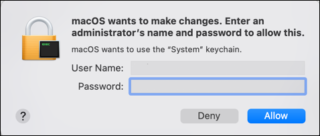
A new window will appear with details about the network. At the bottom, there’s a checkbox labeled “Show password.” Check that box. You’ll immediately be prompted to enter your Mac’s username and password (the admin credentials you use to log in). Type them and click Allow—or click Always Allow if you plan to view passwords often.

Once authenticated, the password field will be filled with the actual WiFi password in plain text. It might be a long string or a simple word. You can now copy it to your clipboard or write it down. For more details on this process, see our article on recovering WiFi password from Keychain.
Step 4: Copy and Share the Password
Select the password text (it might be masked with dots until you click on it), then right-click and choose Copy, or use Command+C. Paste it into a text editor, a message, or directly into the WiFi settings on another device. If you’re sharing with friends, make sure to send it securely. If you need to recover passwords on other operating systems, our WiFi password recovery on macOS guide covers similar steps.

Common Pitfalls
- You forgot your Mac’s admin password: Without the login credentials, you won’t be able to view the password. Reset it via Apple ID or Recovery Mode first.
- The network doesn’t appear: Make sure you’ve connected to it at least once. If it’s still not showing, try selecting “All Items” under Keychains instead of “System.”
- Multiple entries with the same name: Some networks broadcast multiple bands (2.4GHz and 5GHz) with the same SSID. Both will be stored; try each one. Also check the Kind column to ensure it’s an AirPort password.
Where to Next
Now that you know how to pull WiFi passwords from your Mac’s Keychain, you might want to back them up so you never lose access. Check out our guide to backup WiFi passwords to USB for a safe copy. Or if you’d like to explore a different approach, our simplest WiFi password recovery method might be useful. For a comprehensive overview of restoring passwords across devices, see our WiFi password recovery restore guide.