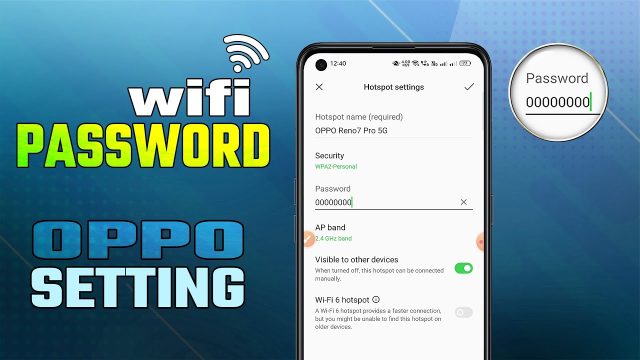
Ever needed to connect a new device to your WiFi but couldn’t find the password you set years ago? Or maybe you changed your router and now you’re stuck trying to remember that 20-character key? Don’t worry—you’re not alone. This post is for anyone who’s ever typed ‘forgot password’ into a search bar, hoping for a miracle. By the end, you’ll know five dead-simple ways to recover your WiFi password using built-in tools you already have. No sketchy software, no command-line wizardry (well, maybe a little), just straight-up tricks that work.
Whether you’re on Windows, Mac, Android, or you just want to log into your router, I’ve got you covered. We’ll start with the simplest method (literally just clicking a few buttons), then move on to more advanced stuff like the PowerShell method for power users, and even a trick using your Mac Keychain. Oh, and if you’re on iPhone, we’ll show you how to use the iPhone method with iCloud Keychain. By the time you finish, you’ll be a WiFi password recovery ninja.
What You’ll Need
- A computer or phone that has connected to the WiFi network before
- Administrator access (for Windows / Mac methods)
- Router login credentials (for the router method)
- Patience—some steps require a few clicks
Step 1: Recover WiFi Password from Windows (Easiest Way)
If you’re on Windows, this is by far the simplest method. Open the Control Panel, go to ‘Network and Internet’ > ‘Network and Sharing Center’, then click on your WiFi network name (it’s a blue link next to ‘Connections’). In the new window, click ‘Wireless Properties’, then switch to the ‘Security’ tab. Check the box that says ‘Show characters’ and bam—your password appears in plain text. That’s the simplest method for Windows users.

Step 2: Recover WiFi Password on Mac Using Keychain
On a Mac, passwords are stored in the Keychain Access app. Open it from Applications > Utilities or just search with Spotlight. In the left sidebar, click ‘System’ (or ‘iCloud’ if you sync passwords). Then search for your WiFi network name (e.g., ‘MyHomeWiFi’). Double-click it, check ‘Show password’, and enter your Mac’s admin password. The WiFi key will appear. This is the classic Mac Keychain trick—super reliable.

Step 3: Recover WiFi Password on Android (No Root Required)
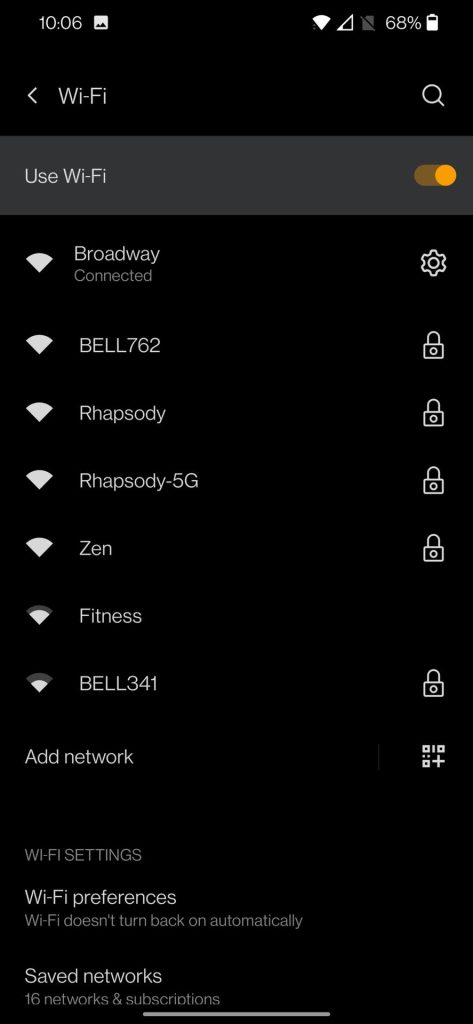
On Android 10 and newer, you can view saved WiFi passwords without rooting. Go to Settings > Network & Internet > WiFi, and tap the gear icon next to your connected network. Tap ‘Share’ (you’ll see a QR code) and then confirm with your PIN or fingerprint. The password is shown below the QR code in plain text. If you have an older Android, you might need to use a backup apps like ‘WiFi Key Recovery’ or check the router admin page (Step 4).
Step 4: Recover WiFi Password Directly from Your Router
If you have physical access to the router, this is the most reliable router method. Open a browser, type your router’s IP (often 192.168.1.1 or 192.168.0.1), and log in with the admin credentials (usually printed on the router sticker). Look for a section called ‘Wireless’, ‘WiFi’, or ‘Security’. There you’ll see the ‘Passphrase’ or ‘Pre-Shared Key’. Write it down or change it to something memorable. This works even if you never connected a device before.

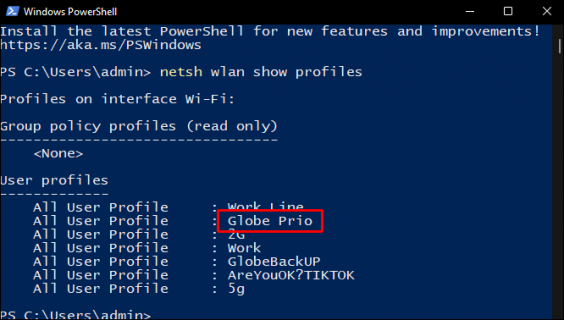
Step 5: Recover All Saved WiFi Passwords with PowerShell (Windows Advanced)
For power users who want to recover every saved WiFi password at once, open PowerShell as Administrator and run: ‘netsh wlan show profiles’. This lists all networks. Then for each, run ‘netsh wlan show profile name=”NETWORKNAME” key=clear’ to see the password under ‘Key Content’. This PowerShell method is lightning fast and gives you a complete list. Pair it with a backup script to backup your WiFi passwords to a USB drive for future use.

Common Pitfalls
- You don’t have admin access: On a work or school computer, you may not be allowed to view saved passwords. Try the router method instead.
- The network isn’t saved: If you’re trying to recover a password for a network you never connected to, only the router method works. Otherwise, ask the owner.
- Forgot router admin password: If you can’t log into the router, try default credentials (admin/admin, admin/password) or reset the router with a paperclip.
And if you’re on iPhone and haven’t used iCloud Keychain sync, you might be out of luck without a Mac. But there’s always the iPhone method using iCloud Keychain on a linked Mac, which is detailed in our dedicated guide.
Where to Next
Now that you’ve recovered your WiFi password, consider backing it up. We recommend you backup your WiFi passwords to a USB drive so you never have to go through this again. Also, check out our other guides for recovering passwords on different devices. Happy surfing!