You just got a new device or a friend asked for your WiFi password, and your mind goes blank. Don’t stress — your iPhone has likely saved that network key somewhere, and there are several easy ways to dig it up. This guide is for anyone with an iPhone (or access to an Apple device) who needs to recover a forgotten WiFi password. By the end, you’ll know how to find your password using built-in iOS tools, iCloud Keychain, a Mac, or even your router’s admin panel.
No technical skills required. We’ll walk you through each method step by step, so you can get back online or share access with others in minutes. If you’re looking for general wifi password recovery tips, this article is a great starting point.
What You’ll Need
- Your iPhone (with iOS 16 or later for the easiest method)
- If using iCloud Keychain: your Apple ID and password
- If using a Mac: a Mac logged into the same Apple ID
- If using the router: access to the router’s web interface (usually via a browser on any device)
Step 1: Use the Built-in iOS WiFi Password Viewer (iOS 16+)
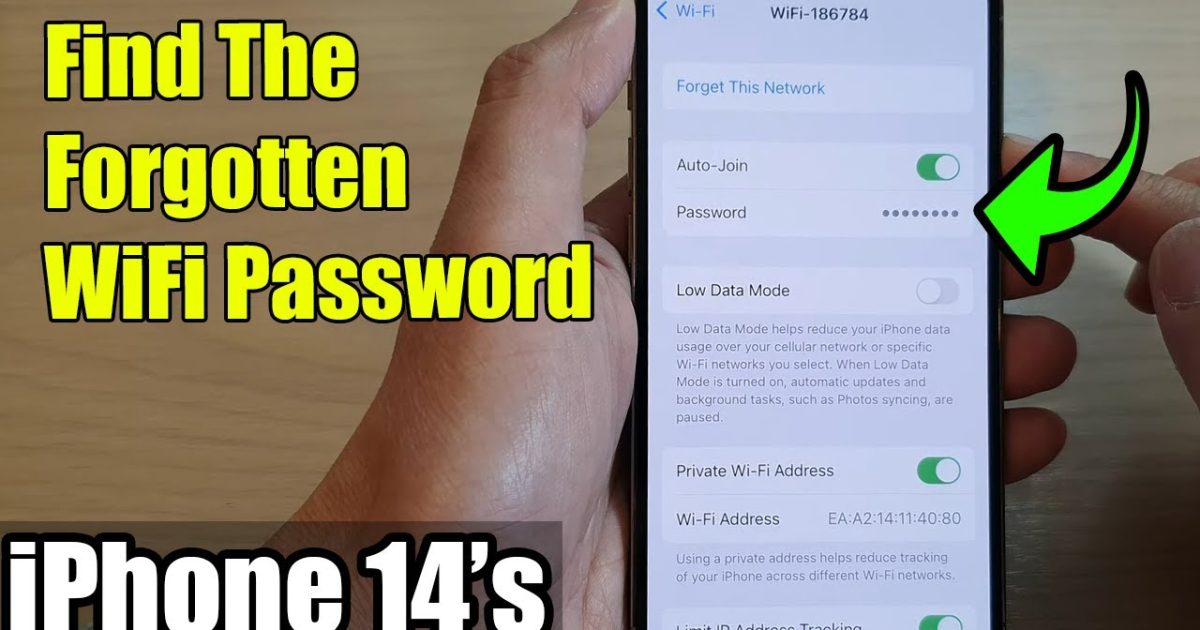
If your iPhone is running iOS 16 or newer, Apple added a simple way to view the password of any saved WiFi network right in Settings. This is the fastest method — no extra devices or apps needed.
- Open the Settings app on your iPhone.
- Tap Wi-Fi (near the top).
- Find the network you need the password for and tap the blue (i) icon next to it.
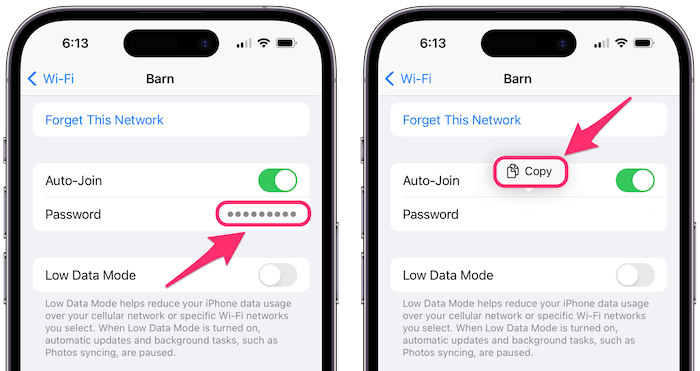
- Tap the Password field — it’s hidden behind dots.
- Authenticate with Face ID, Touch ID, or your device passcode.
- The password will appear in plain text. You can tap and hold to copy it.
That’s it! If your iOS is older, don’t worry — proceed to the next method.
Step 2: Use iCloud Keychain on Another Apple Device
If you have iCloud Keychain enabled and another Apple device (iPad, Mac, or another iPhone) logged into the same Apple ID, your saved WiFi passwords sync. You can then view the password on that device. This is the safest method because the data stays within Apple’s encrypted ecosystem.
- On the other device, go to Settings (or System Preferences on Mac) > Passwords (or Passwords & Accounts on older iOS).
- Authenticate with your device’s passcode or biometrics.
- Search for the network name in the list.
- Tap the entry to reveal the password.
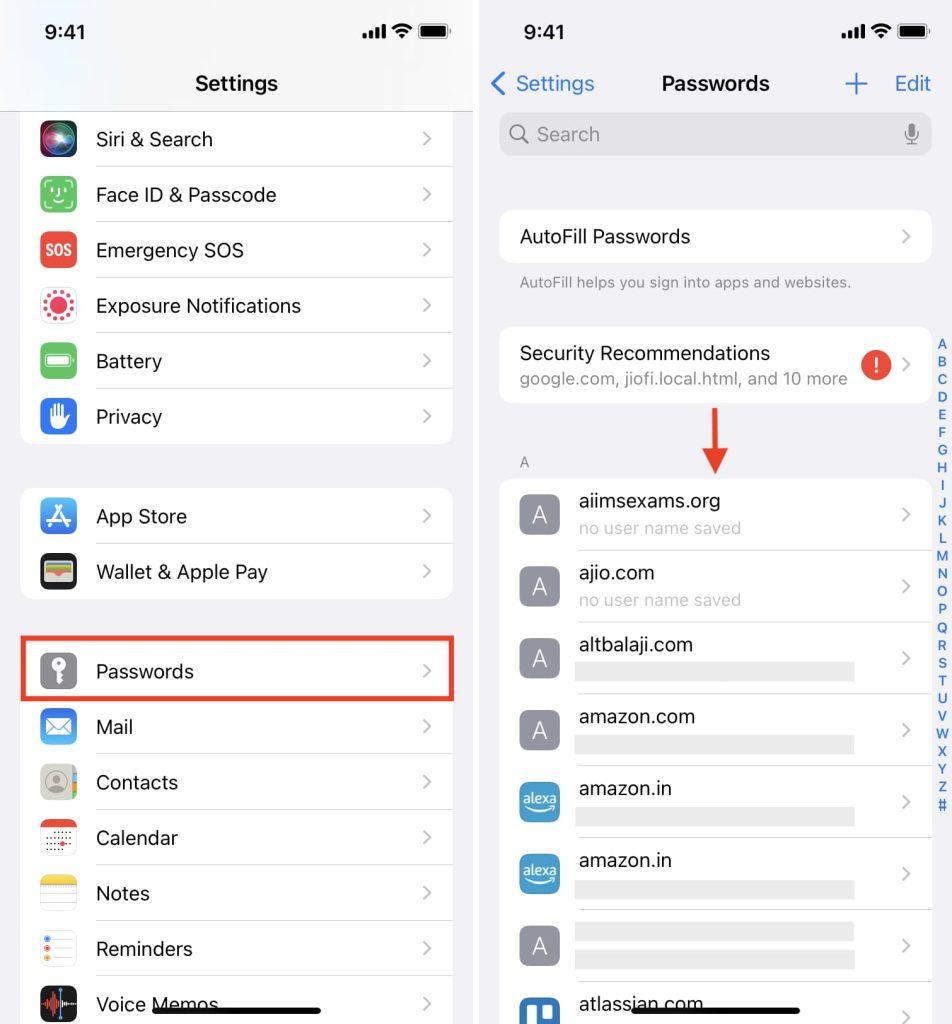
This works seamlessly if you’ve already synced. If you don’t have another Apple device handy, you can also recover your wifi password from a cloud backup if you’ve previously used iCloud to back up your Keychain.
Step 3: Access the Password on a Mac Using Keychain Access
If you have a Mac, you can find saved WiFi passwords using the Keychain Access app. This is especially useful if your iPhone doesn’t have iOS 16 yet or if you prefer using a computer.
- On your Mac, open Keychain Access (Applications > Utilities).
- In the search bar, type the name of the WiFi network.
- Double-click the entry for that network (it will say AirPort network password).
- Check the box next to ‘Show password’.
- Enter your Mac’s admin username and password when prompted.
- The WiFi password will be displayed.
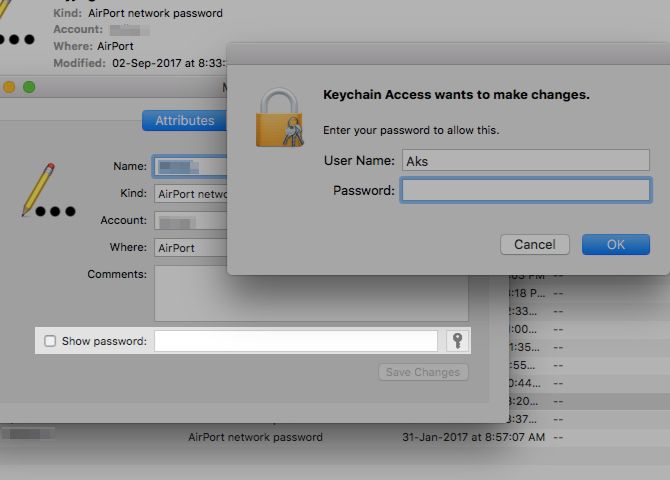
This method is reliable and doesn’t require any third-party software. For more details, check out our guide on how to find saved wifi passwords from Keychain on a Mac.
Step 4: Log Into Your Router’s Admin Panel
If you can’t access any Apple device with the saved password, you can always recover it from your router. This works regardless of your phone or computer — you just need to be connected to the router (or know its IP address).
- Find your router’s IP address (often 192.168.0.1 or 192.168.1.1). You can look it up in iPhone Settings > Wi-Fi > tap the (i) next to your network and note the Router entry.
- Open a web browser and enter that IP address in the address bar.
- Log in with the router’s admin credentials (often printed on the sticker on the router itself).
- Navigate to the Wireless or Wi-Fi settings section.
- Look for a field labeled ‘Password’, ‘Passphrase’, or ‘Network Key’ — it may be hidden behind asterisks, but often there’s a ‘Show’ option.
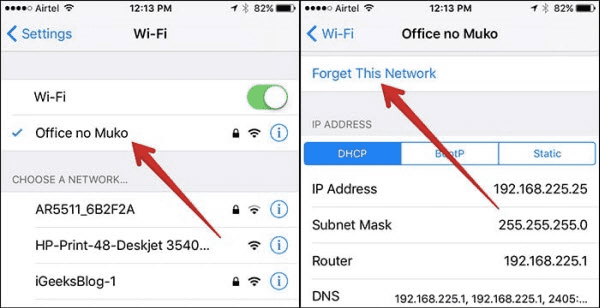
Be careful not to change any settings — just note the password. If you need help interpreting router menus, our article on how to recover a forgotten wifi password from a saved profile covers similar steps for network admins.
Step 5: Use a Third-Party Password Manager
If you use a password manager like 1Password, LastPass, or Bitwarden and have saved your WiFi credentials there, you can retrieve them from the manager’s app on your iPhone. Many managers also sync over iCloud or their own cloud.
- Open your password manager app on your iPhone.
- Search for the WiFi network name or a related entry (e.g., ‘Home WiFi’).
- Tap the entry to view the password — you may need to authenticate with the master password or biometrics.
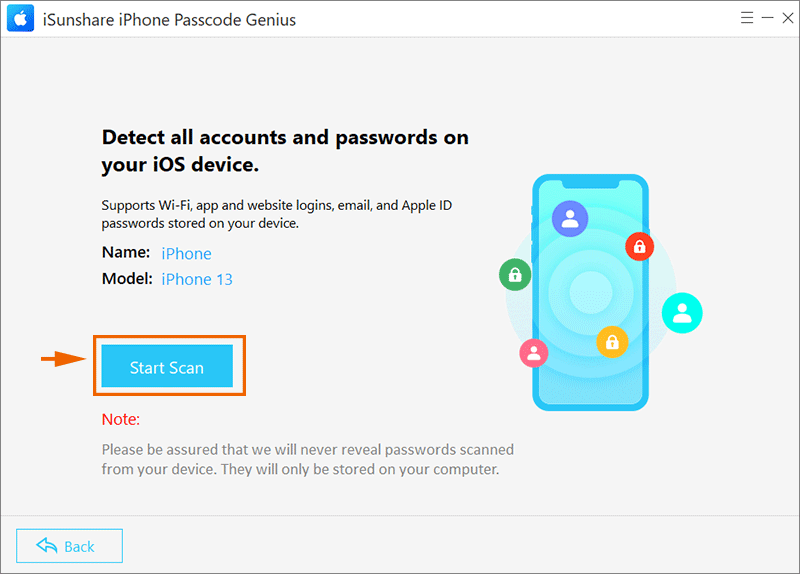
If you haven’t saved it in a manager yet, consider this a good reason to backup your wifi passwords to the cloud so you never get locked out again.
Common Pitfalls
- iOS version too old: If your iPhone is running iOS 15 or earlier, the built-in password viewer won’t exist. Upgrade to iOS 16 or use an alternative method.
- iCloud Keychain not enabled or synced: Even if you use the same Apple ID, Keychain must be turned on for passwords to sync. Check Settings > [Your Name] > iCloud > Passwords & Keychain.
- Router admin password unknown: Many people change the router’s login but forget it. If that’s the case, you may need to reset the router to factory defaults — which will wipe all settings, including the WiFi password.
For more troubleshooting, browse our collection of wifi password recovery tips, which cover a wide range of scenarios.
Where to Next
Now that you’ve recovered your WiFi password, take a moment to save it in a safe place. Our guide on the safest method for storing passwords will help. Also consider backing up your passwords to avoid this hassle in the future. If you ever need to recover your wifi password from a cloud backup, we have a dedicated tutorial for that too.
Happy surfing!