So you’ve got a Kali Linux machine and you’re locked out of a WiFi network—or you just want to peek at the password for a network you’re already connected to. Maybe you’re practicing ethical hacking, or maybe you just forgot the sticky note you wrote it on. Either way, this guide is for you. By the end, you’ll know how to pull the plain‑text password from a saved connection, how to crack a WPA/WPA2 handshake if you have the capture, and even how to recover a password from your router’s web interface when that’s possible.
We’ll keep it casual and practical—no jargon you can’t handle. If you’re new to Kali, don’t worry. Every command is explained, and I’ll point out what to type exactly. Ready? Let’s get that password back.
What You’ll Need
- A computer running Kali Linux (any recent version). If you don’t have it installed, you can run Kali from a live USB.
- A WiFi adapter that supports monitor mode (if you plan to capture handshakes). Most internal adapters work, but some external USB adapters (like the Alfa AWUS036ACH) are better.
- Root privileges. Most of these commands require sudo. You can open a terminal and type sudo -i to get a root shell.
- Basic familiarity with the terminal. You should know how to change directories and run commands. That’s about it.
- Optional: a second device or a way to connect to the network to test the recovered password.
Step 1: Check Saved Passwords (If You’re Already Connected)
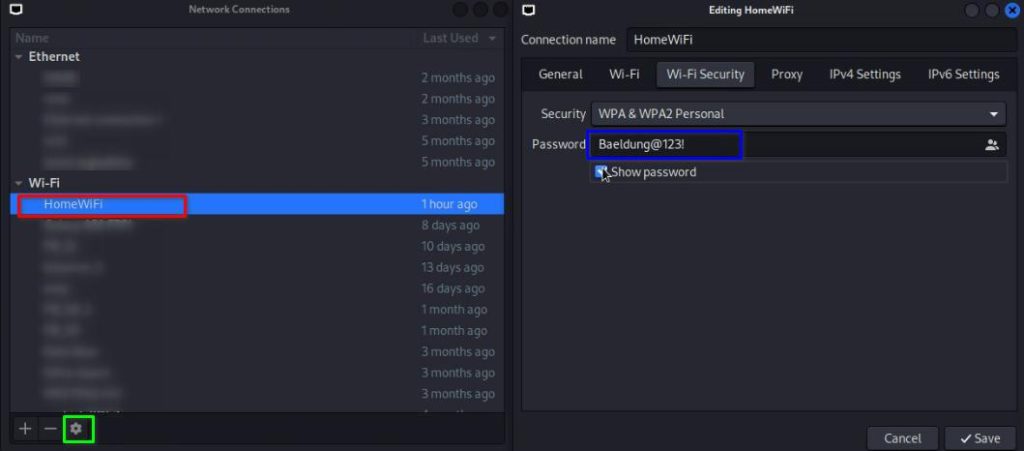
Before diving into packet captures, check if the password is sitting right on your system. Kali stores network configurations in /etc/NetworkManager/system-connections/. Each WiFi network has a config file with the plain‑text password (if it’s WPA2-PSK).
Open a terminal and run:
sudo cat /etc/NetworkManager/system-connections/ | grep psk=
Replace with the actual name of the network (you can list all files with ls /etc/NetworkManager/system-connections/). The output will show psk=YourPassword. That’s it! This is the fastest method for networks you’ve connected to before. For a more detailed look at similar recovery on other systems, check out our guide on how to recover a forgotten WiFi password from a saved profile.
Step 2: Capture a WPA Handshake (If You’re Not Connected)
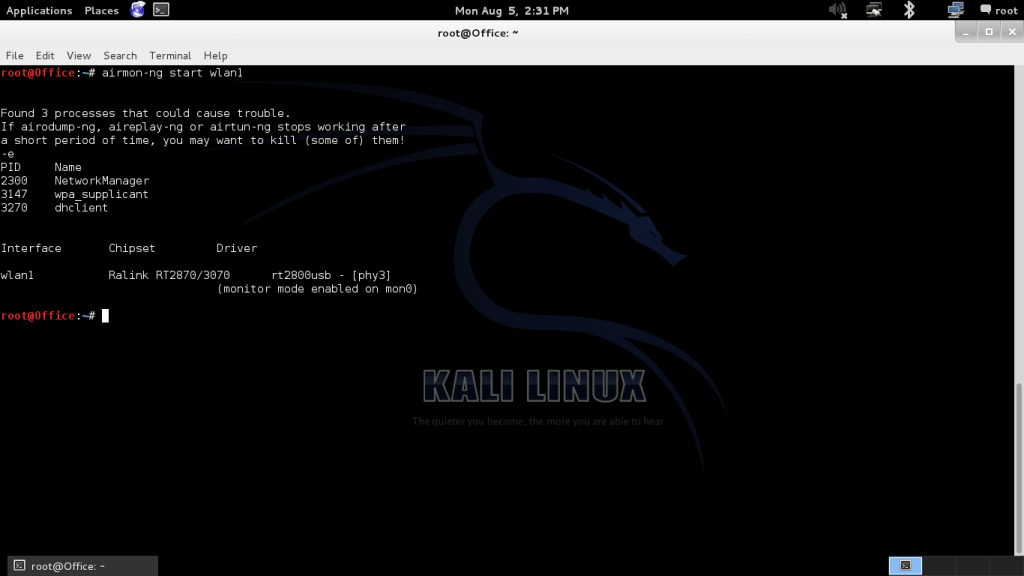
If you don’t have the network saved, you’ll need to capture a handshake. This works for WPA/WPA2-PSK networks. First, put your wireless interface into monitor mode.
Run:
sudo airmon-ng start wlan0
Replace wlan0 with your interface name (check with iwconfig). Then start airodump-ng to listen for networks:
sudo airodump-ng wlan0mon
Find your target network’s BSSID and channel. Press Ctrl+C to stop scanning, then run:
sudo airodump-ng -c –bssid -w capture wlan0mon
Replace and with the values you noted. The -w capture saves the output to files named capture-*.cap. Now you need a client to deauthenticate. In a separate terminal, run:
sudo aireplay-ng -0 2 -a wlan0mon
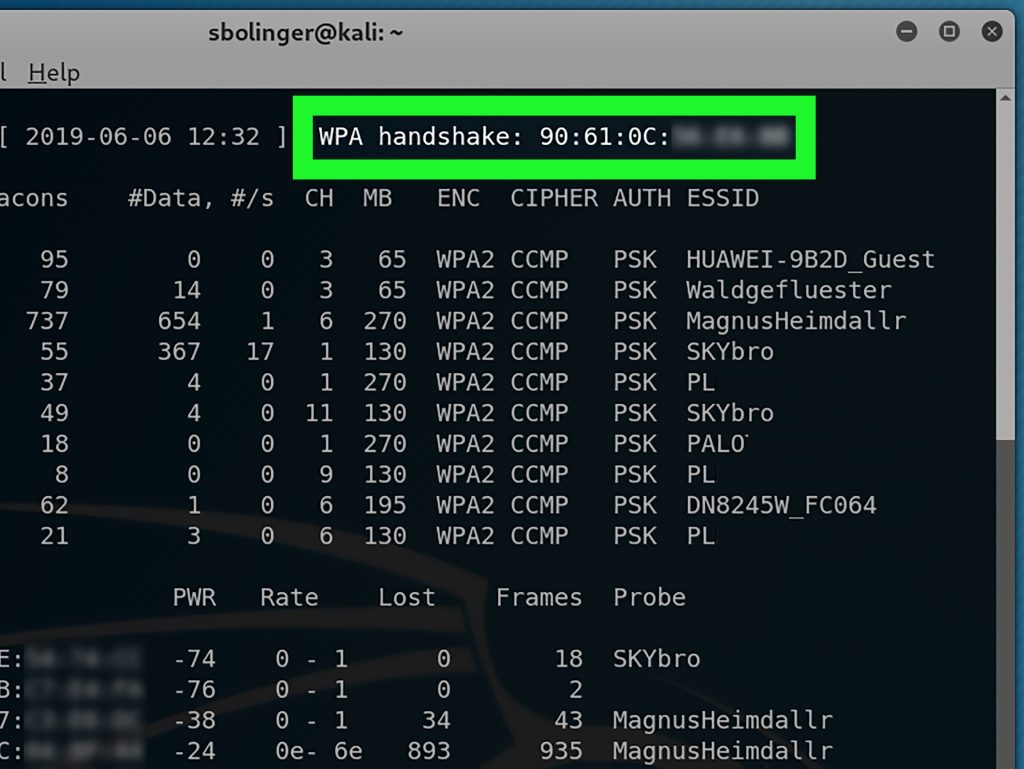
This sends two deauth packets. If a client reconnects, you’ll capture the handshake. Watch the original terminal until you see “WPA handshake: ” in the top right. Then press Ctrl+C.
Step 3: Crack the Handshake with aircrack-ng
Now you have the handshake file (capture-01.cap). You need a wordlist to crack it. Kali comes with a small wordlist at /usr/share/wordlists/rockyou.txt.gz. Unzip it first:
sudo gunzip /usr/share/wordlists/rockyou.txt.gz
Then run aircrack-ng:
sudo aircrack-ng -w /usr/share/wordlists/rockyou.txt capture-01.cap
If the password is in the wordlist, you’ll see the key. For stronger passwords, you may need a larger wordlist or a GPU cracker like hashcat. This is a great time to check out our WiFi password recovery tips for more efficient cracking.
Step 4: Recover Password from the Router’s Web Interface
If you have physical access to the router and the default credentials, you can simply log in and view the WiFi password. Connect to the router’s LAN via Ethernet or a saved WiFi network (if you’re still connected elsewhere). Open a browser and go to the gateway IP (usually 192.168.1.1 or 192.168.0.1). Log in with admin credentials (often printed on the router). Navigate to Wireless Settings to see the passphrase. This is the easiest method if you have access. For a detailed walkthrough on various routers, see our guide on how to recover WiFi password from your modem.
Common Pitfalls
- Monitor mode not enabled. Make sure your adapter supports monitor mode and you ran airmon-ng correctly. If you see “no such device,” check with iwconfig to confirm the interface name.
- Missing handshake. The deauth attack might not work if clients are far away or sleeping. Try sending more deauth packets (change -0 2 to -0 10) or wait for a client to connect naturally.
- Wordlist too small. rockyou.txt is decent but won’t contain complex passwords. If cracking fails, try a larger wordlist or use a rule-based attack with hashcat. Consider the safest way to recover a WiFi password if you’re not sure about brute-forcing.
Where to Next
Now you’ve got the password. What next? If you want to keep your networks organized, you might want to backup WiFi passwords to the cloud for easy recovery. Or if you need a quick solution on other platforms, check out our free WiFi password recovery utility for Windows. And remember – only use these techniques on networks you own or have permission to test. Happy hacking!



