We’ve all been there: you need to connect a new device to your WiFi, but you can’t remember the password. Maybe it’s written on a sticky note that’s long gone, or you changed it months ago and never saved it anywhere. Before you give up and call your ISP, there’s a simple trick that almost always works: log into your modem’s configuration page. This method works on any modem or router, whether you’re on Windows, Mac, Linux, or even a phone. By the end of this guide, you’ll have your WiFi password in hand, with no extra software required.
Accessing your modem’s config page is like opening the control center of your home network. From there, you can see everything: your SSID (network name), security type, and—most importantly—the password. If you’ve never done this before, don’t worry. It’s easier than it sounds, and I’ll walk you through every step. Even if your modem uses a different interface, the general process is the same. Let’s dive in and get you back online.
What You’ll Need
- A device (laptop, desktop, smartphone, tablet) connected to your modem via WiFi (even if you’re stuck on a visitor network) or Ethernet cable.
- Your modem’s IP address (usually 192.168.0.1, 192.168.1.1, or 192.168.2.1).
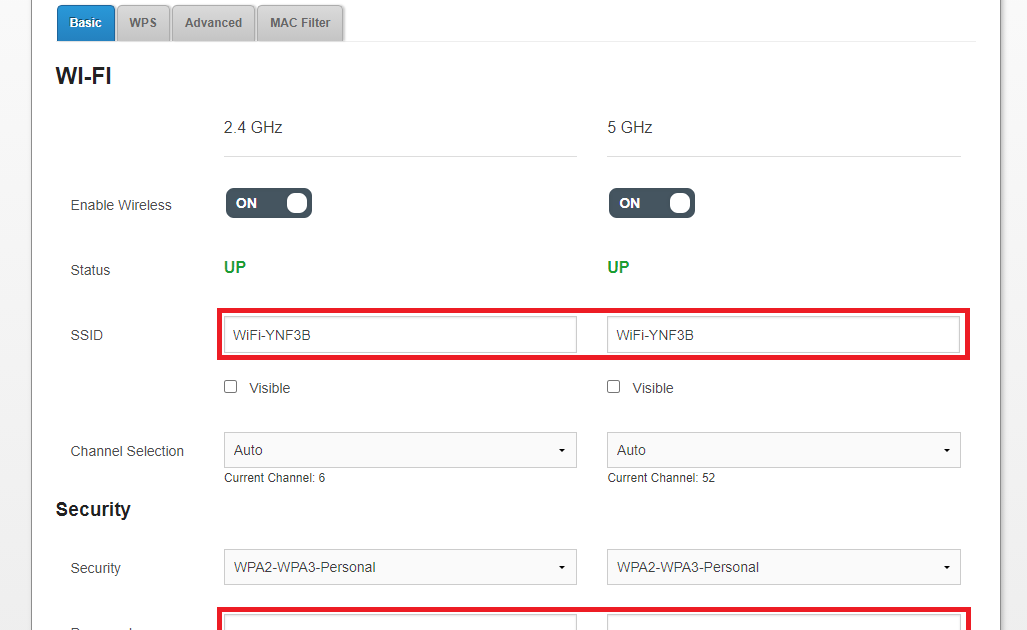
- The admin username and password for your modem. If you’ve never changed them, check the sticker on the modem itself—often printed there.
- A web browser (Chrome, Firefox, Safari, Edge—any will do).
Step 1: Find Your Modem’s IP Address
The first thing you need is the gateway IP address of your modem. This is the address you’ll type into your browser to open the config page. The easiest way to find it depends on your device. On Windows, open Command Prompt and type ipconfig, then look for ‘Default Gateway.’ On Mac, go to System Preferences > Network > Advanced > TCP/IP, and next to ‘Router’ you’ll see the IP. On Android, head to Settings > WiFi, tap your network, and look for ‘Gateway.’ On iPhone, it’s in Settings > WiFi > tap the info icon next to your network > scroll to ‘Router.’ Usually it’s something like 192.168.1.1 or 192.168.0.1. Write it down.
Step 2: Log Into the Admin Panel
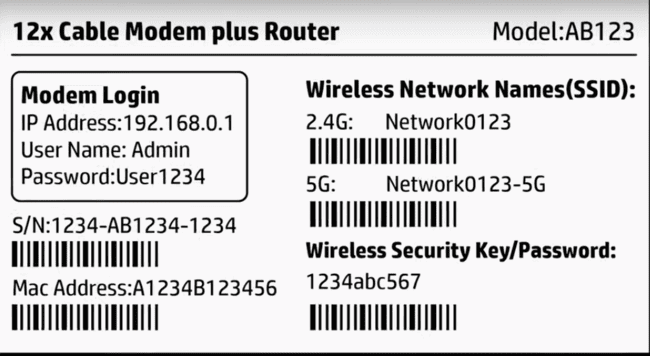
Open your web browser and type that IP address into the address bar. Hit Enter. You’ll see a login page asking for a username and password. If you’ve never changed these, the default credentials are often ‘admin’ for both fields, or ‘admin’ / ‘password’, or something similar. Check the sticker on your modem—it usually lists the default login. If you changed them and forgot, you’ll need to reset your modem to factory settings (there’s a tiny button on the back). After logging in, you’ll be on the main dashboard.
Step 3: Navigate to WiFi Settings
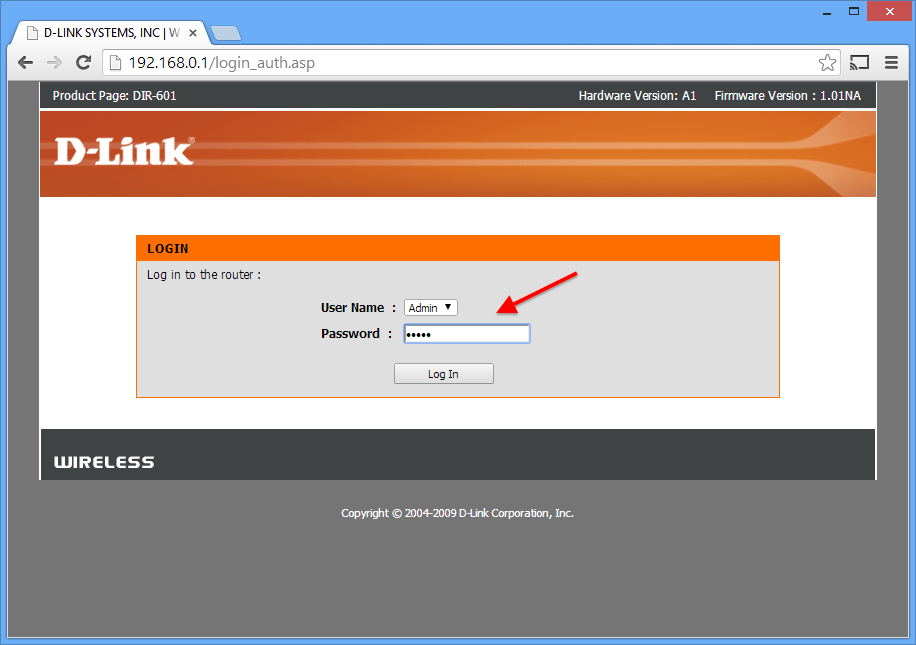
Once inside, look for a section called ‘Wireless,’ ‘WiFi,’ ‘Network,’ or ‘Setup.’ It might be a tab at the top or a link on the left sidebar. Click on it. Then find a submenu like ‘Wireless Settings,’ ‘WiFi Configuration,’ or ‘Security.’ The exact names vary by manufacturer (TP-Link, Netgear, Asus, etc.), but they all have something similar. If you’re lost, look for a ‘Wireless’ or ‘WiFi’ icon.
Step 4: Locate the Password
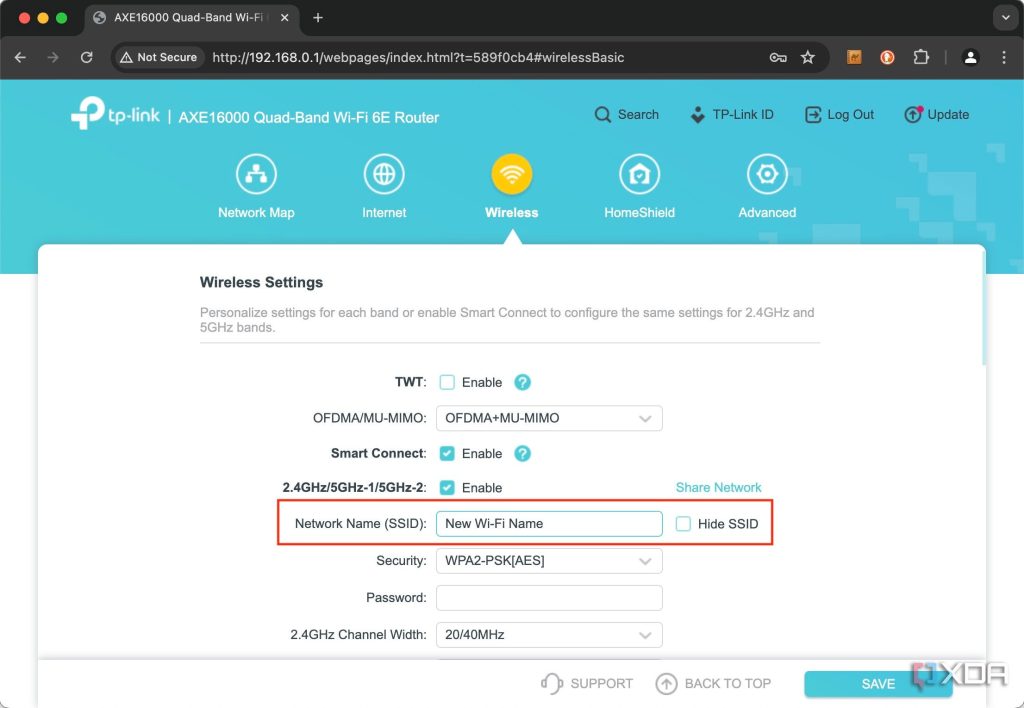
In the wireless settings page, you’ll see your network name (SSID) and a field for ‘Pre-Shared Key,’ ‘Passphrase,’ ‘Network Key,’ or just ‘Password.’ It might be shown as dots or asterisks, but there’s usually an eye icon or a ‘Show’ checkbox to reveal it. Click that, and your password will appear in plain text. Write it down somewhere safe. If the field is blank or grayed out, you may need to scroll down—some modems hide it under ‘Security’ settings.
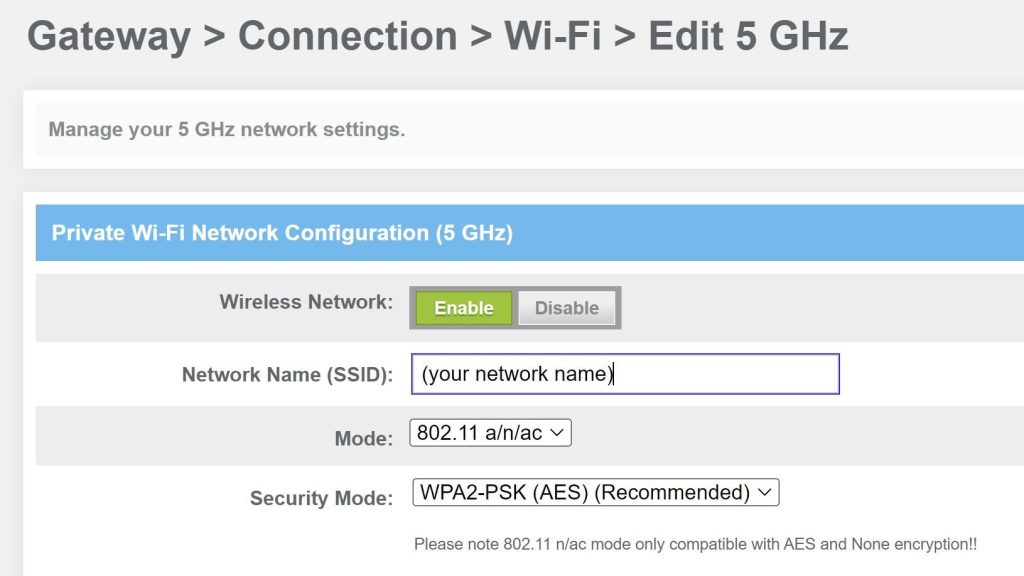
Step 5: Change It (Optional)
While you’re in there, consider changing your WiFi password to something you’ll remember. Make it strong—at least 12 characters with a mix of letters, numbers, and symbols. Then hit ‘Save’ or ‘Apply.’ Your devices will temporarily disconnect, but you can reconnect using the new password. Just don’t forget to update it on all your gadgets. If you want to back up your passwords for future, check out our guide on backup wifi passwords windows.
Common Pitfalls
- Can’t log in: If your admin password doesn’t work, you may have changed it in the past and forgotten. Try common defaults (admin/admin, admin/password) or check the sticker. If all else fails, do a factory reset by holding the reset button on the modem for 10 seconds. This wipes all settings, so you’ll need to set up WiFi again from scratch.
- IP address not loading: Make sure you’re connected to the same network as the modem (via Ethernet is safest). If the IP is wrong, double-check it using the methods in Step 1. Some modems use 192.168.0.1 or 10.0.0.1 instead.
- Password field hidden or disabled: Some ISPs lock down the modem so you can’t see the password. In that case, you might need to call them or use an alternative method like saved wifi password recovery command line on a device that’s already connected.
Where to Next?
Now that you’ve got your WiFi password back, you might want to explore other recovery methods for different situations. For example, if you’re away from your modem, you can recover forgotten wifi password on mobile from a connected phone. Or if you prefer using your browser without logging into the modem, try wifi password recovery with browser from a Windows laptop. For Android users who can’t access the modem, there’s wifi password recovery without root android. And for the command-line lovers, check out saved wifi password recovery command line. Keep your network secure and never get locked out again!



