
Ever needed to connect a new device to your WiFi but couldn’t remember the password? Or maybe you’re setting up a guest network and need the key you wrote down five years ago. Don’t worry—it happens to all of us. The good news is that unless you’ve deliberately cleared your saved networks, the password is still somewhere on your device. With the right wireless password recovery app, you can pull it up in seconds.
In this guide, I’ll walk you through using a dedicated wireless password recovery app to find forgotten WiFi keys on Windows, Android, and even macOS and Linux. By the end, you’ll have your network password back and know how to back it up so you never lose it again. Let’s get started.
What You’ll Need
- A computer or phone that has connected to the WiFi network before
- Administrator or root access (for Windows and Android respectively—don’t worry, I’ll show you non-root options too)
- An internet connection to download the app (use mobile data or another network if needed)
- Antivirus temporarily disabled (only if your AV flags the app—common with password tools)
- Patience—this is easier than you think
Step 1: Choose the Right Wireless Password Recovery App
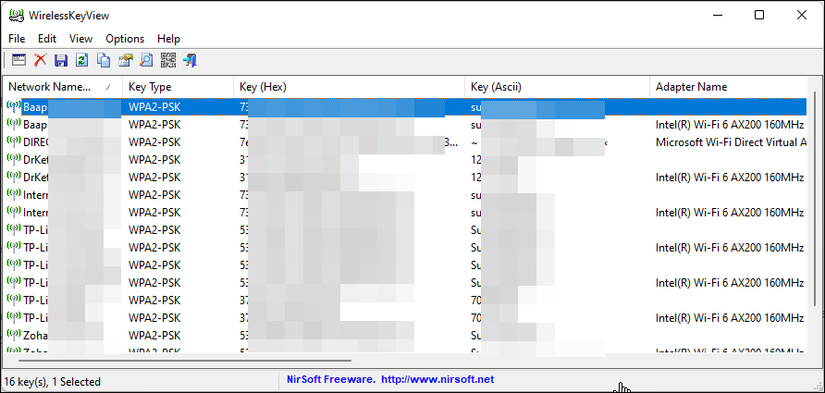
Not all apps are created equal, and using the wrong one can leave you with malware or no results. For Windows, the gold standard is NirSoft’s WirelessKeyView—it’s free, portable, and works on Windows 7 through 11. For Android, look for apps like WiFi Password Viewer or WiFi Key Recovery; just check that they don’t require root (many now work without it). On macOS, the built-in Keychain Access does the job, but you can also use third-party tools like WiFi Password Revealer. Linux users can retrieve passwords from the /etc/NetworkManager/system-connections/ folder, or use the command line approach in the saved wifi password recovery command line guide.
Step 2: Download and Install the App Safely
Always download from the official site or a trusted repository like the Microsoft Store or Google Play. For WirelessKeyView, go to NirSoft’s website. For Android, stick to the Play Store and read reviews—if an app asks for unnecessary permissions (like SMS or camera), skip it. Once downloaded, run the installer or, if it’s a portable app, just unzip it to a folder. For Android, install the APK if you’re sideloading, but be extra careful. If you’re looking for a root-free approach, check out the wifi password recovery without root android guide.
Step 3: Scan for Saved WiFi Networks
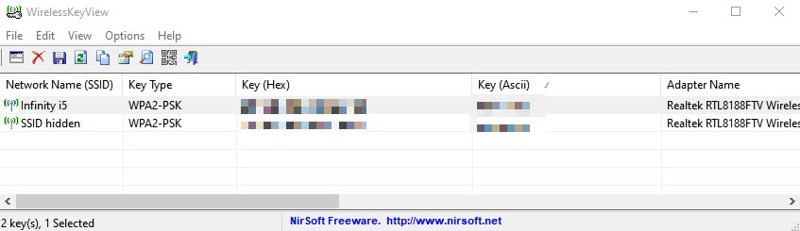
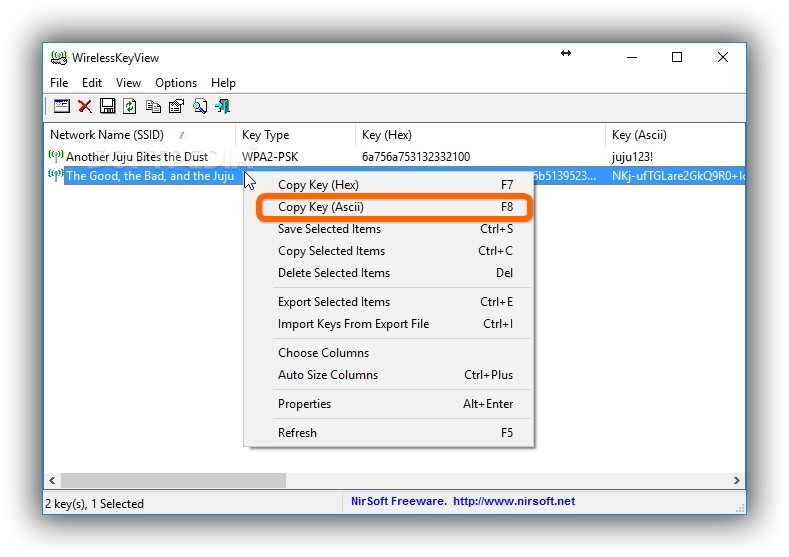
Open the app. On Windows, WirelessKeyView automatically scans and displays all wireless network profiles saved on your computer. It lists the SSID (network name), the key (password), and details like encryption type. On Android, after opening the app, you’ll likely see a list of saved networks. Tap a network to reveal the password. Some apps require you to click a ‘Show Password’ button. On macOS, open Keychain Access (from Applications > Utilities), search for your WiFi network name, and check ‘Show password’ after authenticating. For Linux, use the graphical network manager or the terminal method detailed in our forgotten wifi password recovery linux article.
Step 4: View and Copy the Password
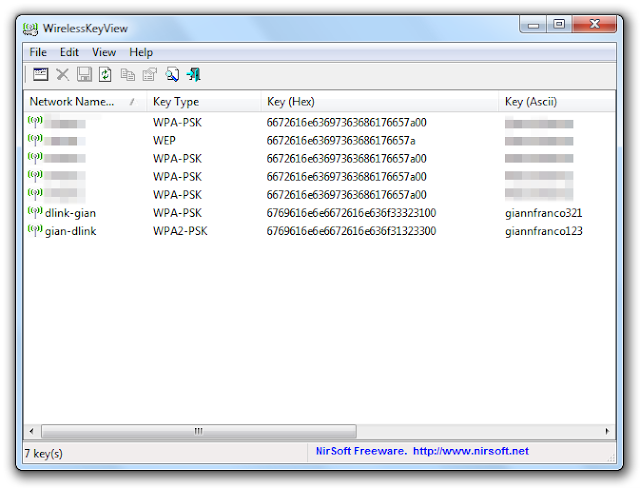
Once the password is visible, you can write it down, take a photo, or copy it to your clipboard. In WirelessKeyView, you can select a network and press Ctrl+C to copy the password to clipboard. On Android, most apps have a copy button next to the password. On macOS, you can reveal the password and then copy it manually. Paste it into your new device’s WiFi settings. If you’re on Windows 11 and need a refresher, our wifi password recovery for windows 11 laptop guide covers this in more detail.
Step 5: (Optional) Backup Your WiFi Passwords for the Future
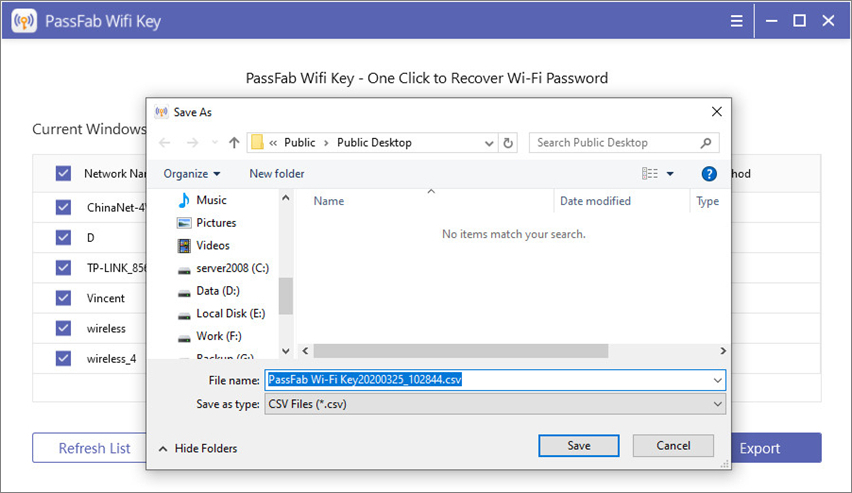
Now that you have your password, don’t lose it again. You can export all passwords from WirelessKeyView to a text file (File > Save Selected Items) or use the app’s export feature. On Android, some apps allow export to CSV. For a more permanent solution, consider using a password manager to store your WiFi keys, or follow our backup wifi passwords windows guide for a systematic backup. You can also save the passwords to a secure cloud note.
Common Pitfalls
- Antivirus false positives: Many password recovery apps are flagged by antivirus because they access stored credentials. Temporarily disable your AV or add the app to the whitelist. Always verify the app’s reputation first.
- App not showing all networks: If you recently reformatted your PC or factory reset your phone, saved networks are erased. Also, some Android apps require root for older networks. Try a different app or check the command-line method.
- Downloading from untrusted sources: Malicious apps disguised as password recovery tools are common. Stick to the official developer site or the Play Store. Avoid random download sites.
Where to Next
You’ve successfully recovered your WiFi password using a dedicated app—nice work! Now that you have access, consider strengthening your network security by changing the password or setting up a guest network. If you found this method useful, you might also like our guides on recovering passwords from your modem’s config page or using browser-based recovery. Keep exploring and stay connected!



