
Ever needed to connect a new device to your WiFi but couldn’t remember the password? You’re not alone. This guide is for anyone who wants to recover their saved WiFi passwords using lightweight, portable software that doesn’t require a heavy installation or admin rights in most cases. By the end, you’ll be able to extract network keys from your Windows, macOS, or Linux machine with minimal fuss.
Lightweight tools are perfect for creating a portable recovery kit on a USB drive or quickly helping a friend. They often weigh under a megabyte and run from a single executable or script. We’ll cover three major platforms and show you how to use a wireless password recovery tool that you can carry anywhere.
What You’ll Need
- A Windows, macOS, or Linux computer with saved WiFi networks
- Basic comfort with command-line tools (for Linux/macOS methods)
- Optional: a USB flash drive to carry the portable tools
- No internet connection required once the tool is downloaded
Step 1: Download a Lightweight Recovery Tool
For Windows, the go‑to lightweight tool is WirelessKeyView by NirSoft. It’s a single executable that instantly displays all saved WiFi passphrases. For macOS, you can use the built‑in Keychain Access or a tiny utility like WiFi Password Revealer. For Linux, the passwords are stored in plaintext in /etc/wpa_supplicant/wpa_supplicant.conf. If you prefer a more portable approach, you can also use a wireless password recovery tool that runs from a USB drive and works on multiple systems.

Step 2: Extract and Run the Tool (Windows)
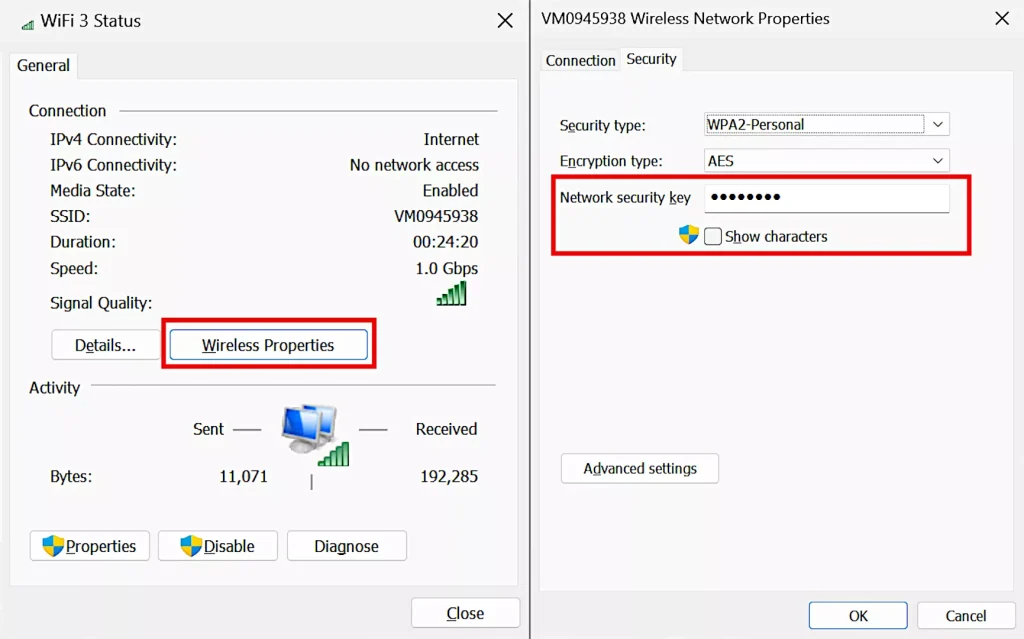
Download WirelessKeyView and extract the ZIP file. No installation is needed—just double‑click the .exe file. If Windows SmartScreen blocks it, click ‘More info’ then ‘Run anyway’. The tool will immediately list all your saved networks with their passwords in the ‘Key (Ascii)’ column. You can even export the list to a text file via File > Save Report. This is one of the easiest ways to restore wifi passwords windows after a fresh install.
Step 3: Recover Passwords on macOS
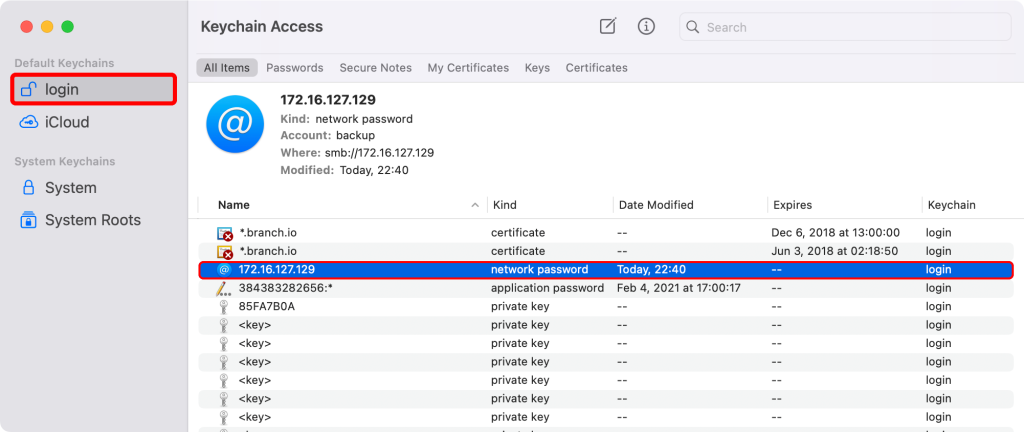
On a Mac, you can use the built‑in Keychain Access app (found in Applications > Utilities). Open it, search for your WiFi network name under ‘System’ or ‘Login’ keychains, then double‑click the entry and check ‘Show password’. You’ll need your admin password once. Alternatively, you can use a lightweight script to dump all WiFi keys at once—check out our guide on how to find saved wifi password mac for the exact terminal command.
Step 4: Recover Passwords on Linux
Linux stores WiFi passwords in plaintext in /etc/wpa_supplicant/wpa_supplicant.conf. Open a terminal and run sudo cat /etc/wpa_supplicant/wpa_supplicant.conf. Look for the network block containing your SSID; the ‘psk’ field is the password. If you prefer a scripted approach, you can write a quick bash script to parse this file—a perfect task for a wifi password recovery script. For a completely no‑install method, see our article on wifi password recovery without software installation.

Step 5: Save or Share Your Passwords
Once you’ve retrieved the passwords, write them down or save them in a secure password manager. On Windows, you can export all networks from WirelessKeyView. On macOS, you can copy the password directly from Keychain Access. On Linux, you can copy the psk value. If you want to see this information on your phone or other device, check out our guide on how to show wifi password settings from your router.

Common Pitfalls
- Antivirus false positives: Some lightweight tools (especially NirSoft utilities) are flagged by antivirus software because they can access stored passwords. Temporarily disable your antivirus or add an exception if you trust the source.
- Admin rights: On Windows, WirelessKeyView may require admin privileges to access the password data. If you’re on a locked‑down machine, try running it as administrator.
- WPA3 support: Older tools may not display WPA3 passwords. Check the tool’s website for compatibility, or use the router’s web interface as a fallback.
Where to Next
Now that you’ve recovered your passwords, consider backing them up so you never lose them again. Our migration guide for transferring saved networks to a new device can help. Also, explore other recovery methods like using your router’s admin page or restoring from a system backup. Lightweight tools are just one piece of the puzzle—stay prepared!



