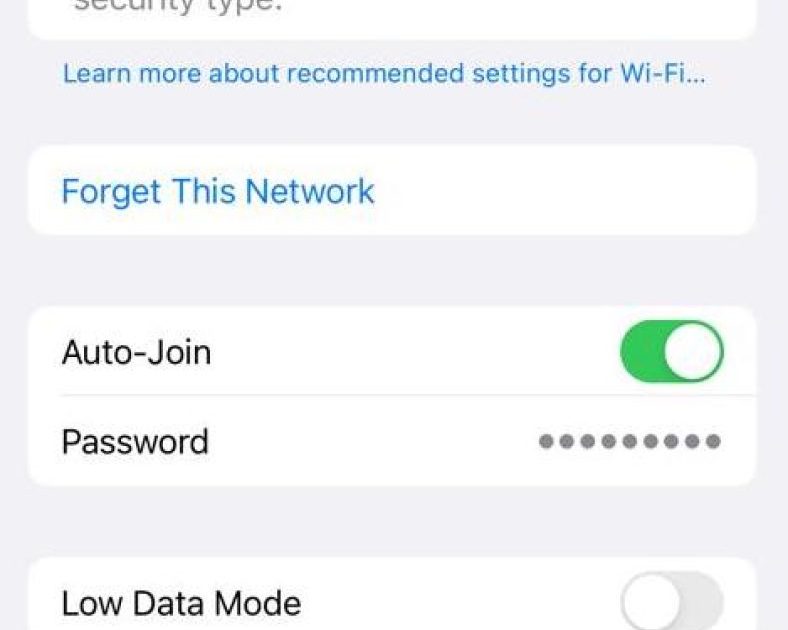
Ever stared at your iPhone, trying to remember the WiFi password for a network you’ve connected to a hundred times? You’re not alone. Whether you need to give the password to a friend or set up a new device, it’s frustrating when iOS hides that information behind layers of security. But don’t worry—there are several ways to recover those saved WiFi passwords, and you probably have everything you need already. By the end of this guide, you’ll have at least three methods to retrieve any forgotten WiFi password from your iPhone.
This tutorial is for anyone who has an iPhone and needs to recover a WiFi password. No jailbreaking or shady third-party tools are required—just a bit of know-how and maybe a Mac or a router login. Let’s dive in.
What You’ll Need
- Your iPhone (with the WiFi network saved)
- A Mac (if using iCloud Keychain method) or another Apple device for sharing password
- Router admin credentials (to check via router settings)
- iCloud Keychain enabled on your iPhone and Mac (optional but helpful)
Step 1: Use iCloud Keychain on Mac
If you have a Mac with iCloud Keychain synced to your iPhone, this is the easiest method. Your Mac stores all the WiFi passwords from your iPhone, and you can view them in the Keychain Access app.

Open Keychain Access on your Mac (you can find it in Applications > Utilities). In the search bar, type the name of the WiFi network you need. Look for an entry with a key icon. Double-click it, check the box ‘Show password,’ enter your Mac admin password, and the password will appear.
This method works because your iPhone and Mac share saved WiFi passwords through iCloud. Make sure you have iCloud Keychain enabled on both devices. If you don’t have a Mac, you can try the next step.
Step 2: Share WiFi Password from Another Apple Device
If you have another Apple device (iPhone, iPad, or Mac) that’s already connected to the same WiFi network, you can share the password wirelessly. This is super handy when you’re with a friend.

Bring the other device near your iPhone and make sure both have WiFi and Bluetooth turned on. On the other device, try to connect to the same WiFi network. A popup should appear on your iPhone asking if you want to share the password. Tap ‘Share Password,’ and the other device will connect automatically. Note that this only gives access on the new device, not a visible password text.
Step 3: Check Router Settings via Web Browser
Almost all routers have a web interface where you can view the current WiFi password. You’ll need the router’s IP address and admin login credentials (usually printed on the router). This method works on any device with a browser, including your iPhone.

Open Safari on your iPhone and type your router’s IP address (common ones: 192.168.1.1 or 192.168.0.1). Log in with the admin username and password (check the router sticker if you’ve never changed it). Look for a section like ‘Wireless’ or ‘WiFi Settings.’ There you’ll see the password (sometimes called ‘Pre-Shared Key’). Write it down. If you’ve changed the router login but forgot it, you may need to reset the router, but that’s a last resort. See our guide on wifi password recovery from router for more details.
Step 4: Use Third-Party Apps (Limited)
Some apps claim to show saved WiFi passwords on iPhone, but due to iOS security restrictions, they usually only work if you’ve previously saved passwords with a specific app or if your device is jailbroken. We generally don’t recommend jailbreaking just for this, but if you’re interested, you can try apps like ‘WiFi Passwords’ that sync with a Mac companion. However, the methods above are safer and more reliable.

If you choose to go this route, read reviews carefully. Many apps are scams or require root access. Alternatively, consider a wifi password recovery tutorial that uses your computer without installing anything.
Common Pitfalls
- Not having a Mac or iCloud Keychain enabled: Without a Mac, the Keychain Access method won’t work. You’ll have to rely on router access or sharing.
- Forgot router admin password: If you can’t log into your router, you may need to reset it to factory defaults, which erases all custom settings.
- Third-party apps that promise too much: Many apps in the App Store claim to recover WiFi passwords but actually do nothing. Always check permissions and reviews.
Where to Next
Now you’ve got your WiFi password back! If you want to prevent this hassle in the future, consider backing up your saved WiFi passwords. For a comprehensive approach, check out our guide on how to recover saved WiFi passwords on iPhone, or explore wifi password recovery without software installation alternatives. You can also learn how to restore wifi passwords after a reinstall if you ever need to set up a new device.



