Ever had that moment where your cousin comes over and asks, “Hey, what’s the WiFi password?” and your brain just goes blank? You know it’s saved on your laptop somewhere, but digging through menus feels like a treasure hunt. Good news: that password is almost certainly still there, and you can pull it up in under a minute without any sketchy third‑party tools. Whether you use Windows or macOS, this guide will walk you through the quickest methods to find every WiFi key your laptop has ever stored.
By the end of this tutorial, you’ll be able to retrieve the password for any network your laptop has connected to in the past. No admin tricks required (well, maybe just a click or two), and absolutely no risk of breaking anything. Let’s turn that forgotten string of characters into a usable password again.
What You’ll Need
- A Windows or macOS laptop that is currently powered on and has previously connected to the WiFi network in question.
- Administrator access on the laptop (your own user account usually works).
- About 5 minutes of your time.
That’s it. No extra software, no command‑line wizardry required for the basic methods – though we’ll also show you the Terminal/PowerShell route if you’re feeling fancy.
Step 1: Find Saved WiFi Password on Windows 10 / 11 (Easiest Method)
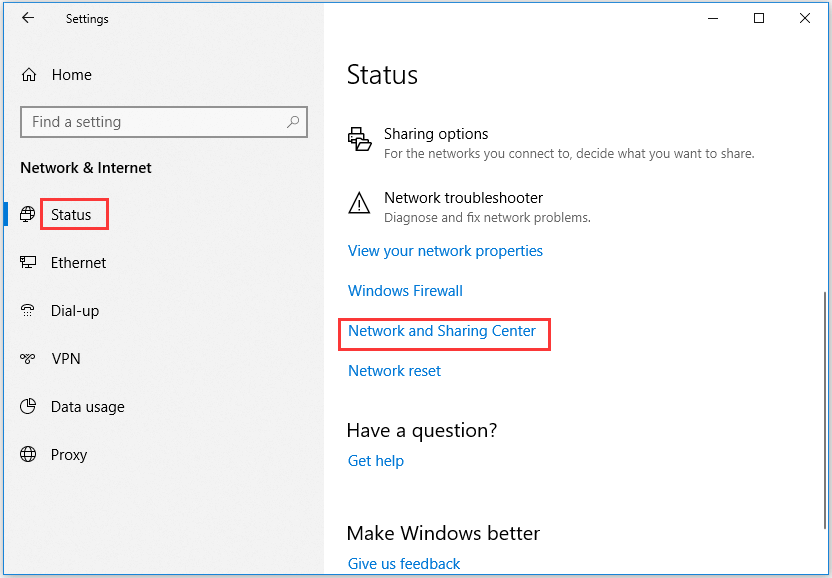
Open the Settings app by pressing Windows + I. Click Network & Internet, then select WiFi from the left sidebar. Click Manage known networks – you’ll see a list of every WiFi network your laptop remembers.
Click on the network whose password you want. A button that says Properties will appear; click it. In the properties window, scroll down to View WiFi security key and toggle the switch or check the box that says Show characters. The password appears right there in plain text.
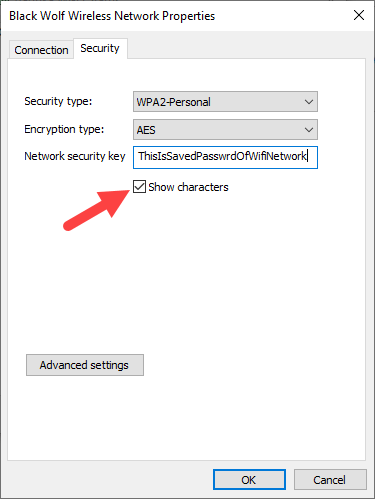
This method works for the network you are currently connected to, but also for any saved network. If you don’t see “Manage known networks” (some older Windows 10 builds hide it), don’t panic – jump to Step 2.
Step 2: Find Saved WiFi Password on Windows via Command Prompt (Works for All Versions)
This method is universal and works even if the Settings app is being stubborn. Press Windows + R, type cmd, and hit Enter. In the black Command Prompt window, type the following command and press Enter:
netsh wlan show profile name=”YourNetworkName” key=clear
Windows Command Prompt
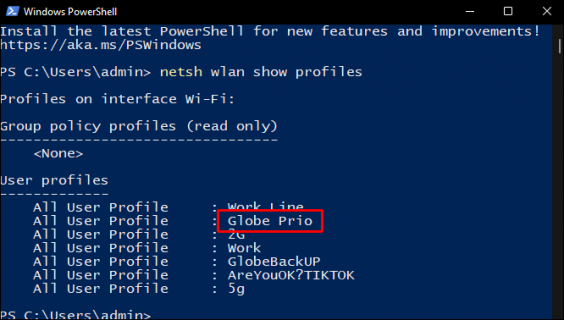
Replace YourNetworkName with the exact name of your WiFi network (including any spaces). Scroll down the output until you see a line that says Key Content – that’s your password. If you don’t know the exact network name, first run netsh wlan show profiles to list all saved networks.
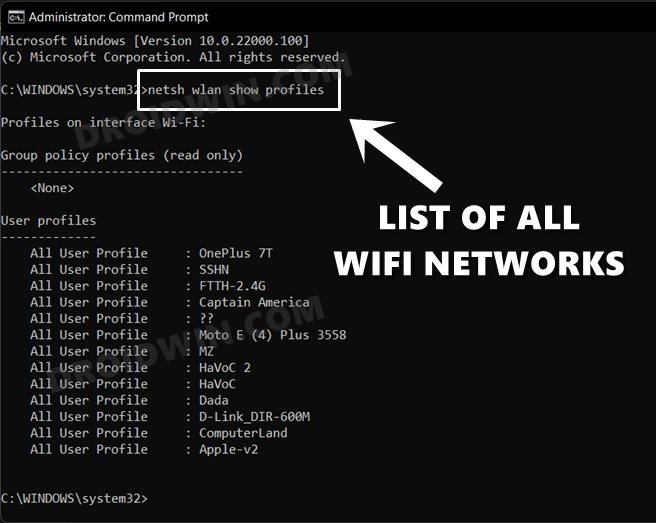
Want to recover the password for every saved network at once? Try the recover forgotten wifi password using powershell method – it can export all keys to a single text file with one script.
Step 3: Find Saved WiFi Password on macOS (via Keychain Access)
On a Mac, all your saved WiFi passwords live in the Keychain app. Open Keychain Access from the Utilities folder inside Applications, or use Spotlight (Command + Space) and type “Keychain Access”.
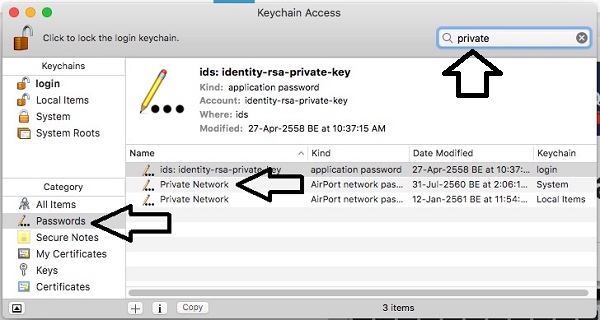
In the search bar, type the name of your WiFi network. You’ll see an entry called AirPort network password: YourNetworkName. Double‑click it. A new window opens. Check the box Show password at the bottom. You’ll be prompted for your Mac’s admin username and password – enter them. The password appears in plain text.
That’s it. No Terminal needed – unless you prefer that route.
Step 4 (Optional): Find Saved WiFi Password on macOS via Terminal
If you’re comfortable with the command line, open Terminal and type:
security find-generic-password -wa “YourNetworkName”
macOS Terminal
Replace YourNetworkName with the network’s exact name, then hit Enter. You’ll be asked for your Mac’s password (the one you use to log in). After that, the WiFi password prints to the screen. This is the quickest way to get the key without clicking through windows – a favorite among power users.
For a detailed breakdown of this approach, check our recover forgotten wifi password using terminal guide, which covers more advanced options.
Step 5: What If I’m Using a Different Operating System?
If you’re on Linux, the process varies by desktop environment, but you can usually find the password in the network connection settings. Our recover wifi password on ubuntu tutorial covers the most popular distros. For Windows 7 users, we have a dedicated recover wifi password windows 7 guide, since the Settings method doesn’t apply there.
Common Pitfalls
- You don’t have admin rights. Many school or work laptops lock down the ability to view passwords. If you can’t see the “Show characters” option or the Keychain doesn’t prompt for a password, you might need to ask your IT department.
- The network name has spaces or special characters. In CMD or Terminal, you must wrap the name in quotes if it contains spaces. For example
"Home WiFi 5G". Forgetting the quotes will give an error. - You’re looking for a network your laptop never connected to. If the laptop has never joined that WiFi, its password isn’t saved anywhere locally. You’ll need to check the router or ask the network owner.
Where to Next
Now that you’ve recovered your saved WiFi password, consider saving it in a secure password manager so you never have to hunt for it again. Need to recover passwords on other devices? Our WiFi password recovery complete guide covers phones, tablets, and even routers. If you’re troubleshooting a forgotten network, the forgotten wifi password recovery guide has you covered. And for those who prefer automation, learn how to batch‑export all your saved keys using our recover forgotten wifi password using powershell method. Stay connected!