Ever been stuck trying to connect a new device to your home WiFi and realized you have no idea what the password is? It happens to the best of us. Maybe you changed it a while ago and forgot to write it down, or you’re dog-sitting for a friend and their router sticker is long gone. Don’t panic — recovering a WiFi password is easier than you think. This guide walks you through every major method: checking the router itself, digging into your Windows or macOS settings, peeking at saved networks on Android, and even using your router’s admin panel. By the end, you’ll have that password in hand without any special software.
I wrote this for anyone who has ever connected a device to a WiFi network at least once — so basically everyone. You don’t need to be a tech wizard. The steps are straightforward and work on the most common operating systems. If you’re in a situation where you don’t have admin access on a shared computer, check out the dedicated guide on wifi password recovery without admin access — it covers that exact scenario.
What You’ll Need
- A computer or phone that’s already connected to the WiFi network (or has been previously).
- Optional: physical access to the router for the sticker method.
- Router admin login credentials if you plan to access the router’s settings (usually admin/admin or on a sticker).
- Administrator rights on your computer (for some Windows/macOS methods).
- Patience — most methods take less than 2 minutes.
Step 1: Check the Router Sticker (Easiest Method)
Before you start digging into settings, take a look at your router itself. Most ISPs and router manufacturers print the default WiFi network name (SSID) and password on a sticker. It’s usually on the bottom or back of the router. If the password hasn’t been changed, this is all you need.
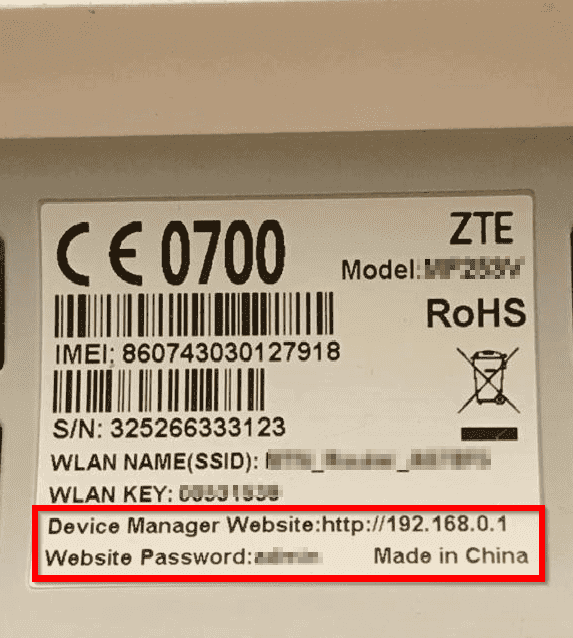
If the sticker is faded or missing, or if you customised the password, move on to one of the software-based methods below.
Step 2: Find the WiFi Password on Windows
Windows saves every WiFi network you’ve connected to, along with its password. You can retrieve it through the Network & Internet settings or via Command Prompt (CMD). This works on Windows 10, 11, and even on older versions — if you’re using Windows 7, see the dedicated guide on recover wifi password windows 7 for a tweaked approach.
Method A: Using the Network Settings GUI
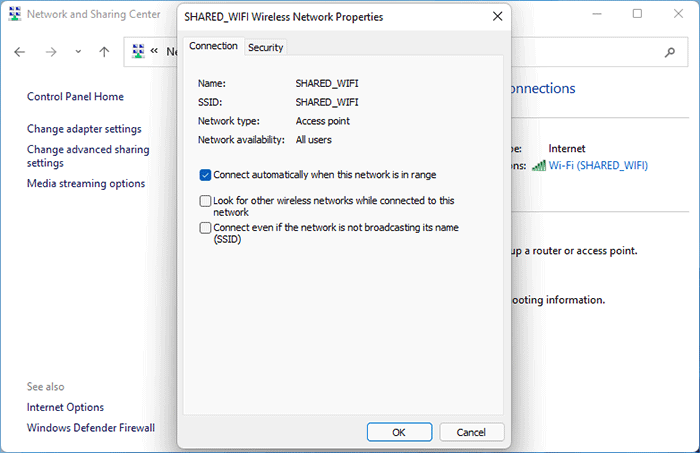
- Click the WiFi icon in the system tray (bottom-right) and select Network & Internet settings.
- Click Network and Sharing Center (or Manage known networks).
- Click on your current WiFi network name (next to Connections).
- Click Wireless Properties > Security tab.
- Check the box ‘Show characters’ to reveal the password.
Method B: Using Command Prompt (CMD)
For a faster, nerdy way, use the command line. This also lets you export all saved passwords at once — a full wifi password recovery tutorial cmd is available if you want the full scoop.
- Press Windows Key + R, type ‘cmd’, and press Ctrl+Shift+Enter to run as administrator.
- Type: netsh wlan show profiles and press Enter to list all saved networks.
- Find your network’s name (SSID) from the list.
- Type: netsh wlan show profile name=”YourNetworkName” key=clear (replace with actual name).
- Look for the line ‘Key Content’ — that’s your password.
Step 3: Find the WiFi Password on macOS
On a Mac, saved WiFi passwords are stored in the Keychain Access app. You’ll need your Mac’s admin password to reveal them.
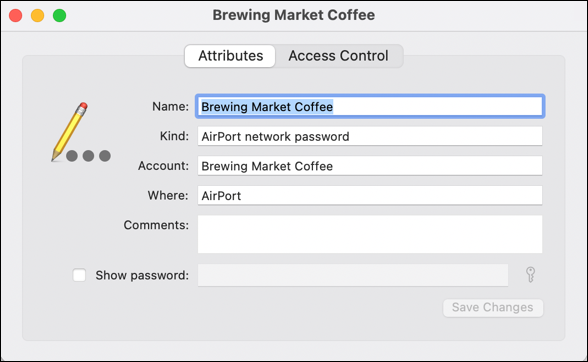
- Open Keychain Access from Applications > Utilities (or Spotlight search).
- In the top-left, select ‘System’ under Keychains and ‘Passwords’ under Category.
- Find your WiFi network name in the list (it might start with ‘AirPort network password’).
- Double-click the entry and check the box ‘Show password’.
- Enter your Mac admin login credentials, and the password will appear.
If you can’t find it, make sure you’re looking in the correct keychain (usually ‘System’ or ‘iCloud’) and that you’ve actually connected to that network before. For more macOS troubleshooting, the wireless password recovery guide covers edge cases.
Step 4: Find the WiFi Password on Android
Modern Android (10 and up) lets you view saved WiFi passwords as QR codes or plain text. The exact steps vary by phone manufacturer, but here’s the universal approach.
- Go to Settings > Network & Internet > WiFi.
- Tap on the current network or ‘Saved networks’.
- Tap the gear icon or ‘Share’ next to your network.
- Authenticate with your fingerprint, PIN, or password.
- A QR code appears — the password is usually shown below the QR code (or you can scan the QR to connect).
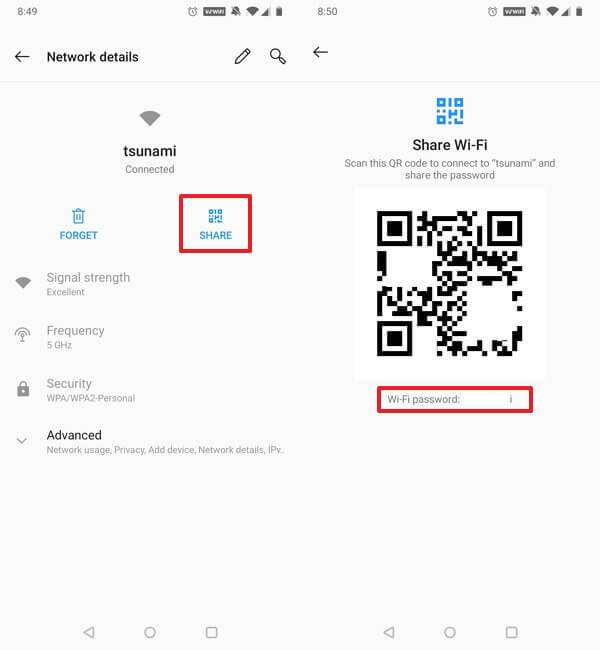
If your Android version is older or if the option is hidden, check the guide on saved wifi password recovery android for a workaround using ADB or third-party apps.
Step 5: Access the Router’s Admin Page
If none of the device methods work (e.g., you’ve never connected a computer), you can log into the router itself to view or change the WiFi password. You’ll need the router’s IP address and admin credentials.
- Find your router’s default gateway: On Windows, open CMD and type ‘ipconfig’ — look for ‘Default Gateway’. On macOS, go to System Preferences > Network > Advanced > TCP/IP — the router address is next to ‘Router’.
- Open a web browser and type that IP address (e.g., 192.168.1.1).
- Enter the router’s admin username and password (usually on a sticker or defaults like admin/admin).
- Look for a ‘Wireless’ or ‘WiFi’ section. The password is usually in ‘Wireless Security’ or ‘Security Settings’.
- You can either copy it or change it to something you’ll remember.
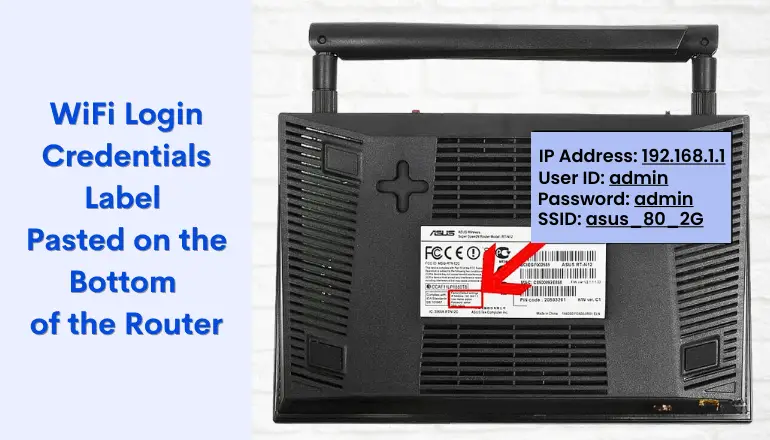
This method is your last resort but always works as long as you can log in. If you don’t know the admin credentials, try common defaults or check the router’s manual. This whole approach is part of the wifi password recovery process without software — you don’t need any third-party tools.
Common Pitfalls
1. Not Running as Administrator
On Windows, if you use CMD without admin rights, the key=clear command won’t show the password. Always run CMD as administrator (Ctrl+Shift+Enter).
2. Wrong Keychain on macOS
Sometimes the password is stored in the iCloud keychain instead of the System keychain. If you don’t see it, switch to ‘iCloud’ in Keychain Access and look again.
3. Router Login Credentials Changed
If someone changed the router’s admin password and you don’t know it, you can’t get in via the web interface. In that case, a factory reset (using the small pinhole button) will reset both admin and WiFi passwords — but you’ll have to reconfigure the router.
Where to Next
Now that you’ve got your WiFi password back, consider writing it down or saving it in a password manager so you never have to hunt again. If you want to dig deeper, check out the complete wifi password recovery complete guide for even more methods (including Linux and iPhone). And if you’re dealing with a mesh WiFi system, don’t miss the dedicated wifi password recovery for mesh wifi guide. Happy surfing!



