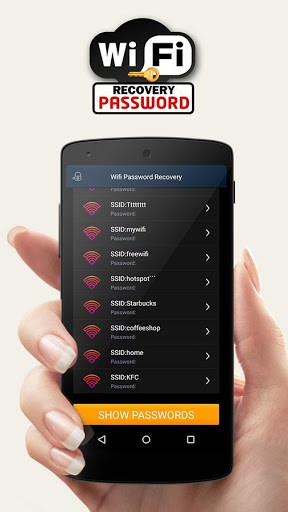
Ever needed to connect a new device to your home WiFi but couldn’t find the password anywhere? Maybe you don’t have admin access to the router—you’re not the one who set it up, or the admin password was changed long ago. Don’t worry. If you have any device that’s already connected to that network, you can retrieve the WiFi password in just a few minutes.
This guide walks you through the easiest methods for Windows, Mac, and Android. No admin access required. By the end, you’ll have the password ready to type into any new device.
What You’ll Need
- A Windows, Mac, or Android device that is already connected to the WiFi network.
- No extra tools or admin rights needed.
Step 1: Retrieve WiFi Password on Windows (Using Command Prompt)
On Windows, the saved WiFi passwords are stored in the system. You can extract them using a simple command. First, open Command Prompt as Administrator. Press the Windows key, type ‘cmd’, right-click on Command Prompt, and select ‘Run as administrator’. Then type the following command: ‘netsh wlan show profiles’. This lists all saved WiFi networks. Find the name of the network you need (e.g., ‘HomeWiFi’). Now type: ‘netsh wlan show profile name=”HomeWiFi” key=clear’. Look for the line that says ‘Key Content’—that’s your password. This method works on Windows 7, 8, 10, and 11. For more details on older versions, check out our guide to recover wifi password windows 7.
Step 2: Find WiFi Password on macOS (Using Keychain Access)
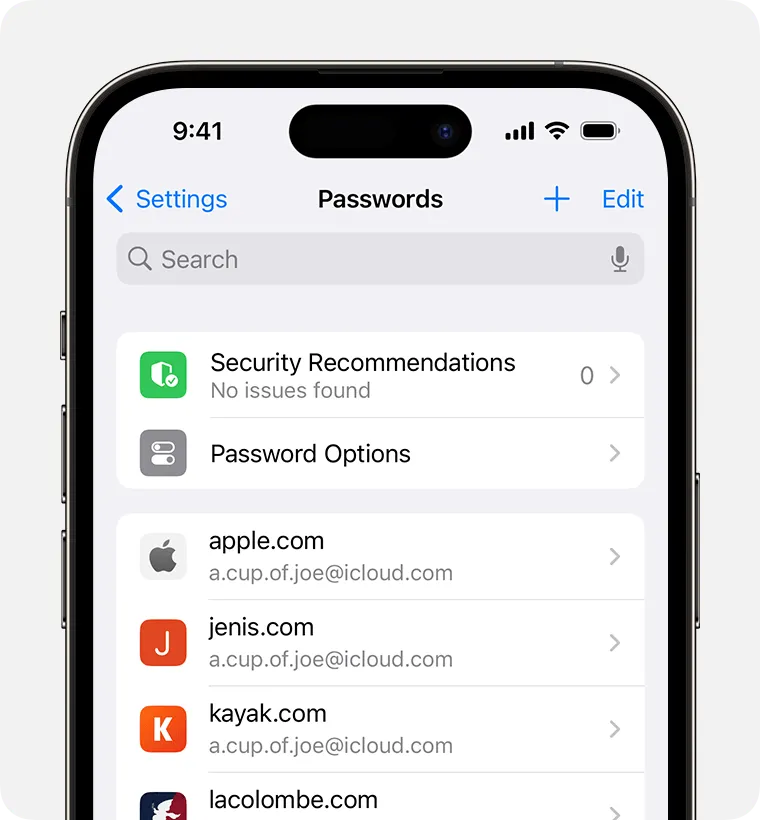
On a Mac, all saved passwords are stored in the Keychain app. Open ‘Keychain Access’ from the Utilities folder (or search with Spotlight). In the search bar, type the name of your WiFi network. Double-click the network entry. A dialog box will appear—check the box next to ‘Show password’. You’ll be prompted for your Mac’s administrator username and password (not the WiFi password). After entering that, the password will be revealed. That’s it! If you’re on an older macOS, the steps are similar. For more help, see our wireless password recovery guide.
Step 3: Recover WiFi Password on Android (Without Root)
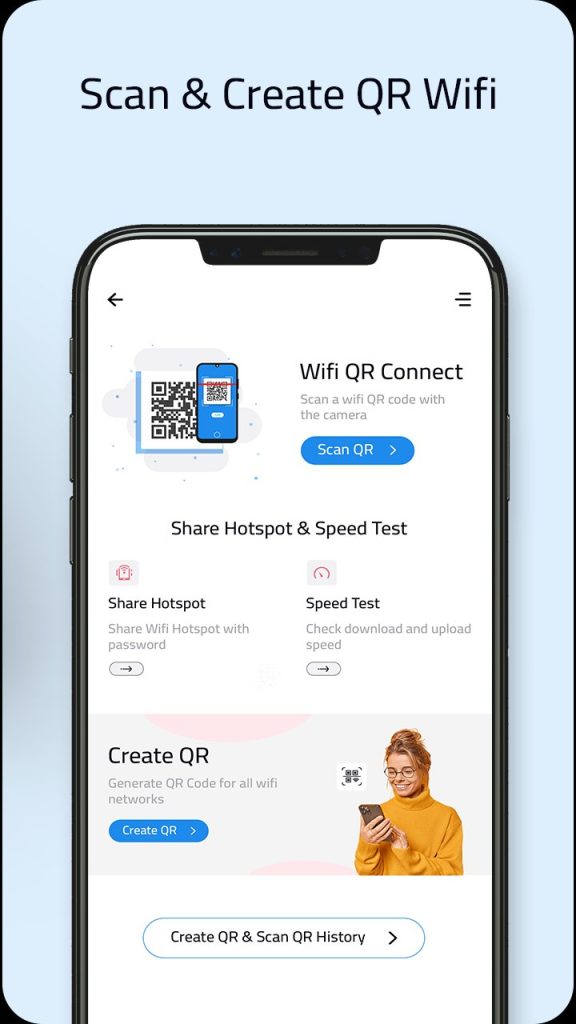
On Android, you can retrieve the password using the QR code method or by viewing the saved network details. Go to Settings > Network & Internet > WiFi. Tap the connected network. On Android 10 or newer, you’ll see a ‘Share’ button or QR code icon. Tap it—you may need to verify with your fingerprint or PIN. The QR code appears; if you scan it with another device, the password is encoded. Alternatively, on some devices, you can look for a ‘Password’ field after tapping the network. The exact steps vary by manufacturer, but the process is similar. For more Android-specific tips, check our saved wifi password recovery android guide.
Common Pitfalls
- Running command without administrator privileges on Windows will fail. Always right-click and select ‘Run as administrator’.
- On Mac, if you don’t have the admin password for the Mac itself, you won’t be able to see the password. Try another device or reset your Mac password.
- On Android, the steps differ significantly between manufacturers (Samsung, Xiaomi, etc.). If the ‘Share’ option isn’t visible, try searching your settings for ‘QR code’ or ‘Saved networks’.
Where to Next?
Now that you’ve recovered your WiFi password, you might want to save it in a safe place. If you need to recover passwords from other devices, check out our fastest wifi password recovery method or learn how to use PowerShell for automation with wifi password recovery using PowerShell. For a complete list of methods, visit our wifi password recovery complete guide.



