We’ve all been there: you’re setting up a new device, a friend asks for the WiFi password, and you draw a blank. If your computer or phone already knows the network, you don’t need to reset the router or call your ISP. In this guide, I’ll show you how to recover your WiFi password using simple built-in tools and dedicated recovery programs on Windows, macOS, and Linux.
By the end, you’ll be able to pull up that lost password in minutes—no admin access required on your own machine, and no data loss. Whether you’re a tech newbie or just need a refresher, these steps are tested and practical.
What You’ll Need
- A computer running Windows, macOS, or Linux that has previously connected to the WiFi network.
- Administrator (admin) privileges on that computer (or the login password for macOS Keychain).
- Internet access to download a recovery program (optional).
- A USB drive if you plan to use a portable tool (recommended for security).
Step 1: Identify Your Operating System
The method you use depends on your OS. Windows has the quickest built-in option, Mac relies on Keychain Access, and Linux uses the terminal. Pick your platform below.

Step 2: Use Built-In Tools First
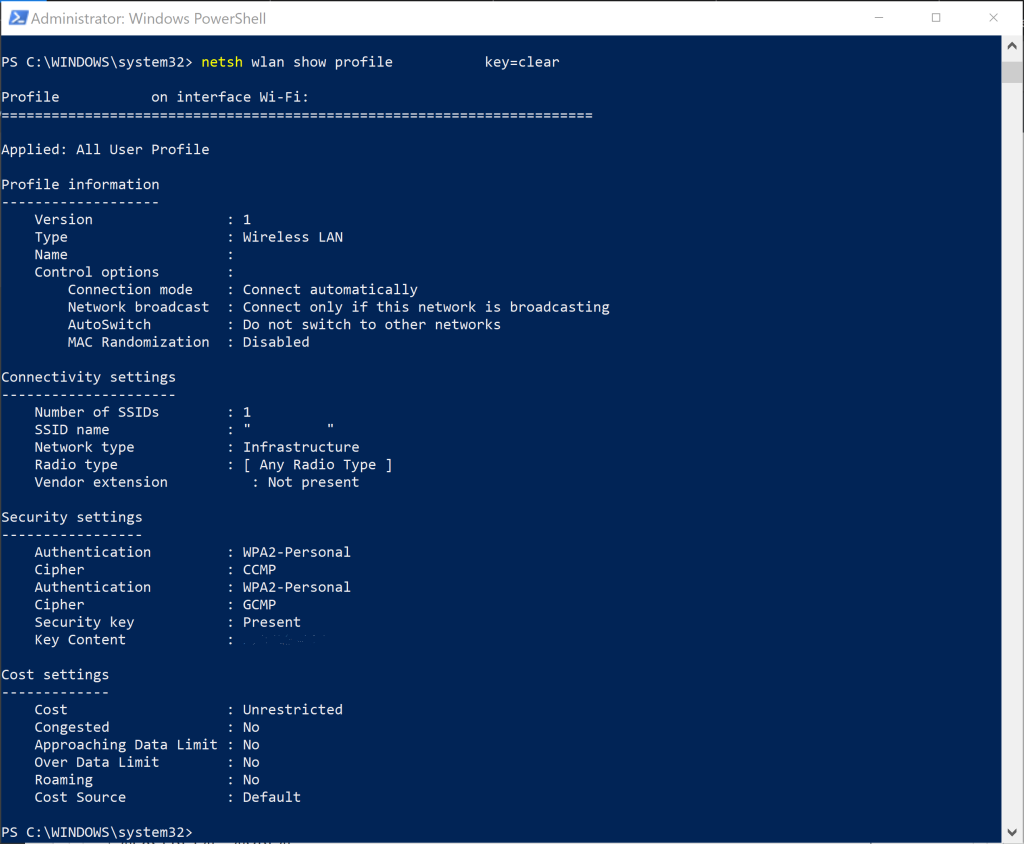
On Windows, open Command Prompt as Administrator and run: netsh wlan show profile name=NETWORKNAME key=clear. Replace NETWORKNAME with your SSID. Look for “Key Content” to find the password. You can also use the GUI: go to Network & Internet > Status > Network and Sharing Center > click your WiFi name > Wireless Properties > Security tab. Check “Show characters”.
On macOS, open Keychain Access from Utilities, search for your network name, double-click it, and check “Show password”. You’ll need your Mac’s admin password.
On Linux, open a terminal and run: sudo cat /etc/NetworkManager/system-connections/YOURSSID. Look for the psk= line after [wifi-security].
Step 3: Use a Dedicated Recovery Program (If Built-In Fails)
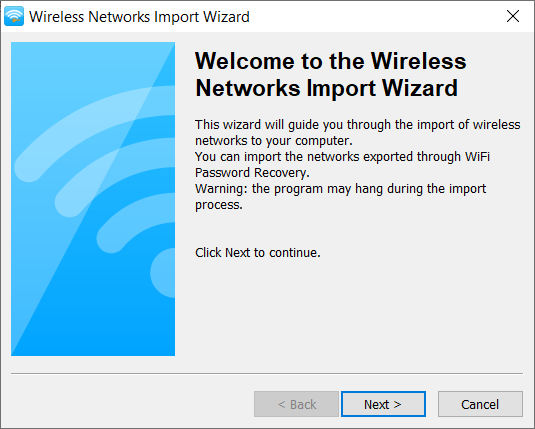
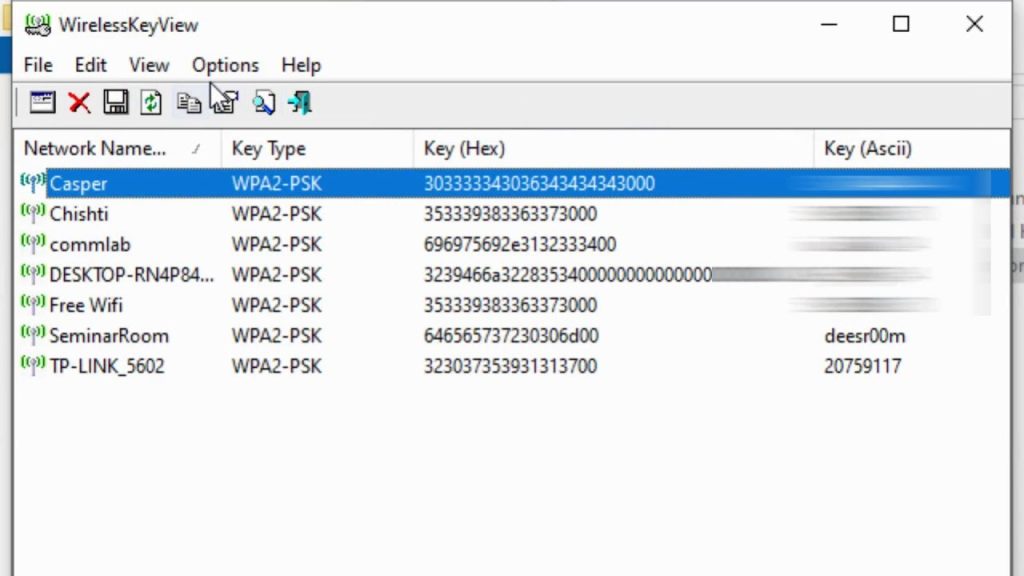
If the built-in method doesn’t work (e.g., you don’t have admin rights or the ‘Show characters’ box is grayed out), third-party tools can help. For Windows, try WirelessKeyView (NirSoft) or WiFi Password Revealer. On macOS, WiFi Password Revealer or iWifi. On Linux, you can use wifi-password script from GitHub. These programs scan your system’s stored credentials and display them in a friendly interface.
Download the tool from the official site, run it as administrator (Windows) or with sudo (Linux), and it will list all saved networks with their passwords. For a portable option, keep the tool on a USB drive so you can use it on any computer.
Step 4: Export Your Passwords (Optional)
Once you’ve recovered the password, you might want to save a backup. Many recovery programs let you export all passwords to a text file or CSV. This is handy if you manage multiple networks. You can also use PowerShell to export wifi passwords automatically. For a complete no-data-loss method, check out our guide on wifi password recovery no data loss.
Step 5: Alternative Methods for Specific Scenarios
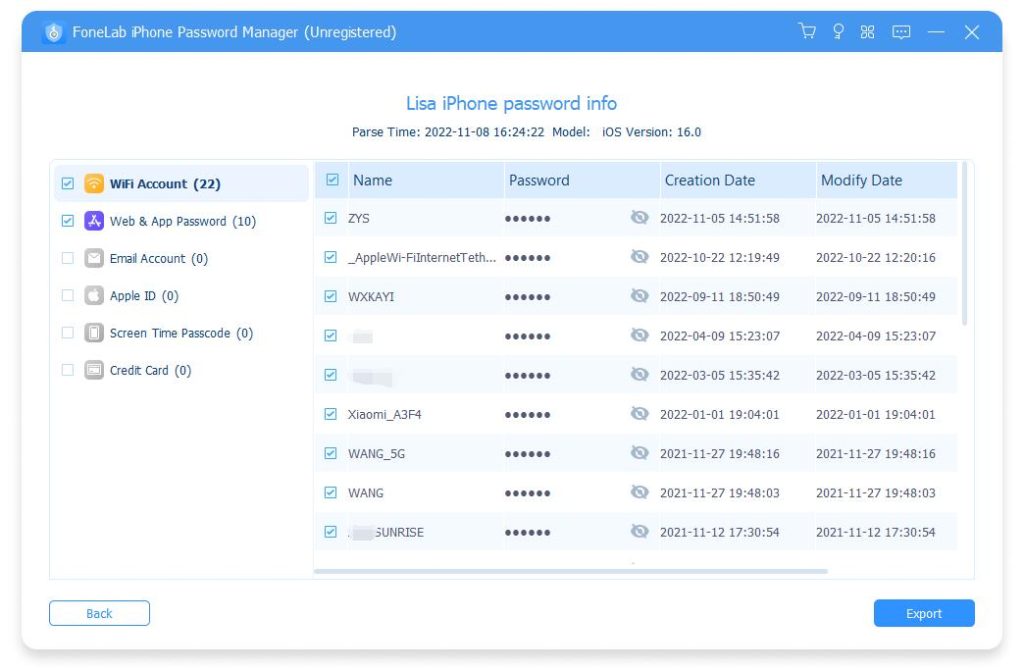
If you’re on a network where you can’t access the router, or if you need to recover the password on a device you don’t own, you may need other approaches. For example, you can show wifi password powershell on Windows, or use a live Linux USB to recover credentials from a Windows partition. For routers, you can often find the password printed on the bottom. Our article on how to recover wifi password covers all devices.
Common Pitfalls
- Not running the tool as administrator – most recovery tools require elevated privileges. Always right-click and select “Run as administrator” on Windows, or use sudo on Linux/Mac.
- Antivirus flagging the tool as a threat – some legitimate password recovery utilities are falsely detected. Temporarily disable your antivirus or whitelist the program. Download only from official sources.
- Trying to recover a network you’ve never connected to – recovery programs only work for saved passwords. If the device never connected, you’ll need to check the router or use a different method.
Where to Next
Now that you’ve recovered your WiFi password, you can automate the process for future use. Check out our guide to export wifi passwords automatically so you never lose them again. If you want a non-program method, learn how to recover forgotten wifi password without reset. For Windows-specific tips, see our tutorial on saved wifi password recovery windows. Happy surfing!



