Ever been in that awkward spot where you need to give a friend the WiFi password, but you’ve completely blanked on it? Or maybe you got a new device and can’t remember the long string of characters you set up years ago. The quick fix most people think of is resetting the router, but that wipes all your custom settings – port forwards, DHCP reservations, even your SSID. This guide is for you if you want to recover your WiFi password without losing any data or configurations. By the end, you’ll have the password in hand, whether you’re on Windows, Mac, Android, or iPhone, without touching a single reset button.
We’ll walk through the safest, non-destructive methods: checking your current device’s saved passwords, digging into your router’s admin interface, and using built-in OS tools. No third-party software required, and definitely no factory resets. Let’s get your WiFi password back without the headache.
What You’ll Need
- A device that’s already connected to the WiFi network (or was at least once)
- Admin access to the router (username & password – usually on a sticker) – optional but helpful
- For Windows: a PC with admin privileges (you’re likely the admin)
- For Mac: the Finder and Keychain Access app
- For Android: a device running Android 10 or later (or a QR-code scanner)
- For iPhone: a Mac logged into the same iCloud account, or a recent iOS version
If you don’t have any device connected to the network, your best bet is the router’s web interface. But don’t worry, we’ll cover that too.
Step 1: Recover WiFi Password on Windows
Windows stores all your saved WiFi passwords in the Network and Sharing Center. Here’s how to grab them without any third-party tool.

First, open the Control Panel (press Win + R, type control, hit Enter). Go to “Network and Sharing Center” > click on your current WiFi network name (the blue link next to “Connections”). In the pop-up window, click “Wireless Properties”, then switch to the “Security” tab. Check the box that says “Show characters” – boom, your password appears. If you want a more advanced method, you can also use PowerShell to recover forgotten WiFi password. That’s handy for pulling multiple saved networks at once.
If you’re not currently connected, you can still find saved WiFi password on laptop by running a quick command in PowerShell: `netsh wlan show profile name=”YourNetworkName” key=clear`. Replace with your network’s name.
Step 2: Recover WiFi Password on Mac
Macs store WiFi passwords in the Keychain. You can access them through Keychain Access or via Terminal.

Open Keychain Access (Finder > Applications > Utilities > Keychain Access). In the search bar, type the name of your WiFi network. Double-click the entry that appears, then check “Show password”. You’ll be prompted for your Mac’s admin credentials – enter them, and the password is revealed. If you prefer the command line, open Terminal and type `security find-generic-password -wa “YourNetworkName”`.
Step 3: Recover WiFi Password on Android (Without Root)
Modern Android (10+) has a built-in QR code feature that makes it easy to see the password. No root required.

Go to Settings > Network & Internet > WiFi. Tap on the network you’re connected to (or tap the gear icon next to it). You’ll see a “Share” button – tap it. Your phone will prompt you to verify your identity (PIN, pattern, or fingerprint). After that, a QR code appears on screen. Most modern phones will also display the password in plain text below the QR code. If not, you can screenshot the QR code and use a QR scanner app to decode it. This method works even if you want to recover WiFi passwords on Android without root.
Step 4: Recover WiFi Password on iPhone
iPhones don’t natively show saved passwords in Settings until iOS 16. For earlier versions, you need a Mac or iCloud Keychain sync.
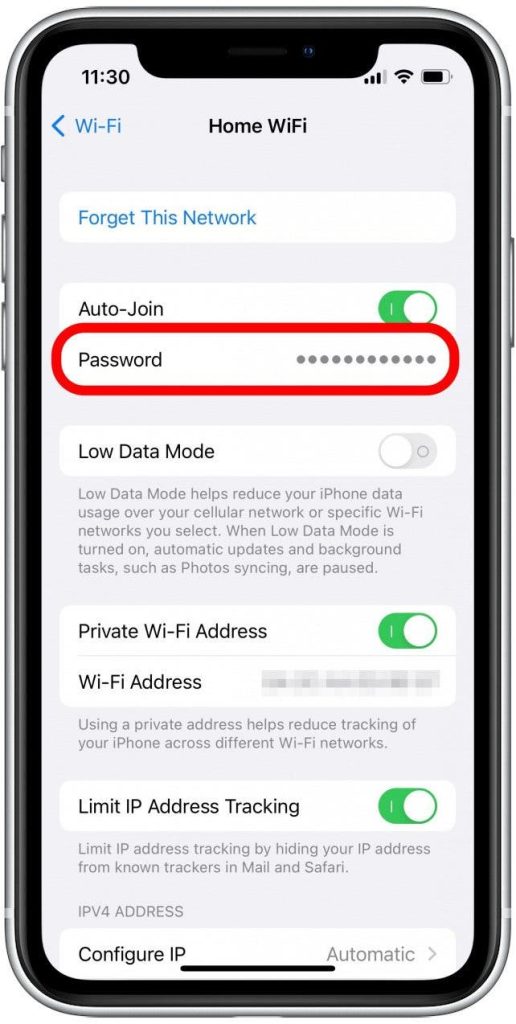
If you’re on iOS 16 or later: go to Settings > WiFi, tap the “i” icon next to your network, then tap the password field and authenticate with Face ID/Touch ID to reveal it. For older iOS, you can use the Keychain via Mac: on your Mac, open Keychain Access, search for your iPhone’s network (if iCloud Keychain is enabled). If you don’t have a Mac, you might need to rely on the router method. Check out our dedicated guide to recover WiFi password on iPhone for more options.
Step 5: Fallback – Router Web Interface (No Data Loss)
If you can’t get the password from any device, log into your router’s admin page. This won’t reset anything – you’re just viewing settings.

Find your router’s IP address (usually 192.168.1.1 or 192.168.0.1 – check your device’s network properties or look at the bottom of your router). Type it into a browser, log in with the admin credentials (often printed on the router itself). Navigate to Wireless or WiFi settings, then look for “Security” or “Password” – it’s usually in plain text or asterisks, but some routers have a “show” button. If the password is hidden, you can change it to something new, but that’s not ideal. Instead, try to use the “copy” or “show” option if available. This method is essentially WiFi password recovery without admin access if you already have the router admin password.
Common Pitfalls
- You’re not currently connected to the network: Many methods (like Windows GUI) only work when you’re actively connected. In that case, use the command line or router web interface.
- You don’t have admin access to your computer: If you’re on a work or school computer, the admin may have disabled viewing passwords. Try the router method instead.
- Router admin password is unknown: If you never changed it, it’s usually on a sticker on the router. If not, you might be forced to reset, but that’s a last resort – try default passwords first.
Where to Next
Now that you’ve recovered your password, consider writing it down in a password manager so you never have to do this again. If you found this guide useful, check out our other walkthroughs for trusted WiFi password recovery apps or how to export WiFi passwords on Linux. Stay connected without the stress!



