
You’re sitting on your couch, ready to binge-watch, but suddenly realize you’ve forgotten the WiFi password for your ZTE router. It happens to the best of us. Maybe you changed it months ago and never wrote it down, or you just got a new device and need to connect. No worries—this guide is for anyone with a ZTE router who wants to recover that password without pulling their hair out. By the end, you’ll have the password in hand (or know exactly how to reset and set a new one).
We’ll walk through several methods: logging into the router’s admin panel (the most direct way), checking a connected Windows PC or Android phone, and as a last resort, factory resetting the router. All methods are beginner-friendly and don’t require special tools. Ready? Let’s dive in.
What You’ll Need
- A ZTE router (model doesn’t matter much, but steps are similar)
- A computer or phone connected to the ZTE router’s WiFi (or a wired Ethernet connection)
- A web browser (Chrome, Safari, etc.)
- The router’s admin username and password (if you don’t have it, we’ll cover that too)
- A paperclip or pin (for resetting the router if needed)
Step 1: Access the ZTE Router Admin Panel
First, you need to log into your router’s settings. Open a browser and type in your router’s IP address. For most ZTE routers, it’s either 192.168.1.1 or 192.168.0.1. If neither works, check the sticker on the bottom of your router—it usually lists the default IP. You’ll see a login page. Enter the admin username and password. Common defaults are ‘admin’ for both, or ‘admin’ / ‘password’. If you previously changed these and forgot them, skip to the reset method later.

Step 2: Navigate to WiFi Settings
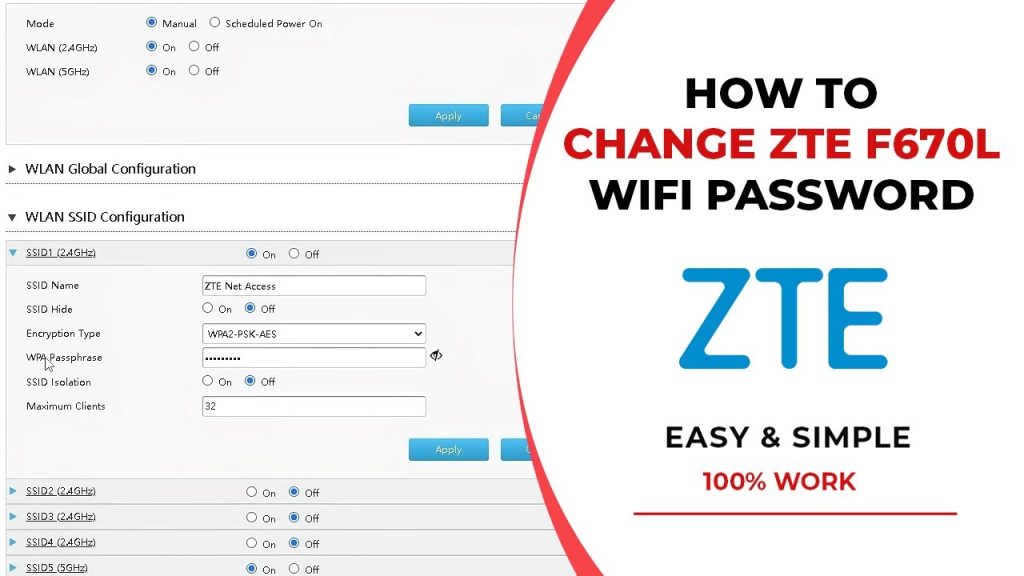
Once logged in, look for a tab or menu option labeled ‘Wireless’, ‘WLAN’, or ‘WiFi’. It might be under a ‘Network’ section. Click on it. Then find a sub-menu like ‘Wireless Security‘ or ‘Security Settings’. On some ZTE models, the WiFi password is directly under ‘Basic Settings’. If you’re lost, poke around—it’s usually straightforward. If you want a broader overview, check out our WiFi password recovery complete guide for general tips.

Step 3: Reveal the WiFi Password
In the wireless security section, look for a field called ‘Pre-Shared Key’, ‘Passphrase’, ‘WPA Key’, or ‘Network Key’. This is your WiFi password. It’s usually hidden behind dots, but there’s often a checkbox or eye icon to show it. Click that to reveal the password. Write it down or take a photo. If you can’t find it, the password might be on a sticker on the router itself—check there too. For other routers, see our router WiFi password recovery guide.
Step 4: Recover Without Admin Access (Windows or Android)
If you can’t log into the router (forgot admin password), but you have a Windows laptop or Android phone already connected to the WiFi, you can retrieve the password from the device. On Windows, go to Network & Internet settings > WiFi > Manage known networks, select your network, and click ‘Wireless Properties’ > ‘Security’ tab. Check ‘Show characters’ to see the password. You can also recover forgotten WiFi password using PowerShell if you prefer a command-line method. On Android (without root), go to Settings > WiFi, tap the gear icon next to your network, then ‘QR code’ or ‘Share’—the password is often shown or can be scanned.

Step 5: Factory Reset the ZTE Router (Last Resort)
If all else fails—you can’t log in and don’t have a connected device—you can reset the router to factory defaults. This will wipe all custom settings (including the WiFi password), so use it only if you’re okay reconfiguring everything. Find the reset hole on the back or bottom of the router (usually labeled ‘Reset’). Use a paperclip to press and hold the button inside for about 10 seconds until the lights flash. The router will reboot. Now you can log in with the default admin credentials (usually admin/admin) and set a new WiFi password. For more on getting in without the admin password, read our WiFi password recovery without admin access guide.

Common Pitfalls
- Default IP or credentials not working: Your ISP may have customized the router. Check the sticker on the router itself, or search online for your exact ZTE model’s default IP and login.
- Router admin password changed: If you set a custom admin password and forgot it, the reset method is your only option. But beware—resetting also clears your WiFi password, so you’ll need to set a new one.
- Connected device can’t see password: Some Android phones (especially newer ones) hide the password in QR code form. You can scan it with another phone. On Windows, make sure you’re clicking the right network and that ‘Show characters’ is available.
If you want to avoid this hassle in the future, consider using a password manager or writing down your WiFi password and sticking it on the router. And if your ZTE router is one of many devices you manage, our trusted WiFi password recovery apps can help you keep track.
Where to Next
Now that you’ve recovered your ZTE WiFi password, you might be interested in securing your network further—change the default admin login, update the firmware, or set up a guest network. For more tips, check out our other guides like how to find a saved WiFi password on your laptop. And if you ever need to recover a password on a different router or device, we’ve got you covered. Happy browsing!



