
So you’ve got a Cisco router at home or in your small office, and someone changed the WiFi password—or you just plain forgot it. Don’t panic. You don’t need to reset the whole router or call your ISP. If you can still log into the router’s admin panel (or have physical access to it), you can recover that password in a few minutes. This guide is for beginners who have a Cisco router (like an RV series, Linksys, or small business model) and want to find their WiFi passphrase without breaking anything.
By the end of this tutorial, you’ll either have the password displayed on your screen or be able to copy it from the router’s configuration. We’ll cover both the web interface method (easiest) and the command-line way for those who like to tinker. No special software needed—just a browser and maybe a console cable. Let’s dive in.
What You’ll Need
- A Cisco router or access point (e.g., RV260W, Linksys EA series, etc.)
- A computer connected to the same network (via Ethernet or WiFi – if you’re currently connected, even better)
- The router’s IP address (usually 192.168.1.1 or 10.0.0.1 – check your sticker or previous configuration)
- The router admin username and password (default is often cisco/cisco or admin/admin – you’ll need these to log in)
- Optional: a console cable (RJ45-to-USB) and a terminal emulator (like PuTTY) for the CLI method
Step 1: Access the Router’s Admin Panel
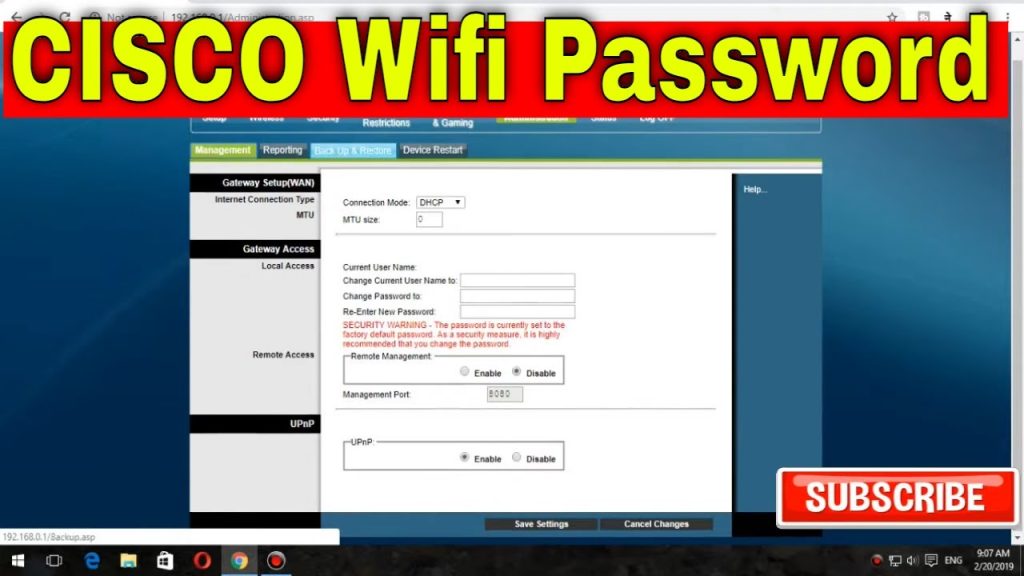
Open your favorite web browser and type your router’s IP address into the address bar. Press Enter. You should see a login page asking for a username and password. Enter your admin credentials. If you don’t know them, try the default ones (cisco/cisco or admin/admin) — they’re often printed on the router’s label. Still stuck? You might need to reset the router, but try Step 2 first, as sometimes defaults work.
Step 2: Navigate to Wireless Settings
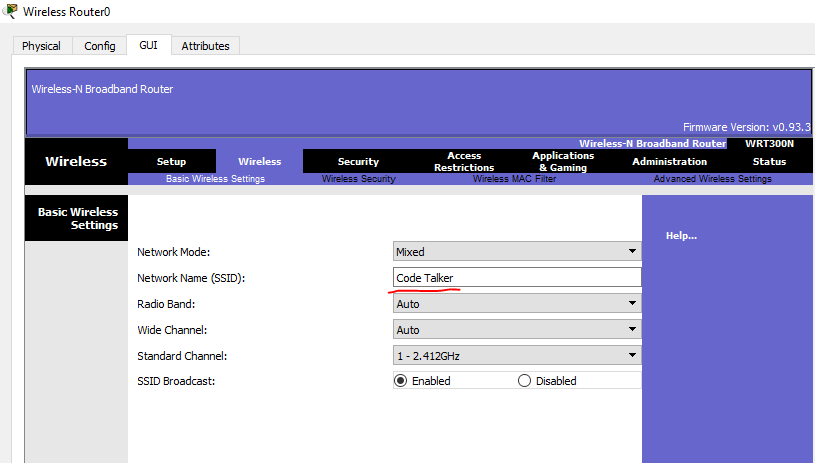
Once logged in, look for a menu item called “Wireless,” “WiFi,” “Network,” or “Security.” On most Cisco routers, it’s under “Setup” or “Wireless.” Click on it. Then find the submenu for “Security” or “Wireless Security.” This is where your WiFi encryption settings live. The exact wording varies, but you’re looking for WPA2-PSK (or WPA3) and a passphrase field.
Step 3: Reveal or Copy the Password
On the Wireless Security page, you’ll see a field labeled “Pre-Shared Key,” “Passphrase,” or “Network Key.” Depending on the router model, the password may be hidden behind asterisks. Look for a checkbox or button that says “Show Password,” “Unmask,” or an eye icon. Click it to reveal the password. Write it down or copy it. If there’s no unmask option, you might need to change the password—but that’s a last resort. Some models let you view the password by clicking the field again.
Step 4: (Alternative) Use the Command Line Interface (CLI)
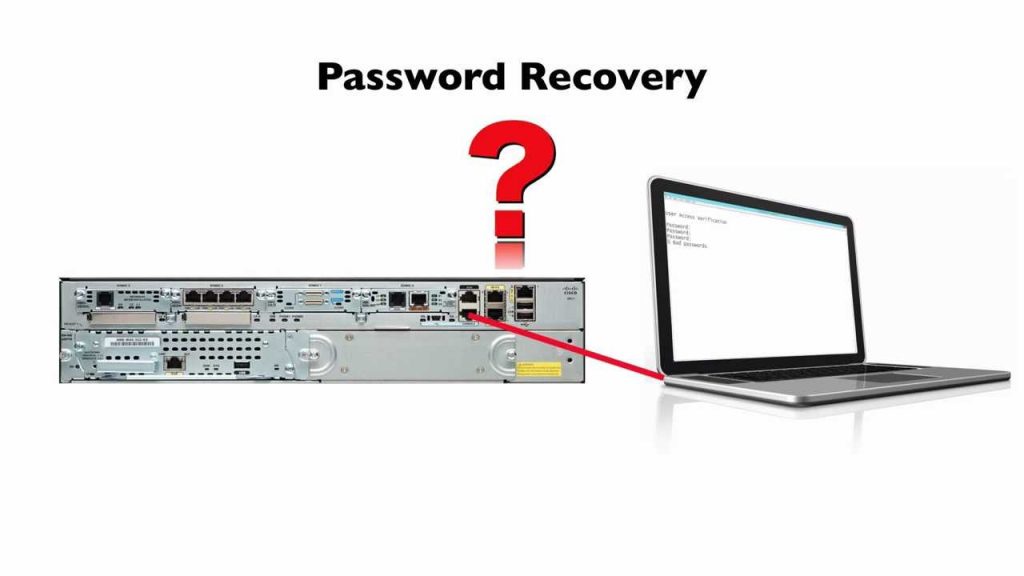
If you can’t access the web interface (maybe it’s disabled), you can connect via console cable or SSH. For console, plug in your cable, open PuTTY (or another terminal), and set the connection speed to 9600 baud. Log in with your admin credentials. Once at the enable prompt (indicated by a #), type the following commands:
- enable
- configure terminal
- show running-config | include wpa-psk
The output will show the WPA PSK (your WiFi password) in plaintext. If the password is encrypted (you see a hash), you’ll need to use a different command: more system:running-config and scroll down to the wireless section. On older Cisco small business routers, the password may be in plaintext in the config. Copy it carefully.

Step 5: Save and Test the Password
Once you have the password, you can now reconnect any device. If you don’t plan to change the password, simply write it down somewhere safe. To test, open your phone’s WiFi settings and try to connect manually. If it fails, double-check the case sensitivity and any special characters. If it still doesn’t work, you might have to reset the router—but that’s rare.

Common Pitfalls
- Default credentials don’t work: If someone changed the admin password and you don’t know it, you’ll need to factory reset the router by holding the reset button for 10 seconds. This will wipe all settings, including your WiFi password, so only do this after trying defaults or if you’re okay reconfiguring your network.
- Password is hidden with no reveal option: Some Cisco router firmware doesn’t allow unmasking the password. Your only option then is to either change the password (remember to write it down!) or access the CLI as shown in Step 4.
- You’re locked out due to failed logins: Many routers lock you out after several failed attempts. Wait 30 minutes or power-cycle the router to clear the lock. If it persists, a factory reset is your last resort.
Where to Next
Now that you’ve recovered your WiFi password, you might want to save it for future use. Check out our guides on how to recover wifi password on iPhone or use wifi password recovery without admin access for other devices. If you’re a command-line fan, you can also recover forgotten wifi password using PowerShell on your PC. Stay connected!



