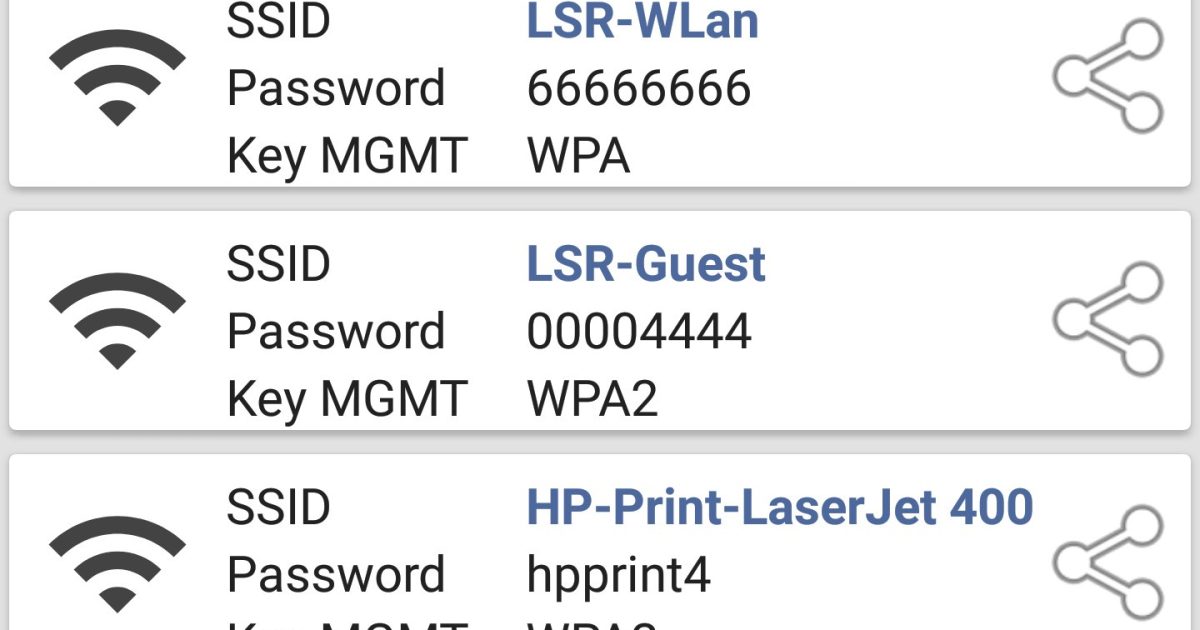
Ever been locked out of your own WiFi network? It happens to the best of us. Maybe you typed the password once years ago, or a friend set it up, and now you’re staring at a login screen with zero clue. This guide is for anyone who wants to build a simple, free toolkit to recover WiFi passwords on any device you own—Windows, macOS, Android, Linux, and even your router.
By the end, you’ll have a set of go-to methods that rely on tools already in your operating system plus a couple of free utilities. No sketchy downloads, no paying for software. Whether you need to log in a new laptop, help a guest, or just want to know how to recover wifi password from your own network, this toolkit has you covered.
What You’ll Need
- A computer with administrator access (Windows, macOS, or Linux)
- A smartphone (Android or iPhone)
- A web browser for router access
- Optional: a USB drive for transferring scripts or exporting files
- Optional: a terminal app (already present on macOS/Linux)
Step 1: Recover from Your Router
The easiest method works even if you have no device connected. Just log into your router’s admin panel. Open a browser, type your router’s IP address (usually 192.168.1.1 or 192.168.0.1), and enter the admin credentials (often printed on the router sticker). Navigate to the wireless settings section—your WiFi password will be displayed, often in plain text or with a “show password” checkbox.
If you changed the router admin password and forgot it, you may need to factory reset the router (press the reset button with a paperclip for 10 seconds). That will erase custom settings, but you’ll regain access. For mesh networks, check out our wifi password recovery for mesh wifi guide.
Step 2: Windows – CMD and PowerShell
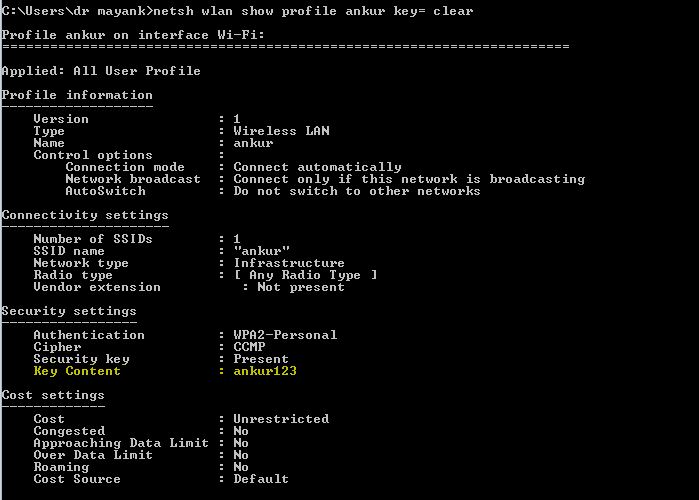
On Windows, you can recover saved WiFi passwords without any extra software. Open Command Prompt as Administrator and run: netsh wlan show profile. That lists all saved networks. Then type: netsh wlan show profile name=”YourNetworkName” key=clear. Look for “Key Content” – that’s your password. Alternatively, use a PowerShell script to batch export all profiles. For a detailed walkthrough, see our recover forgotten wifi password using powershell guide.
Step 3: macOS – Keychain Access
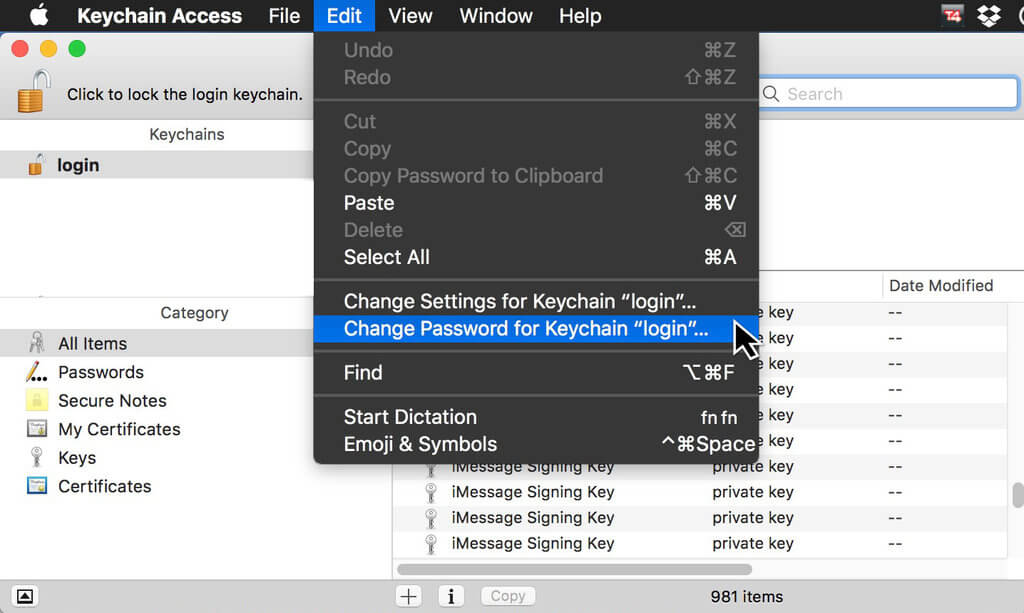
Mac users can open Keychain Access (Applications > Utilities > Keychain Access). Search for your WiFi network name, double-click it, then check the “Show password” box. You’ll need your Mac’s admin password. That’s it – the WiFi password appears in the field. To find saved wifi password on a laptop, this is the quickest way on macOS.
Step 4: Android – QR Code and Apps
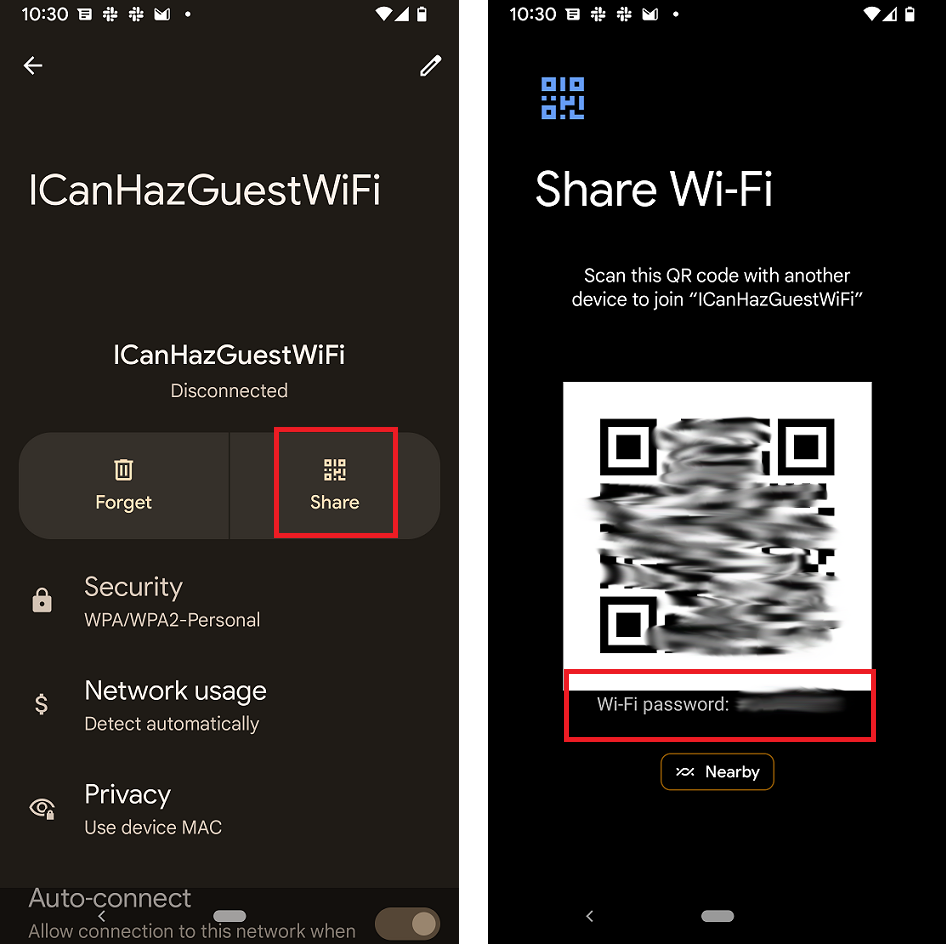
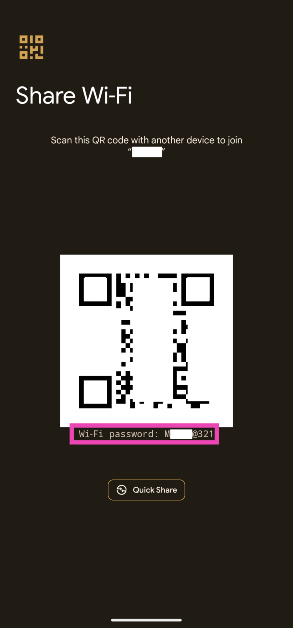
On Android 10+, go to Settings > Network & Internet > WiFi. Tap the saved network, then tap “Share” (or QR code icon). The QR code can be scanned by another device, and the password is shown below it. On older Android versions or if you need to recover without admin access, try a free wifi password recovery app like WiFi Key Recovery (requires root) or use a file explorer to look in /data/misc/wifi/wpa_supplicant.conf. For root-free methods, check our guide.
Step 5: Linux – Terminal and NetworkManager
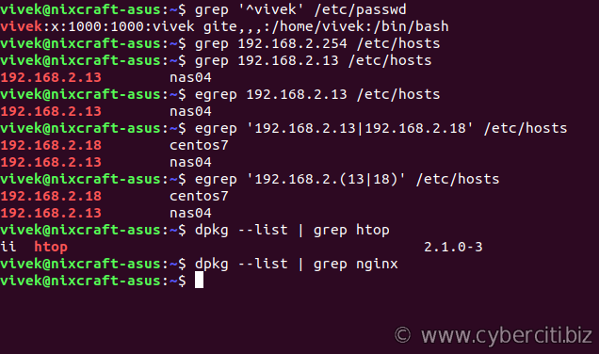
Linux stores WiFi passwords in /etc/NetworkManager/system-connections/. Open a terminal and run sudo grep psk= /etc/NetworkManager/system-connections/*. The password appears after “psk=”. Alternatively, use nmcli: nmcli -s connection show “YourSSID” | grep 802-11-wireless-security.psk. For a full command set, see our export wifi passwords linux guide.
Step 6: iPhone and iPad – iCloud Keychain
Apple devices sync WiFi passwords via iCloud if you have the same Apple ID. On iPhone, go to Settings > WiFi, tap the i icon next to the network, then tap “Password” and authenticate with Face ID or passcode. Alternatively, share the password to another Apple device nearby. For specific steps, see our how to recover wifi password on iphone guide.
Common Pitfalls
- Not having administrator rights on Windows or macOS – you need an admin account to view passwords. If you’re on a work or school computer, you may be locked out.
- Router password changed or unknown – if you never changed the default router password, check the sticker on the router. If you did and forgot, a factory reset is the only way in.
- Command Prompt not running as administrator – on Windows, always right-click and select “Run as Administrator”. Otherwise, netsh commands will fail with “Access denied”.
Where to Next
You now have a complete toolkit to recover WiFi passwords on any device you own. For deeper dives into specific scenarios, check out our guides on recover without admin access, using a free wifi password recovery app, or how to recover wifi password from your laptop. Happy recovering!



