So you’ve forgotten your WiFi password. It happens to the best of us — maybe you never wrote it down, or the sticker on the router faded away. You’re in the right place. This guide is for anyone who needs to recover a WiFi password without resetting the router or losing their temper. By the end, you’ll have a working password (or at least a solid plan to get one) and know how to avoid this headache in the future.
We’ll cover methods for Windows, macOS, Android, iPhone, and even direct router access. Plus a troubleshooting section for when things go sideways. Let’s get you back online.
What You’ll Need
- A device already connected to the WiFi network (or one that was connected before).
- Admin access to your computer or phone (you’re probably already logged in).
- If using the router method: physical access to the router and its admin credentials (often printed on the router).
- Optional: a USB drive if you want to export passwords for backup.
Step 1: Recover Saved WiFi Password on Windows
Windows stores past WiFi passwords in the Network & Internet settings. This is the easiest method if you have a Windows laptop or PC that has ever connected to the network. For a detailed walkthrough, check out our guide on saved wifi password recovery windows.
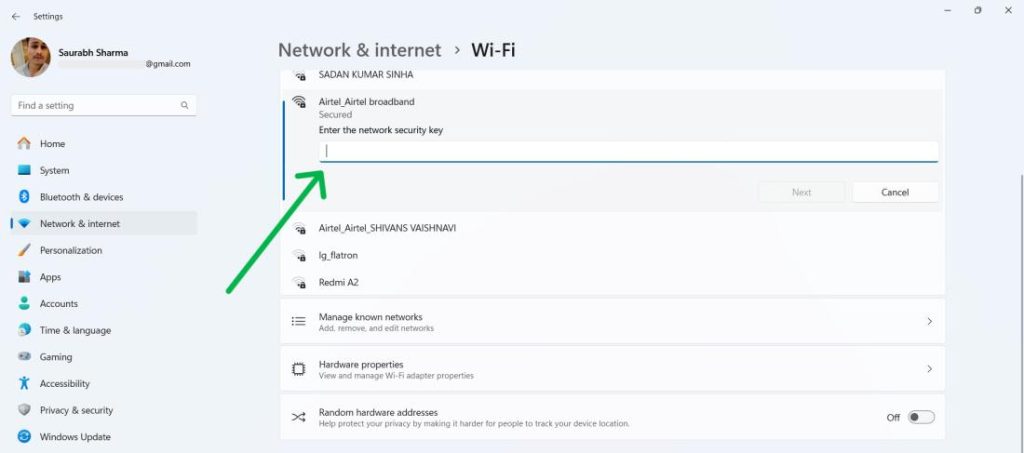
Open Control Panel > Network and Sharing Center > click your WiFi network name (next to Connections) > in the pop-up, click Wireless Properties > go to the Security tab > check ‘Show characters’. Your password appears in the Network security key field.
Step 2: Recover Saved WiFi Password with PowerShell
If you prefer command line or need to retrieve multiple passwords, PowerShell is your friend. Use the command: netsh wlan show profile name="your-network-name" key=clear. Look for ‘Key Content’. For more details, see our dedicated guide on how to show wifi password powershell. This method works on Windows 10 and 11 and can be scripted for bulk exports.
Step 3: Find WiFi Password on macOS
On a Mac, open Keychain Access (Applications > Utilities > Keychain Access). Search for your WiFi network name (e.g., “MyWiFi”). Double-click it, check ‘Show password’, enter your Mac admin password, and the password is revealed. If you have an iPhone, you can also use iCloud Keychain syncing; learn more in our tutorial on how to recover wifi password on iphone.
Step 4: Retrieve WiFi Password on Android (No Root)
On Android 10 and later, go to Settings > Network & Internet > WiFi > tap the gear icon next to your connected network > tap ‘Share’ (sometimes a QR code icon). You’ll see a QR code and the password below it. For older Android versions, you may need a third-party app; check our article on wifi password recovery app without root for safe options.

Step 5: Recover WiFi Password from iPhone
Apple doesn’t show WiFi passwords natively, but you can use iCloud Keychain synced to a Mac or use the Shortcuts app. A simpler method is to go to Settings > WiFi, tap the info (i) icon, tap ‘Share Password’ to share with a friend, but you can’t see it yourself. For a full guide, refer to how to recover wifi password on iphone. Alternatively, use a third-party tool if you’re comfortable.

Step 6: Access Router Admin Page to View or Reset Password
If no device is currently connected, you can log into the router’s admin interface. Open a browser and enter your router’s IP (often 192.168.1.1 or 192.168.0.1). Log in with admin credentials (defaults on the router sticker). Navigate to Wireless Settings or WiFi Security to see or change the password. For more detailed steps, see our router wifi password recovery guide. This method works for almost all brands.

Step 7: Use a WiFi Password Recovery Program (Last Resort)
When all else fails, a dedicated recovery tool can scan your system for stored credentials. These are especially useful if you don’t have admin rights or the network profile is hidden. We cover several reliable ones in our wifi password recovery program article. Always download from trusted sources to avoid malware.

Common Pitfalls
Even with the right steps, things can go wrong. Here are three typical roadblocks and how to fix them.
- You don’t see the ‘Show characters’ option on Windows: This usually means you’re not viewing the profile of the network you’re currently connected to, or you’re on a domain-joined computer with restricted settings. Try the PowerShell method instead.
- The Keychain password prompt on Mac keeps failing: You’re entering the wrong admin password. Make sure you’re using the macOS login password, not the Apple ID password. If you’ve forgotten that, you may need to reset it.
- Router login credentials aren’t working: Many people change the default admin password and forget it. You can usually factory reset the router by holding the reset button for 10 seconds, but that also wipes custom settings. Use that as a last resort.
Where to Next?
Now that you have your password back, consider exporting your WiFi passwords automatically so you never lose them again. Our guide on export wifi passwords automatically can show you how to back up all your saved networks. Also, if you frequently help friends with their WiFi, building your own wifi password recovery toolkit might be a fun weekend project. Stay connected!



