You’re sitting on your couch, phone in hand, and a friend asks for your WiFi password. You blank. It’s been years since you set it up, and the sticker on the router is long gone. Don’t panic — and whatever you do, don’t reset the router. That would kick every device offline and force you to reconfigure everything. Instead, you can dig the password out of a device that’s already connected. This guide walks you through recovering your forgotten WiFi password on Windows, macOS, iPhone, and Android — all without resetting a single thing.
By the end, you’ll have the password in hand, whether you need it for a guest or to set up a new gadget. We’ll cover quick built-in tools and a few tricks that work even without admin access. If you’re looking for more specialized help, check out our guides on saved wifi password recovery windows or show wifi password powershell for extra methods. For iPhone users, we also have a dedicated how to recover wifi password on iphone article.
What You’ll Need
- A device (Windows PC, Mac, iPhone, or Android) that is currently connected to the WiFi network.
- Basic access to that device (no admin rights required for most methods).
- Optional: a second device to write down the password once you find it.
- Optional: a QR code scanner if using iPhone’s share feature.
Step 1: Recover on Windows via Network Settings

If you’re on a Windows PC that’s already connected to the network, this is the easiest method. Click the WiFi icon in the system tray, then click “Network & Internet settings.” Scroll down and click “Network and Sharing Center.” In the new window, find your active WiFi network name and click it. A small status window appears; click “Wireless Properties.” Then go to the “Security” tab and check the box that says “Show characters.” Boom — your password is right there in the “Network security key” field.
This works on Windows 7, 8, 10, and 11. For a deeper dive into finding passwords on older versions, see our guide on find saved wifi password on laptop.
Step 2: Recover on Windows Using Command Prompt (No Admin)
If you can’t get to the GUI or prefer the command line, open Command Prompt (you don’t need admin rights for this). Type the following and press Enter: netsh wlan show profile name=YOURWIFINAME key=clear (replace YOURWIFINAME with the exact network name). Look for the line that says “Key Content” — that’s your password. If you forgot the exact profile name, first run netsh wlan show profiles to list them all.
This method is faster once you get the hang of it. For a PowerShell alternative (which can also export multiple passwords), check out our show wifi password powershell tutorial.
Step 3: Recover on macOS via Keychain Access

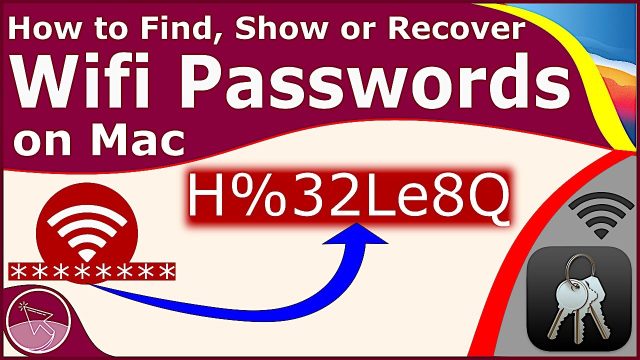
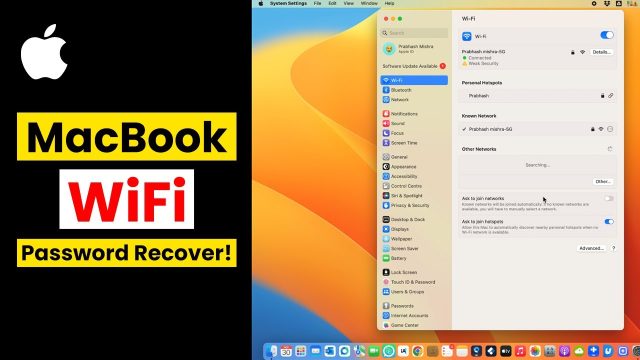
On a Mac, open the “Keychain Access” app (search for it with Spotlight or find it in Utilities). In the upper-right search bar, type the name of your WiFi network. Look for an entry that says “AirPort network password” or just your network name. Double-click it, check “Show password,” and enter your Mac’s admin username and password when prompted. The WiFi password will appear in the field.
If you don’t have admin credentials for the Mac, this method won’t work. But if you do, it’s the quickest way on a Mac. For a broader overview of recovering passwords across devices, see our wifi password recovery no data loss article.
Step 4: Recover on iPhone or iPad (Shared Password)

On an iPhone or iPad running iOS 16 or later, you can view the WiFi password directly. Go to Settings > Wi-Fi, then tap the blue info icon (i) next to your connected network. Tap the “Password” field — Face ID or Touch ID will authenticate, and the password is revealed. You can also tap “Copy” to share it instantly. If you have a second Apple device nearby, you can use the built-in password sharing feature by bringing them close together.
This method requires your device to be logged into iCloud and have the correct network stored. For older iOS versions or more troubleshooting, read our detailed how to recover wifi password on iphone guide.
Step 5: Recover on Android (WiFi QR Code)

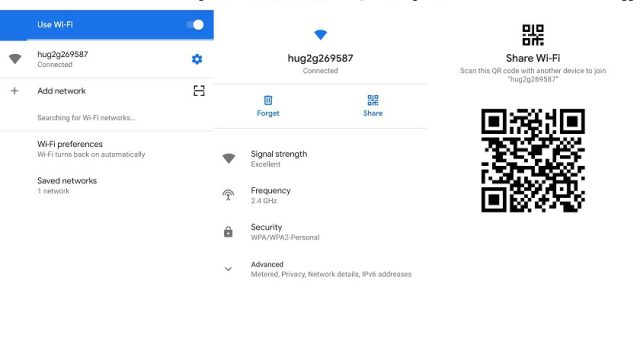
On Android 10 and above, you can generate a QR code that contains the WiFi password. Go to Settings > Network & Internet > Wi-Fi, and tap your connected network. Tap the share icon (or a gear icon, depending on your skin). Your device will generate a QR code — scan it with another phone to see the password, or take a screenshot and read it later. The password is usually stored as plain text after the “S:” in the QR code data.
On a Pixel phone, this process is even simpler. For specific steps, check our guide on recover wifi password on pixel. If the QR code method doesn’t work on your older Android version, you may need root access or a third-party app — but that’s beyond the scope of this no-reset guide.
Common Pitfalls

- You’re looking at the wrong network name: Double-check that the device is connected to the network you want the password for. Sometimes laptops remember multiple networks, and you might pull a password for an old hotspot.
- You don’t have admin credentials on macOS: The Keychain method requires an admin username and password. If you’re not an admin, ask the account owner or try another device like your phone.
- The password field is grayed out on Windows: This can happen if you’re not an administrator. Try the Command Prompt method instead, or ask someone with admin rights to help.
Where to Next
Now that you’ve recovered your password, write it down somewhere safe — a password manager is ideal. If you found this guide helpful, you might also enjoy our other tutorials: we have a complete system for recovering passwords from routers with our router wifi password recovery guide, or if you’re on a mesh network, check out wifi password recovery for mesh wifi. And if you ever need to export all your saved passwords at once, our export wifi passwords automatically guide will save you time.