
So you’ve been cruising along with your tablet, and suddenly you need to connect a new device to your WiFi—or maybe your friend asks for the password, and your mind goes blank. Don’t panic. If your tablet is already connected to that network (or has saved it), the password is still there—you just need to know where to look. This guide is for anyone with an Android or iPad tablet who wants to recover a forgotten WiFi password without resetting the router or calling your ISP. By the end, you’ll have the password in hand, whether it’s stored on your tablet or accessible through a few taps.
I’ll walk you through two main methods: using your tablet’s built-in settings (works on most recent Android and iPadOS versions) and, as a backup, accessing your router’s admin page. No special apps or technical wizardry required—just a few minutes of your time.
What You’ll Need
- Your tablet (Android 10+ or iPadOS 16+ recommended for easiest method)
- The tablet unlocked and connected to the WiFi network you want the password for
- Optional: Router’s IP address and admin login credentials (for the backup method)
- A bit of patience (you’ve got this)
Step 1: Recover WiFi Password on Android Tablet
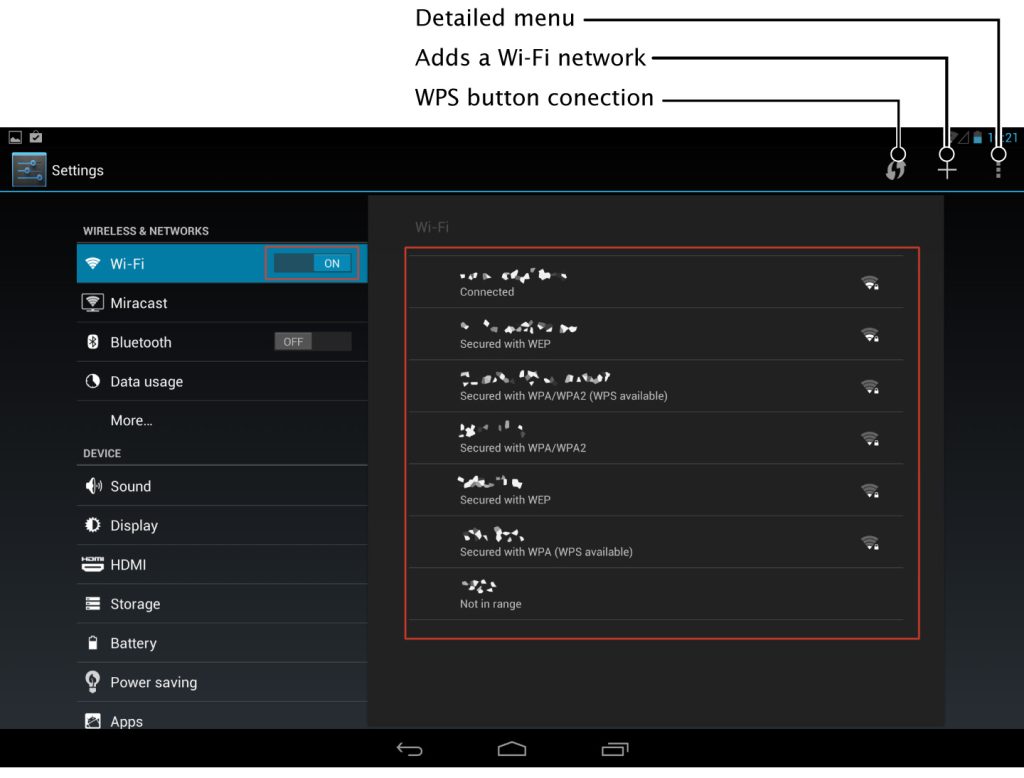
Android tablets running Android 10 or later have a built-in way to view saved WiFi passwords. This is the quickest method and doesn’t require any third-party apps.
1. Open the Settings app on your tablet.
2. Tap Network & Internet (on some devices, it’s just WiFi or Connections).
3. Select WiFi. You’ll see a list of available networks and the one you’re connected to.
4. Tap the gear icon or network name of the saved network you want the password for.
5. Look for Share or QR code option. Tap it. You may need to authenticate with your fingerprint, PIN, or pattern.
6. A QR code will appear—and below it, the WiFi password is displayed in plain text. Write it down or take a screenshot (but keep it safe!).
If your Android tablet is older than Android 10, the built-in option might not be available. Don’t worry—you can still view saved wifi password android by using a third-party app like WiFi Password Viewer (requires root) or by following the router method later in this guide.
Step 2: Recover WiFi Password on iPad (iPadOS 16+)
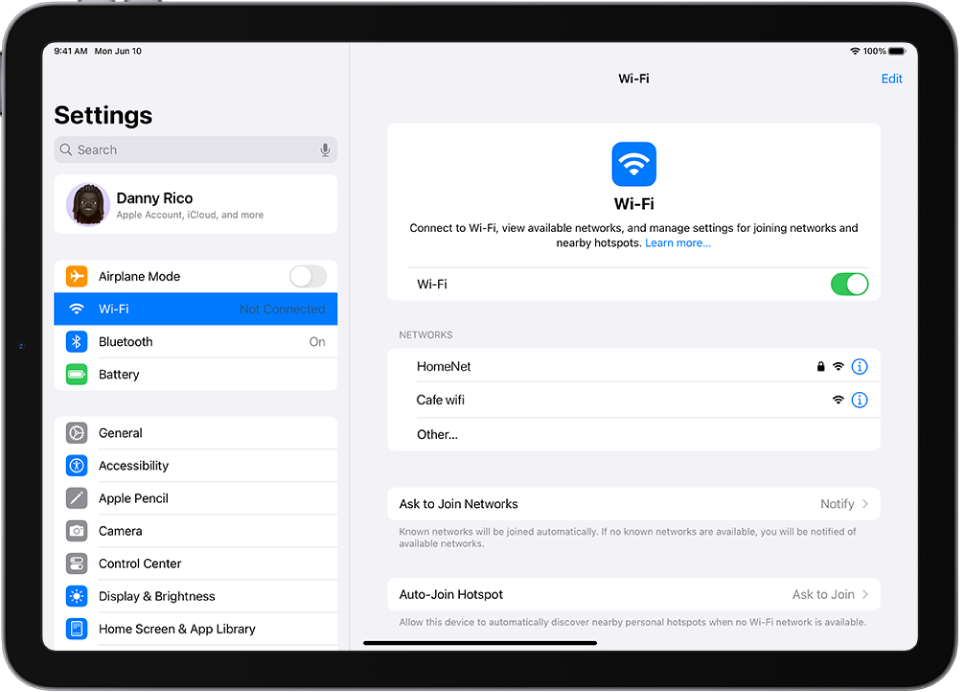
Apple’s iPadOS 16 and later make it easy to view saved WiFi passwords, similar to the iPhone. Here’s how:
1. Open Settings and tap WiFi.
2. Find the network you’re connected to (or have saved) and tap the blue info (i) icon next to it.
3. Tap the Password field. It will prompt you to authenticate with Face ID, Touch ID, or your device passcode.
4. After authentication, the password will be revealed. You can tap and hold to copy it.
If your iPad runs an older version of iPadOS (pre-16), you won’t see the password directly on the tablet. In that case, you can use a Mac with iCloud Keychain synced—or use the router method below. For a comprehensive approach, check out this saved wifi password recovery tutorial that covers all devices.
Step 3: Backup Method – Router Admin Page
If the above methods don’t work (maybe your tablet is too old or not connected to the network), you can always log into your router’s administration panel to find the WiFi password. This works for any device that can access the router.
1. Open a web browser on your tablet and type your router’s IP address. Common ones are 192.168.0.1, 192.168.1.1, or 10.0.0.1. You can find it in your tablet’s WiFi settings under ‘Gateway’ or ‘Router’.
2. Enter the router’s admin username and password. If you’ve never changed them, check the sticker on the router itself (often ‘admin’ / ‘password’ or a unique default).
3. Look for a section named Wireless, WiFi, or Security. The WiFi password is usually labeled as ‘Passphrase’, ‘Network Key’, or ‘Pre-Shared Key’.
4. Write it down. You can also change it here if you’ve forgotten it entirely.
For a foolproof way to never lose a WiFi password again, try wifi password recovery without losing data by using cloud sync or password managers. Also, consider backup wifi passwords before reset to avoid future headaches.
Common Pitfalls
- You’re not connected to the network: The Android and iPad methods require the tablet to be currently connected or have saved the network. If you’ve never connected, you’ll need to use the router method.
- Forgot router admin credentials: Many people change the router password and then forget it. If that’s the case, you may need to reset the router to factory defaults (check the bottom of the router for a tiny reset button). Be aware this erases all custom settings.
- Outdated software: Older Android or iPadOS versions may lack the built-in password viewing feature. In that case, update your tablet’s software if possible, or rely on the router method.
Where to Next
Now that you’ve recovered your WiFi password, keep it handy! Save it in a password manager or write it down somewhere safe. If you have multiple devices, you can also use cloud sync to keep passwords available everywhere. And if you ever need to recover passwords on other devices (like a laptop or phone), check out our guides on wifi password recovery without losing data or export wifi passwords with cmd for Windows users. Happy surfing!



