
Ever needed your WiFi password but couldn’t find it anywhere? Maybe you’re setting up a new device, sharing access with a guest, or just want to have it written down as a backup. The good news is you don’t need to reset your router or reinstall your OS to get that password back. In this guide, I’ll show you how to recover saved WiFi passwords on Windows, Mac, Android, and iOS without losing any data. No factory resets, no risky third-party tools — just built-in methods that keep your device exactly as it is.
By the end of this post, you’ll have the WiFi password in hand for every network your device has ever connected to. Plus, I’ll share tips on how to backup your WiFi passwords before resetting so you never lose them again. Whether you’re on a personal laptop or a school network, these steps work. Let’s dive in.
What You’ll Need
- A Windows, Mac, Android, or iOS device that has previously connected to the WiFi network
- Administrator access on Windows (to run Command Prompt or PowerShell)
- Your Mac’s login password (for Keychain Access)
- Optional: A router admin password if you need to view the password from the router’s interface
- A few minutes of patience — the steps are quick and simple
Step 1: Recover WiFi Password on Windows (No Data Loss)
Windows stores all saved WiFi profiles in the system. You can view any password using the command line. No third-party software needed, and you won’t lose any data.
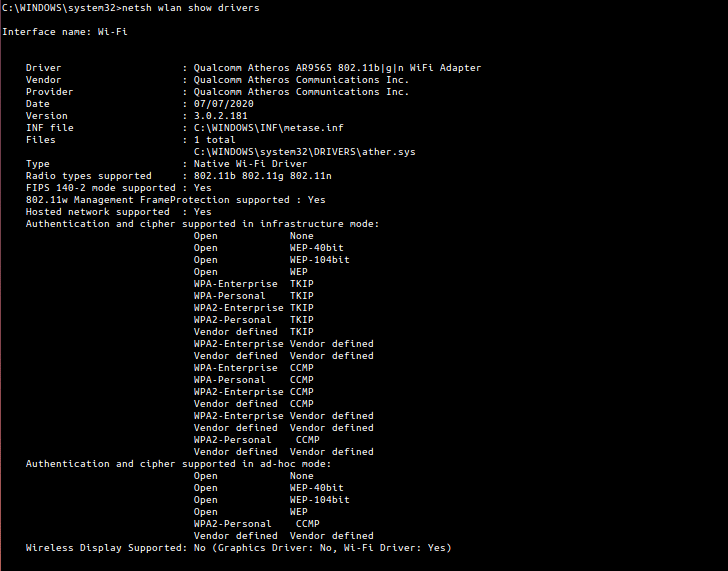
First, open Command Prompt as Administrator. Press the Windows key, type “cmd”, right-click on Command Prompt, and select “Run as administrator”. Then type the following command and press Enter: netsh wlan show profiles. This lists all saved networks.
To see the password for a specific network, type: netsh wlan show profile name="NETWORK-NAME" key=clear. Replace “NETWORK-NAME” with the actual name (SSID). Look for “Key Content” under Security settings — that’s your password. If you don’t have admin rights, check out our guide to view saved WiFi password without admin for alternative methods.
Step 2: Recover WiFi Password on macOS (Keychain Access)
On a Mac, all saved passwords are stored in the Keychain app. Open Keychain Access from Applications > Utilities (or search with Spotlight). In the left sidebar, select “System” and then click on “Passwords” at the top.
Scroll to find your WiFi network’s name (SSID). Double-click it, then check the box “Show password”. You’ll need your Mac’s administrator username and password to reveal it. If you’ve synced your passwords with iCloud, you can also recover via cloud sync. This method retrieves the password without altering any data on your Mac.
Step 3: Recover WiFi Password on Android (No Root)
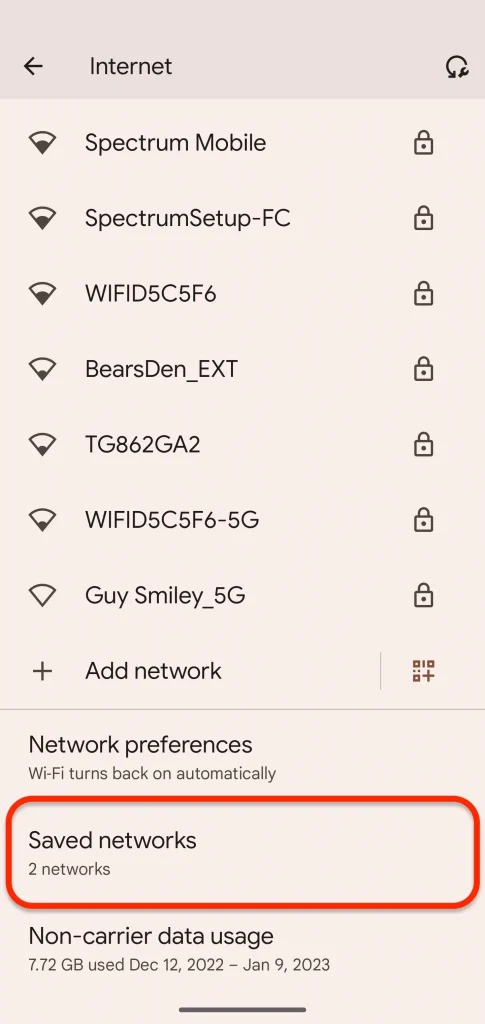
Android devices (running Android 10 or later) let you view the WiFi password directly from settings — no root required. Go to Settings > Network & Internet > WiFi, then tap on the saved network you’re currently connected to (or tap the gear icon next to it). On some phones, you’ll see a “Share” button with a QR code. Tap it and you’ll be asked to verify your fingerprint, PIN, or pattern. After verification, the password appears below the QR code, and you can also scan it with another device to connect instantly. For older Android versions, there are workarounds — check our full guide on how to view saved wifi passwords on Android.
Step 4: Recover WiFi Password on iOS (iPhone/iPad)
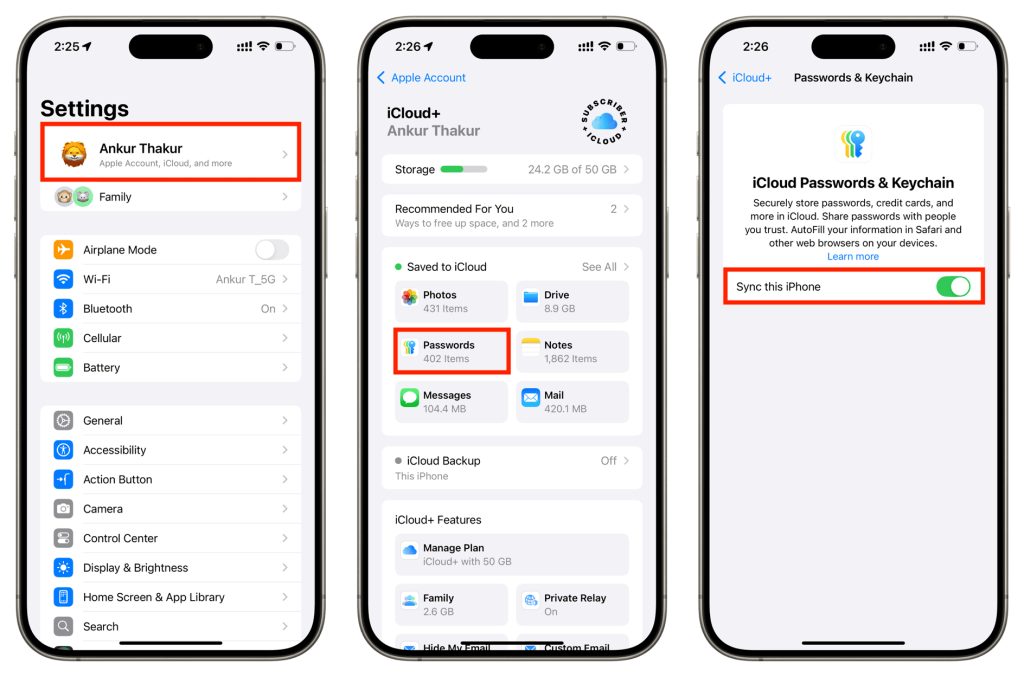
Apple’s iOS doesn’t have a built-in way to view WiFi passwords directly in settings. However, if you use iCloud Keychain, your passwords are synced across all your Apple devices. On a Mac signed into the same iCloud account, you can find the password in Keychain Access (as shown in Step 2). Alternatively, you can use the router’s admin page (if you have access) or use a third-party app like “WiFi Passwords” from the App Store — but be cautious about privacy. For a more reliable method, consider using a recovery application designed for iOS. And if you’re planning to reset your iPhone, be sure to backup your WiFi passwords before resetting.
Step 5: Using PowerShell to Export All Passwords (Windows)
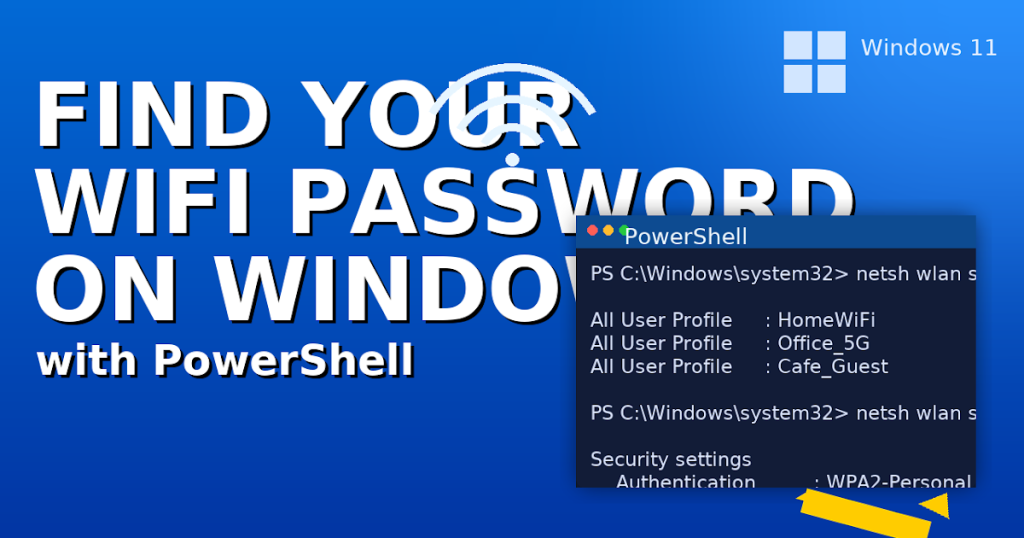
If you want to export all WiFi passwords at once (great for backup), use a PowerShell script. Open PowerShell as Administrator (right-click Start > Windows PowerShell (Admin)). You can use the built-in command or a custom script. A simple one-liner is: (netsh wlan show profiles) | Select-String ":(.*)$" | %{$name=$_.Matches.Groups[1].Value.Trim(); $_} | %{(netsh wlan show profile name="$name" key=clear)} | Select-String "Key Content". This lists all passwords. For a cleaner export, see our detailed guide on how to export all your WiFi passwords with PowerShell. You can also automate this with a PowerShell script and save it as a text file for safekeeping.
Common Pitfalls
- Not running as Administrator: On Windows, if you don’t run Command Prompt or PowerShell as admin, you’ll only see partial info or get an error. Always right-click and select “Run as administrator”.
- Forgetting iCloud Keychain sync: On iOS, you might think the password is lost, but it’s likely stored in your iCloud Keychain. Simply check on a Mac or another Apple device signed into the same Apple ID.
- Skipping backup before a reset: If you reset your device without a backup of your WiFi passwords, recovering them later becomes much harder. Always use one of the above methods to extract and save your passwords before a factory reset or OS reinstall.
Where to Next?
Now that you’ve recovered your WiFi passwords, consider storing them in a secure password manager to avoid future headaches. If you’re still having trouble, check out our other guides like the saved wifi password recovery tutorial for more tips. And remember — you can always view saved wifi passwords on Android or use a PowerShell script to automate the process on Windows. Happy surfing!



