Have you ever been in a situation where you need to share your WiFi password but you’ve completely forgotten it? Or maybe you just want to check the password on your Android phone to use it on another device? Well, you’re in luck because Android has a built-in way to view saved WiFi passwords without needing any third-party apps. This guide is for anyone who owns an Android device running Android 10 or higher, and by the end, you’ll be able to pull up any saved WiFi password in just a few taps.
Even if you’re not super tech-savvy, don’t worry. I’ll walk you through every single step with clear instructions and screenshots. No rooting required, no command line magic — just good old-fashioned system settings. Let’s get started!
What You’ll Need
- An Android phone (Android 10 or newer recommended)
- A saved WiFi network that you’ve connected to at least once
- Your phone’s unlock method (PIN, pattern, fingerprint, or face unlock) for authentication
- Optional: a second device to scan the QR code
If you’re on an older Android version (9 or below), the built-in method won’t work. In that case, you might need a wifi password recovery application or use ADB commands. But for most users, the steps below are all you need.
Step 1: Open Saved Networks in Settings
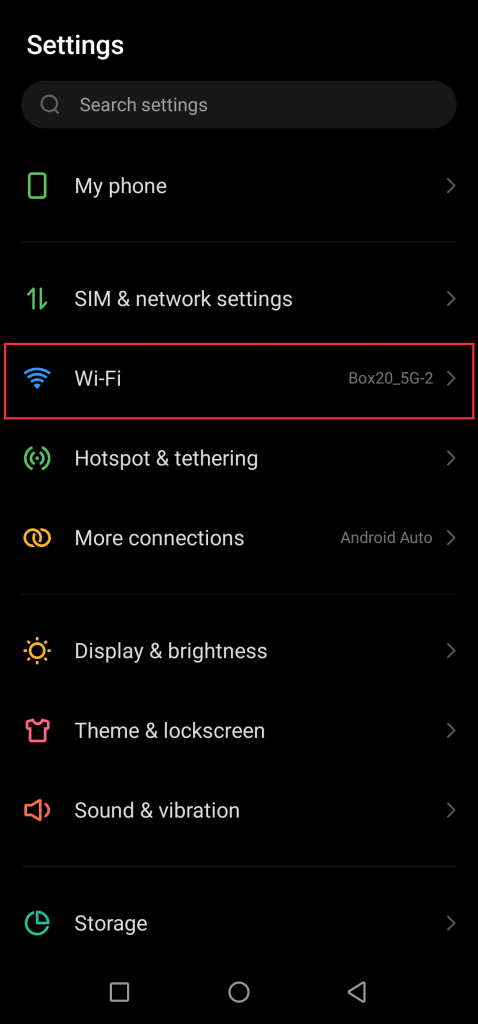
First, open your Android phone’s Settings app. Then tap on “Network & Internet” (or “Connections” on Samsung devices). Next, select “WiFi” and look for “Saved networks” — usually at the bottom of the WiFi page. Tap it, and you’ll see a list of every WiFi network your phone remembers.
If you can’t find “Saved networks”, try tapping the three-dot menu in the top-right corner and then “Saved networks”. On some custom skins like MIUI, it may be called “Saved WiFi” or “Known networks”.
Step 2: Select the Network You Want
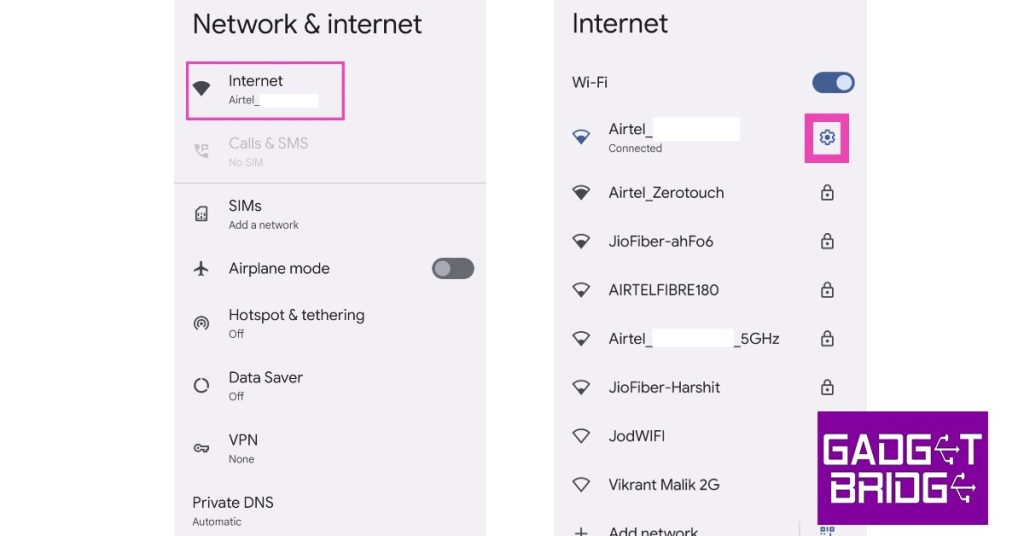
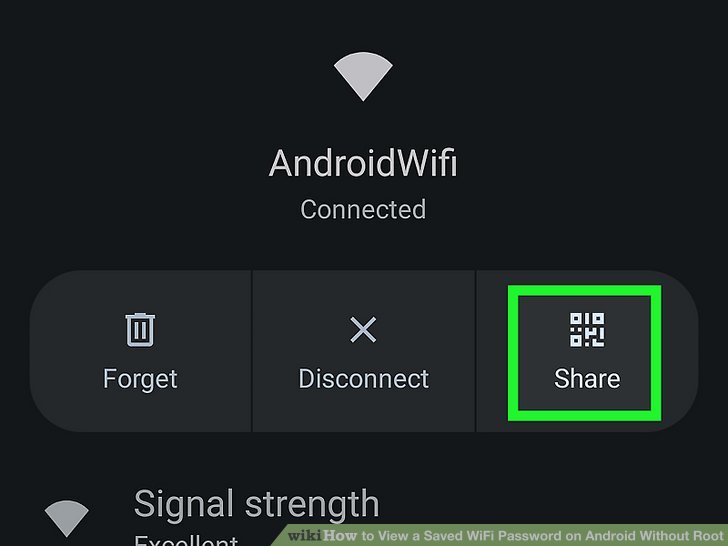
From the list of saved networks, tap on the name of the network whose password you want to view. This will open the network details page. If you’re currently connected to that network, you’ll see options like “Forget” and “Share”. If not, you’ll still see “Share” as long as the network is saved.
Note: If the network isn’t saved (you only connected once and didn’t save), it won’t appear here. In that case, you’ll need to connect to it again and then follow these steps.
Step 3: Tap the Share Button (or QR Code Icon)
Once you’re on the network details page, tap the “Share” button. On stock Android, it’s a small QR code icon. On Samsung, it’s a text button that says “Share” or “QR code”. The phone will ask you to verify your identity — usually with your fingerprint, PIN, or pattern. This is a security measure to prevent others from seeing your saved passwords.
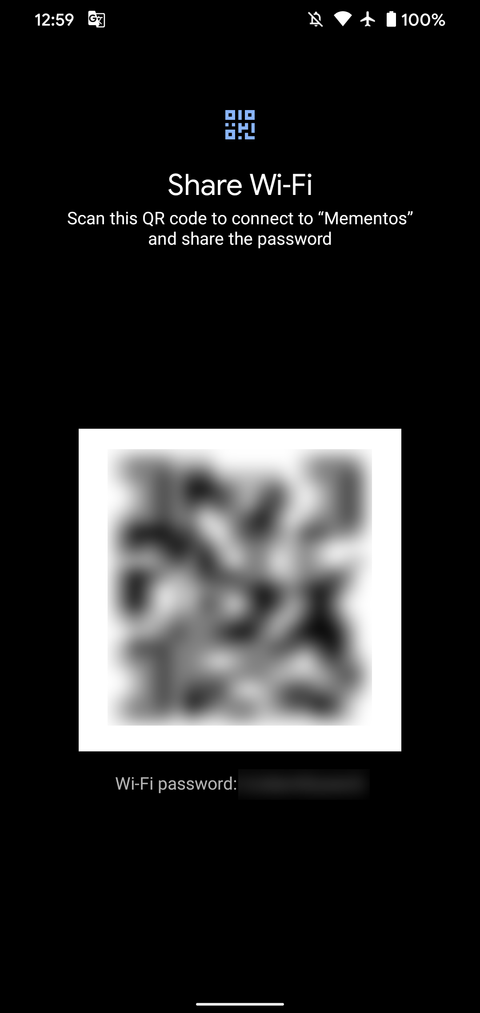
Authenticate using whatever method you normally use to unlock your phone. After successful authentication, a QR code will appear on the screen.
Step 4: Read or Scan the Password
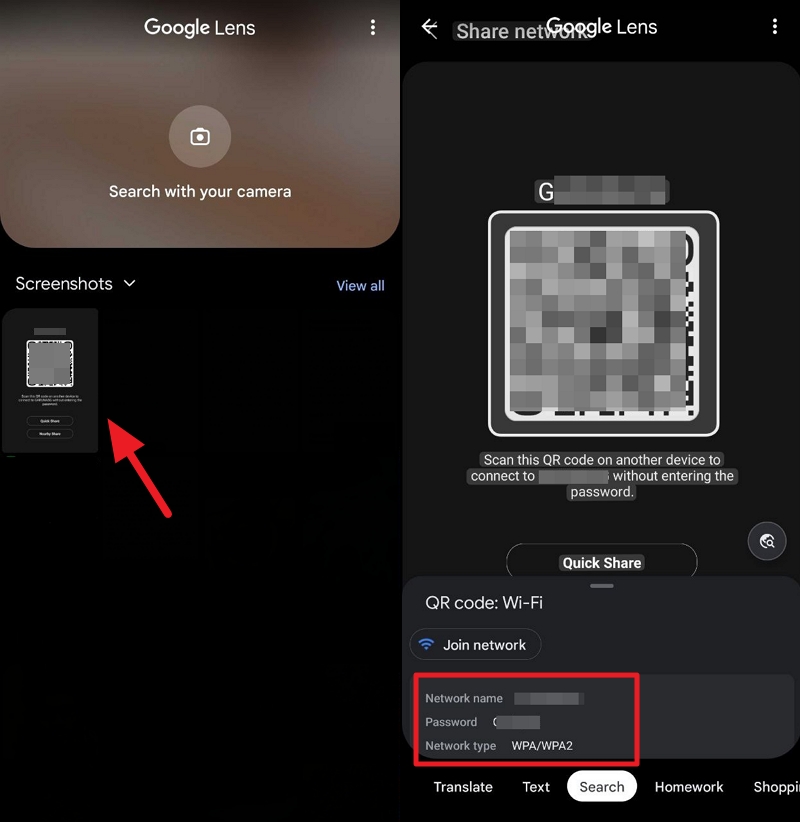
Below the QR code, you’ll see the WiFi password (SSID) displayed in plain text. In some Android skins, the password is shown right under the QR code; in others, you may need to tap a small “Show password” checkbox. Once you see it, you can write it down, share it verbally, or simply let someone scan the QR code with their phone to connect instantly.
If the password is hidden behind dots, look for a small eye icon or toggle to reveal it. And that’s it — you’ve successfully viewed your saved WiFi password on Android!
Common Pitfalls
- No “Share” option visible: This usually means the network isn’t saved or your phone is running Android 9 or older. For older devices, you’ll need a wifi password recovery application or consult our guide to view saved wifi password without admin.
- Authentication fails repeatedly: Make sure you’re using the correct PIN, pattern, or fingerprint. If you’ve recently changed your unlock method, try restarting your phone and attempting again.
- Password shown is not the current password: If the network’s password was changed after you last connected, the saved password in your phone will be outdated. You’ll need to forget the network and reconnect using the new password.
Where to Next
Knowing how to find your saved WiFi passwords is handy, but what if you need to recover them on a different device? Check out our saved wifi password recovery tutorial for a cross-platform guide. If you’re on Windows, you might also like the how to recover wifi password from saved network article. And for those who prefer command-line tools, we have a guide on wifi password recovery application options. Happy connecting!



