You know the feeling — a friend or new device asks for the WiFi password, and suddenly your mind goes blank. You’ve typed it in a dozen times, but now it’s vanished from memory. The easy fix? Reset the router. But that means reconfiguring all your smart home gadgets, reconnecting every device, and possibly losing custom network names. Good news: you don’t have to. If any device is already connected to that network, its password is hiding somewhere in the settings. This guide will show you how to dig it out without a factory reset.
By the end of this tutorial, you’ll be able to recover your WiFi password from Windows, macOS, Android, and even iPhones — no technical degree required. You’ll also learn a few backup tricks so you never get stuck again. Whether you’re at home, in a dorm, or helping a neighbor, these methods work for most modern routers and devices. Let’s get your network back under your thumb.
What You’ll Need
- A device already connected to the WiFi network (any Windows PC, Mac, Android phone, or iPhone).
- Administrator access on Windows (or a user account with permission to view network settings).
- Your Apple ID password if you’re using a Mac with iCloud Keychain.
- A few minutes and the patience to follow along.
Step 1: Recover WiFi Password on Windows
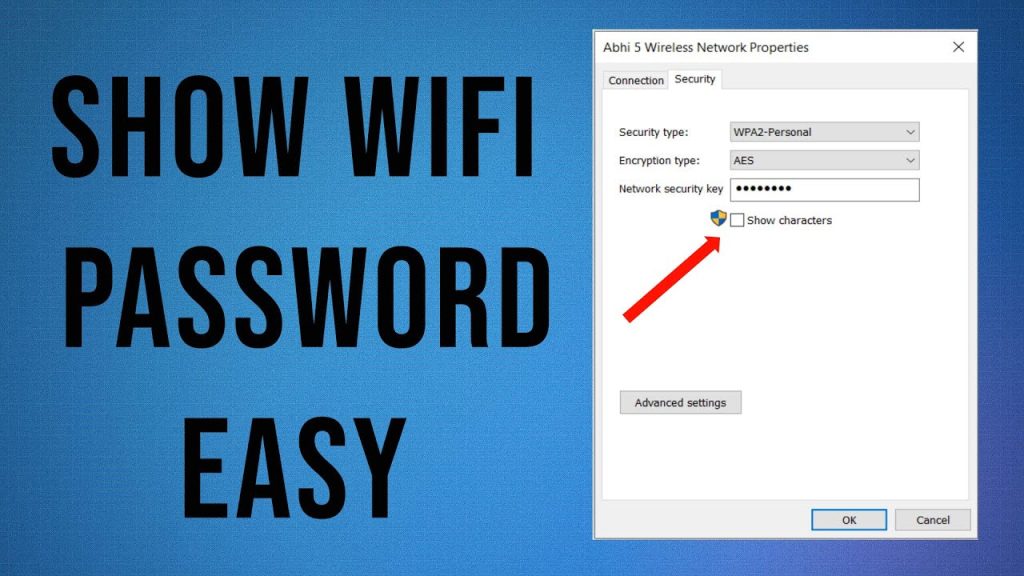
Windows stores every WiFi password you’ve ever connected to. To find the one you need, open the Control Panel (search for it in the Start menu), then go to Network and Sharing Center. Click on your active WiFi network (it’ll say “Connections: [your network name]”). In the pop-up, click Wireless Properties, then switch to the Security tab. Check the box that says “Show characters” — your password will appear in plain text. If you prefer the command line, open Command Prompt as admin and run netsh wlan show profile name="YourNetworkName" key=clear. Look for “Key Content” in the output.
For a more automated approach, you can use the wifi password recovery powershell script to export all your saved networks at once — handy if you’re helping a friend or setting up a new PC.
Step 2: Recover WiFi Password on macOS
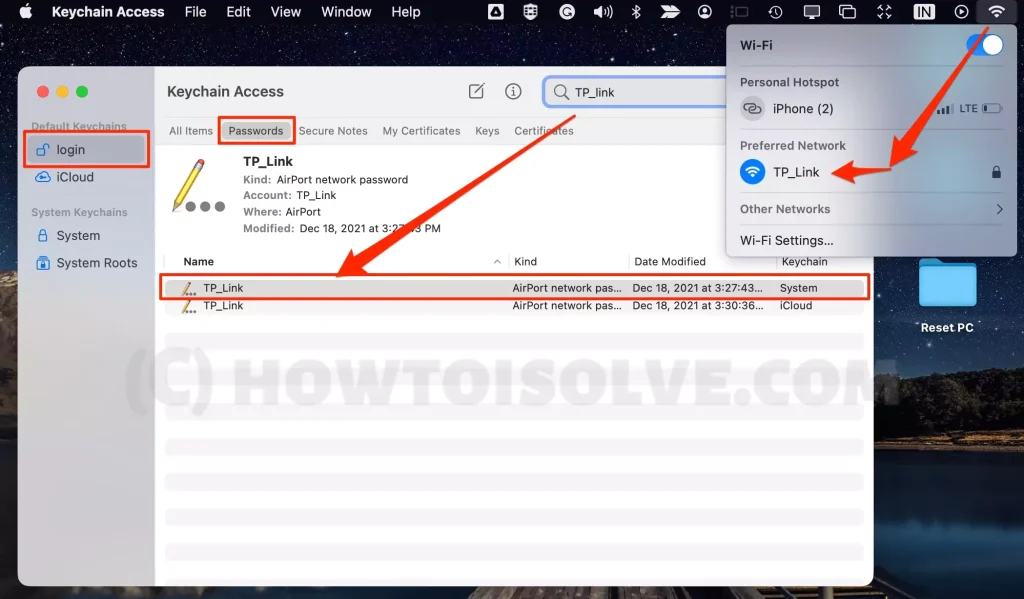
Mac users can find saved WiFi passwords in Keychain Access. Open the app (search with Spotlight or find it in Utilities). In the top-right search bar, type your network’s name. Double-click the entry that appears; it will be listed as “AirPort network password” or similar. Check the box “Show password” and enter your Mac’s administrator username and password. The WiFi password will then be revealed. If you’re on a newer Mac with iCloud Keychain, make sure your Apple ID is signed in. For more details, check our dedicated wifi password recovery for macbook air guide.
Step 3: Recover WiFi Password on Android
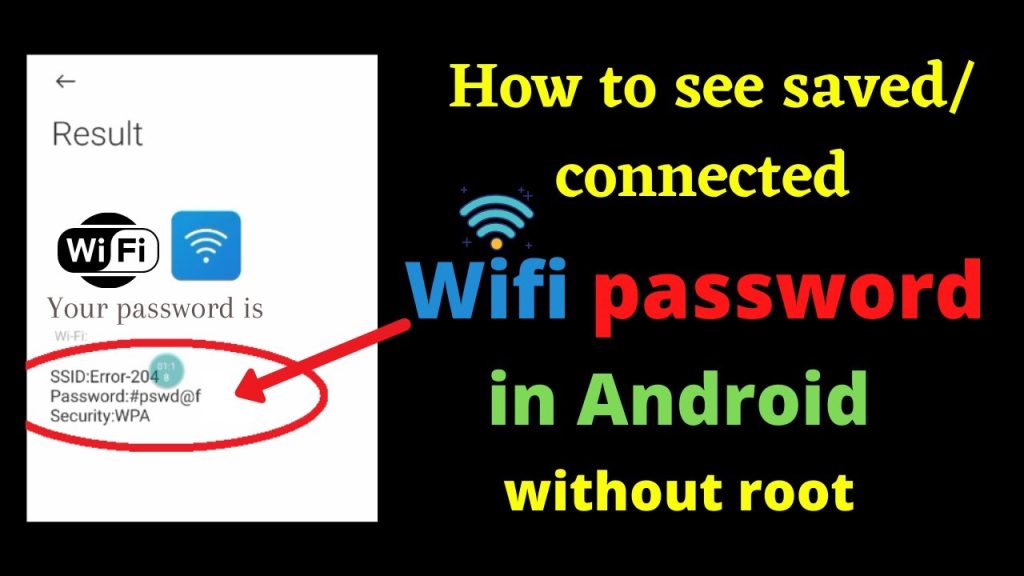
On Android 10 and newer, go to Settings > Network & Internet > WiFi. Tap the gear icon next to your connected network, then tap “Share” (or a QR code icon). You’ll see a QR code and, directly below it, the password in plain text. On older Android versions, you may need to root the device or use a file explorer to view the wpa_supplicant.conf file. For a full breakdown, see our article on how to view saved wifi password on Android.
Step 4: Recover WiFi Password on iPhone or iPad
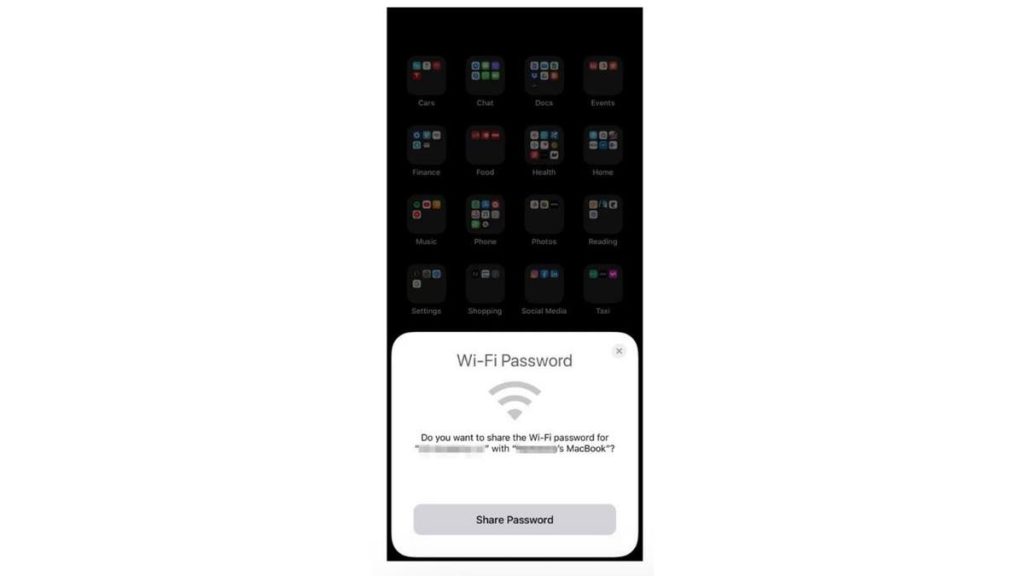
Apple doesn’t make it as straightforward, but if you have iCloud Keychain enabled and a Mac signed into the same Apple ID, you can view the password on your Mac (see Step 2). Without a Mac, you can use the “Share Password” trick: bring another Apple device near your iPhone, and a pop-up will offer to share the WiFi password (you need the other device’s contact in your phone). Alternatively, if you’re jailbroken, you can use a tweak like Filza to open the keychain file. For most people, the Mac method is the easiest — or you can rely on wifi password recovery with cloud sync to keep passwords accessible.
Step 5: Recover WiFi Password via Router Admin Panel
If no device remembers the password, you can log into your router’s admin interface. Find your router’s IP address (usually 192.168.0.1 or 192.168.1.1 — check the sticker on the router). Open a browser, enter that IP, and log in with the admin credentials (also often printed on the router). Once inside, look for a section called Wireless, WiFi, or Security. The WiFi password (often labeled “Pre-Shared Key” or “Passphrase”) will be displayed. Note: if you changed the admin password and forgot it, you may need to reset the router after all — but try the default credentials first.
Common Pitfalls
- No admin rights: On a work or school computer, you may not have permission to view passwords. In that case, use the router method or follow our guide on view saved wifi password without admin.
- Router password vs WiFi password: Don’t confuse the admin login (used to configure the router) with the WiFi password. If you only have the admin password, you can still find the WiFi password inside the settings.
- iCloud sync not working: If your Mac shows “Keychain is locked” or doesn’t sync, enable iCloud Keychain in System Preferences, or sign out and back in. Our wifi password recovery with cloud sync article covers troubleshooting.
Where to Next
Once you’ve recovered your password, don’t lose it again. Backup your WiFi passwords before resetting your device, or export them with Command Prompt for a quick restore. And if you ever get stuck again, remember you can always recover wifi password from saved network using one of these methods. Happy surfing!



