Ever needed to connect a new device to your home WiFi but couldn’t remember the password? It’s frustrating, but if you have a Mac that’s already connected, you’re in luck. macOS stores saved WiFi passwords in a system tool called Keychain Access, and you can recover them for free—no third-party software required. This guide is for anyone with a Mac who needs to retrieve a WiFi password from a network they’ve previously joined.
By the end of this tutorial, you’ll know exactly how to open Keychain Access, locate your saved network, and reveal the password in plain text. You’ll also learn how to copy it for sharing or troubleshooting. Let’s get started.
What You’ll Need
- A Mac with macOS (any recent version)
- Admin access to the Mac (your login password)
- A WiFi network that your Mac has connected to in the past
- Patience—just a few minutes of your time
Step 1: Open Keychain Access
Keychain Access is the built-in password manager on your Mac. It stores everything from WiFi passwords to website logins. To open it, click the magnifying glass icon in the top-right corner of your screen (Spotlight) or press Cmd+Space. Type “Keychain Access” and press Enter. The app will launch.
Step 2: Find Your WiFi Network
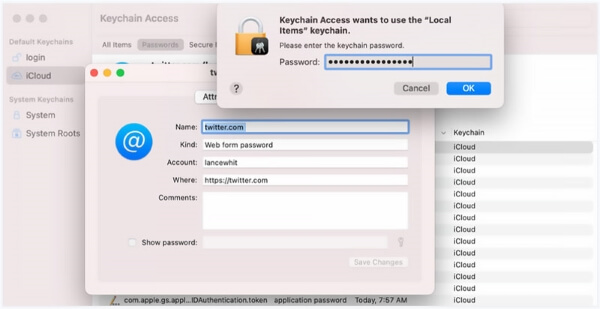
In Keychain Access, you’ll see a list of keychains on the left. Make sure “System” or “login” is selected (depending on where the password was saved). Then, in the search box at the top-right, type the name (SSID) of your WiFi network. The results will filter down. Look for an entry with a small lock icon and the name of your network—it will usually say “AirPort network password” or similar.
Step 3: Reveal the Password
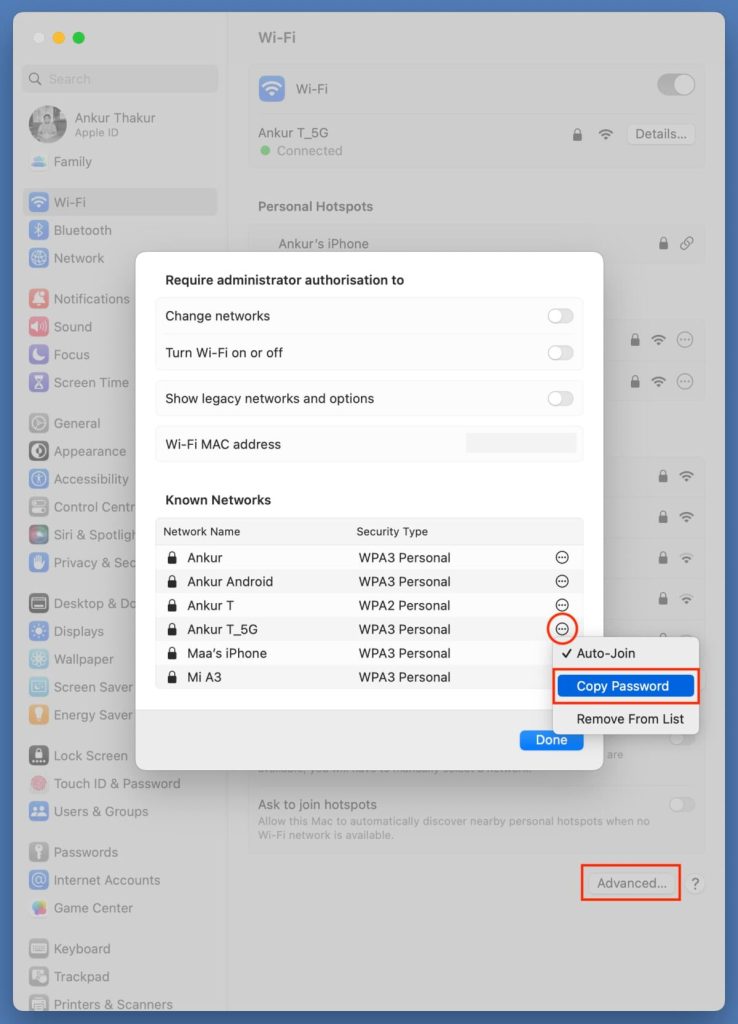
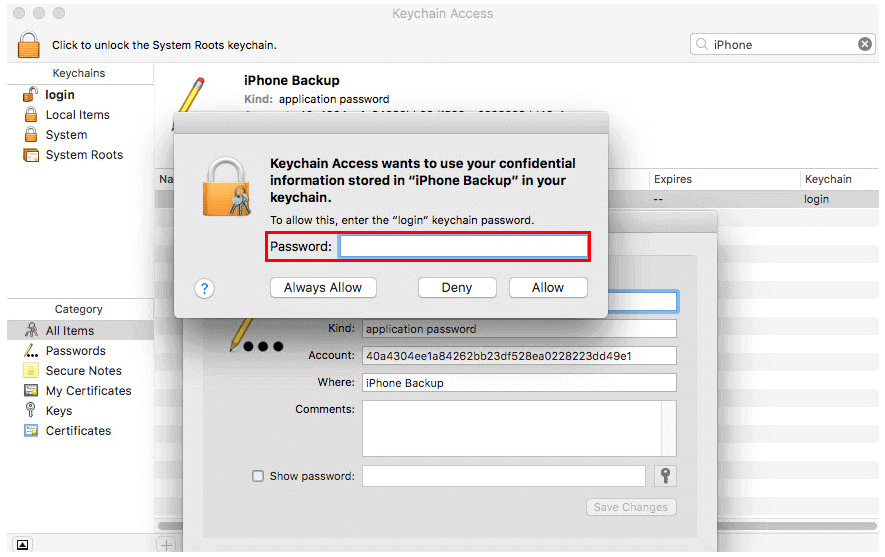
Double-click the entry for your WiFi network. A dialog box will pop up showing details. Check the box that says “Show password.” You’ll be prompted to enter your Mac’s admin username and password (your login credentials). After entering them, the password field will display your WiFi password in plain text. You can then copy it manually or highlight and press Cmd+C.
Step 4: Use the Password
Now that you have the password, you can share it with guests, connect a new device, or save it in a password manager for future reference. If you want to keep a record, consider a wifi password recovery without losing data approach, or better yet, backup wifi passwords before reset your Mac. If you also use other platforms, you can view saved wifi password android or export wifi passwords with cmd on Windows. For more advanced methods, check our guide on wifi password recovery powershell script.
Common Pitfalls
- **No admin rights:** If you’re not an administrator on the Mac, you won’t be able to see the password. You’ll need to ask the admin to enter their credentials.
- **Network not saved:** Keychain Access only shows networks your Mac has connected to before. If you’ve never joined the network on this Mac, it won’t be there. In that case, you may need to access the router or use another device.
- **Wrong keychain selected:** Make sure you’re looking in the correct keychain—usually “login” for your personal passwords, or “System” for shared ones. If you don’t see the network, try the other one.
Where to Next?
Now that you’ve recovered your WiFi password, you might want to explore more ways to manage your passwords across devices. For example, learn how to perform wifi password recovery for secured network on other operating systems. Or, if you’re worried about losing passwords again, consider setting up cloud sync or a dedicated password manager. Happy browsing!



