So you forgot your WiFi password and your Android phone is connected to it already, or you’ve connected before? Great news: you can easily retrieve that password from your phone’s saved networks. This guide is for anyone with an Android phone running Android 10 or later who wants to recover a WiFi password without resetting the router or asking the admin. By the end, you’ll have the password in your hands—no root required.
We’ll walk through the built-in QR code method that Android introduced in version 10. If you’re on an older version, don’t worry—we’ll also point you to a third-party app method. Plus, if you ever need to restore WiFi data after a reset, you can learn how to backup WiFi passwords before reset. Let’s get started!
What You’ll Need
- An Android phone running Android 10 or later (for the built-in method)
- The WiFi network you want to recover must have been saved on that phone
- A bit of patience—you’re only a few taps away
Step 1: Open WiFi Settings
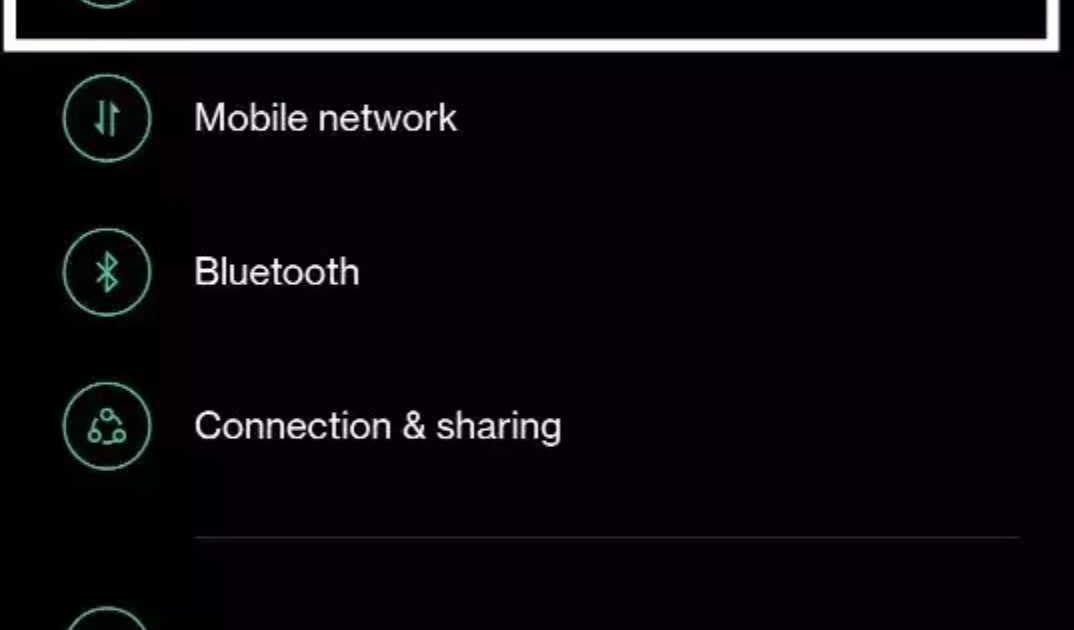
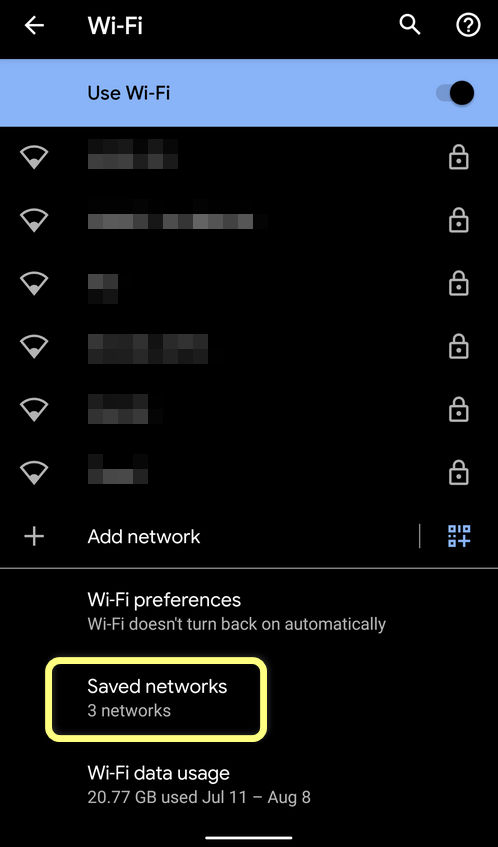
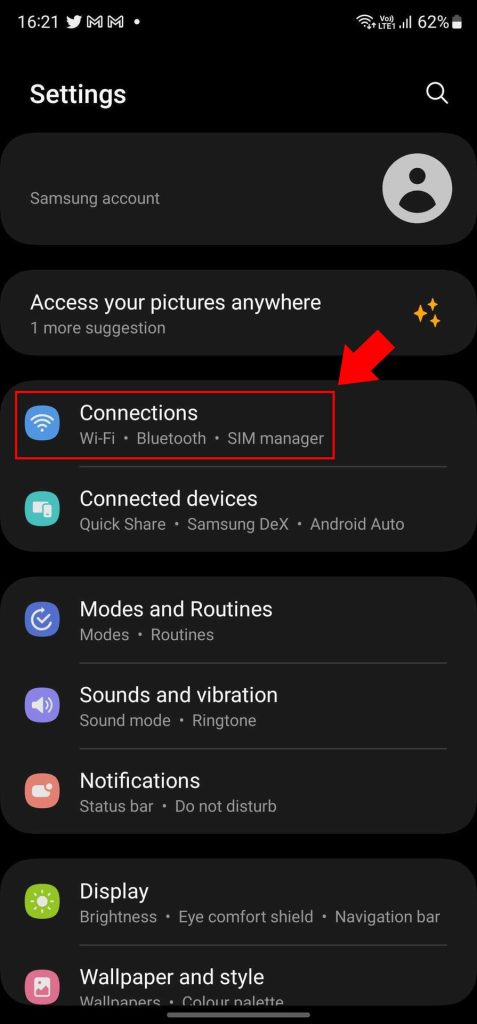
Start by opening your phone’s Settings app. Tap on Network & Internet (or Connections on some Samsung devices), then select WiFi. You’ll see a list of available networks. If you’re currently connected to the network you want, tap the gear icon (⚙️) next to it. If you’re not connected but the network is saved, look for a “Saved networks” or “Manage networks” option—tap that and select your network. On stock Android, you might see a “Saved networks” entry under WiFi settings. Tap it and choose your network.
Step 2: Find the QR Code
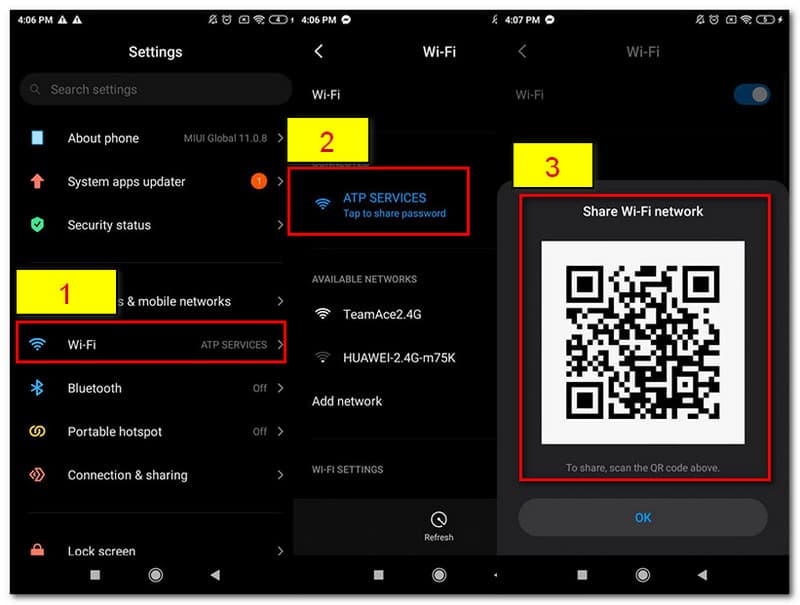
Once you’re on the network details screen, look around for a QR code icon or a “Share” button. It might be at the top right or bottom of the screen. Tap it, and your phone will generate a QR code that contains the WiFi password. This QR code is meant for sharing with guests, but you can also use it to view the password directly.
Step 3: Reveal the Password
Below the QR code, you’ll typically see the network name and password. The password may be hidden behind dots. Tap the eye icon (👁️) next to the password field to reveal it. You can then copy it to your clipboard or write it down. If your Android version doesn’t show the password even after tapping the eye icon, you might need a third-party tool—check out our guide on wifi password recovery application for an alternative method.
Common Pitfalls
Three things often trip people up:
- Your Android version is too old: The QR code feature is only available on Android 10 and above. If you’re on an older version, you can still view saved WiFi passwords on Android using a root explorer or third-party app—check our dedicated guide for that.
- The network isn’t saved on your phone: If you’ve never connected, you can’t recover it. Try asking the router admin or use a method like recover WiFi password without reset from the router’s web interface.
- You accidentally tap “Forget”: If you remove the network, the saved password is erased. Avoid tapping “Forget” while you’re in the network details. If that happens, you’ll need to re-enter the password or recover WiFi password from a saved network using backup data.
Where to Next
Now you’ve got your password back. If you want to keep your WiFi passwords synced across devices, check out our WiFi password recovery with cloud sync guide. And if you ever need to retrieve passwords on other devices, we have tutorials for Windows, Mac, and more. Happy surfing!



