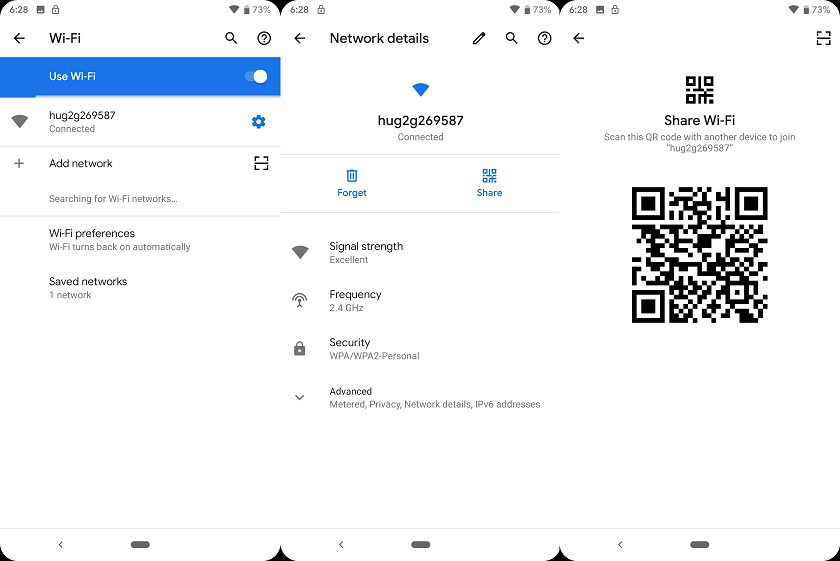
Did you forget the WiFi password at a friend’s house or need to share it with someone? If you have an Android phone that’s already connected to the network, you can recover the password in seconds using the built-in QR code share feature. This method works on Android 10 and above, requires no special apps, and doesn’t need root access. By the end of this guide, you’ll be able to pull up any saved WiFi password as a QR code that others can scan—or you can read the password directly from the code.
This trick is perfect for when you need to recover forgotten WiFi passwords without resetting your router or calling your ISP. It’s also great for sharing credentials securely with guests. If you’re new to this, don’t worry—the steps are simple and work on most Android phones from Samsung, Google, OnePlus, and more.
What You’ll Need
- An Android phone running Android 10 or later (most modern phones qualify)
- A saved WiFi network that you’re currently connected to or have connected to before
- Optional: another device with a QR code scanner (most phones have one built into the camera app)
Step 1: Open WiFi Settings
Start by opening the Settings app on your Android phone. Look for the “Network & Internet” or “Connections” option, then tap on “Wi-Fi.” You’ll see a list of available networks and the one you’re currently connected to.
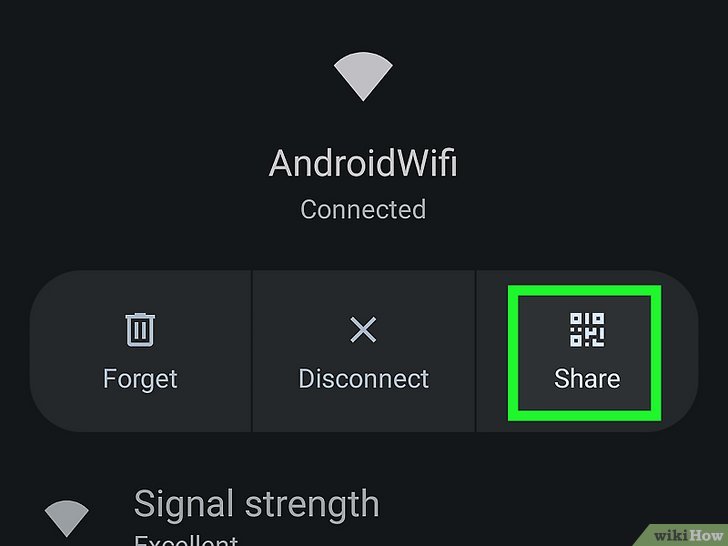
Step 2: Tap the Network Name or Gear Icon
Find the saved network whose password you want to recover. It’s usually at the top with a checkmark or “Connected” label. Tap on the network name or the gear icon next to it to open the network details screen.
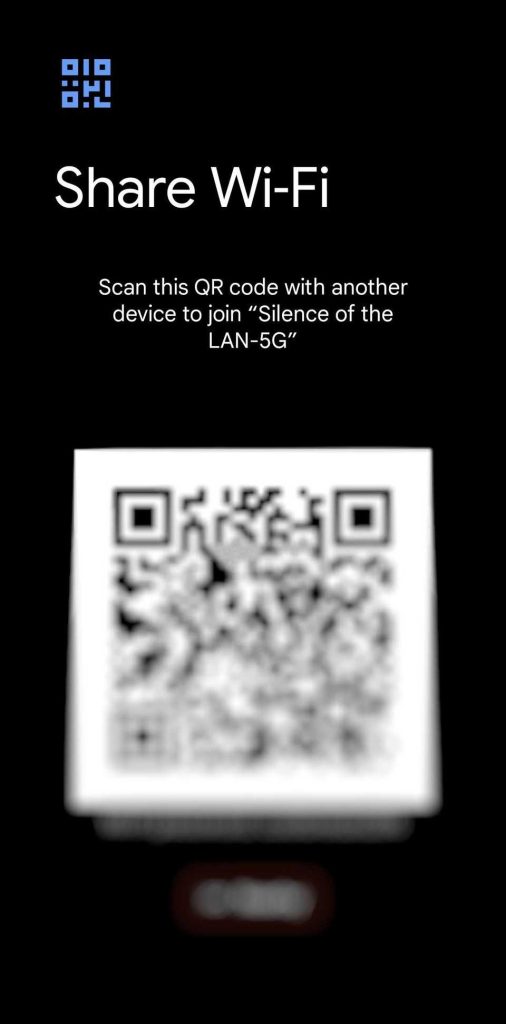
Step 3: Tap the Share Button
On the network details screen, you should see a “Share” button, often represented by a QR code icon. Tap it. A QR code will appear, encoding the network name (SSID) and password.
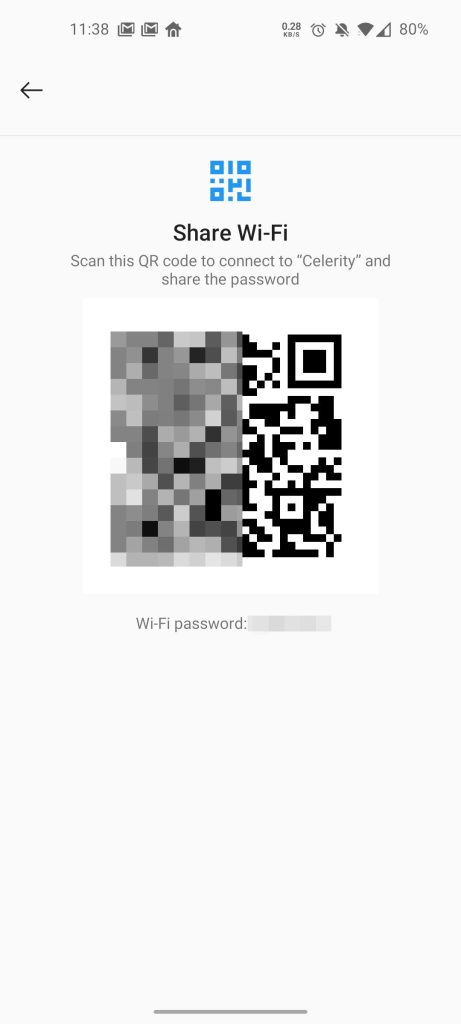
The password is encrypted in the QR code, but you can read it directly by looking at the text below the code on many phones—it usually shows something like “WPA2:YourPasswordHere”. If you don’t see the text, you can ask someone to scan the code with their camera to connect instantly.
Common Pitfalls
- **Not seeing the Share button**: On older Android versions (pre-10), the share feature isn’t available. You can try to view saved WiFi passwords on Android using an alternative method, or upgrade your phone’s OS.
- **Phone doesn’t show password text**: Some manufacturer skins (like some Huawei or Xiaomi models) hide the plain-text password. In that case, have someone scan the QR code with their phone camera—it will connect without you needing to type the password.
- **Network isn’t saved**: The QR share only works for networks your phone has connected to before. If it’s a new network, you’ll need to ask for the password manually. For WiFi password recovery without losing data in other scenarios, check out our dedicated guide.
Where to Next
Now you can recover and share any saved WiFi password from your Android phone. This method is fast, secure, and doesn’t require any extra tools. If you need to recover passwords on other devices, check out our guides on how to recover forgotten WiFi password on tablet or backup WiFi passwords before resetting your device. For advanced users, WiFi password recovery with cloud sync ensures you never lose credentials when switching phones. And if you’re starting fresh after an OS update, we’ve got you covered with WiFi password recovery after OS reinstall. Happy surfing!



