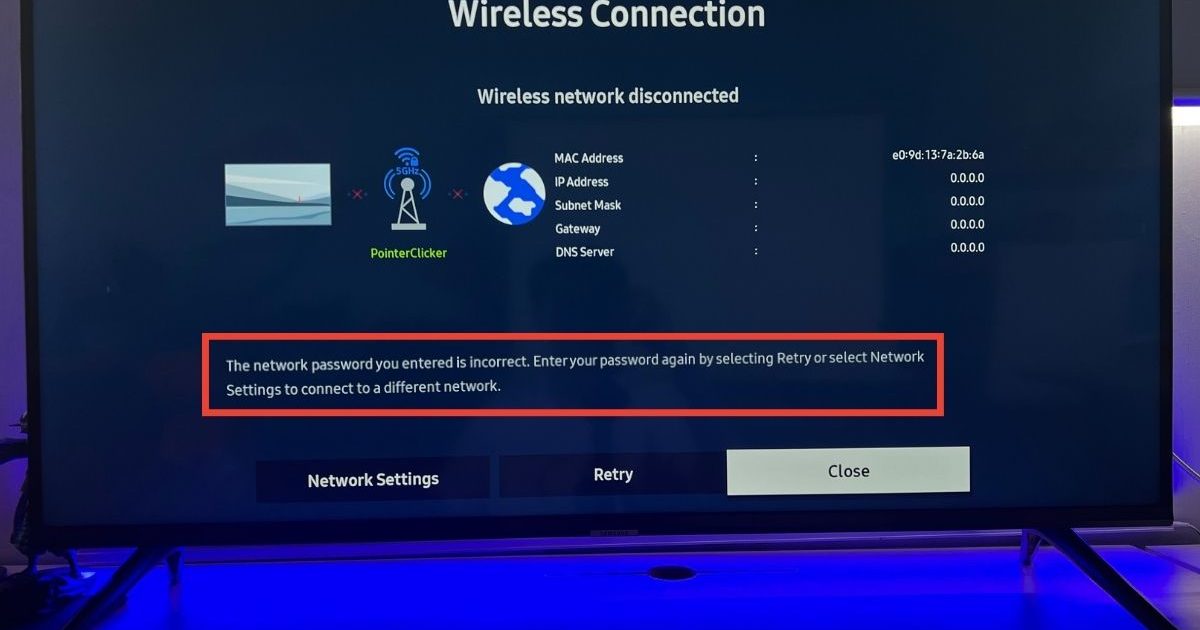
So you just got a new smart TV—or maybe you factory-reset your old one—and now you’re staring at that empty WiFi password field. You know you’ve typed the password a hundred times before, but your brain is drawing a blank. Don’t worry, you’re not alone. This guide is for anyone who needs to recover their WiFi password specifically for a smart TV. By the end, you’ll have the password in hand (or on screen) and your TV will be streaming again.
We’ll cover four solid methods: checking your TV’s saved network info (some models actually show the password), logging into your router’s admin page, using an already-connected phone to reveal the password, and even scanning a QR code if your TV supports it. Pick the one that works best for your situation.
What You’ll Need
- Your smart TV (powered on and on the network setup screen)
- A computer, phone, or tablet that is already connected to your WiFi
- Router login credentials (admin username and password – often printed on the router)
- A smartphone with a WiFi password recovery app (optional, for method 3)
- Patience – most of these steps take less than 10 minutes
Step 1: Check Your Smart TV’s Network Settings
Some smart TVs, especially newer models from Samsung, LG, or Sony, have a hidden option in the network settings that displays the password for the currently connected WiFi. It’s worth a quick look before you reach for your router.
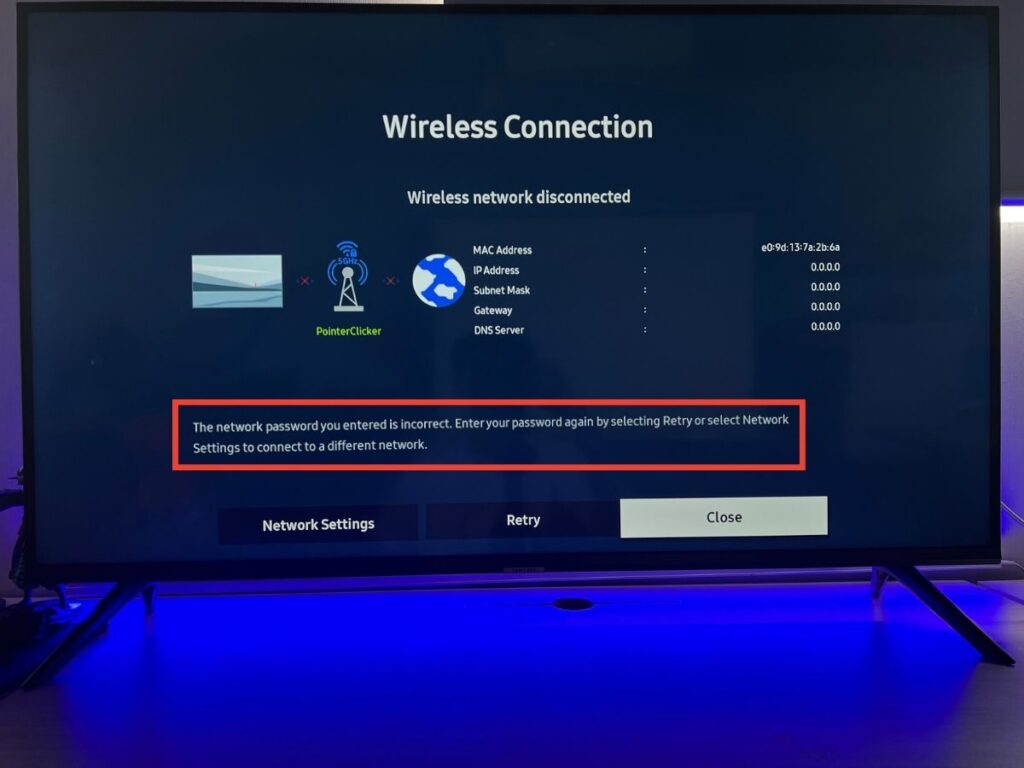
On most TVs, go to Settings > General > Network > Network Status. If you see an option like “View Password” or “Show WiFi Password,” tap it. If the password isn’t visible, don’t worry – move on to the next step.
Step 2: Log Into Your Router’s Admin Page
This is the most reliable method because your router holds the master copy of your WiFi password. You’ll need a device that’s already connected to your network (like a laptop or phone) and your router’s admin credentials.
Open a web browser on a connected device and type your router’s gateway IP address. Common ones are 192.168.0.1 or 192.168.1.1. You can find the exact IP by looking at your device’s network settings (e.g., on Windows, run ipconfig). Log in using the admin username and password. Once inside, look for a section called “Wireless” or “WiFi Settings.” Your network password (often called “Passphrase” or “Pre-Shared Key”) will be displayed there. Write it down or take a photo. If you’ve never changed your router’s admin password, check the sticker on the router itself for default credentials. For a detailed walkthrough, see our guide on how to recover wifi password without reset.
Step 3: Use a Phone Already Connected to Your WiFi
If you have an Android phone or an iPhone already connected to the same WiFi, you can view the saved password and then enter it on your TV. This method works great if you’re already in the habit of saving networks.
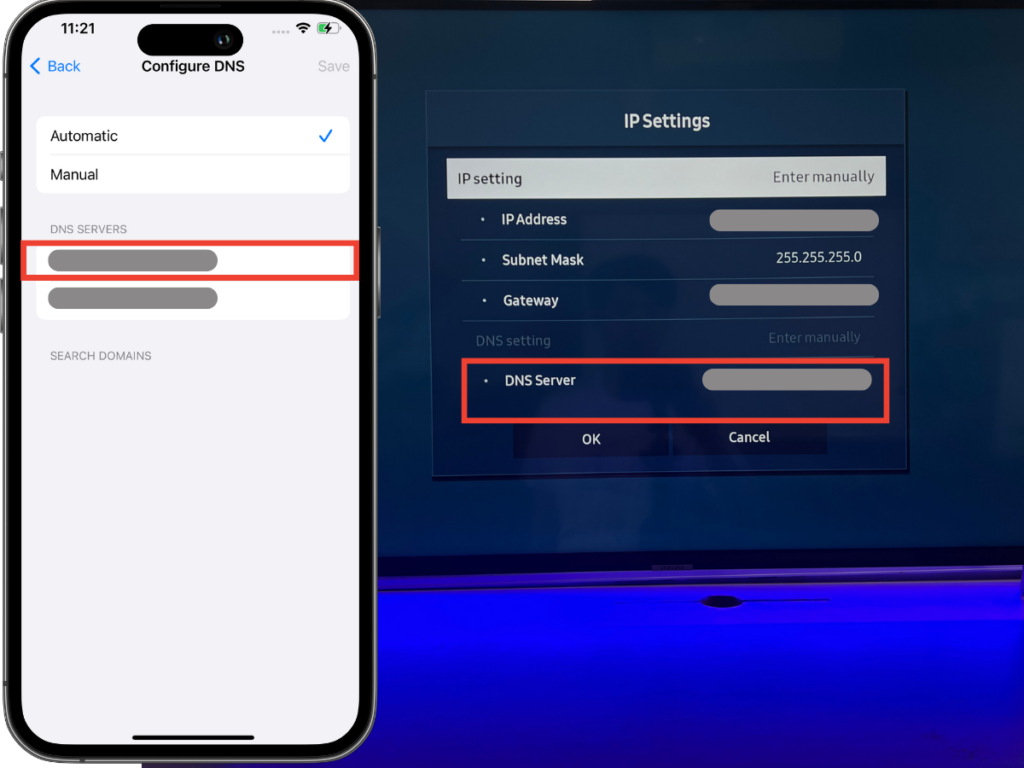
On Android (9+), go to Settings > Network & Internet > WiFi. Tap the gear icon next to your network. Tap “Share” and authenticate with your fingerprint or PIN. A QR code will appear with the password written below it. On iPhone (iOS 16+), go to Settings > WiFi, tap the info (i) icon next to your network, then tap the password field and authenticate with Face ID/Touch ID to reveal the password. Alternatively, you can use a dedicated app for view saved wifi password android. If you have a Mac or Windows PC, check out our guide on wifi password recovery for secured network.
Step 4: Use the QR Code Method (If Your TV Supports It)
Some smart TVs (like recent Samsung Tizen models) allow you to connect by scanning a QR code from your phone instead of typing the password. This is super convenient if your phone already has the network saved.
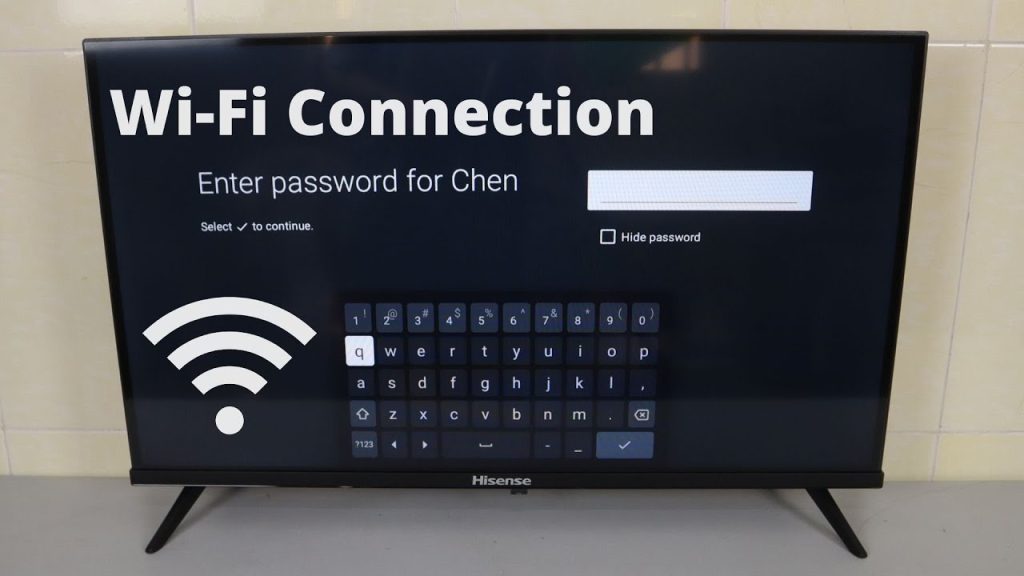
First, generate a QR code for your WiFi network using an Android phone (as described in Step 3) or a QR code generator website. Then, on your TV, look for a “Scan QR Code” option during the network setup. Point the TV’s camera or use the remote to scan the code from your phone. The TV will automatically connect. If you can’t find this option, your TV probably doesn’t support it – just use one of the other methods.
Common Pitfalls
- Your TV doesn’t show the password in settings. This is normal – most TVs hide it for security. Don’t waste time digging; jump to the router method.
- You forgot your router’s admin password. If you never changed it, check the sticker on the router. If you changed it and forgot, you may need to reset the router to defaults. That will wipe your WiFi password too, so only do that as a last resort.
- The phone method doesn’t work because your phone isn’t connected to the same network. In that case, the router method is your best bet. You can also use a wifi password recovery powershell script if you have a Windows PC nearby.
Where to Next
Now that your smart TV is online, you might want to check out our guides on backing up your WiFi passwords before you reset any device, or how to recover your WiFi password from a saved network. And if you ever find yourself locked out again, remember you can always use this same process.



