
Ever needed to connect a new device to your home WiFi but couldn’t remember the password? If you have a Windows or Mac computer that’s already connected to the network, you’re in luck. This guide walks you through recovering your saved WiFi password using built-in tools—no router reset or third-party software required. By the end, you’ll have the password in plain text, ready to share or type in.
These methods work on Windows 10 and 11, as well as macOS Ventura and later. They assume you have administrator access on the computer. If you’re on a work or school device, you might need IT permission. For a broader overview, check out the saved wifi password recovery tutorial that covers other platforms too.
What You’ll Need
- A Windows or Mac computer already connected to the target WiFi network
- Administrator account on Windows (or sudo access on Mac)
- The exact name (SSID) of the network you want the password for
- Optional: a text editor to save the password
Step 1: Recover WiFi Password on Windows Using Command Prompt
The fastest method on Windows is using the Command Prompt with administrative privileges. This lets you view the wireless key for any saved network.

Press the Windows key, type ‘cmd’, right-click on ‘Command Prompt’, and select ‘Run as administrator’. Accept the UAC prompt. Then type the following command to list all saved WiFi profiles:
Find your network’s name (SSID) from the list. Now run this command, replacing ‘YourSSID’ with the actual network name:
Look for the line that says ‘Key Content’ under ‘Security settings’—that’s your WiFi password. For more details, see the export wifi passwords with cmd guide.
Step 2: Recover WiFi Password on Windows via Network Settings
If the command line isn’t your thing, you can also get the password through the graphical interface. This method works on Windows 10 and 11.
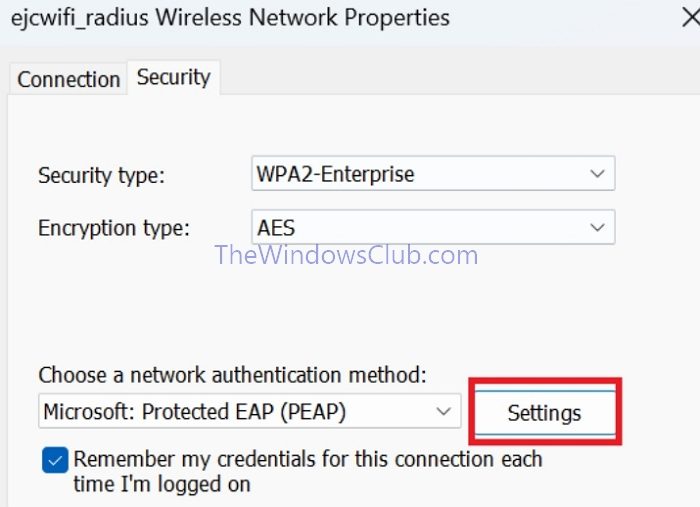
Open Control Panel > Network and Sharing Center. Click on your WiFi network name next to ‘Connections’. In the Wi-Fi Status window, click ‘Wireless Properties’. Go to the ‘Security’ tab and check the box that says ‘Show characters’. The password will appear in the ‘Network security key’ field. This is a simple wifi password recovery using network settings approach.
Step 3: Recover WiFi Password on Mac Using Keychain Access
Macs store WiFi passwords in the Keychain app. Here’s how to retrieve them.

Open ‘Keychain Access’ from Applications/Utilities (or use Spotlight). In the search bar, type the name of your WiFi network. Double-click the entry under ‘System’ or ‘Local Items’. In the dialog, check the ‘Show password’ box. You’ll need to enter your Mac’s administrator username and password. The Wi-Fi password will be revealed. For more on this, refer to the wifi password recovery tutorial windows 11 guide (the Keychain method is similar).
Step 4: Recover WiFi Password on Mac Using Terminal
Prefer the command line? Mac’s Terminal can pull the password directly from the keychain.

Open Terminal (from Applications/Utilities). Type the following command, replacing ‘YourSSID’ with your network name:
Press Enter. You’ll be prompted for your Mac’s admin password (the one you use to log in). The WiFi password is printed on the next line. This method works even if you’ve recently reinstalled macOS and restored from backup; see wifi password recovery after os reinstall for related tips.
Common Pitfalls
- SSID Case Sensitivity: Network names are case-sensitive. Make sure you type the exact name as saved. In Windows, use ‘netsh wlan show profiles’ to see the exact spelling.
- Admin Password Issues: On both platforms, you need admin rights. If you don’t have the admin password, you won’t be able to see the key. Try asking the device owner or use a router login method.
- Network Not Saved: These methods only work if the computer has previously connected and saved the network. If it never connected, you’ll need to reset the router or check the sticker on the router itself. For example, wifi password recovery for linksys devices might involve logging into the router interface.
Where to Next?
Now that you’ve recovered your WiFi password, consider backing it up. Save it in a password manager or write it down. If you’re planning to reset your device, check out the saved wifi password recovery tutorial for pre-rescue backups. For more advanced techniques, explore our other guides on recovering passwords from various devices and situations.



