
Introduction
If you’ve forgotten your Linksys WiFi password, don’t panic. Whether you need to connect a new device, share the network with a guest, or just want to update your records, recovering that password is easier than you think. This guide is for anyone—from total beginners to seasoned techies—who has a Linksys router and needs to retrieve their wireless key without resetting the whole device.
By the end of this tutorial, you’ll have your WiFi password in hand. We’ll cover three main methods: accessing the router’s web interface directly, pulling the password from a connected Windows or Mac computer, and even using your phone. No extra software required, and absolutely no router reset needed. Let’s get started.
What You’ll Need
- A device (laptop or phone) currently connected to your Linksys WiFi
- The IP address of your Linksys router (usually 192.168.1.1 or 192.168.0.1)
- Your router admin username and password (if you changed it from the default ‘admin’/’admin’)
- Optional: A computer running Windows or macOS for the alternative methods
Step 1: Find Your Router’s IP Address
To access your Linksys router’s settings, you need to know its IP address. On a Windows PC, open Command Prompt and type ipconfig. Look for the “Default Gateway” under your active network adapter. On a Mac, go to System Settings > Network, select your WiFi, and click “Details”—the router IP appears next to “Router.” Common Linksys IPs are 192.168.1.1 or 192.168.0.1.

Step 2: Log Into the Router Web Interface
Open a web browser and enter your router’s IP address in the address bar. A login page will appear. Enter the admin username and password. The factory default for most Linksys routers is username admin and password admin. If you changed these and forgot them, you may need to perform a factory reset—but try the other methods first.

Step 3: Navigate to Wireless Settings
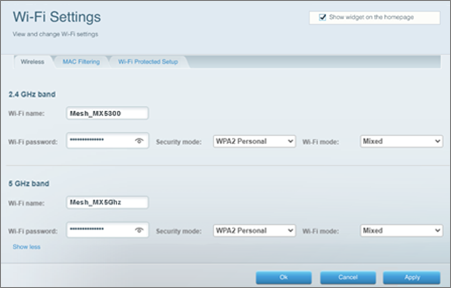
Once logged in, look for a tab or section labeled “Wireless” or “WiFi Settings.” This is where the magic happens. Depending on your router model, you might see sub-menus like “Basic Wireless Settings” or “Wireless Security.” If you have a dual-band router, you’ll see separate sections for the 2.4 GHz and 5 GHz networks.
Step 4: Locate the WiFi Password
Under the Wireless Security section, find the field labeled “Passphrase,” “Pre-Shared Key,” or “WiFi Password.” The password may be hidden behind asterisks—look for a “Show” checkbox or an eye icon to reveal it. Write it down or take a photo on your phone. If you can’t find it, check the Basic Settings tab; sometimes the password is displayed there.

Step 5: Alternative Method – Recover from Windows
If you can’t access the router, any Windows PC that has connected to the network can reveal the password. Open Control Panel > Network and Sharing Center > click on the WiFi network name. In the pop-up, click “Wireless Properties,” then the “Security” tab. Check “Show characters” to see the password. This is one of the quickest network settings tricks.

For a more advanced approach, you can use the command line method. Open Command Prompt as administrator and type netsh wlan show profile name="YourNetworkName" key=clear (replace YourNetworkName with your SSID). Look for the “Key Content” line.
Step 6: Alternative Method – Recover from macOS
On a Mac that’s connected to the Linksys WiFi, open Keychain Access from the Utilities folder. In the search bar, type your network’s SSID. Double-click the entry, then check “Show password.” You’ll need to enter your Mac’s admin credentials. This is a reliable way to retrieve saved WiFi passwords without touching the router.
Common Pitfalls
- Forgot router admin password: If you never changed it, try admin/admin. If you did and don’t remember, you’ll need to factory reset the router (hold the reset button for 30 seconds). But avoid that if possible—try the easiest method using a connected computer first.
- Can’t find the password field: Some Linksys models hide the password under different tabs. Look for “Wireless Security” or “WiFi Security.” If all else fails, check the “Administration” section for a “Show Wireless Password” option.
- Router web interface not loading: Ensure you’re connected to the network. Try a different browser or clear your cache. If the IP doesn’t work, it may have been changed—use the recovery without router reset approach to find it via your device’s network settings.
Where to Next?
Now that you have your Linksys WiFi password back, consider writing it down in a secure place or using a password manager. If you need to recover passwords for multiple networks at work, check out our office WiFi password recovery guide. And if you ever change your password, don’t forget to update it on all your devices. Happy surfing!



