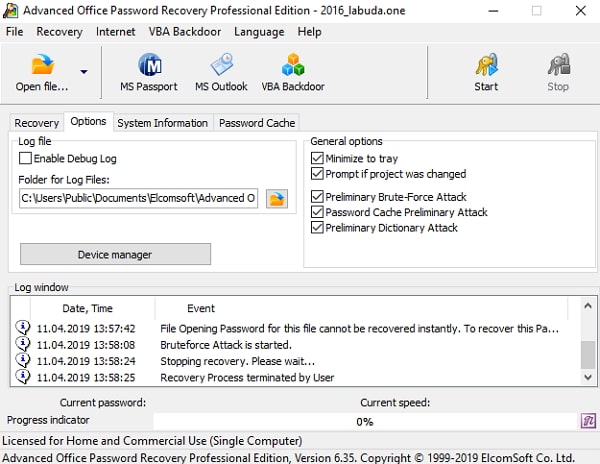
Ever been at work, gotten a new phone or laptop, and realized you have no idea what the office WiFi password is? Maybe the sticker on the router faded, or IT changed it and never shared it in writing. Don’t worry — you can recover that saved password from any device already connected to the network. By the end of this guide, you’ll have the password in hand without resetting the router or calling IT.
This tutorial is for anyone with a Windows or Mac computer that’s currently connected to the office WiFi. If you’re on a guest network or your device is already disconnected, you may need to log into the router. I’ll walk you through the easiest methods first, so you can get back online fast.
What You’ll Need
- A Windows PC or Mac that is currently connected to the office WiFi
- Administrator access on your computer (usually your work account)
- The router’s IP address and admin credentials (if the first methods don’t work)
- Optional: a third-party password recovery tool (see Step 4)
Step 1: Recover the Password on Windows
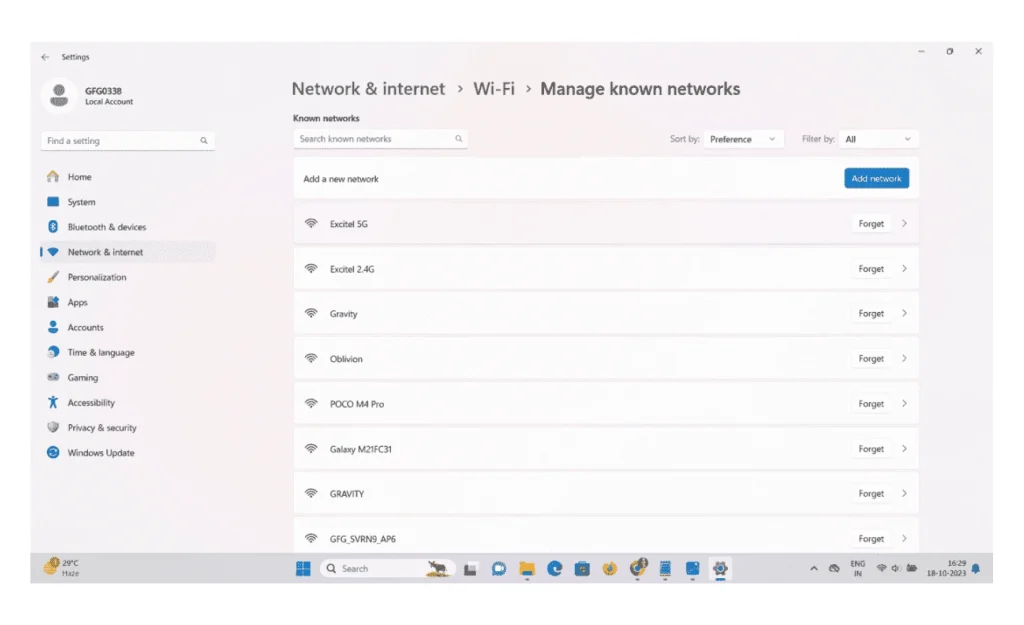
If you’re running Windows 10 or 11, this is the quickest method. First, open the Control Panel (search for it in the Start menu). Navigate to Network and Internet > Network and Sharing Center. Click on the name of your office WiFi network next to “Connections”. In the pop-up window, click the “Wireless Properties” button, then go to the “Security” tab. Check the box that says “Show characters” and voilà — your password appears. For a more detailed walkthrough, check out this saved wifi password recovery windows guide.
Alternatively, you can use the command prompt. Open Command Prompt as Administrator and type: netsh wlan show profile name="YourOfficeWiFi" key=clear. Look for “Key Content” under Security settings. This method also works for recovering older saved networks. If you prefer a script-based approach, see our wifi password recovery tutorial windows 11.
Step 2: Recover the Password on Mac
On a Mac, open Spotlight (Cmd+Space) and search for “Keychain Access”. In the search bar of the Keychain Access window, type the name of your office WiFi network. Double-click on the network entry, then check the box “Show password”. You’ll be prompted for your Mac login credentials—enter them, and the password will be revealed. If the entry doesn’t appear, make sure you’re viewing the “System” keychain.
This is the easiest wifi password recovery method for Mac users. No extra software needed.
Step 3: Log Into the Router
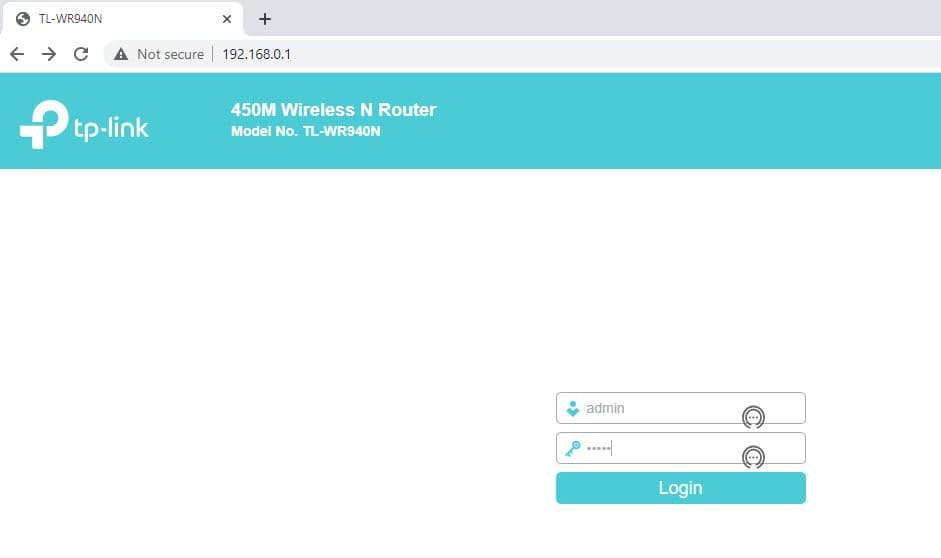
If you don’t have a connected computer, or if the password is stored on a device you can’t access, you can log into the router directly. First, find your router’s IP address (often printed on the router sticker, or on Windows run ipconfig and look for “Default Gateway”). Open a web browser, type that IP, and enter the admin username and password (try “admin/admin” or check the sticker). Once logged in, look for the Wireless or Wi-Fi section. The password is usually listed as “Passphrase” or “Network Key”. For detailed instructions, see our router wifi password recovery guide.
If you’ve never changed the router login, and the default doesn’t work, you may need to reset the router — but that will disconnect everyone. If possible, ask your IT team for the admin password first.
Step 4: Use a Recovery Program (Optional)
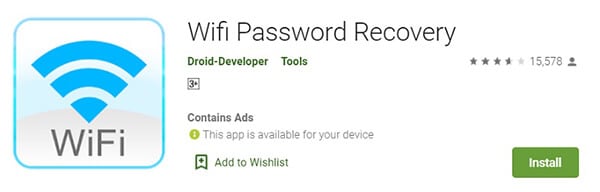
There are free and paid programs that can scan your computer for saved WiFi passwords and export them. Tools like WiFi Password Revealer or WirelessKeyView work on Windows and require no technical skill. Just download, run as administrator, and they’ll list every saved network with its password. We have a dedicated guide on using a wifi password recovery program safely.
Note: Be cautious with third-party software. Only download from reputable sources to avoid malware. For a safe approach, stick with the built-in methods above — they guarantee wifi password recovery no data loss.
Common Pitfalls
- You don’t have administrator access. On a managed work computer, your IT department may have locked these settings. If so, you’ll need them to provide the password directly.
- The router admin password has been changed from the default and you don’t know it. In that case, you may need to physically reset the router (holding the reset button for 10 seconds), but that will wipe custom settings.
- The office uses a guest or enterprise network with unique credentials per user. In many corporate environments, the Wi-Fi uses 802.1X authentication (username/password or certificates), so there is no single shared password. The methods above only work for simple WPA2 personal networks.
Where to Next
Now that you have your office WiFi password, make sure to save it somewhere safe — like a password manager. If you’re managing multiple networks, consider exporting your saved passwords automatically with our export wifi passwords automatically guide. And if you run into trouble, our wifi password recovery troubleshooting guide has you covered.



