Ever been in that situation where you need to connect a new device to your WiFi, but you can’t remember the password? It’s stored somewhere on your laptop or phone, but digging it out feels impossible. This guide is for anyone who has a computer that’s already connected to the WiFi network and wants to recover that password using free software. No router reset required, no guessing games.
By the end of this tutorial, you’ll know how to use simple tools to display saved WiFi passwords on Windows, macOS, and Linux. You’ll also learn how to export passwords for multiple networks at once — perfect for IT admins or anyone who wants a backup. We’ll cover the easiest wifi password recovery method and show you how to avoid common mistakes.
What You’ll Need
- A computer that has previously connected to the WiFi network you want to recover the password for.
- Administrator or root access on that computer (required to view stored passwords).
- Internet connection to download the recovery software (usually a small download).
- Optional: a USB drive if you want to transfer the password to another machine.
Step 1: Choose and Download WiFi Password Recovery Software
There are many free tools out there. For Windows, WirelessKeyView is a lightweight portable app that extracts all stored WiFi passwords. For macOS, you can use the built-in Keychain Access or a third-party app like WiFi Password Revealer. On Linux, most distributions store passwords in plaintext or base64 in configuration files. We’ll focus on the most popular options. If you prefer a single cross-platform tool, check out the wifi password recovery program that works on all three OSes.
Step 2: Recover WiFi Passwords on Windows
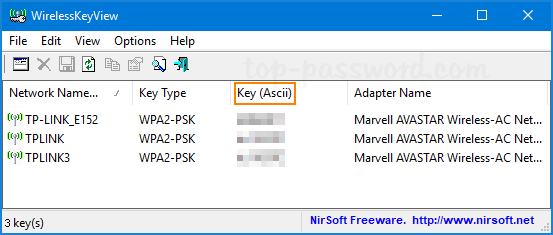
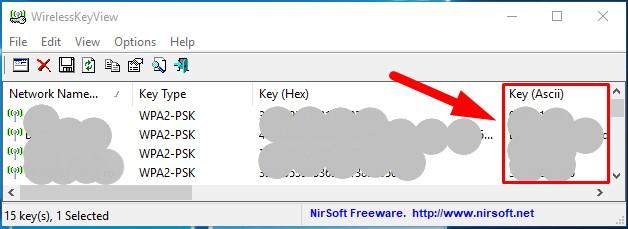
Download and run WirelessKeyView (you’ll need to right-click and select ‘Run as administrator’). The app will immediately display a list of all saved WiFi networks with their passwords in the ‘Key (Ascii)’ column. You can export the list to a text file by clicking File > Save All Items. This is the most straightforward saved wifi password recovery on Windows. Alternatively, you can use PowerShell — learn how to show wifi password using PowerShell for a command-line method.
Step 3: Recover WiFi Passwords on macOS
On a Mac, open Keychain Access from Applications > Utilities. In the search bar, type the name of your WiFi network. Double-click the entry, then check the box ‘Show password’. You’ll be prompted for your macOS admin password. The password will appear in plaintext. For a faster method, you can use the terminal command `security find-generic-password -wa [network name]`. This approach ensures wifi password recovery without data loss.
Step 4: Recover WiFi Passwords on Linux
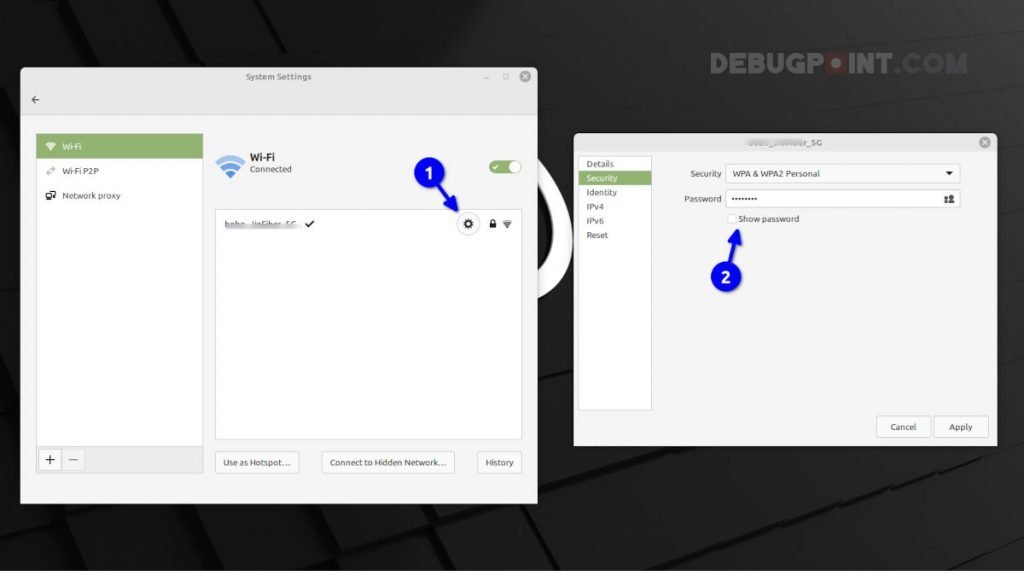
Linux stores WiFi passwords in `/etc/NetworkManager/system-connections/` as plaintext (for WPA) or in the `psk=` field. Open a terminal and use `sudo cat /etc/NetworkManager/system-connections/[SSID] | grep psk=`. Alternatively, use `nmcli dev wifi show-password` if you have NetworkManager. This method works on most distros like Ubuntu, Fedora, and Debian.
Step 5: Export Passwords for Multiple Networks (Optional)
If you’re an IT administrator or just want a backup, you can export passwords for all saved networks at once. On Windows, WirelessKeyView’s ‘Save All Items’ exports everything. On macOS, you can use a script to extract multiple keys. For a fully automated solution, learn how to export wifi passwords automatically using a batch script or a dedicated tool. This is a huge time-saver when setting up new devices.
Common Pitfalls
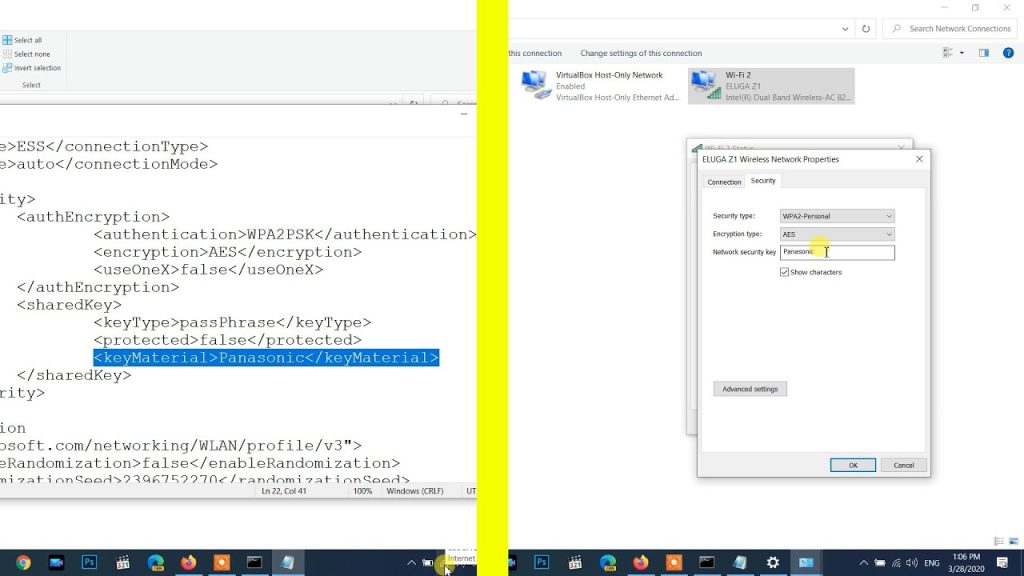
- Not running the software as administrator (Windows) or root (Linux) – you’ll get empty results or errors.
- Antivirus software blocking the recovery tool – some tools are flagged as hack tools; temporarily disable or whitelist the program.
- The network profile was deleted or the computer never connected to that WiFi – the password won’t be stored locally. In that case, you’ll need to check the router or use a different device.
Where to Next?
Now that you’ve recovered your WiFi passwords, you might want to check out our guide on the easiest wifi password recovery method for a refresher. If you run into issues, the wifi password recovery troubleshooting guide has solutions for common problems. For router-specific recovery, see our posts on router wifi password recovery or wifi password recovery for ZTE routers.





