So you just updated your BIOS—maybe to fix a boot issue or enable new hardware—and now your PC has forgotten the WiFi password. You’re not alone; it’s a common glitch when BIOS settings reset or network adapters reinitialize. Don’t worry, your password isn’t gone forever. Whether you’re on Windows 10 or 11, I’ll show you two solid ways to dig it up: one using built-in command line tools (no extra software) and another by checking your router’s admin page.
By the end of this guide, you’ll have your WiFi password back and be reconnected. I’ll keep it casual and assume you can click a few menus. This method works even if you’ve never touched a Command Prompt before. And if you’re looking for alternative tools, check out the saved wifi password recovery software guide for other options.
What You’ll Need
- A Windows PC (10 or 11) that previously connected to the WiFi network.
- Administrator access on that PC (you can right-click and run as admin).
- Another device (like a phone) to look up the router’s admin page if needed.
- Optional: the router’s model number (usually on a sticker underneath).
- Patience—it takes five minutes.
Step 1: Check If Your PC Still Has the WiFi Profile
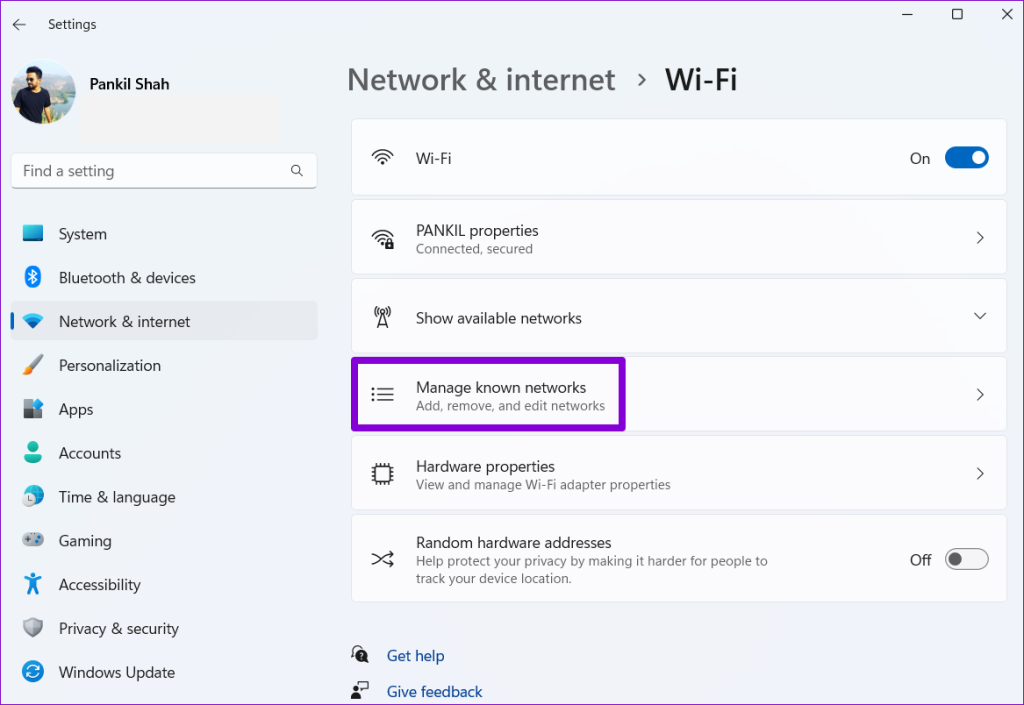
Even after a BIOS update, Windows often keeps the saved network profiles. The password might still be stored but not automatically connecting. First, let’s see if the profile exists. Click the network icon in the system tray, then ‘Network & Internet settings’ > ‘WiFi’ > ‘Manage known networks’. Look for your network name. If it’s there, you can recover the password directly. If not, skip to Step 5 for the router method.
Step 2: Open Command Prompt as Administrator
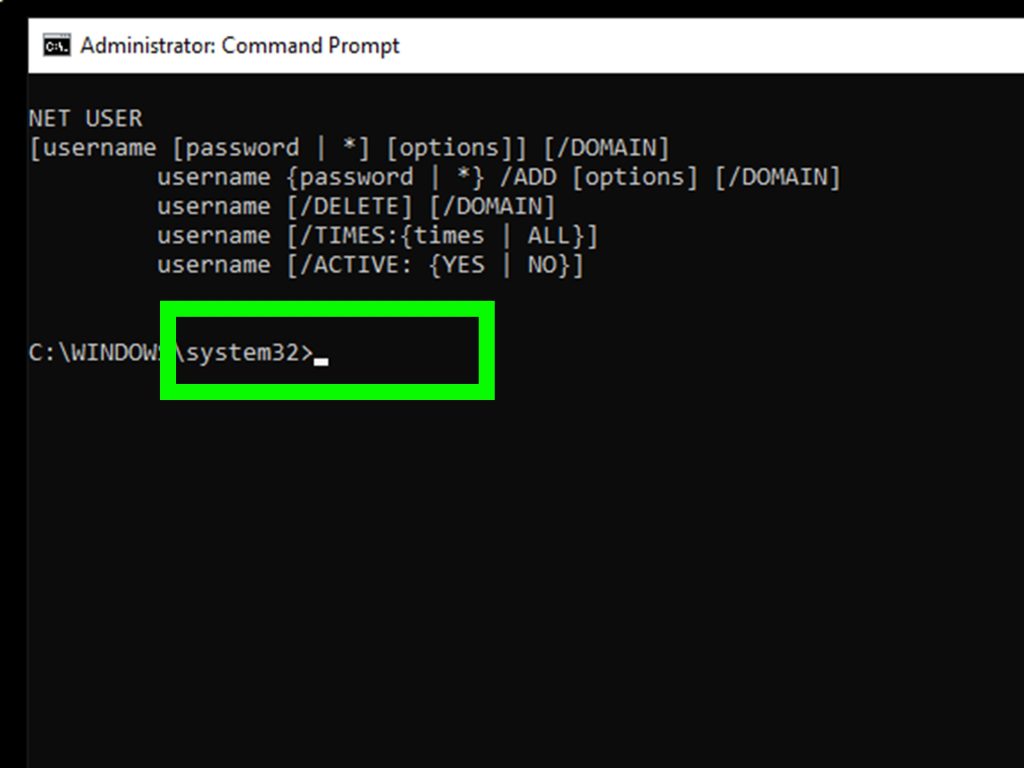
Press the Windows key, type ‘cmd’, right-click ‘Command Prompt’, and select ‘Run as administrator’. Click ‘Yes’ when the UAC prompt appears. A black window with white text will open. This is where we’ll run the magic commands.
Step 3: List All Saved WiFi Profiles
Type the following command and press Enter: netsh wlan show profiles. You’ll see a list of every WiFi network your PC has ever connected to. Find your network name (SSID) from the list. If you don’t see it, the profile was wiped—head to Step 5. If you do see it, note the exact name (case-sensitive). My wifi password recovery tutorial windows 11 covers this in more detail if you need extra help.
Step 4: Show the Password for Your Network
Now type this command, replacing ‘YourNetworkName’ with the actual SSID you found: netsh wlan show profile name="YourNetworkName" key=clear. Hit Enter. Look for the line that says ‘Key Content’ under ‘Security settings’. That’s your WiFi password. Write it down or copy it before closing the window. This is the easiest wifi password recovery method if the profile survived the BIOS update.

Step 5: Recover Password via Router Admin Page (If Profile Was Lost)
If your profile is gone, don’t panic. The password is still in your router. Connect any device that already has the password (like a phone or another PC) or use an Ethernet cable to directly connect to the router. Open a web browser and enter your router’s IP address (common ones: 192.168.1.1, 192.168.0.1, or 192.168.1.254). Log in with the admin username/password (check the router sticker if you haven’t changed it). Look for a ‘Wireless’ or ‘WiFi’ section—there you’ll find the ‘Pre-shared Key’ or ‘Passphrase’. That’s your password. For more router-specific help, see our saved wifi password recovery windows guide.

Common Pitfalls
- BIOS update may reset network adapter settings. If you can’t see any WiFi networks after update, go to Device Manager, find your network adapter, right-click and ‘Uninstall device’, then restart. Windows will reinstall the driver automatically.
- Command Prompt must be run as admin. If you skip that, you’ll get an ‘Access denied’ error. Always right-click and choose ‘Run as administrator’.
- Router admin login changed? If you forgot the router password, you may need to perform a factory reset by holding the reset button for 10 seconds. That will reset the WiFi password too, so only do that as a last resort. Check our wifi password recovery troubleshooting guide for more tips.
Where to Next
Now you’re back online! To avoid this hassle next time, consider backing up your WiFi passwords. Our article on export wifi passwords automatically can help you set up a recurring script. If you prefer a GUI tool, the show wifi password powershell method also works well for quick recoveries. Happy surfing!



