
Ever been locked out of your own WiFi because the password is saved on your device but you don’t have admin rights to view it through the normal settings? Maybe you’re on a work computer or a shared laptop and just need that one password to connect your phone or tablet. Don’t worry—you don’t need admin privileges to recover saved WiFi passwords if you know the right command line tricks. By the end of this guide, you’ll have the password in plain text without installing any third-party software.
This method works on any Windows machine (7, 8, 10, or 11) where you’re logged in as a standard user. It leverages built-in netsh commands that can read saved wireless profiles. Even if you can’t access the network settings panel, the command line is your friend. Let’s dive in and get that password back.
What You’ll Need
- A Windows PC or laptop that has previously connected to the target WiFi network.
- A standard user account (no admin required).
- Ability to open Command Prompt (cmd) or PowerShell.
- The exact name (SSID) of the WiFi network you want the password for. If unsure, you’ll list them first.
Step 1: Open Command Prompt Without Admin
Press the Windows key, type ‘cmd’ or ‘Command Prompt’, and hit Enter. Do NOT right-click and choose ‘Run as administrator’—we don’t need elevated privileges. A standard command window will open. If you prefer PowerShell, that works too, but the commands are the same.

Step 2: List All Saved WiFi Profiles
At the command prompt, type the following and press Enter:
netsh wlan show profiles
This will display every WiFi network your computer has ever connected to. Look for the network name (SSID) you need. Write it down exactly as shown, including any spaces or special characters. If your network name has spaces, you’ll need to put quotes around it in the next step.

Step 3: Get the Password for a Specific Profile
Now, run this command, replacing ‘YourNetworkName’ with the SSID from Step 2:
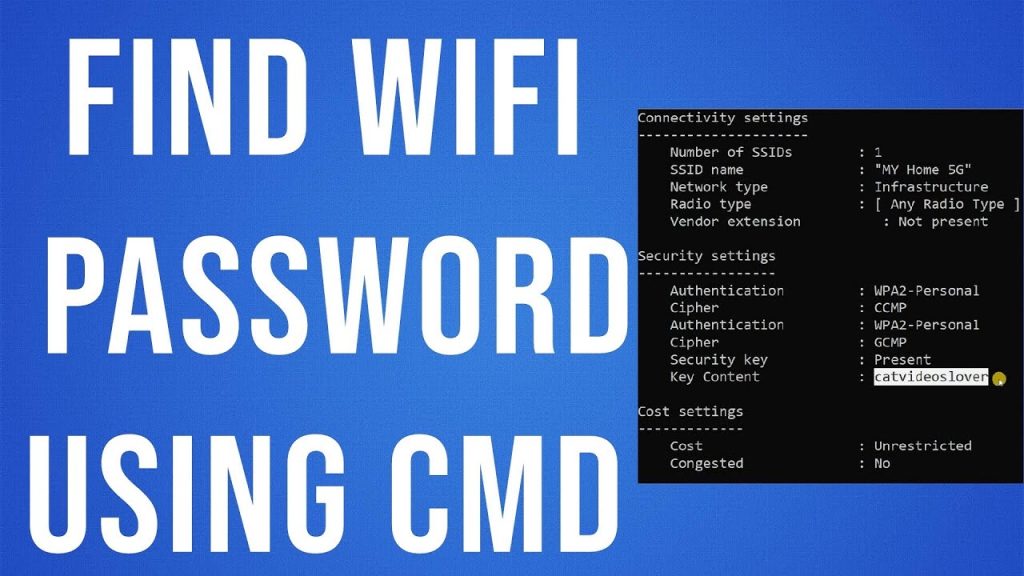
netsh wlan show profile name=”YourNetworkName” key=clear
Yes, you need to type ‘key=clear’ exactly as shown. This tells the command to show the password in plain text instead of hashed. Scroll through the output until you see a section called ‘Security settings’. Next to ‘Key Content’ you’ll find your WiFi password in plain text. Congratulations, you just recovered it without admin rights!

Step 4: (Alternative) Save the Output to a Text File
If you want to keep the password for later, you can pipe the output to a text file. Run the same command but add ‘> C:pathtooutput.txt’ at the end:
netsh wlan show profile name=”YourNetworkName” key=clear > “C:UsersYourUsernameDesktopwifipass.txt”
Then open the file in Notepad or any text editor. This is handy if you have multiple networks to recover.
Common Pitfalls
- “Access denied” error – If you get an ‘Access is denied’ message, it means the profile is stored under a different user account or the network was configured by an admin. Unfortunately, this method won’t work for those profiles. Try logging into the account that originally connected to the network.
- Forgetting quotes for SSIDs with spaces – If your network name has spaces (e.g., “Home WiFi”) and you omit the quotes, the command will fail. Always wrap the name in double quotes.
- Typo in the ‘key=clear’ parameter – Make sure you type ‘key=clear’ not ‘keyclear’ or ‘key = clear’. The equals sign must be adjacent to ‘key’ and ‘clear’ without spaces.
Where to Next
Now that you’ve mastered the command line technique, you might also want to explore the official saved wifi password recovery windows method for a graphical approach, or the show wifi password powershell alternative for scripting. If you prefer a zero-effort tool, check out the easiest wifi password recovery method. And if things go wrong, our wifi password recovery troubleshooting guide has you covered. Happy surfing!



