Ever needed to connect a new device to your WiFi but forgot the password? Or maybe you just want to see a password you saved ages ago. You don’t need to reinstall macOS or reset your router. This guide shows you how to recover any saved WiFi password on your Mac using built-in tools — no extra software needed.
By the end of this tutorial, you’ll be able to view the password for any WiFi network your Mac has ever connected to — whether through a friendly GUI or a quick Terminal command. You’ll also learn how to export passwords for safekeeping or transfer them to another device.
What You’ll Need
- A Mac running macOS Sierra or later (the steps work on most versions)
- Administrator access to your Mac (you’ll need to authenticate with your password)
- The name (SSID) of the WiFi network you want to recover
- Optional: Keychain Access app (pre-installed) or Terminal (pre-installed)
Step 1: Find the WiFi Network in Keychain Access
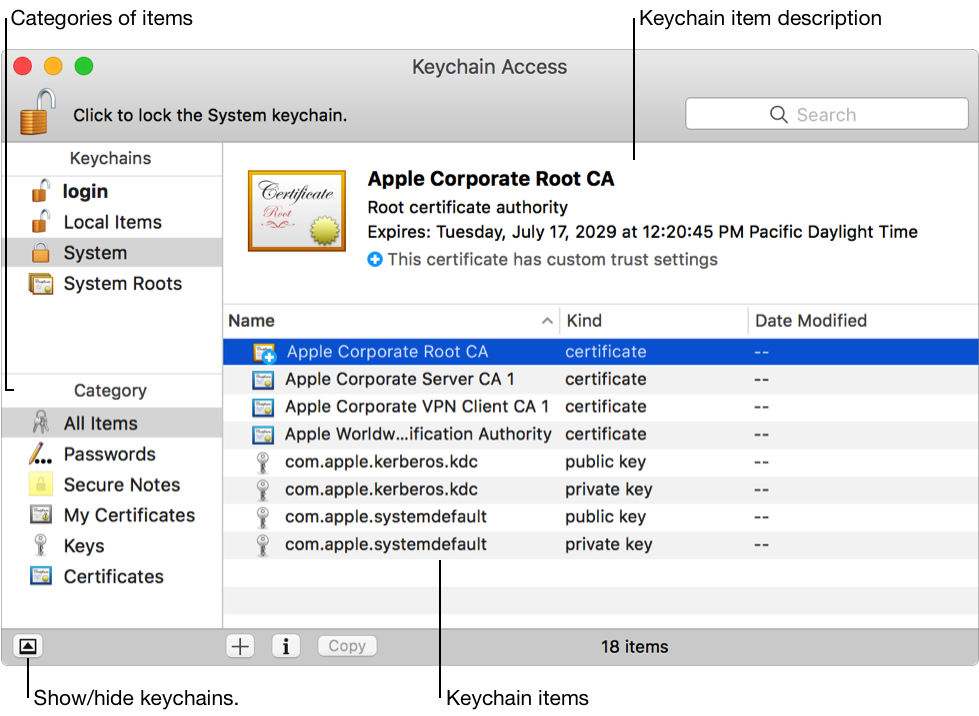
Keychain Access is macOS’s built-in password manager. It stores all your saved WiFi passwords securely. Open it by going to Applications > Utilities > Keychain Access, or just search for it using Spotlight (Cmd+Space).
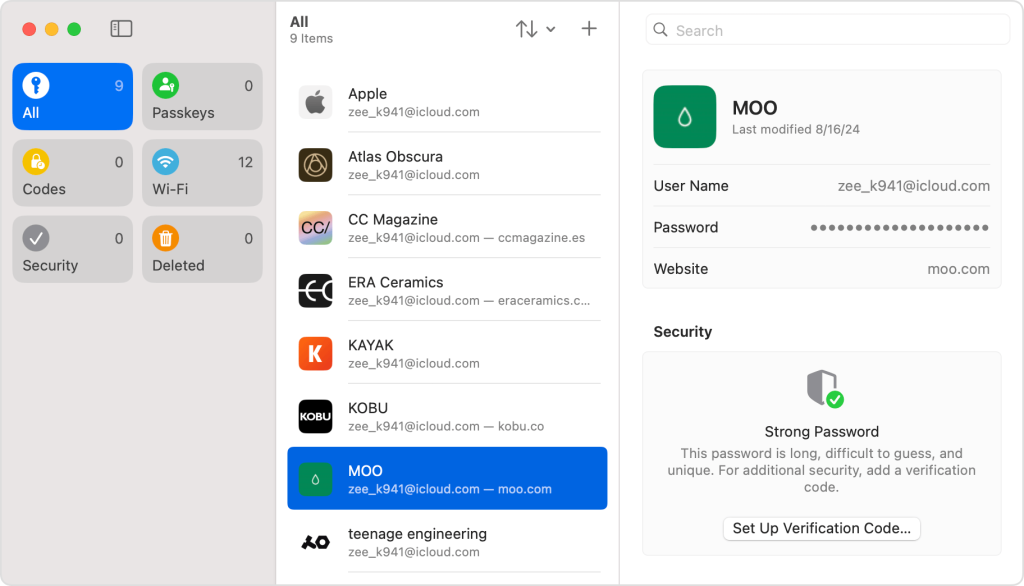
Once open, look for the “System” keychain in the left sidebar. Then, in the search bar, type the name (SSID) of the WiFi network you want to recover. Double-click the entry that shows the network name.
Step 2: Show the Password in Keychain Access
A new window will pop up with details about that network. Check the box that says “Show password”. You’ll be prompted to enter your Mac’s administrator username and password. Type those in, and the password will be revealed — you can copy it or write it down.
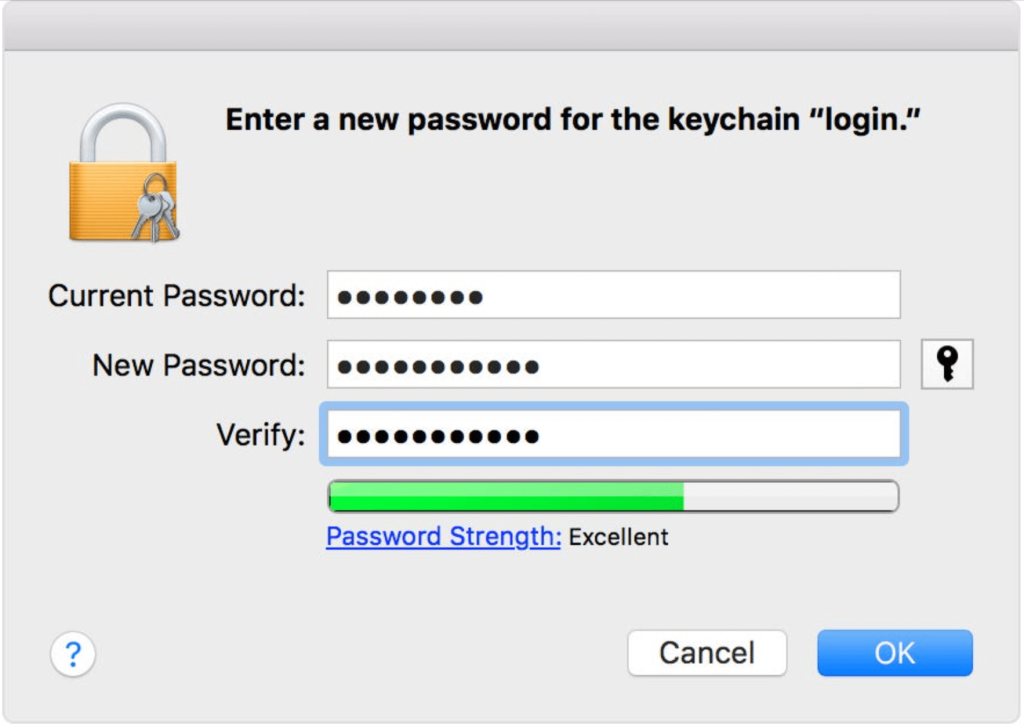
That’s all. If you have multiple networks saved, repeat for each one. If you need to recover a password on a network you’re not currently connected to, this method still works as long as it’s in your keychain.
Step 3: (Alternative) Use Terminal to Extract the Password
If you prefer the command line, Terminal can do the same thing faster — especially useful for scripting or exporting multiple passwords. Open Terminal (Applications > Utilities > Terminal).
Type the following command, replacing “YourNetworkName” with the exact SSID of the WiFi:
security find-generic-password -wa “YourNetworkName”
Terminal command
Press Enter. You’ll be prompted for your Mac’s password. Type it (you won’t see any characters), then press Enter again. The WiFi password will appear in the Terminal window. If you get an error, make sure the network name is correct and that it’s saved in your keychain.
Step 4: (Optional) Export All Saved WiFi Passwords
Want to backup all your WiFi passwords? You can export them from Keychain Access. In the app, select all entries (Cmd+A), then go to File > Export Items. Choose a location and format (recommended .csv or .txt). Note: The exported file will contain all your passwords in plain text, so store it securely.
If you’re interested in a broader solution, check out our guide on free wifi password recovery for mac, which covers similar steps. For recovering a password from a specific network, see how to recover wifi password from saved network. And if you’re managing multiple devices, our tutorial on view saved wifi password without admin might come in handy — though the steps there also apply to Mac without admin rights? Actually, on Mac, admin is required, but the link provides alternative approaches for Windows. Also, don’t forget to backup wifi passwords before reset your device — a good practice to avoid losing them.
For a more automated method, consider wifi password recovery with cloud sync to keep your passwords accessible across devices.
Common Pitfalls
- Wrong keychain: Make sure you’re looking in the “System” keychain, not “iCloud” or “Local Items”. Saved WiFi passwords are stored in System.
- Network name mismatch: The SSID is case-sensitive and must match exactly — including spaces. If you’re not sure, check under System Preferences > Network > WiFi > Advanced to see all saved networks.
- Password not showing: If the password field is greyed out or you can’t check “Show password”, make sure you have admin rights. Non-admin users can’t view passwords without entering an admin username and password.
Where to Next?
Now that you’ve recovered your WiFi password, consider updating your router’s password for better security, or share the password with family using AirDrop. If you frequently encounter forgotten passwords, setting up a password manager (like the built-in Keychain) can save you time. For more advanced tips, explore our other WiFi recovery guides.



