Ever been at a friend’s house or a café and realized you’ve forgotten the WiFi password? It’s frustrating, especially when your phone connects automatically and you never bother to remember the passphrase. If you have an Android phone that already connects to that network, you’re in luck—there’s a free, built-in way to retrieve the password without rooting your device or installing any sketchy apps.
By the end of this guide, you’ll know exactly how to uncover that hidden password. We’ll cover the easy QR code method on Android 10 and up, plus a fallback for older devices. No root, no paid tools, just the settings you already have. Let’s dive in.
What You’ll Need
- An Android device (preferably Android 10 or later for the QR code method)
- The WiFi network must be saved on that device (i.e., your phone has connected to it at least once)
- Optional: a second phone with a QR scanner (most camera apps can scan QR codes natively)
Step 1: Open Your WiFi Settings
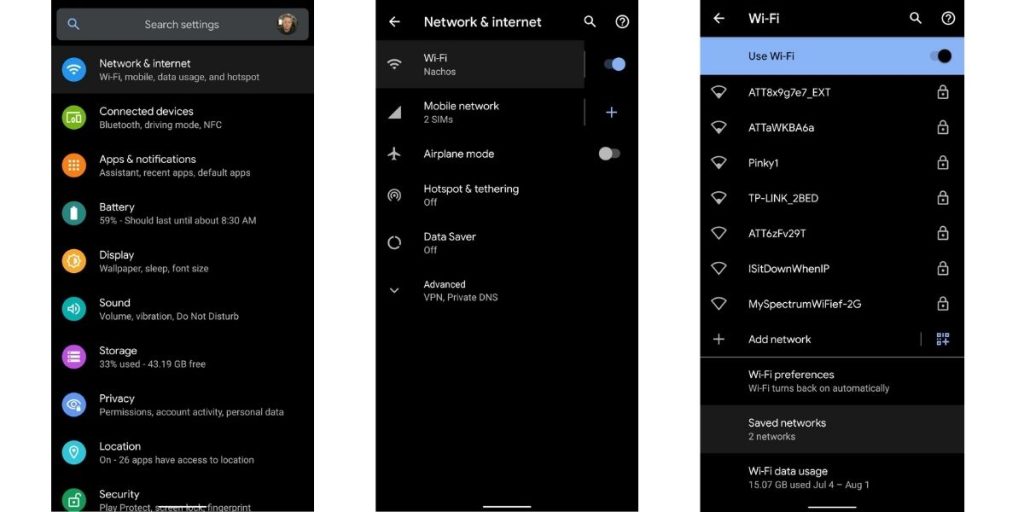
Start by pulling down the notification shade and long-pressing the WiFi icon. This takes you directly to the WiFi settings page. Alternatively, go to Settings > Network & internet > Internet, then tap the gear icon next to your connected network. The exact path varies slightly by manufacturer, but the goal is to get to the list of saved networks.
Step 2: Tap on the Network Name
You’ll see a list of available and saved networks. Find the name (SSID) of the network whose password you want to recover. Tap on it to open its details page. On stock Android, you’ll see a small gear icon or an ‘i’ icon next to the network—tap that. If you’re using a Samsung or other skin, you may need to tap the network name itself.
Step 3: Use the QR Code or Share Button
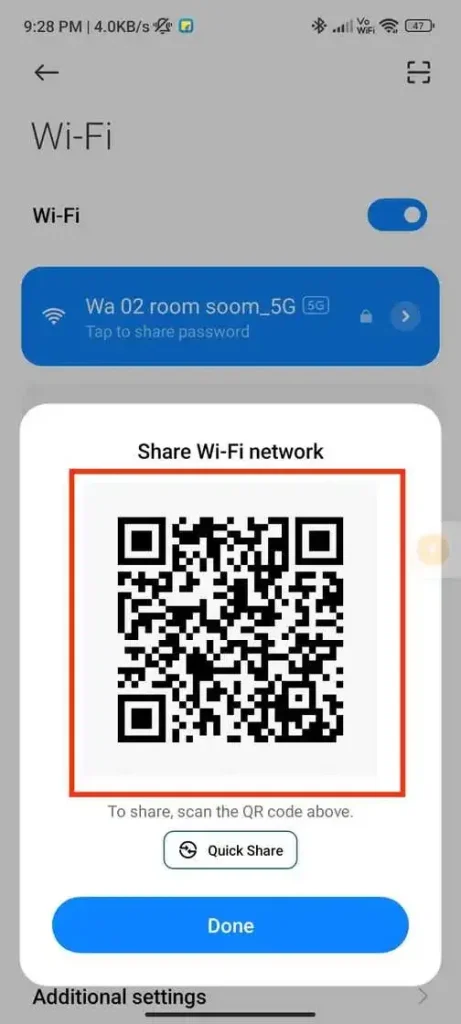
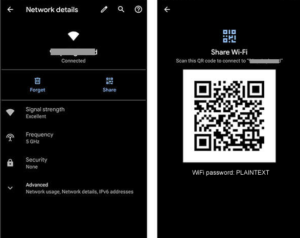
On the network details page, look for a button that says ‘Share’ or shows a QR code icon. On Android 10 and later, tapping this button will display a QR code. You can scan that QR with another phone’s camera to instantly connect—no typing needed. But to actually see the password in plain text, look for an option like ‘Show password’ or ‘Copy password’ below the QR code. On some phones, tapping the QR code itself reveals the password. That’s it!
Step 4 (Fallback): For Android 9 and Older
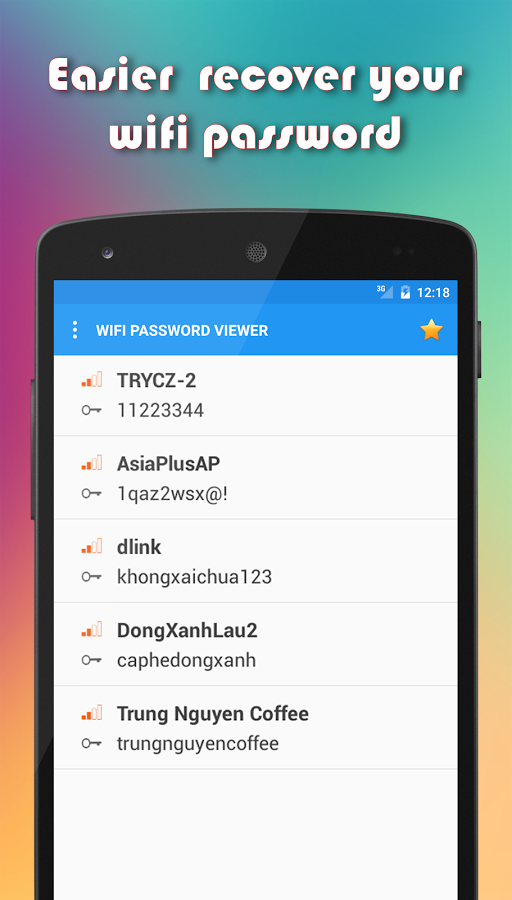
If your device runs Android 9 or earlier and lacks the QR share feature, don’t worry—you can still recover the password for free. You’ll need to view the wpa_supplicant.conf file. This file stores all saved WiFi credentials. To access it without root, you can use Android’s built-in file manager or connect the phone to a computer with ADB. However, this method is more technical, so we recommend using the Android QR share method if available, or check out our detailed guide on how to recover a WiFi password from a saved network.
Common Pitfalls
- The ‘Share’ button doesn’t appear — Some manufacturer skins hide the share feature. Try long-pressing the network name in the saved networks list, or check if your phone has a dedicated ‘QR Code’ option in settings. If still missing, consider using a third-party app like WiFi Key Recovery (requires root), but for a non-root solution, you may need to use the wpa_supplicant.conf method.
- QR code won’t scan — Make sure the screen brightness is maxed and the QR code is clean. If using a second phone, try a dedicated QR scanner app instead of the default camera. Also ensure the QR code is properly aligned.
- Password shows asterisks instead of text — This happens on some Android versions. Look for a small eye icon or toggle that reveals the password. If not present, tap the QR code again; sometimes it cycles between the QR and the text password.
Where to Next?
Now that you’ve got your WiFi password back, consider backing up your WiFi passwords before resetting your device so you never lose them again. You can also use the same QR code method to share access with friends without revealing the password. For more handy tricks, check out our guides on how to view saved WiFi passwords on Android and WiFi password recovery without losing data.



