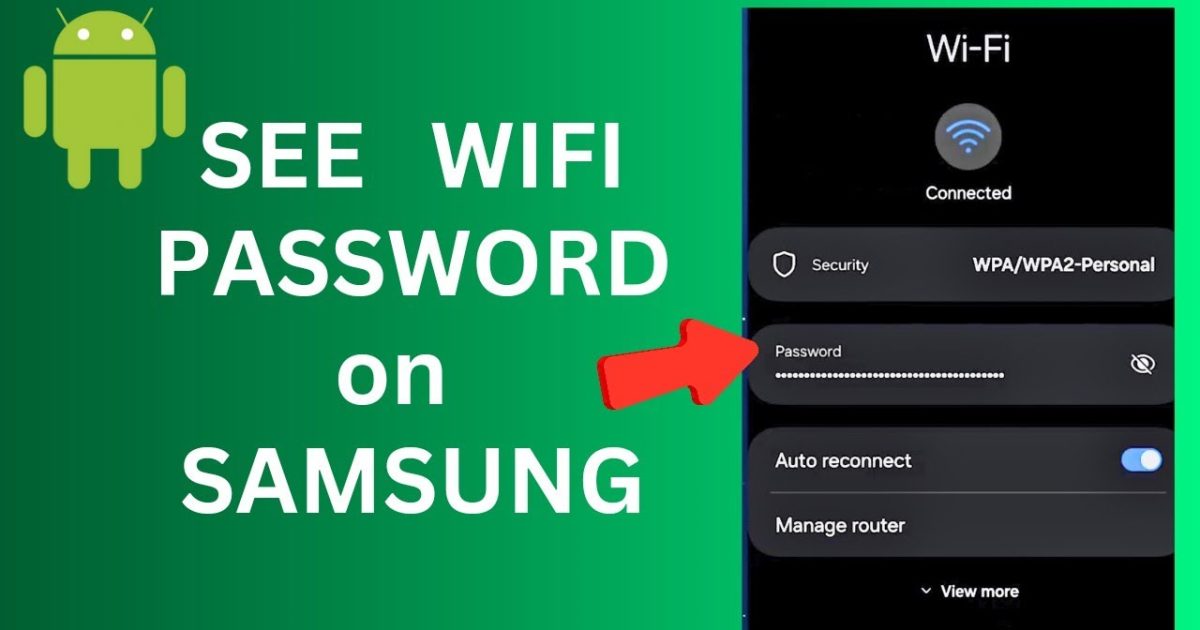
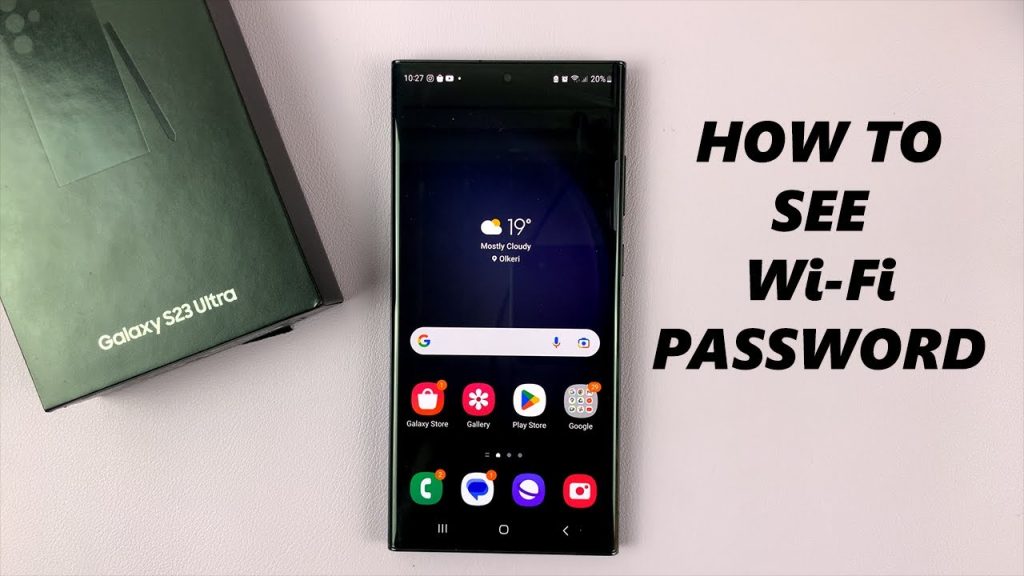
Ever needed to connect a new device to your WiFi but couldn’t remember the password? If you have a Samsung Galaxy phone that’s already connected, you’re in luck. This guide walks you through recovering that password using nothing but your phone’s built-in settings — no rooting, no third-party apps, no hassle. By the end, you’ll have the password handy (or a QR code) to share with any device you own.
Whether you’re a current Samsung user or helping a friend, these steps work on most Galaxy models running One UI 3.0 and above (Android 11+). We’ll cover the QR code method (easiest), the settings method (to see the actual password), and a handy backup trick using your Samsung account. Let’s dive in.
What You’ll Need
- A Samsung Galaxy phone (any model running Android 11 or newer)
- The phone must already be connected to the WiFi network you want to recover
- Access to the phone’s lock screen (PIN, pattern, or biometrics)
- Optional: Another smartphone to scan a QR code, or pen and paper to write down the password
Step 1: Open WiFi Settings
Unlock your Galaxy phone and head to Settings > Connections > WiFi. You’ll see a list of available networks. The one you’re currently connected to will say “Connected” underneath. Tap on the gear icon next to that network.
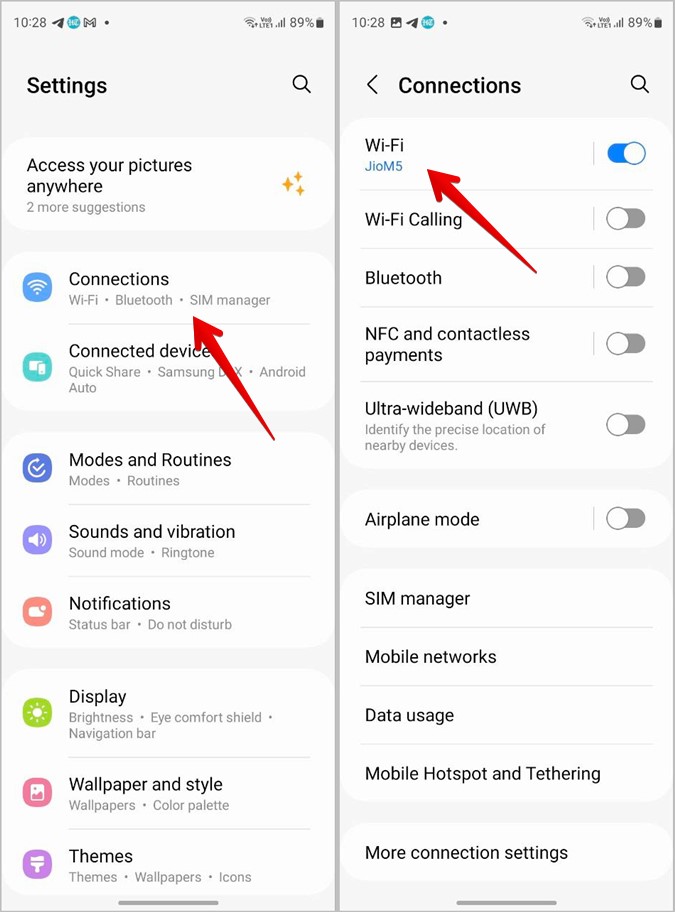
If you can’t find the gear icon, long-press the network name instead. Either way, you’ll land on the network details page.
Step 2: Tap the QR Code Icon
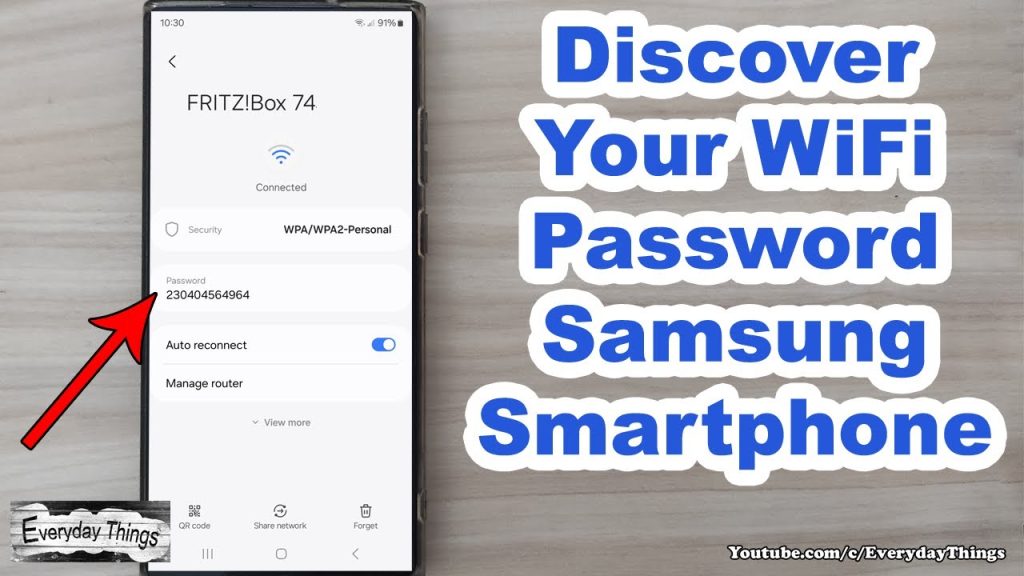
On the network details page, look near the bottom for a QR code icon (it looks like a square made of smaller squares). Tap it. Your phone will generate a QR code that contains the WiFi password. To view the actual password text, tap the “Show password” switch below the QR code. You’ll be prompted to enter your phone’s PIN or biometrics — do that.
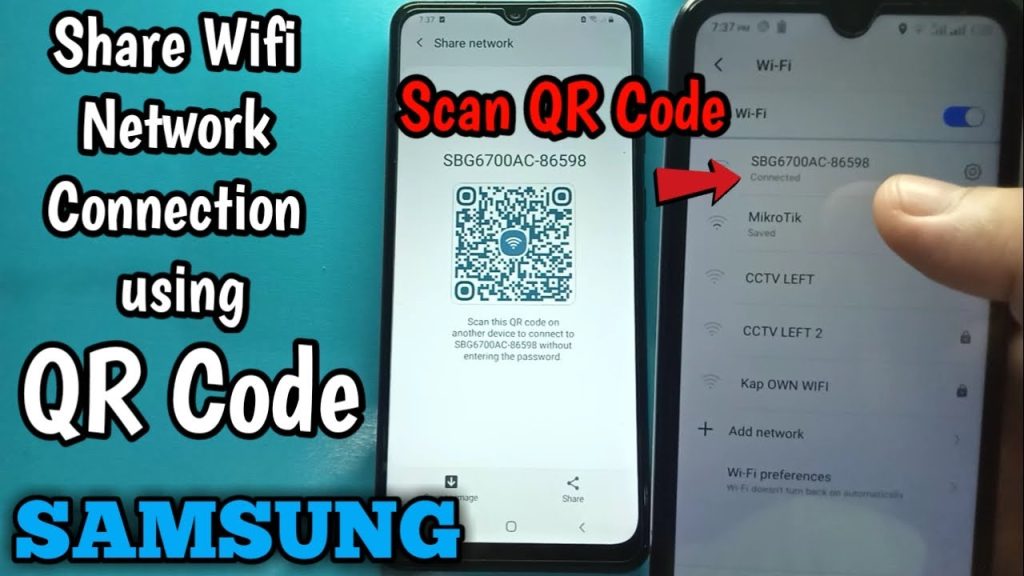
Now you can either copy the password (tap the copy icon) or let someone scan the QR code with their phone’s camera to connect instantly.
Step 3: Scan the QR Code on Another Device
If you’re helping a friend, have them open their phone’s camera app and point it at your screen’s QR code. On most Android phones (including other Galaxy models), a notification will pop up saying “Tap to connect to this WiFi network.” They tap it, and they’re in — no password typing needed. This is the fastest way to share access and a key part of wifi password recovery with android qr share.
Step 4: View the Password Directly (Alternative Method)
If you prefer to see the actual password rather than use a QR code, go back to the network details page (Step 1). Tap the QR code icon, then toggle on “Show password.” After entering your screen lock, the password appears in plain text. Write it down or screenshot it (make sure to hide the screenshot afterward for security). This method works exactly like the view saved wifi password android feature on other Android phones.
Step 5: Recover via Samsung Cloud (If You Sync Settings)
If you’ve enabled Samsung Cloud backup for WiFi networks, you can recover saved passwords on a new Galaxy phone without needing the old one. Go to Settings > Accounts and Backup > Samsung Cloud > Restore data. Select WiFi networks and any other data you want to restore. This is a great option for wifi password recovery without losing data when switching phones.
Common Pitfalls
- Phone not connected: You can only recover the password of a network your phone is currently connected to (or has saved). If you’re not connected, try the free wifi password recovery for android method using a friend’s phone.
- QR code not generating: On some older Galaxy models, the QR code option may be missing. Update your phone to the latest One UI version, or use a third-party app like WiFi Key Recovery (no root needed).
- Forgot lock screen PIN: You need your phone’s lock screen credentials to view the password. If you’ve forgotten them, you’ll have to rely on other methods like how to recover wifi password from saved network using a computer or router admin panel.
Where to Next
Now that you’ve recovered your WiFi password, why stop there? Check out our guide on recover wifi password on android phone if you have a non-Samsung device. Or learn how to back up all your network settings for future recovery. If you ever lose access, remember the QR code method is your best friend — it works on any modern Android phone and even some smart TVs. Happy surfing!





